Extra information
System documentation: https://system.netsuite.com/help/helpcenter/en_US/APIs/REST_API_Browser/record/v1/2021.2/index.htmlConnector package documentation
Table of Contents
- 1. Setting up HTTP Client Oracle NetSuite
- 1.1 Steps
- 2. Subscribing to entities from Oracle NetSuite
- 2.1 Steps
- 2.2 General concept
- 3. Publishing entity to Oracle NetSuite
- 3.1 Steps
- 3.2 General concept
1. Setting up HTTP Client Oracle NetSuite
1.1 Steps- Follow the instructions on the https://docs.oracle.com/en/cloud/saas/netsuite/ns-online-help/section_157771733782.html page to get the REST API credentials.
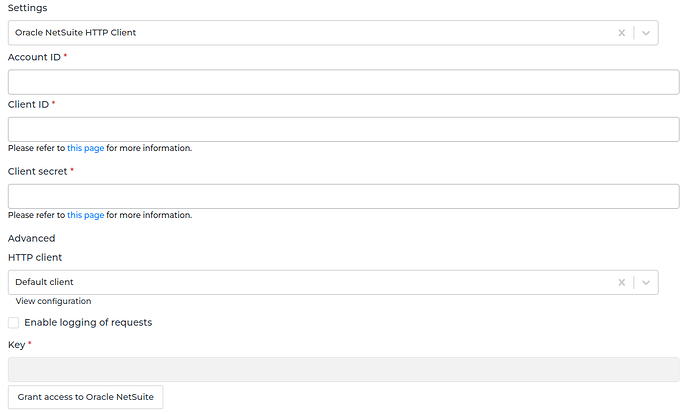
- In the Alumio Dashboard, go to Clients -> HTTP Clients. Create a new HTTP Client and select Oracle NetSuite HTTP Client as the prototype of the HTTP Client.
- Fill in these fields:
- Account ID: you can find it in the URL of your Oracle NetSuite dashboard. For example, the URL to your Oracle NetSuite dashboard is https://1234567.app.netsuite.com/. So,
your Account ID is 1234567. - Client ID
- Client Secret
- HTTP Client (optional, default: Default client)
- Enable logging of requests (optional, set the formatter if you choose to enable logging)
- Account ID: you can find it in the URL of your Oracle NetSuite dashboard. For example, the URL to your Oracle NetSuite dashboard is https://1234567.app.netsuite.com/. So,
- You can optionally set a base HTTP client to use for the connection by selecting an HTTP client configuration or setting your own HTTP client in the Advanced HTTP client field.
- Click “Grant Access to the Oracle NetSuite” button to let Alumio get the token to access Oracle NetSuite REST web services.
- You’ll be able to save the configuration after Alumio successfully gets the token and the Key field is filled
2. Subscribing to Entities from Oracle NetSuite
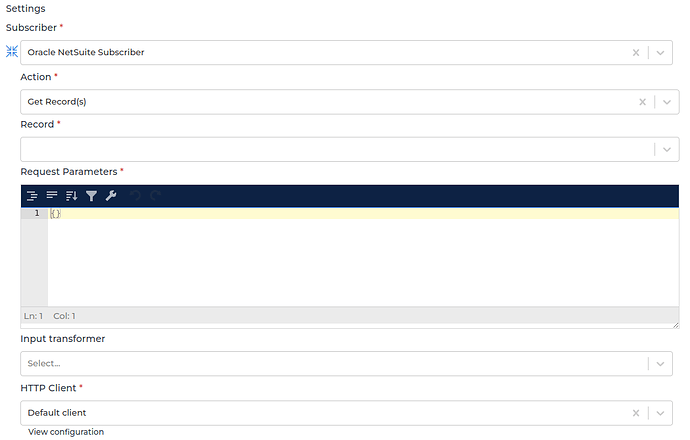
2.1 Steps- Go to Connections -> Incoming and create a new incoming configuration and select the Oracle NetSuite Subscriber as the subscriber.
- Select the Get Record(s) action and select the record you want to subscribe to. Or, you can select SuiteQL Query action and write your own query.
- Add any request parameters needed to subscribe to the entity (the path and query parameters should always be present, you can leave them as empty objects if needed).
- You can optionally add a transformer to manipulate the request parameters into something you need.
- Select the Oracle NetSuite HTTP Client to use.
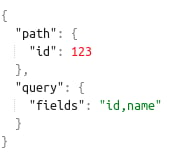
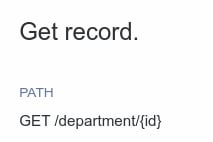
- “Path” is the path parameter of the URL. For example the {id}.
- “Query” is defined set of parameters attached to the end of a URL.
Example: www.url.com?type=true&start=0
3. Publishing Entity to Oracle NetSuite
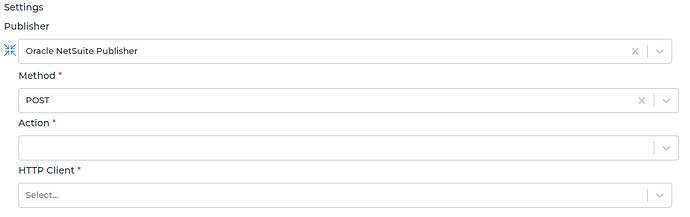
3.1 Steps- Go to Connections -> Outgoing, create a new outgoing configuration and select Oracle NetSuite Publisher as the publisher.
- Select the method and action you want the publisher to do with the data.
- Select the HTTP Client to use.
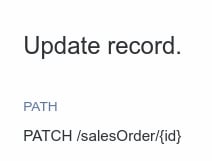
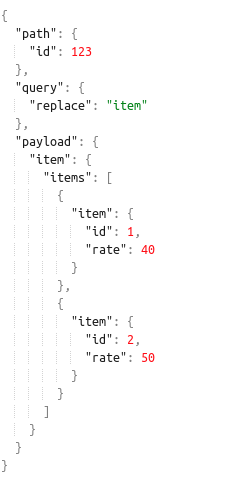
- “Path” is the path parameter of the URL. For example the {id}.
- “Query” is a defined set of parameters attached to the end of a URL.
Example: www.url.com?type=true&start=0 - “Payload” is the data contained within a request.