Extra Information

System documentation: Shopify API Reference
  • 1. Retrieving Shopify Credentials
    • 1.1 Steps
  • 2. Connector Package Documentation
    • 2.1 Setting up Shopify HTTP Client
    • 2.2 Subscribing to entities from Shopify
    • 2.3 Publishing entities to Shopify
    • 2.4 Using Query in Alumio

1. Retrieving Shopify Credentials

1.1 Steps
  1. Go to Shopify Admin.
  2. Navigate to: Settings → Apps and sales channels → Develop apps.
  3. Enable Allow custom app development.
  4. Click Create app.
  5. Go to API credentials.
  6. Configure Admin API scopes (select the entities you want to access).
  7. Save → Install app.
  8. Copy the Admin API access token.
You will need this token when configuring the HTTP Client in Alumio.

2. Connector Package Documentation

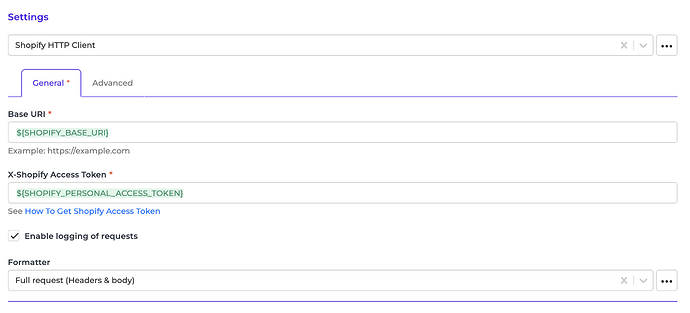
2.1. Setting up Shopify HTTP Client Before using the Shopify connector, you must create a Shopify App and generate an Admin API access token.
  1. In Shopify Admin, create a Custom App: Apps → Develop apps → Create app.
  2. After the app is created:
    • Go to API credentials
    • Configure Admin API scopes
    • Save and Install app
    • Copy the Admin API access token.
  3. In Alumio Dashboard:
    • Go to Clients → HTTP Clients
    • Create a new HTTP Client
    • Select Shopify Client as the prototype.
  4. Fill in:
    • Base URI (e.g. https://{store-name}.myshopify.com)
    • X-Shopify-Access-Token (from Shopify),
  5. (Optional) Enable request logging for debugging,
  6. Save the HTTP Client.
Shopify connector screenshot 1 2.2 Subscribing to entities from Shopify
  1. Go to Connections → Incoming.
  2. Create a new Incoming configuration.
  3. Select Shopify Subscriber (v/2026-01).
  4. Choose the entity you want to subscribe to,
  5. (Optional) Add Request Parameters.
  6. (Optional) Add an Input Transformer.
  7. Select the Shopify HTTP Client.
  8. (Optional) Enable pagination if the endpoint supports it.
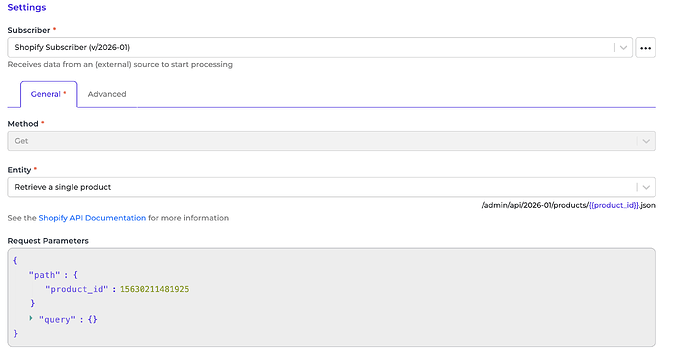
Shopify connector screenshot 2 General Concept The Shopify Subscriber follows the official Shopify REST Admin API. This allows you to map Alumio entities directly to Shopify endpoints. Entity The entity represents the Shopify endpoint you want to retrieve data from. Refer to the Management APIs section in the Shopify API documentation. Request Parameters Request Parameters define how the request URL is constructed. There are two main types: Path parameters Used for dynamic parts of the URL. Example endpoint:
/admin/api/2026-01/products/{id}.json

In Alumio, you must provide:
{
  "path": {
    "id": 15630211481925
  }
}

Final URL:
/admin/api/2026-01/products/15630211481925.json


Query parameters Used for filters and search options. Example URL:
/customers/search.json?query=Bob+country:United+State

In Alumio:
{
  "query": {
    "query": "Bob country:United State"
  }
}

Input Transformer Any transformer added here runs before Request Parameters are applied. Typical use cases:
  • Generating IDs dynamically
  • Mapping fields from previous routes
  • Normalizing incoming data.
HTTP Client This defines how Alumio authenticates and communicates with Shopify. Always select the Shopify HTTP Client created earlier.

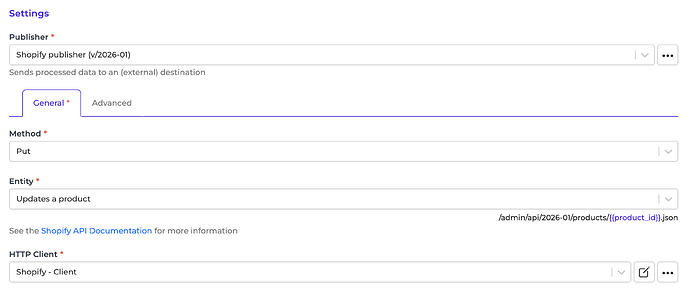
2.3. Publishing Entities to Shopify

  1. Go to Connections → Outgoing.
  2. Create a new Outgoing configuration.
  3. Select Shopify Publisher (v/2026-01).
  4. Choose an Action.
  5. Select the Entity.
  6. (Optional) Add query parameters.
  7. (Optional) Add transformers.
  8. Select the Shopify HTTP Client.
Shopify connector screenshot 3 General Concept The Publisher sends data from Alumio to Shopify. Supported Actions
  • Create → HTTP POST
  • Update → HTTP PUT
  • Delete → HTTP DELETE
Entity & Payload Handling Some Shopify endpoints require path parameters and payload data. Example: Update a Product Endpoint:
PUT /admin/api/2026-01/products/{product_id}.json

In Alumio data:
{
  "path": {
    "product_id": 15630211481925
  },
  "payload": {
    "product": {
      "title": "Updated Product Name"
    }
  }
}


Example: Create Discount Code Endpoint:
POST /admin/api/2026-01/price_rules/{price_rule_id}/discount_codes.json

Alumio data:
{
  "path": {
    "price_rule_id": 123456789
  },
  "payload": {
    "discount_code": {
      "code": "SUMMER2026"
    }
  }
}

Data Structure Summary
  • path → URL parameters (e.g. {id})
  • query → URL query string parameters
  • payload → Request body data

2.4. Query in Alumio

In Alumio, queries are defined as JSON objects. Example: Search Customers Shopify endpoint:
/admin/api/2026-01/customers/search.json?query=Bob+country:United+State

Alumio query configuration:
{
  "query": {
    "query": "Bob country:United State"
  }
}

This query is appended automatically to the request URL.