Extra information
Connector package documentation: System documentation: Zoho CRM API ReferenceSetting up HTTP Client Zoho CRM
Steps- In Alumio Dashboard, go to Clients > HTTPS Client. Create a new HTTP Client and select Zoho CRM HTTP Client as the prototype of the HTTP Client.
- Fill in the Base URI field according to your Zoho CRM account.
- Check for the Access Token URL and Authorize URL if they are in the right region for your Zoho CRM Account.
- Fill in the Client ID and Client Secret field based on your credentials.
- Fill in the Scopes field.
- You can optionally enable logging of requests.
- Then, click on “Grant Access to Zoho CRM” and approve the request on page opening.
- The Key will show up and you can save the Client for use.
Subscribing to Entities from Zoho CRM
Steps- Go to Connections -> Incoming and create a new incoming configuration and select Zoho CRM Subscriber as the subscriber.
- Select the entity you want to subscribe to from Zoho CRM.
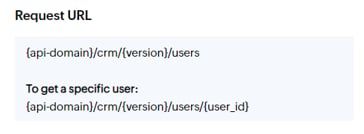
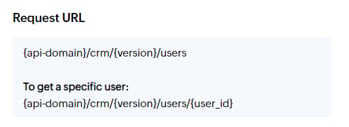
- The request parameters must have at least two parameters. Path and Query. The Path is used when you need to put parameters into a URL such as ID. And the Query is used when you need to add a request query when submitting a request, like filtering.
- You can optionally add a transformer to transform the request parameters into something you need.
- Select the Zoho CRM HTTP Client to use
Publishing Entity to Zoho CRM
Steps- Go to Connections -> Outgoing, create a new outgoing configuration and select Zoho CRM Publisher as the publisher.
- Select the action that you want the publisher to do with the data. Alumio support Create (HTTP POST METHOD), Put, Patch and Delete
- Select the Zoho CRM entity you want the data to be published to.
- Please note that the data format before sending must in this format:
- Select the HTTP Client to use.