Extra information
System documentation:Connector package documentation
Table of Contents
1. Setting up HTTP Client Xero 1.1 Steps 2. Subscribing to entities from Xero 2.1 Steps 2.2 General concept 3. Publishing entity to Xero 3.1 Steps 3.2 General concept1. Setting up HTTP Client Xero
1.1 Steps- In the Alumio Dashboard, go to Clients → HTTP Clients. Create a new HTTP Client.
- Select Xero HTTP Client as PlatForm and click the next step.
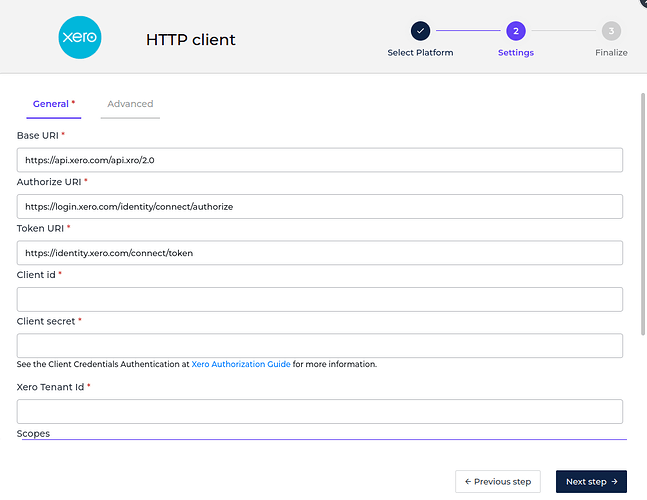
- Fill in the Base URI with
https://api.xero.com/api.xro/2.0. - Fill in the Authorize URI with
https://login.xero.com/identity/connect/authorize. - Fill in the Token URI with
https://identity.xero.com/connect/token - Create your custom application (For more information, see Xero App Launcher.
- Fill in the Client ID and Client Secret generated by your custom application.
- Fill in the Tenant ID (For more information, see Xero Tenants.
- Fill in the scopes (For more information, see Xero Scopes.
- You can optionally enable the logging of requests to get the authentication log.
- Click the “Grant access to Xero” button to get the key.
- Click the next step, fill in the name of the HTTP Client and finally you can save the HTTP Client to use
2. Subscribing to Entities from Xero
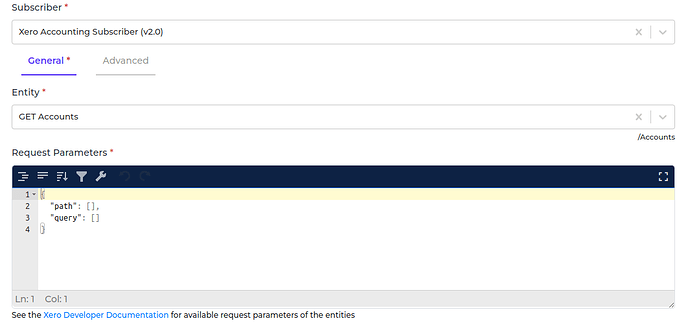
2.1 Steps- Go to Connections → Incoming → create a new incoming configuration and select “Xero Accounting Subscriber (v2.0)” as the subscriber.
- Select the entity you want to subscribe to from Xero.
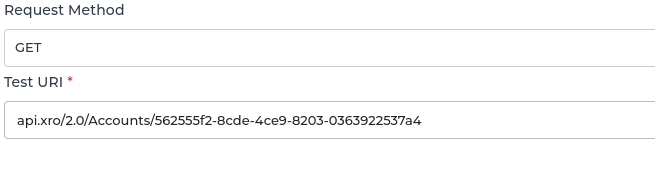
- Add any request parameters needed to subscribe to the entity.
- Select the Xero HTTP Client to use.
- You can optionally add a transformer to transform the request parameters into something you will request from Xero.
- You can also optionally enable pagination to allow Alumio to fetch paginated entities.
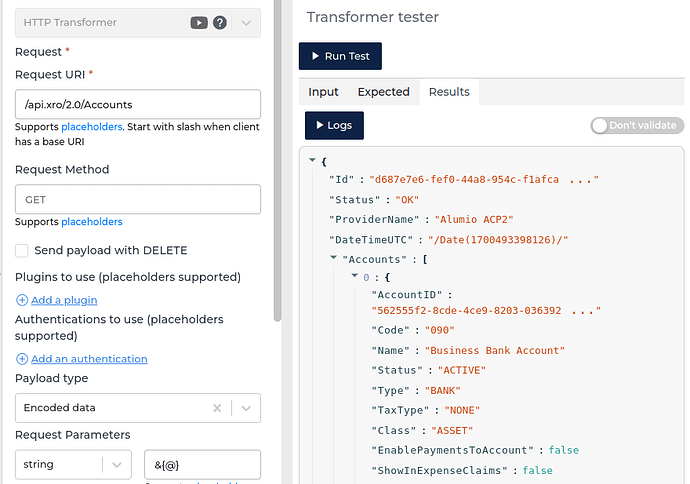
/Accounts/{AccountID}
3. Publishing Entity to Xero
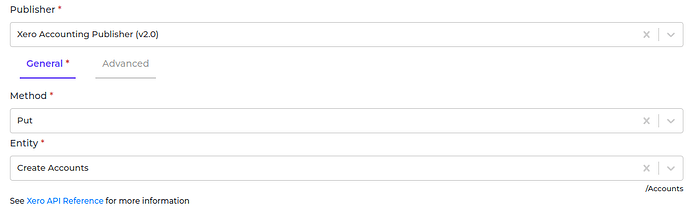
3.1 Steps- Go to Connections → Outgoing, create a new outgoing configuration and select “Xero Accounting Publisher (v2.0)” as the publisher.
- Select the Method that you want the publisher to perform with the data.
- Select the Xero entity you want the data to be published.
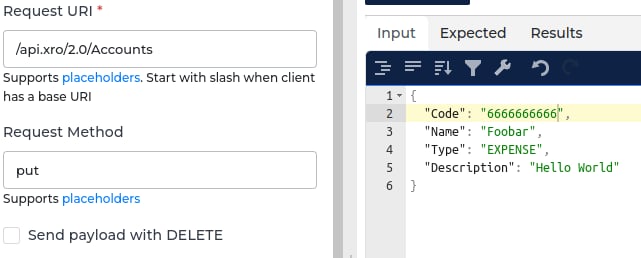
- You can optionally add any query data to the request on the key query.
- You can optionally add any payload data to the request on the key payload.
- Select the HTTP Client to use.
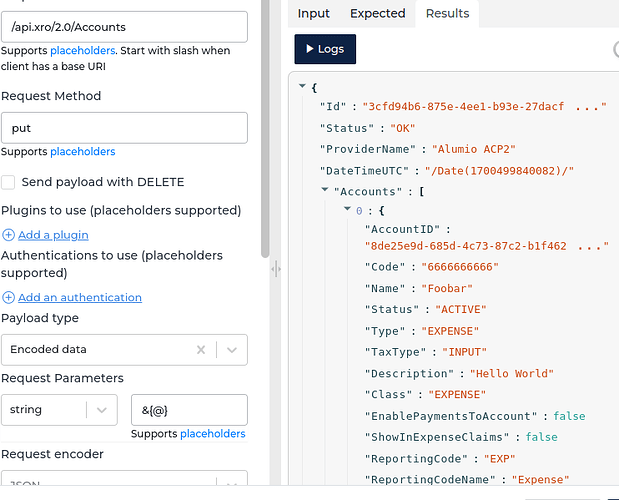
/Accounts
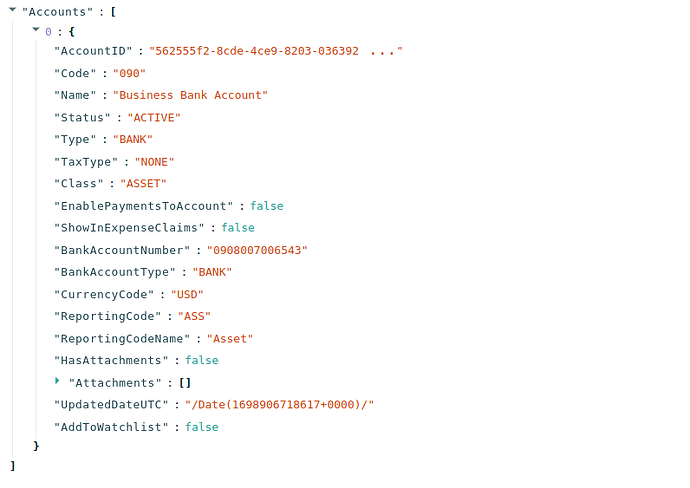
The response example: