Extra information

System documentation: Channable API Reference

Connector package documentation

Table of Contents

  • 1. Setting up HTTP Client Channable
    • 1.1 Steps
  • 2. Subscribing to entities from Channable
    • 2.1 Steps
    • 2.2 General concept
  • 3. Publishing entity to Channable
    • 3.1 Steps
    • 3.2 General concept

1. Setting up HTTP Client Channable

1.1 Steps
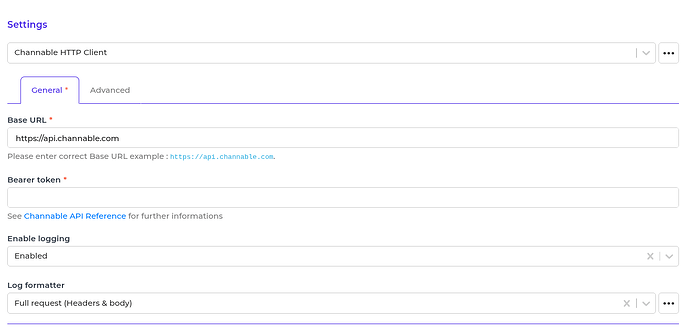
  1. In the Alumio Dashboard, go to Clients -> HTTP Clients. Create a new HTTP Client and select the Channable Client as the HTTP Client.
  2. Fill in the Base URI, and Bearer Token according to your Channable account. For more information, see Channable Getting Started
  3. You can optionally enable logging to get the log of the request.
  4. Save the HTTP Client for use.
Channable connector screenshot 1

2. Subscribing to Entities from Channable

2.1 Steps
  1. Go to Connections -> Incoming and create a new incoming configuration and select Channable Subscriber as the subscriber.
  2. Select the Channable HTTP Client to use.
  3. Select the entity you want to subscribe to from Channable.
  4. You can optionally change the logging to be different with the HTTP Client.
  5. Add any request parameters needed to subscribe to the entity. Please refer to an example in the General Concept section.
  6. You can optionally add a transformer to transform the request parameters before making a request to Channable.
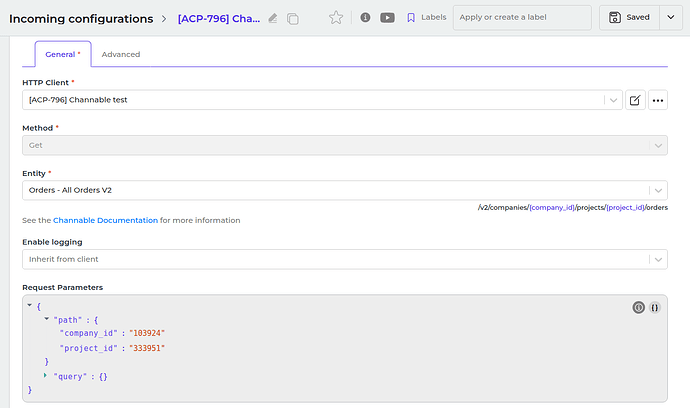
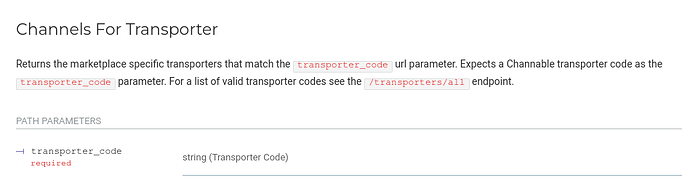
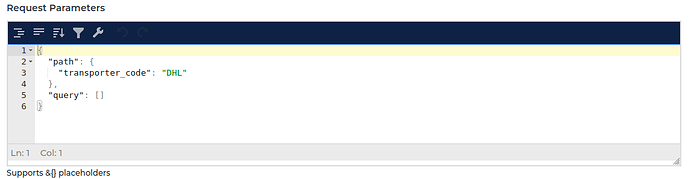
Channable connector screenshot 2 2.2 General Concept We follow Channable documentation for building this connector, which means you can easily use the connector based on the Channable API Reference. Entity The entity you want to subscribe to Channable. Please refer to the entities from th Channable API Reference page. Request Parameters These are the parameters you can provide to get the needed entity based on the Channable API Reference. Please look at the example below on how to fill the Request Parameters field when subscribing to the Channels For Transporter entity. We can see in the documentation that there are some parameter values in the path URL such as transporter_code. Channable connector screenshot 3 We set the Request Parameter as an example below: Channable connector screenshot 4
  • “Path” is the path parameter of the url. For example the {id}.
  • “Query” is a defined set of parameters attached to the end of a url.
    Example: www.url.com?type=true&start=0
Alumio will then send it to Channable as /v1/transporters/transporter/DHL Input Transformer Any transformers that are set here will be executed before the Request Parameters are loaded. So, you can add any transformer to provide and manipulate the request parameters into anything you need, either as path parameters and/or as the query parameters of an entity. HTTP Client The HTTP Client configuration you will use to access Channable.

3. Publishing Entity to Channable

3.1 Steps
  1. Go to Connections -> Outgoing, create a new outgoing configuration and select the Channable Publisher as the publisher.
  2. Select the HTTP Client to use.
  3. Select the Channable entity you want the data to be published to.
  4. You can optionally change the logging to be different with the HTTP Client.
  5. You can optionally add any path data to the request on the key path or change them in the Advanced Tab.
  6. You can optionally add any query data to the request on the key query or change them in the Advanced Tab.
  7. You can optionally add any payload data to the request on the key payload or change them in the Advanced Tab.
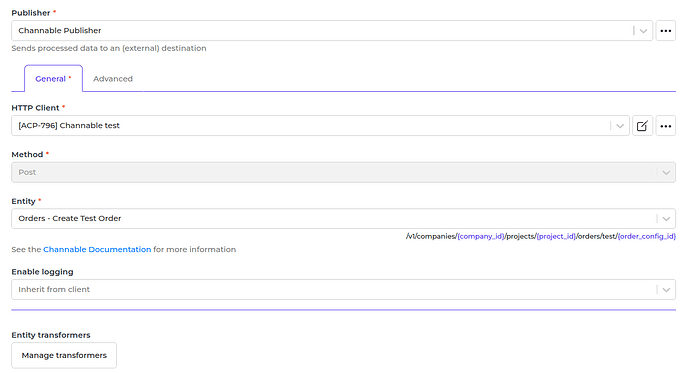
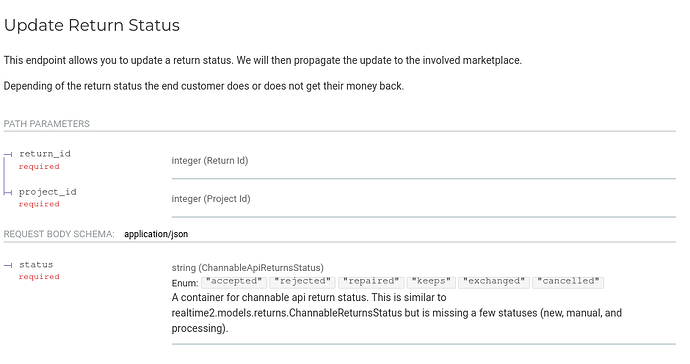
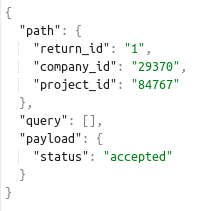
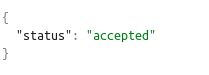
Channable connector screenshot 5 3.2 General Concept Like the subscriber, the publisher has similar methods on how to use it. The difference is the payload that will be submitted by the publisher originating from the data (from routes, from transformers in outgoing configuration), though you can also add or modify payload using the Request Transformer. Method Currently we support POST method on submitting data to Channable. Entity We support publishing to most Channable endpoints. Please refer to Channable API Reference page. Based on the documentation, some endpoints may need one or more path parameters. For example, we want to update return status. Please select “POST” as the method and “Update Return Status” as the entity of the publisher. Channable connector screenshot 6 The documentation says that we need “return_id”, “company_id”, and “project_id” as path parameters. In that case, you need to provide “return_id”, “company_id”, and “project_id” key into the path key in the data, either as an output from Routes or output from Transformers in Outgoing Configuration. And, you can put the payload you want to send to Channable into the payload key in the data. Here is an example of the required data. Channable connector screenshot 7 Alumio will send an API request to Channable with the URL /v1/companies/29370/projects/84767/returns/1/status and the body will be like this. Channable connector screenshot 8
  • Path is the path parameter of the url. For example the {id}.
  • Query is a defined set of parameters attached to the end of a url.
    Example: www.url.com?type=true&start=0
  • Payload is the data contained within a request.
HTTP Client The HTTP Client configuration you will use to access Channable.