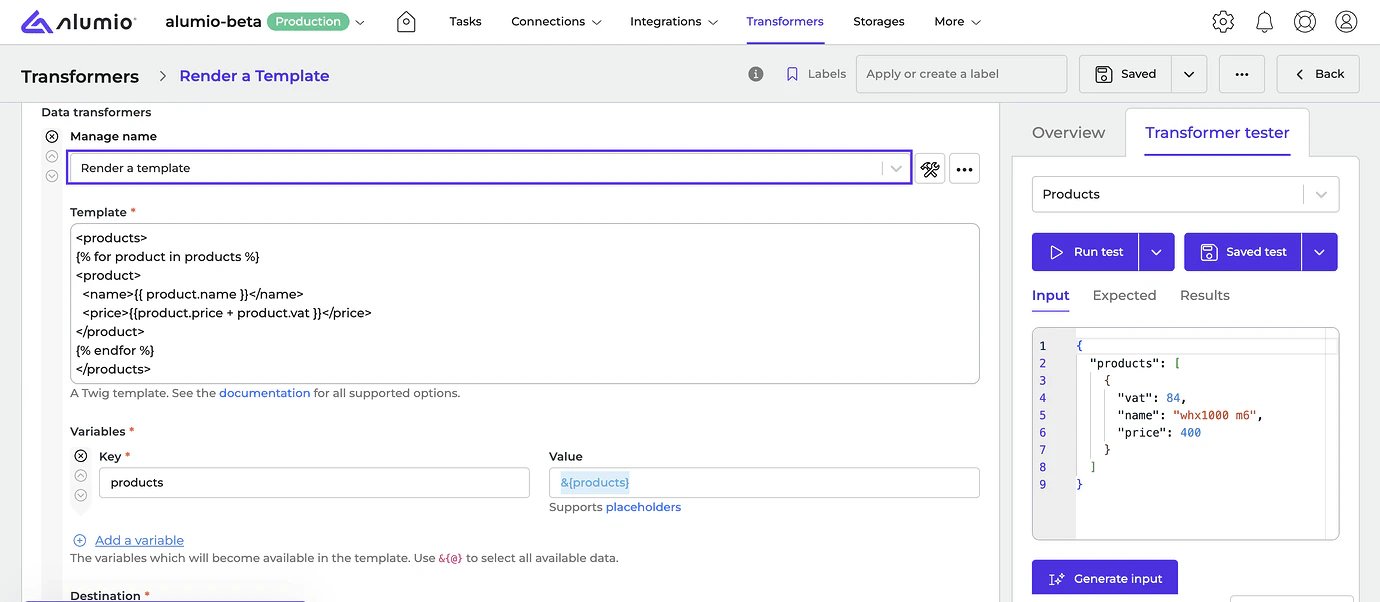
- [NEW] Introducing the “Render a Template” Transformer: a new tool in Alumio that simplifies code generation by supporting templatization languages. It enables users to efficiently fill in blanks and transform data with predefined formats directly in the editor.
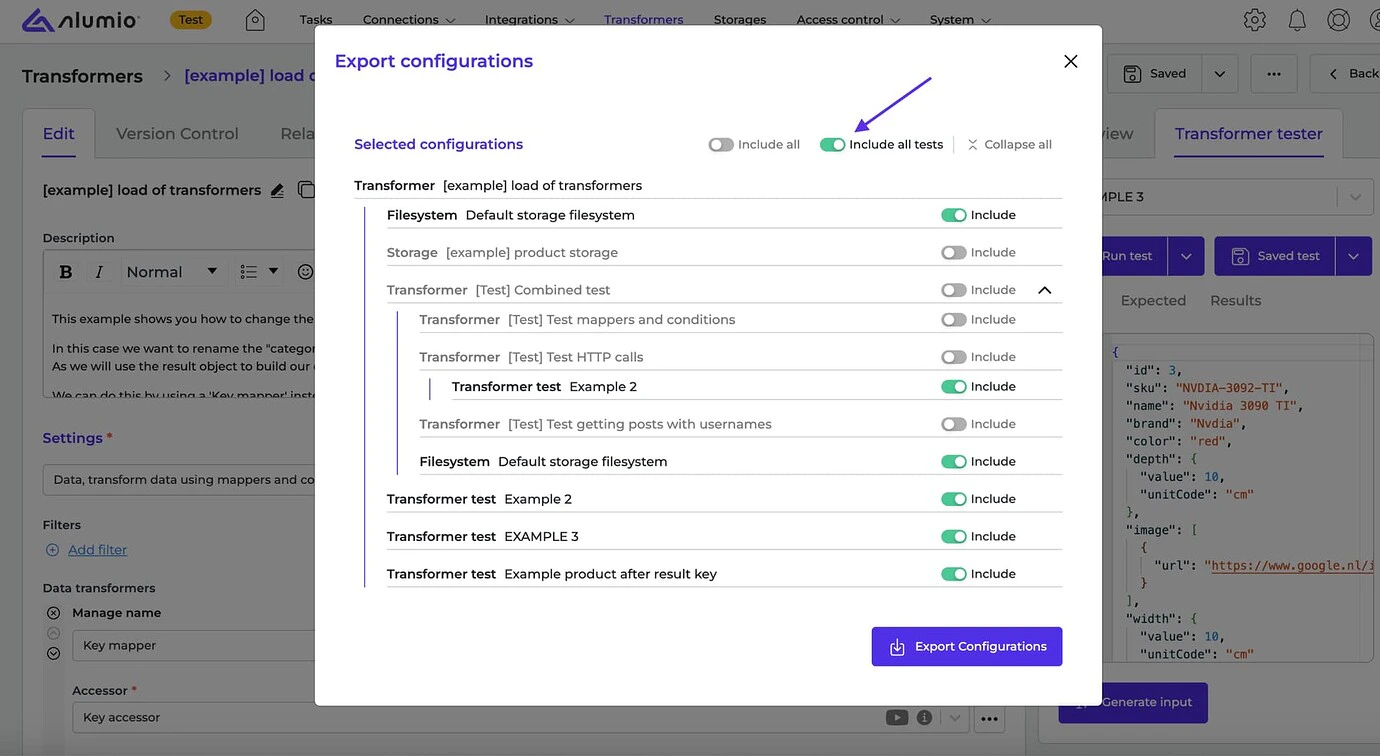
- [NEW] We’ve re-added a toggle to the Export configuration option to include and exclude tests and allow every child to be enabled individually.
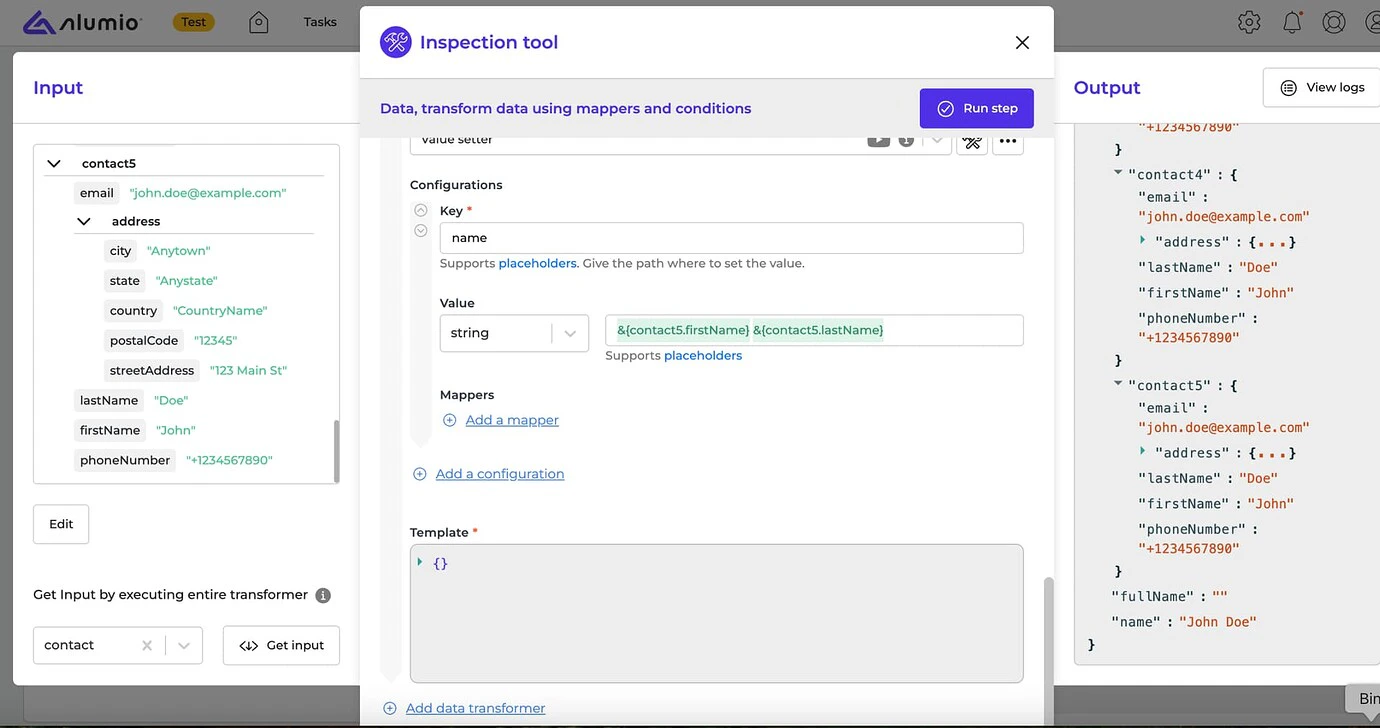
- [NEW] We’ve implemented a Drag & Drop functionality in our Inspection Tool with an editable JSON view and dynamic highlighting of placeholder-supported fields.
- [NEW] We fixed an issue which prevented deleting a Transformer due to an out-of-memory error.
- Release candidate 3.89.0-RC1: will be installed in week 24 (sandbox environments)
- Stable release 3.89.0: will be installed in week 26 (production environments)
With the “Latest” update cycle, your environment will always receive the most recent version of Alumio. Updates are first deployed to sandbox environments. Two weeks later, the same version is released to production environments. Every 2 weeks a new version of Alumio is released. 2. Long-Term Support (LTS)
The LTS version is released quarterly and is based on a thoroughly tested Alumio release that is a few versions behind the latest version, providing extra stability and security. However, selecting this option also means you won’t have access to any newly released Alumio features for a period of three months. Sandbox environments (such as UAT) receive the LTS version one month before the start of the new quarter (i.e. June), specifically on the first Monday of that month. The LTS version is deployed to production environments on the first Monday of the new quarter (i.e. July). This provides a full month for testing prior to deploying the new LTS version to production. You can switch your update cycle through the Alumio interface
- Log in to your Alumio environment.
- Navigate to System > Settings.
- Modify the Update Cycle setting and click Apply to save your changes.