Overview
The Webhooks package provides pre-configured examples for building and securing webhook integrations in Alumio. These examples show how Alumio can receive incoming webhook requests from external systems and validate them using different request validation methods before processing the data further. Webhooks allow external systems to send data to Alumio in real time whenever an event occurs, rather than Alumio having to poll for updates. Because webhook endpoints are exposed to receive external requests, securing them with proper validation is essential to ensure that only legitimate requests are processed. This package includes examples for securing webhook requests using signature validation, header existence checks, and header pattern matching. These templates provide a starting point for building secure webhook integrations and can be customized based on your security and validation requirements.General Information
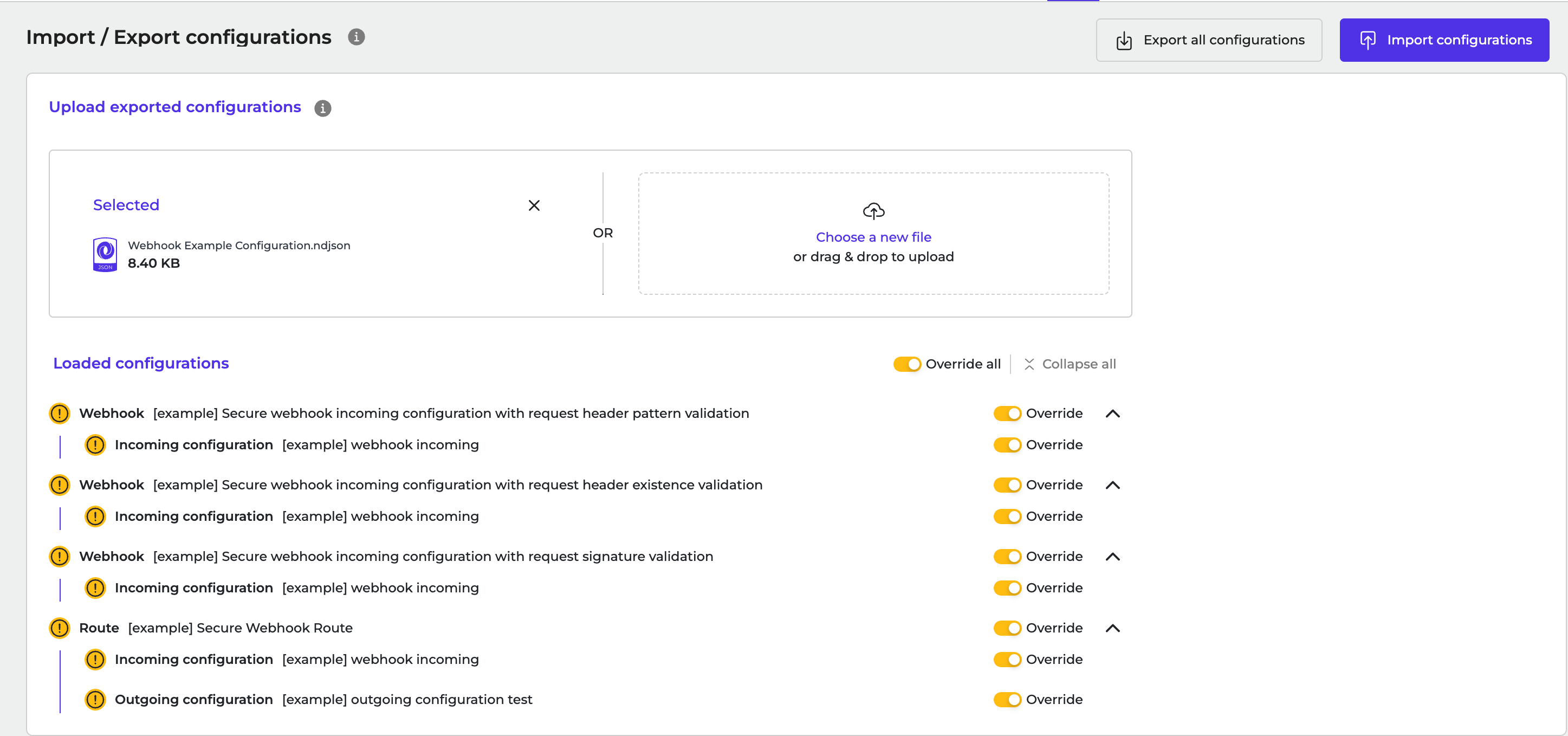
The Webhooks package shows how different Alumio components work together to securely receive and validate incoming webhook requests:- Incoming Configuration –– receives webhook requests sent by external systems.
- Request Validator –– checks incoming requests against defined security rules before allowing them to be processed.
- Transformer –– processes and prepares the validated webhook payload for further use in the integration flow.
Package Contents
The package includes the following example configurations: 1. Secure with Request Validators: SignatureShows how to validate incoming webhook requests using a signature check. The sending system generates a signature based on the request payload and a shared secret, which Alumio then verifies to confirm the request has not been altered and originates from a trusted source. Use cases:
- Verifying that a webhook request has not been tampered with.
- Confirming the request originates from a trusted sender.
- Meeting security requirements for platforms that sign their webhook payloads.
Shows how to validate incoming webhook requests by checking whether a specific required header is present in the request. This example can be used to reject requests that are missing an expected header before further processing occurs. Use cases:
- Ensuring required identification or authentication headers are present.
- Rejecting incomplete or malformed requests early.
- Enforcing a minimum request structure before processing.
Shows how to validate incoming webhook requests by checking whether a specific header value matches a defined pattern. This example can be used to confirm that a header contains an expected format, value, or token before the request is accepted. Use cases:
- Validating header values against expected formats or tokens.
- Restricting requests to specific clients or systems based on header content.
- Adding an extra layer of validation alongside other security checks.
Typical Use Cases
The Webhooks package can be used for various integration scenarios, including:- Receiving real-time event notifications from external systems.
- Securing webhook endpoints against unauthorized or malicious requests.
- Validating request authenticity using signatures.
- Enforcing required headers before processing incoming data.
- Building trusted, event-driven integrations with third-party platforms.
Customization
These configurations are designed as reusable templates. After importing the package, you can customize:- Signature validation settings and shared secrets.
- Required header names and expected values.
- Header pattern matching rules.
- Response handling for requests that fail validation.
- Transformers used to process validated webhook data.
Integration Flow Example
A typical Webhooks integration flow works as follows:- Incoming configuration receives the webhook request from the external system.
- Request Validator checks the request using the configured validation method (signature, header exists, or header pattern).
- Valid requests continue to the Transformer for processing; invalid requests are rejected.
- Route manages the data flow to the target system or storage.
Template Import
Follow these steps to import a template to Alumio:- Log in to your Alumio dashboard.
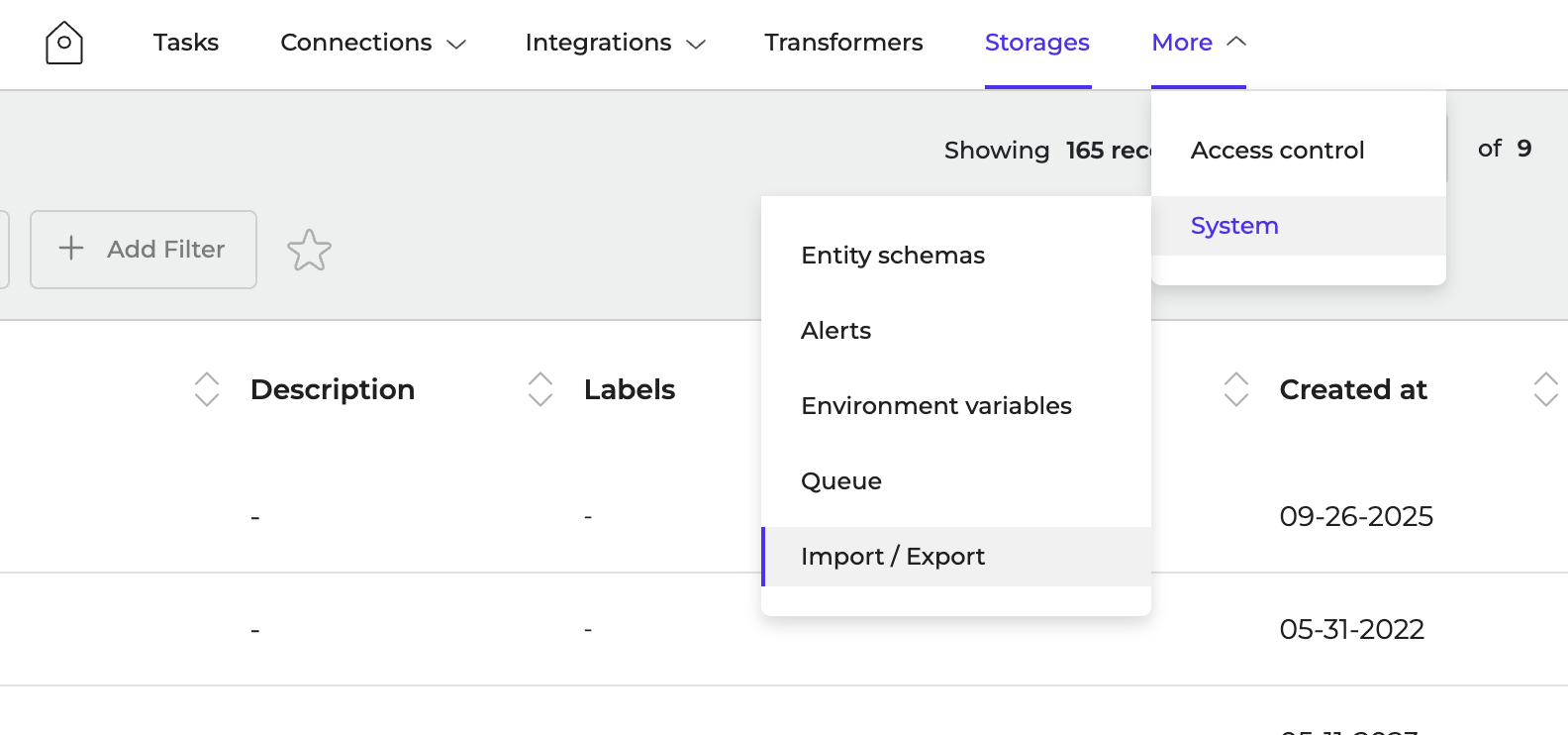
- Navigate to More > System > Import/Export
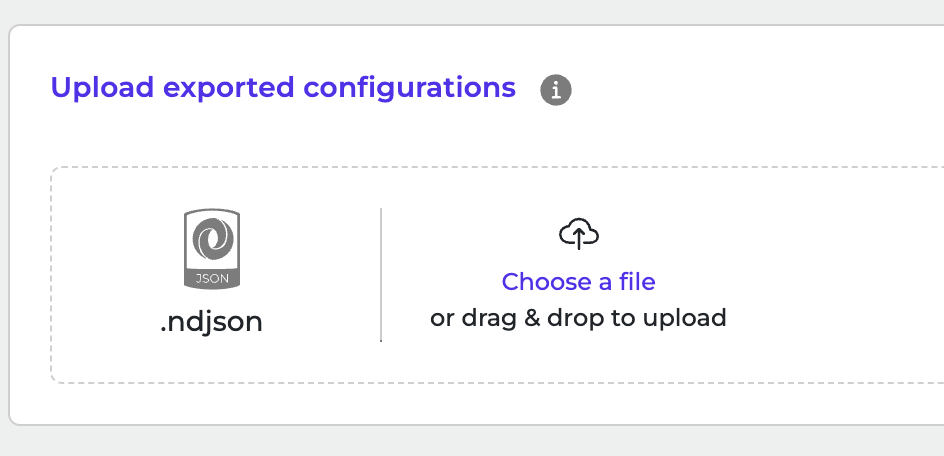
- Click to browse or drag and drop ndjson file to upload it.
- Click Import Configurations to start the import.