Overview
The Filesystem package provides pre-configured examples for building integrations that read from and write to files stored on a local or network filesystem. These examples cover the core components of a complete integration flow, including Incoming configurations, Outgoing configurations, and Transformers. Whether you need to import files, process their contents, export generated files, or automate file-based workflows, these templates offer a practical starting point that you can customize to fit your specific requirements.General Information
The Filesystem package includes examples for the following integration scenarios:- Reading data from a specific file
- Listing and processing multiple files from a directory
- Transforming file contents before further processing
- Writing processed data to a file on the filesystem
- Incoming Configuration –– retrieves files or file contents from the filesystem
- Transformer –– processes, normalizes, or restructures the retrieved data
- Outgoing Configuration –– writes the transformed data to a target file or directory
Package Contents
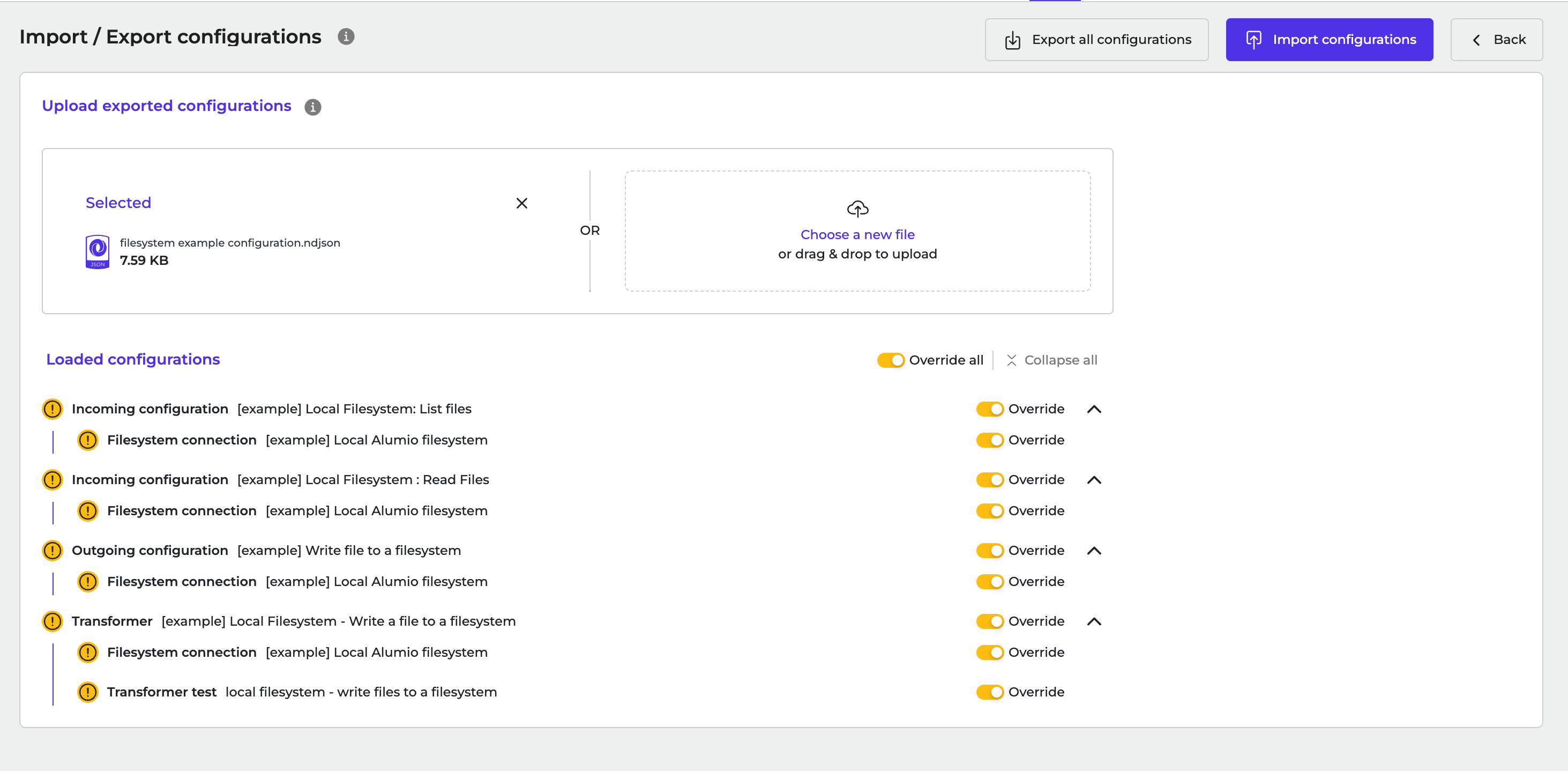
The package includes the following example configurations: 1. Filesystem: File Subscriber IncomingShows how to read data from a specific file using a Filesystem Subscriber. Useful when the file location is known and data needs to be imported directly from a single file. 2. Filesystem: Listing Subscriber Incoming
Shows how to retrieve multiple files from a directory using a Filesystem Listing Subscriber. Commonly used for batch processing, where all files matching specific criteria are imported automatically. 3. Write File to a Filesystem Transformer
Shows how to prepare and transform data before writing it to a file. Demonstrates converting incoming data into the structure or format required by the target file. 4. Write File to a Filesystem Outgoing
Shows how to write processed data to the filesystem. Can be used to export integration results, generate reports, or create files consumed by another system.
Typical Use Cases
The Filesystem package supports a variety of file-based integration scenarios, including:- Importing CSV, JSON, XML, or text files
- Processing files generated by ERP, PIM, or other business systems
- Exporting processed data for external applications
- Automating file exchange between systems
- Creating scheduled file import and export workflows
Customization
These configurations are meant to be reused as templates. After importing the package, you can customize:- File and directory paths
- File formats
- Transformers used to process the data
- Scheduling and execution behavior
- Additional routing and mapping logic.
Integration Flow Example
A typical Filesystem integration flow works as follows:- Incoming configuration retrieves file data from the source filesystem or directory.
- Transformer processes and converts the data into the required format.
- Outgoing configuration writes the processed data to a target file or directory.
- Route connects all components and manages the data flow between them.
Template Import
Follow these steps to import a template to Alumio:- Log in to your Alumio dashboard.
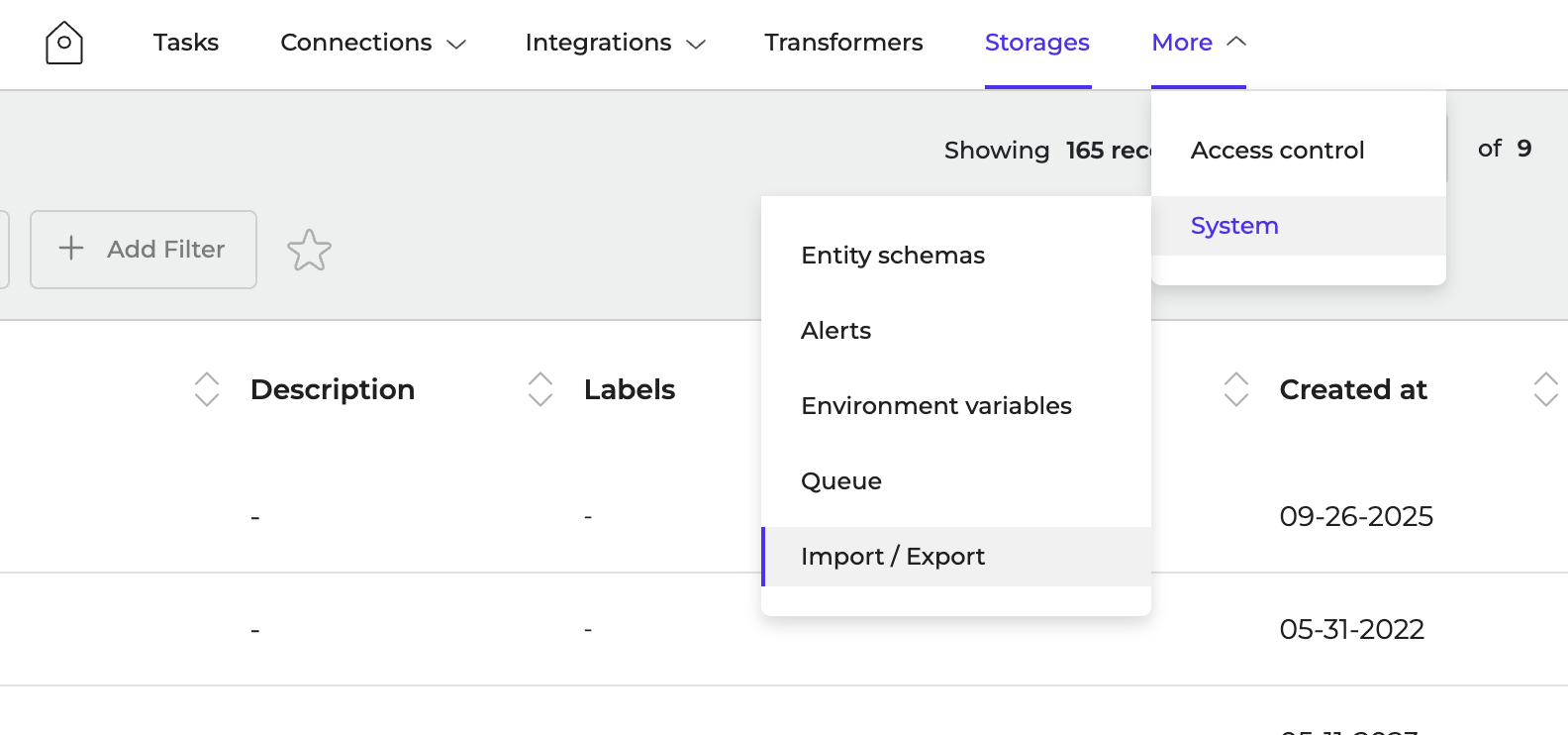
- Navigate to More > System > Import/Export
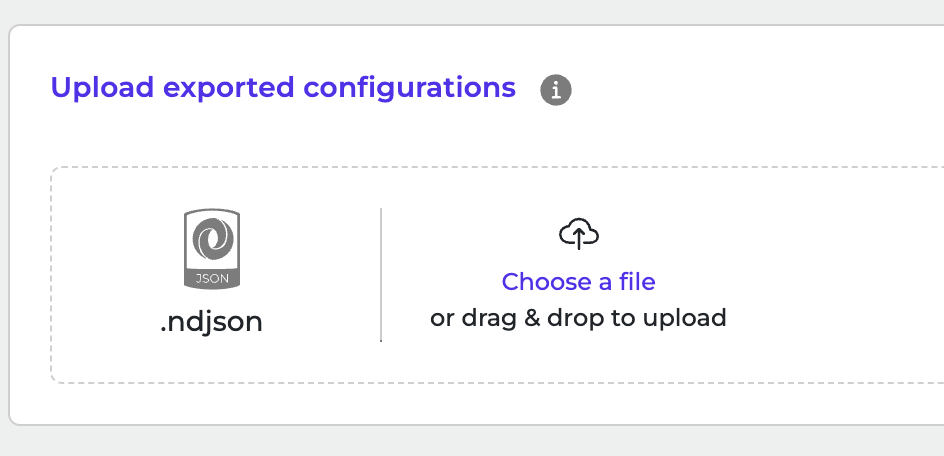
- Click to browse or drag and drop ndjson file to upload it.
- Click Import Configurations to start the import.