
Overview
This guide provides practical JMESPath examples for use in Alumio. In a field that supports placeholders, wrap each JMESPath expression in&{...}.
Filtering items
Use filtering expressions to return only the array entries that meet one or more conditions.
For example,
&{items[?active == \true` && stock > `0`]}returns onlySKU-001` from the sample input.
Use backticks for numeric and boolean literals, for example
\100`and`true`. Use single quotes for strings, for example ’featured’`.
Select and reshape data
Work with nested data
Aggregate and sort values
Handle and validate values
Build JSON objects from tabular rows
When a parsed CSV is available indata as an array of rows, map each row into an object:
["1", "ABC123", "Product X", "23"] becomes:
Template Import
Follow these steps to import a template to Alumio:- Log in to your Alumio dashboard.
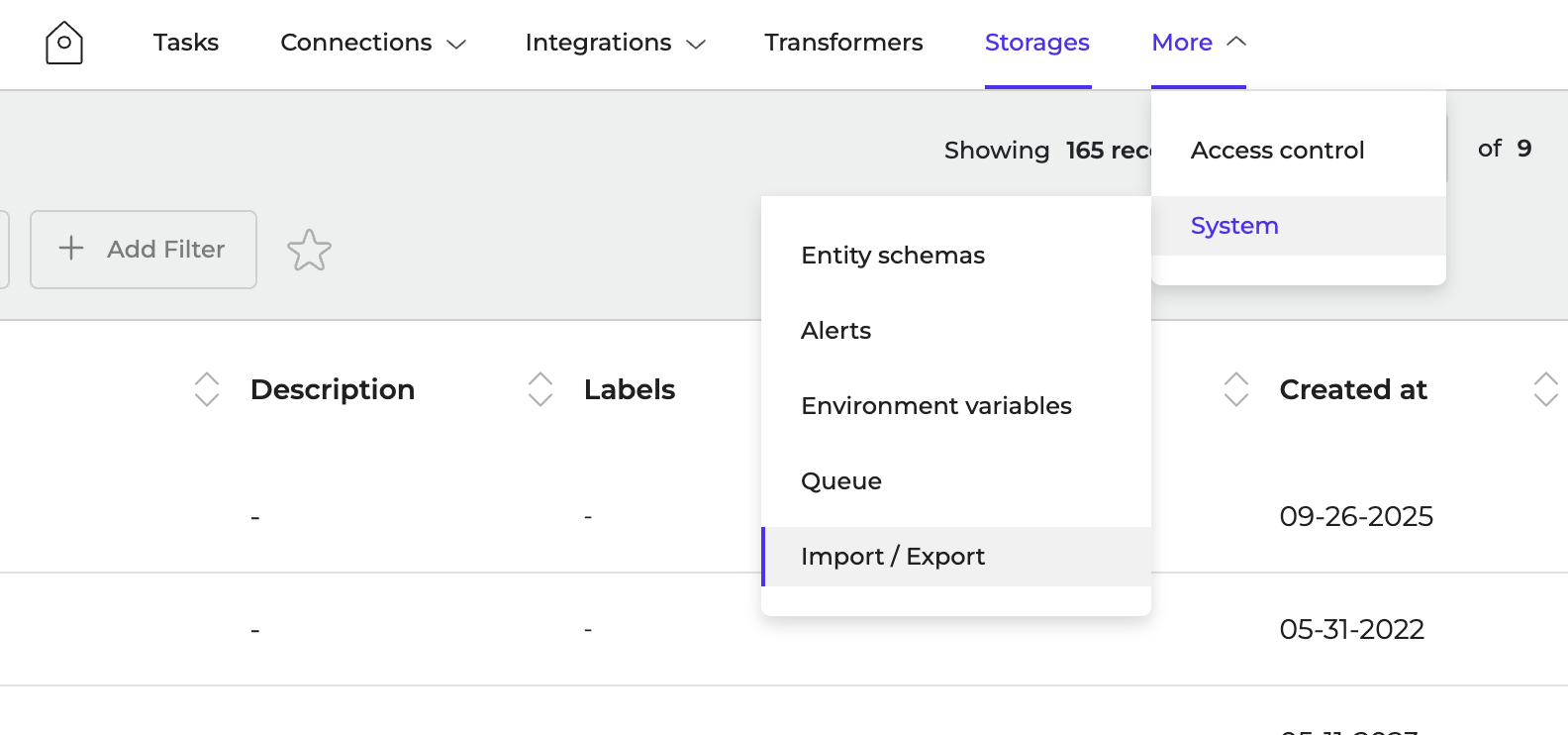
- Navigate to More > System > Import/Export
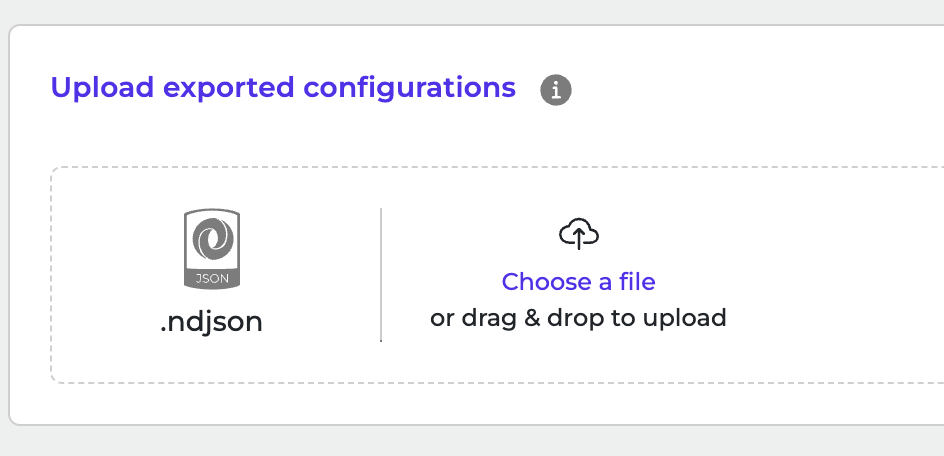
- Click to browse or drag and drop an ndjson file to upload it.
- Click Import Configurations to start the import.