
Open the assistant
- Go to Transformers and create a new transformer or open an existing one.
- Click the sparkles icon to open the chat. It opens as a panel beside the form. You can drag its edge to make it wider or narrower.
- Type what you want to build, or pick one of the suggestions shown in an empty chat.
- You may have hidden it. Open User preferences from the profile icon in the top-right corner and set Alumio assistant to Show Alumio assistant.
- Your role may not allow it. The assistant is available to users who can edit configurations, such as Editors and Administrators.
- The assistant may not be enabled for your environment yet.
What the assistant can do
Read your current transformer
Every time you send a message, the assistant reads the transformer as it is in the form at that moment, including changes you haven’t saved yet. When the form already holds a configuration, the assistant treats your message as a change to it, even when it reads like a new instruction. It keeps every step you don’t mention exactly as it is and adds or changes only what you asked for. If you really want to throw the existing steps away, say so, for example “start over”. This also means you can ask questions about an existing transformer, such as “What does this transformer do?” or “Why are products without a SKU dropped?”.Read your input data
When the Transformer tester is open and its Input tab holds data, the assistant reads that sample. It uses it to get field names, nesting and patterns right, instead of guessing what your data looks like. For the best results, put a realistic record in the tester before you start the chat. Without a sample, the assistant works from your description and may ask what the data looks like. You can also attach a file with the paperclip icon in the chat. Use this for example data that isn’t the transformer’s input, such as an example API response or the format you want to map to. Tell the assistant what the file represents. Attachments:- must be text files, such as JSON, NDJSON, CSV, XML or YAML;
- can be up to 100 KB;
Build transformers from your questions
Describe what the transformer should do, in your own words. For example:
For a clear task on a single data set, the assistant builds the transformer straight away.
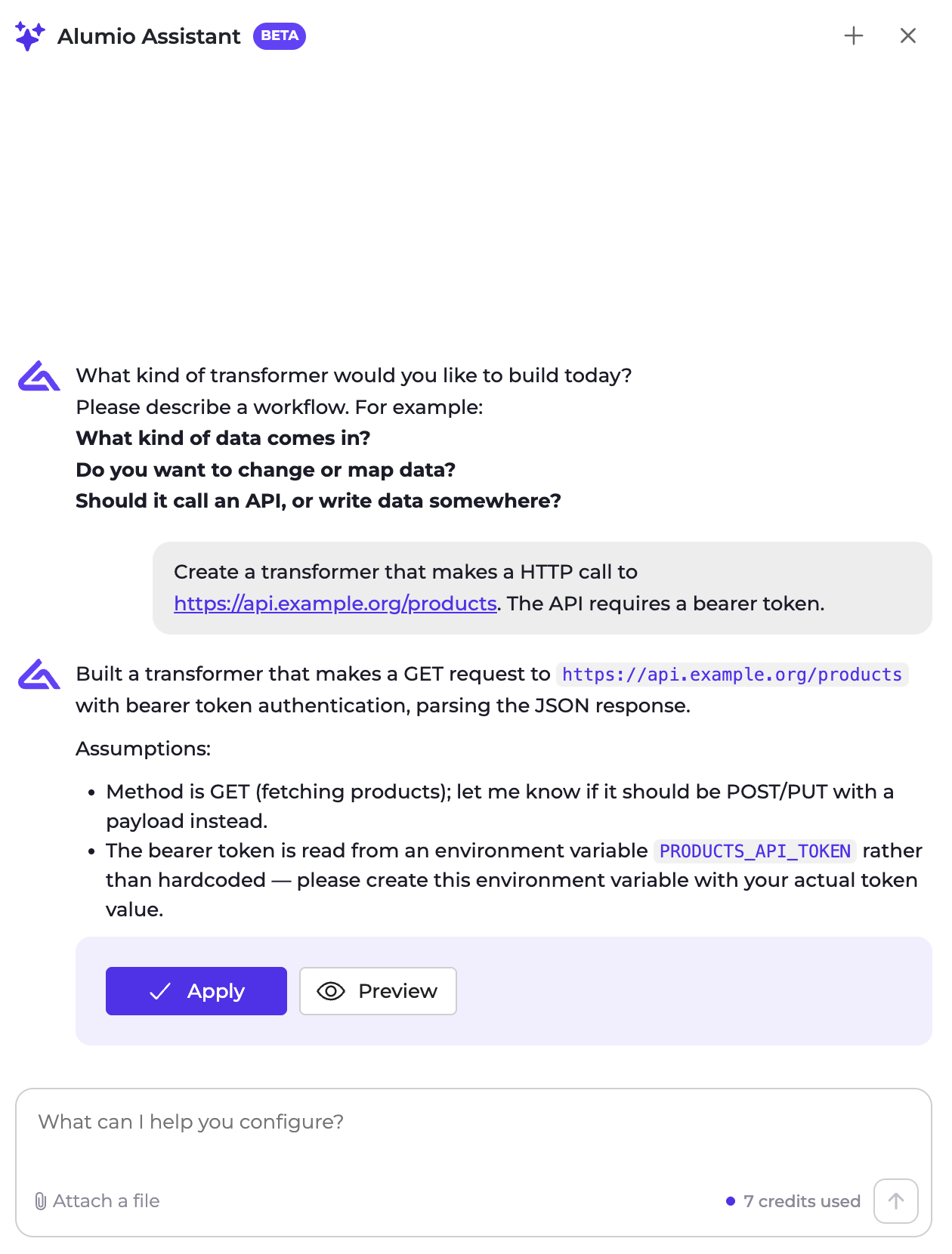
A request for an HTTP call, built straight away. The assistant lists its assumptions and reads the bearer token from an environment variable.
Name and describe each step
Every step the assistant adds gets a short name and a description of what that step does, so the transformer is easy to follow later. You see the name on the step in the form and the description when the step is collapsed, just like a name and description you set yourself. Steps it doesn’t change keep their existing names and descriptions. You can also ask it to write them for a transformer you built yourself, for example “Give every step a clear name and description”.Ask you for connections and storages
Some transformers need an existing configuration, such as an HTTP connection to call an API or a storage to save data in. The assistant never guesses which one to use. It asks you, and a picker appears in the chat listing the configurations of that type in your environment.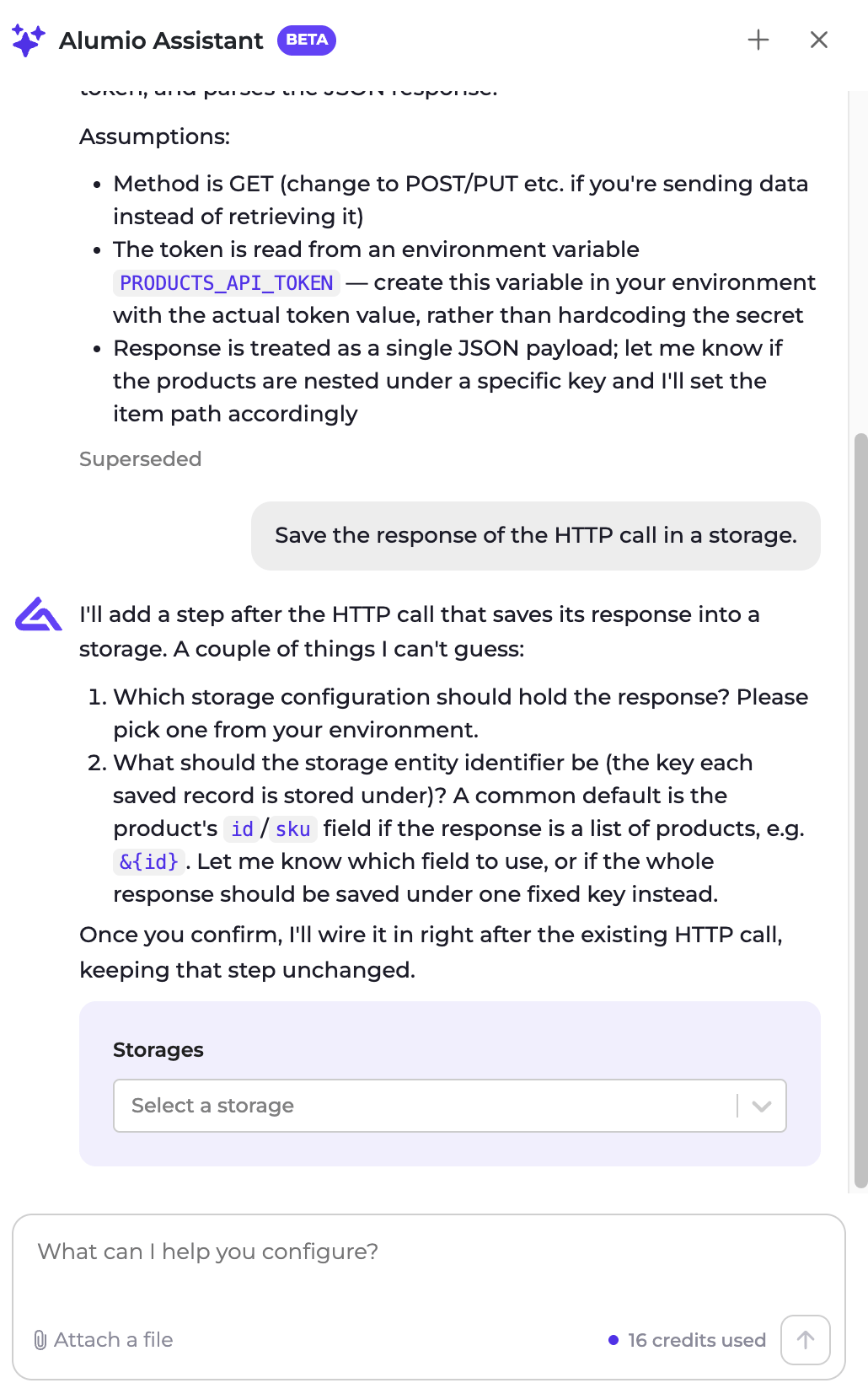
A follow-up on the transformer above. The assistant keeps the HTTP call, asks which storage to use and proposes a key for each saved record.
- Pick one from the list. Your choice is sent with your next message. You can add text to that message or send the selection on its own.
- Create a new one from the same picker, if your role allows it. A form opens where you set it up, and once you save it, the new configuration is selected.
- Tell the assistant when there are none and you can’t create one. It then suggests another approach.
${SHOP_API_KEY}, and tells you which variable to create.
Review and apply a proposal
When the transformer is ready, the assistant summarises what it does and which assumptions it made. Two buttons appear below the message:- Preview shows a read-only view of the form with the proposal filled in. You can apply it from there too.
- Apply puts the proposal into the form.
Keep refining
You don’t need to get everything right in the first message. Keep chatting to adjust the result, for example “Also skip products without a price” or “Use the storage for the value mapping instead”. Each follow-up works on what is in the form. If you haven’t applied the previous proposal, the assistant builds on it anyway and says that the earlier changes are included. To start over, click + (New chat) in the chat header. This clears the conversation, not the form. Closing the chat after a proposal was applied also starts a new conversation the next time you open it.Tips for good results
- Put a realistic record in the Transformer tester before you start.
- Be specific about where the data comes from, where it goes and which fields matter.
- Name the connections and storages you want to use.
- Keep one conversation per transformer and start a new chat for a new topic.
- Read the summary. The assistant states the assumptions it made, and those are the places to check first.
- Test the transformer before you use it in a route.
Credits and limits
Each reply from the assistant uses AI credits. The chat shows how many credits the current conversation has used. Your environment has a monthly allowance, which you can follow in the Credits widget on the Dashboard. It resets at the start of each month. When it is used up, the assistant stops answering until the next month. Other limits:- A message can be up to 5,000 characters.
- An attachment can be up to 100 KB.
- A conversation expires after a period without activity. The chat then says it has expired, and Start fresh opens a new one.
What the assistant doesn’t do
During the beta, keep in mind that the assistant:- only builds transformers, not routes, connections, schedulers or other configurations;
- doesn’t save, run or test anything; you stay in control of every change;
- doesn’t create connections or storages itself; it asks you to pick or create them;
- works only from the transformer in the form, the tester input, attachments, your messages and the names of existing configurations. These are sent to an AI model to produce a reply, so don’t paste passwords or API keys into the chat.