
- Fetching attributes from Akeneo by running the Incoming “Akeneo - Fetch - Attributes”.
- Sending property group or custom field into Shopware by running the Route “Synchronize Property Group or Custom Field - from Akeneo Attribute” and the Outgoing “Shopware - Send - Property Group or Custom Field”.
Fetching attributes from Akeneo
In Alumio, go to “Integrations → Incoming → Akeneo - Fetch - Attributes” This incoming will create a task inside Alumio with data structured as an Alumio base attribute. There are transformers inside this Incoming before processing this attribute:- Akeneo - Prepare convert - Labels - To localization.
- Akeneo - Check and fetch - Attribute options.
- Akeneo - Convert - Attribute - To Alumio Base Attribute.
- Akeneo - Map - Type code - To Alumio Base code.
- Akeneo - Filter previous - Attribute.
This transformer will prepare the labels in Alumio Base. Akeneo - Check and fetch - Attribute options
- This transformer will fetch the options from the attribute options when the attribute type is a simple select or multiselect.
- This transformer will fetch the options from the entity records when the attribute type is reference entity or reference entity
This transformer will convert the attribute structure into Alumio Base. Akeneo - Map - Type code - To Alumio Base code
This transformer will convert the attribute code value into Alumio Base. Akeneo - Filter previous - Attribute
This transformer will filter the Attribute from the previous iteration to avoid duplication.
Sending a property group or a custom field into Shopware
In Alumio, go to “Integrations → Route → Synchronize Property Group or Custom Field - from Akeneo Attribute”. Then go to the outgoing “Shopware - Send - Property Group or Custom Field”. This Outgoing will transform the Alumio Base attributes into a Shopware property group when it has options and a custom field when it does not. There are transformers inside the Outgoing configuration. You can begin by selecting which attributes should be processed by the “Shopware – Check and Send – Property Group or Custom Field” transformer. Shopware - Check and send - Property Group or Custom FieldThis transformer will check what kind of attribute to determine the Shopware property group when it has options and a custom field when it does not. Shopware - Convert - Config label - from Alumio Base Localizations
This transformer will make the Shopware config label from Alumio Base Localizations. Shopware - Custom field set - Create and send
This transformer will prepare a custom field set where the field set will be created, and continue to call the transformer “Shopware - Check and send - Custom field” for real creation. Shopware - Check and send - Custom field
This transformer will check the custom field from the previous iteration and decide to create a new one or update the existing. Shopware - Prepare convert - Translations - from Alumio Base localizations
Create Shopware translations from Alumio’s base localizations. Shopware - Prepare convert - Property Group Options - From Alumio Base Attribute Options
Preparing Shopware property group options from Alumio base attribute options. Shopware - Convert - Property group - from Alumio Base Attribute
This transformer will convert the property group from Alumio base attributes and previous preparation. Shopware - Check and send - Property group
This transformer will check the property group from the previous iteration and decide to create a new one or update the existing.
Automatic property groups or custom fields synchronization setup
- Go to “Integrations → Schedulers → Akeneo - Fetch - Attributes”.
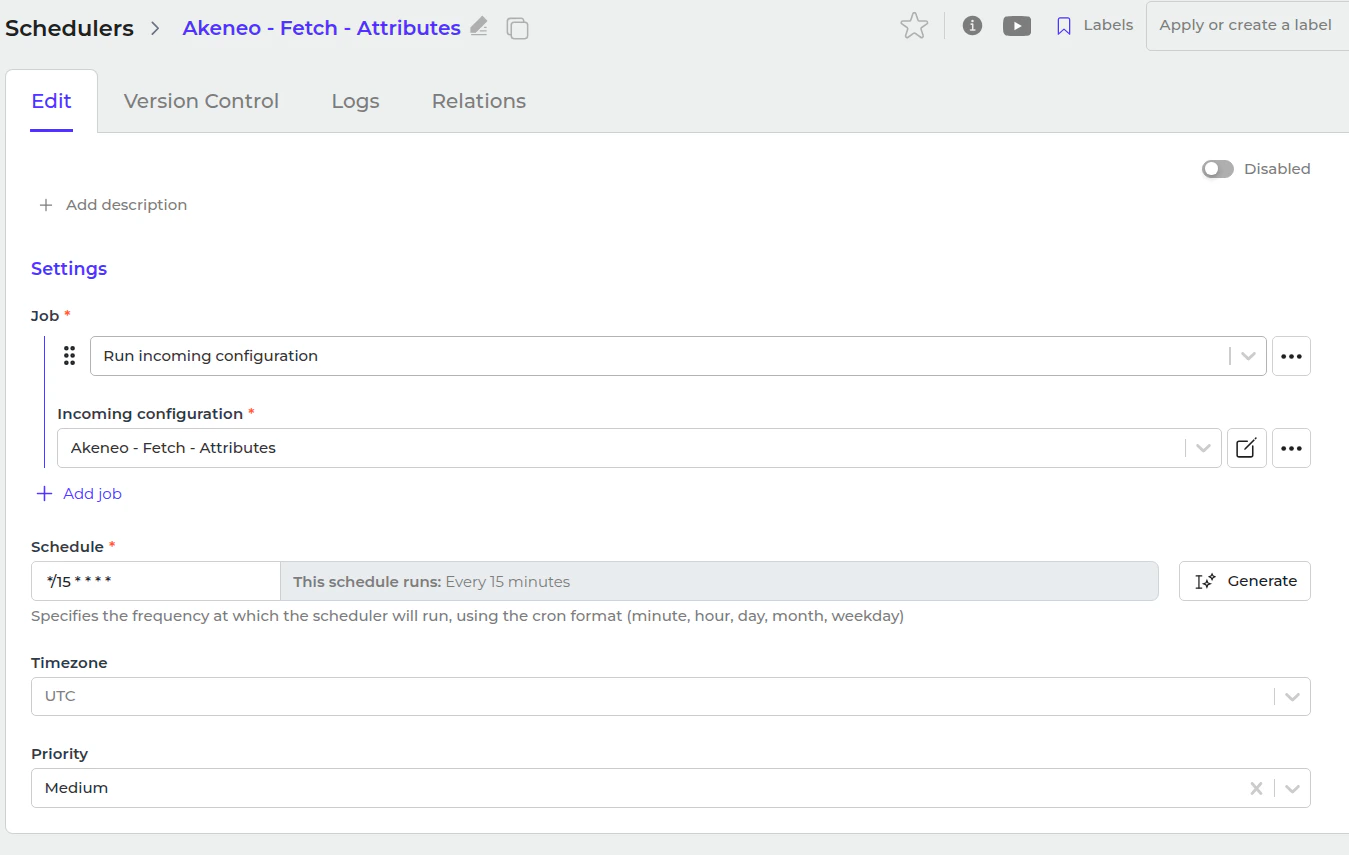
- Set a schedule expression and enable the configuration.
- Go to “Integrations → Schedulers → Shopware - Send - Property Groups or Custom Fields”.
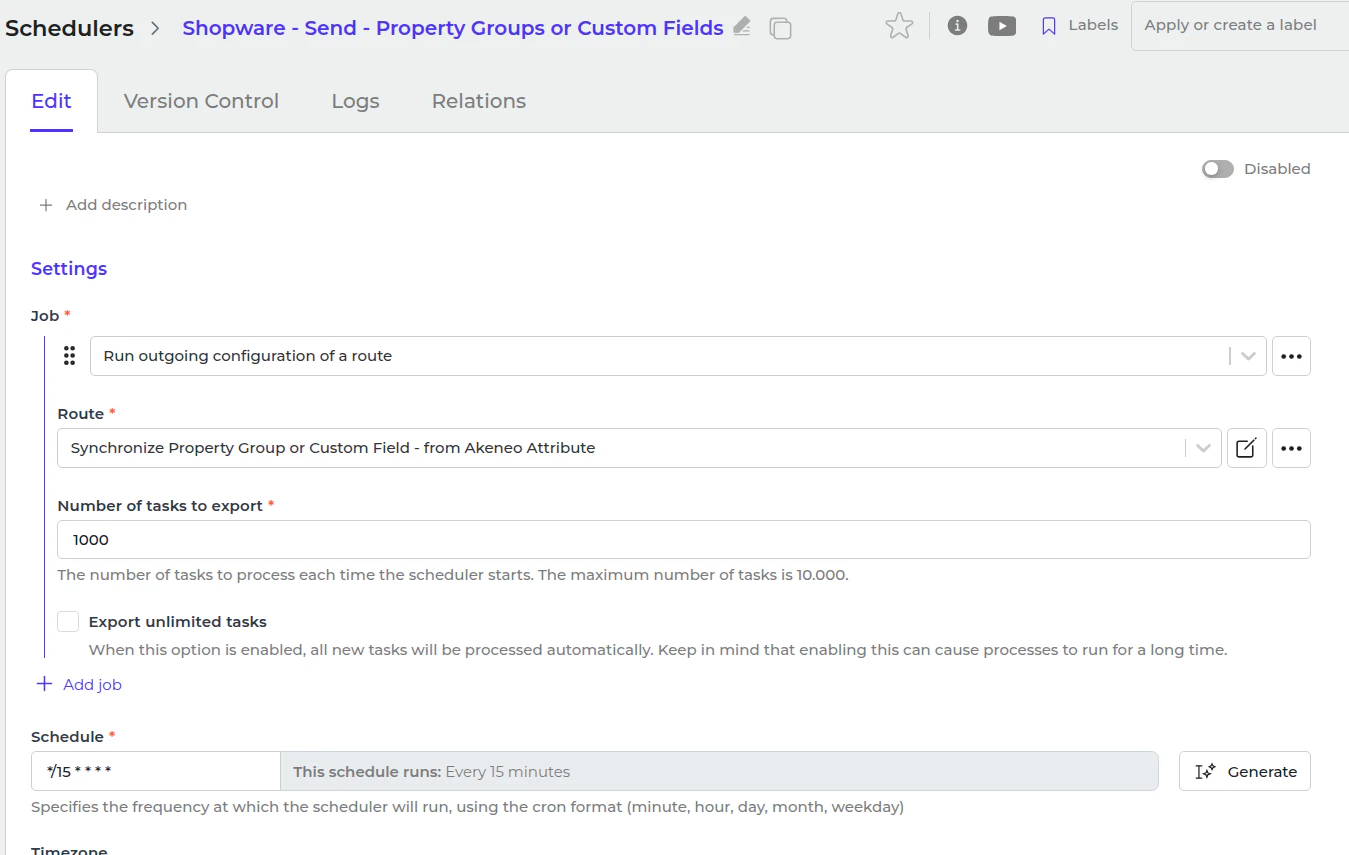
- Set a schedule expression and enable the configuration.