
Setup Configurations

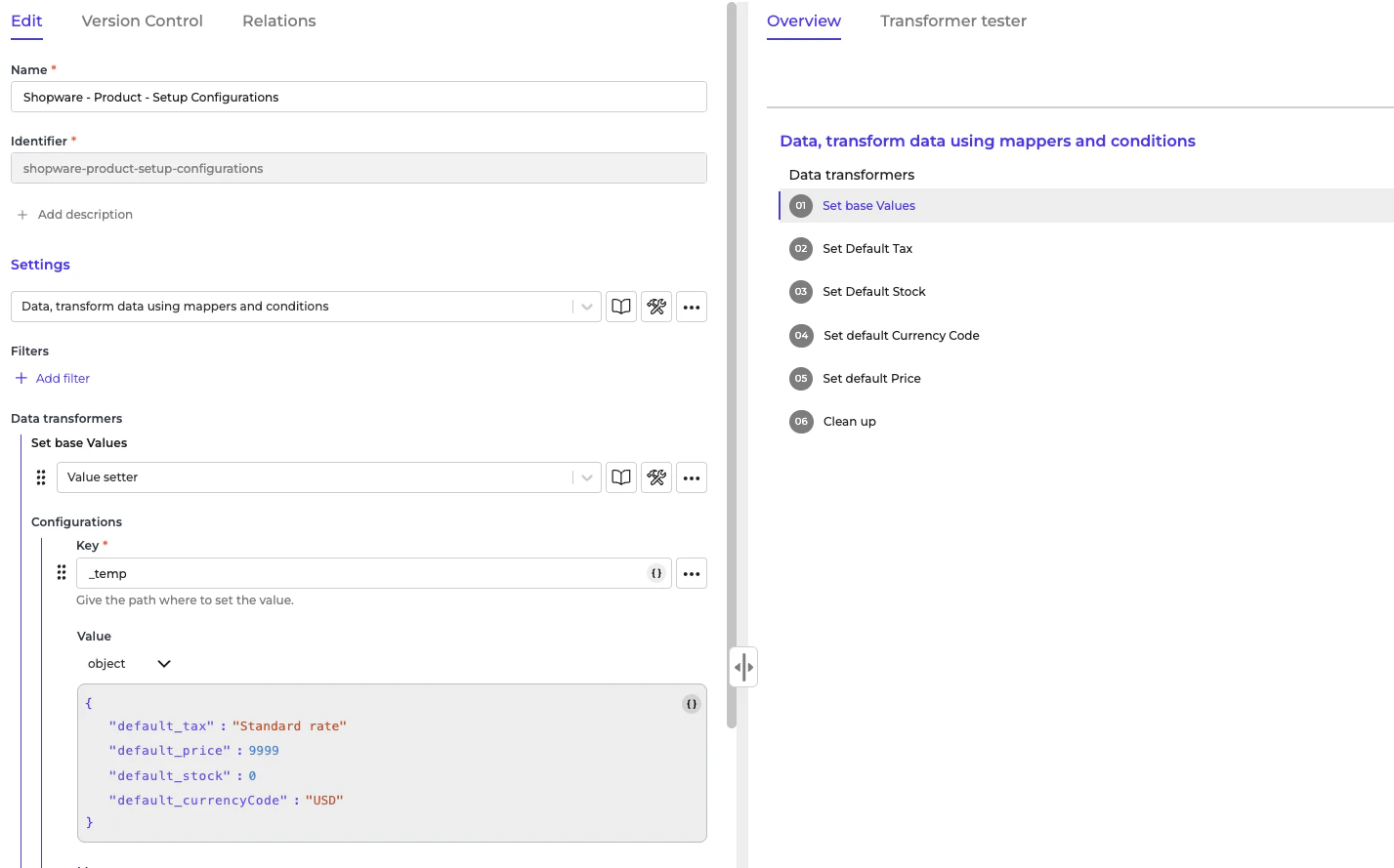
  • Navigate to “Transformer → Shopware - Product - Setup Configurations” configuration.
  • Go to the “Overview” tab to see what kind of information you can set
    Image
  • Go to each data transformer and make necessary adjustments
  • Save the transformer

Configuring the Incoming: Synchronize Products ‐ Fetch Storage Product Model Alumio Base

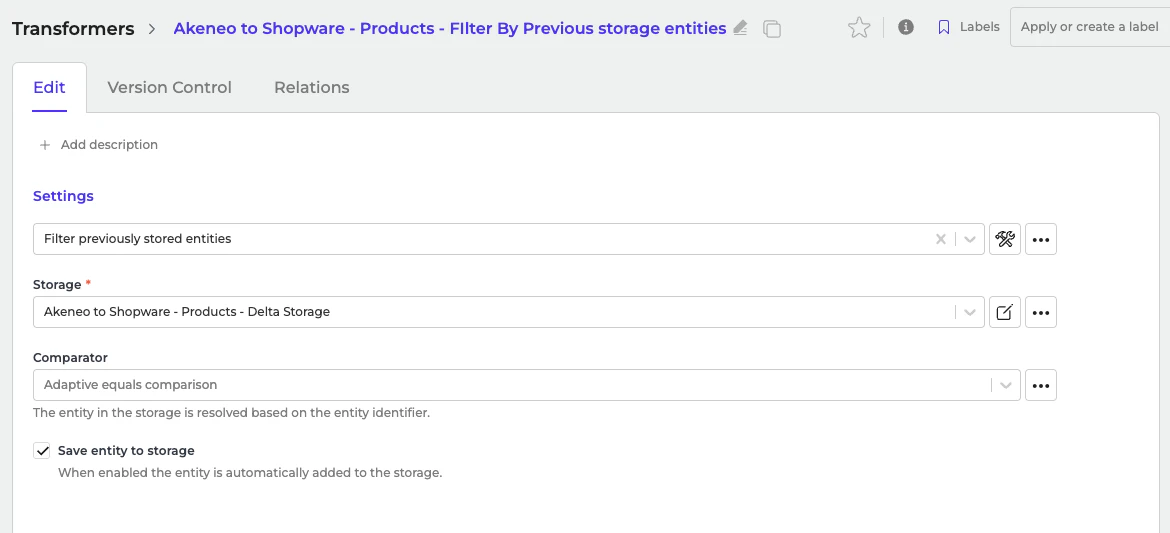
In the Incoming section of data synchronization from the Alumio schema to the Shopware system, for the first run, minimal setup is required. The key configuration to adjust is to make sure that the delta storage was empty inside this transformer “Akeneo to Shopware - Products - Filter By Previous storage entities”.
  • Navigate to Incoming and locate the “Synchronize Products - Akeneo to Shopware - Fetch Storage Product Model Alumio Base” configuration.
  • Open the transformer inside the incoming configurations “Akeneo to Shopware - Products - Filter By Previous storage entities”.
    Image
    Go to the storage “Akeneo to Shopware - Products - Delta Storage”.
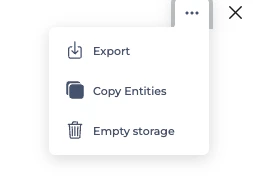
  • At the top right ”…” button, select “Empty storage”.
Image
You only need to empty storage if this is the first sync of all products from Akeneo to Shopware.

Configuring the Incoming: Akeneo Fetch Simple Products or Product Without Parent

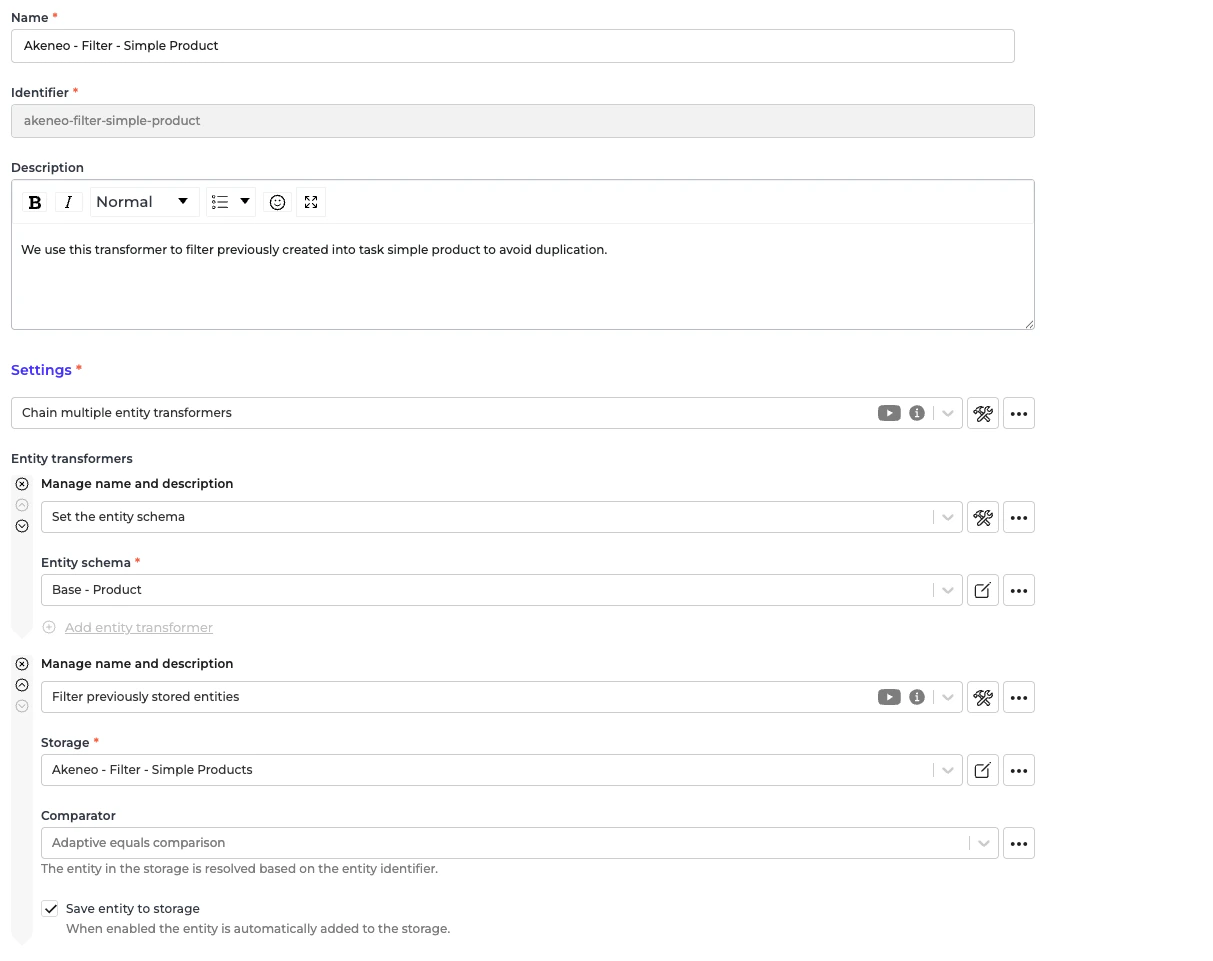
In the Incoming section of data synchronization from the Alumio schema to the Shopware system, for the first run, minimal setup is required. The key configuration to adjust is to make sure that the delta storage was empty inside this transformer “Akeneo - Filter - Simple Product”.
  • Navigate to Incoming and locate the “Akeneo - Fetch - Simple products or products without parent” configuration.
  • Open the transformer inside the incoming configurations “Akeneo - Filter - Simple Product”.
    Image
    Go to the storage “Akeneo - Filter - Simple Products”.
  • At the top right ”…” button, select “Empty storage”.
Image
You only need to empty storage if this is the first sync of all simple products from Akeneo to Shopware.

Configuring the Route: Synchronize Products ‐ Akeneo to Shopware

In the Route “Synchronize Products - Akeneo to Shopware”, there is nothing to set up for the Route. Everything will be automatically converted from the Alumio Base Product schema to the Shopware Product schema.
  • Navigate to Routes and locate the configuration “Synchronize Products - Akeneo to Shopware” configuration.
  • Open the configuration settings.
  • Enable the “Enable parallel execution” checkbox.
  • Locate the “Maximum parallel executions” field and set the value based on the number of parallel jobs you want to run.
Important: Ensure that this value does not exceed the maximum number of data engines available in your environment. List of Transformers There’re quite a list of transformers that used for the Incoming and Outgoing part. You can check table below to see the descriptions and the purpose of the transformers. Transformers in the Incoming
NameDescription
Synchronize Products - Akeneo - Fetch Variant OptionsTransformer to fetch variant properties from Akeneo
Transformer: Akeneo to Shopware - Products - Filter By Previous storage entitiesTransformer to filter the previous stored entities Akeneo Products.
Transformers in the Outgoing
NameDescription
Shopware - Product - Setup ConfigurationsSetup for the Shopware outgoing
Transformers: Shopware - Product - Convert from Alumio Base Product - Conditional - Base MappingThis Transformer Checks Whether the product retrieved has children or not before mapping.
Shopware - Product - Convert from Alumio Base Product - Conditional - create payloadsTransformer to build and prepare the payload for products
Shopware - Product - Create or UpdateSend the Products into Shopware (Wrapper) when there are children in the Akeneo product

Configuring the Route: Synchronize Products ‐ Akeneo to Shopware Simple Product

In the Route “Synchronize Products ‐ Akeneo to Shopware Simple Product”, there is nothing to set up for the Route. Everything will be automatically converted from the Alumio Base Product schema to the Shopware Product schema.
  • Navigate to Routes and locate the configuration “Synchronize Products - Akeneo to Shopware Simple Product” configuration.
  • Open the configuration settings.
  • Enable the “Enable parallel execution” checkbox.
  • Locate the “Maximum parallel executions” field and set the value based on the number of parallel jobs you want to run.
Important: Ensure that this value does not exceed the maximum number of data engines available in your environment. List of Transformers There’re quite a list of transformers that used for the Incoming and Outgoing part. You can check table below to see the descriptions and the purpose of the transformers. Transformers in the Incoming
NameDescription
Transformer: Akeneo - Prepare convert - Values - To localizations and custom attributesThis transformer will convert localizations data from Akeneo.
Transformer: Akeneo - Prepare Convert - Localizations filterWe use this transformer to only allow any localization with channel code in “eCommerce”, if it has channel code.
Transformer: Akeneo - Prepare convert - Product and product model - Categories to Alumio BaseAkeneo - Prepare convert - Product and product model - Categories to Alumio Base.
Transformer: Akeneo - Prepare convert - Product and product model - Prices to Alumio BaseAkeneo - Prepare convert - Product and product model - Prices to Alumio Base.
Transformer: Akeneo - Convert - Product - To Alumio Base productThis transformer will convert Akeneo product data into Alumio base product data.
Synchronize Products - Akeneo - Fetch Variant OptionsTransformer to fetch variant properties from Akeneo
Transformer: Akeneo - Filter - Simple ProductWe use this transformer to filter previously created into task simple product to avoid duplication.
Transformers in the Outgoing
NameDescription
Shopware - Product - Setup ConfigurationsSetup for the Shopware outgoing
Transformers: Shopware - Product - Convert from Alumio Base Product - Conditional - Base MappingThis Transformer Checks Whether the product retrieved has children or not before mapping.
Shopware - Product - Convert from Alumio Base Product - Conditional - create payloadsTransformer to build and prepare the payload for products
Shopware - Product - Create or UpdateSend the Products into Shopware (Wrapper) when there are children in the Akeneo product