- Log in to your Alumio dashboard.
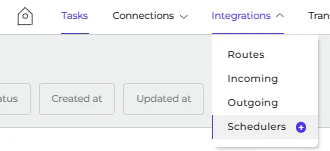
- Navigate to Integrations > Schedulers.
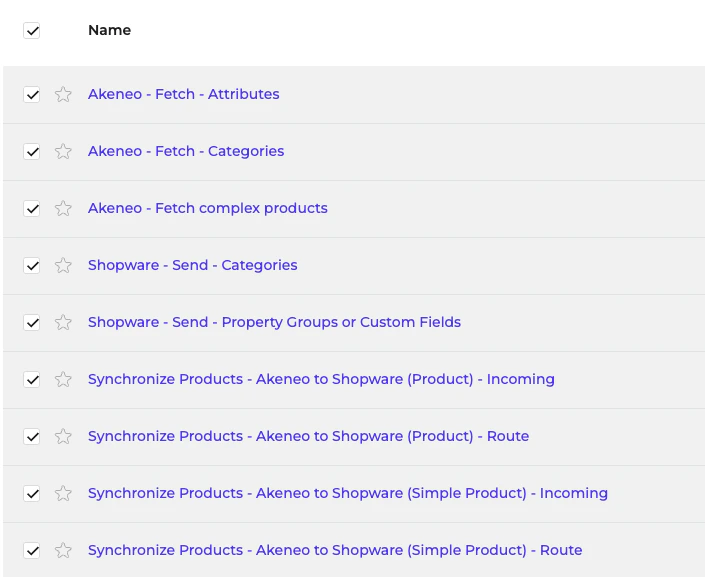
- Pick up the Scheduler for export. Currently, 9 Schedulers can be exported.
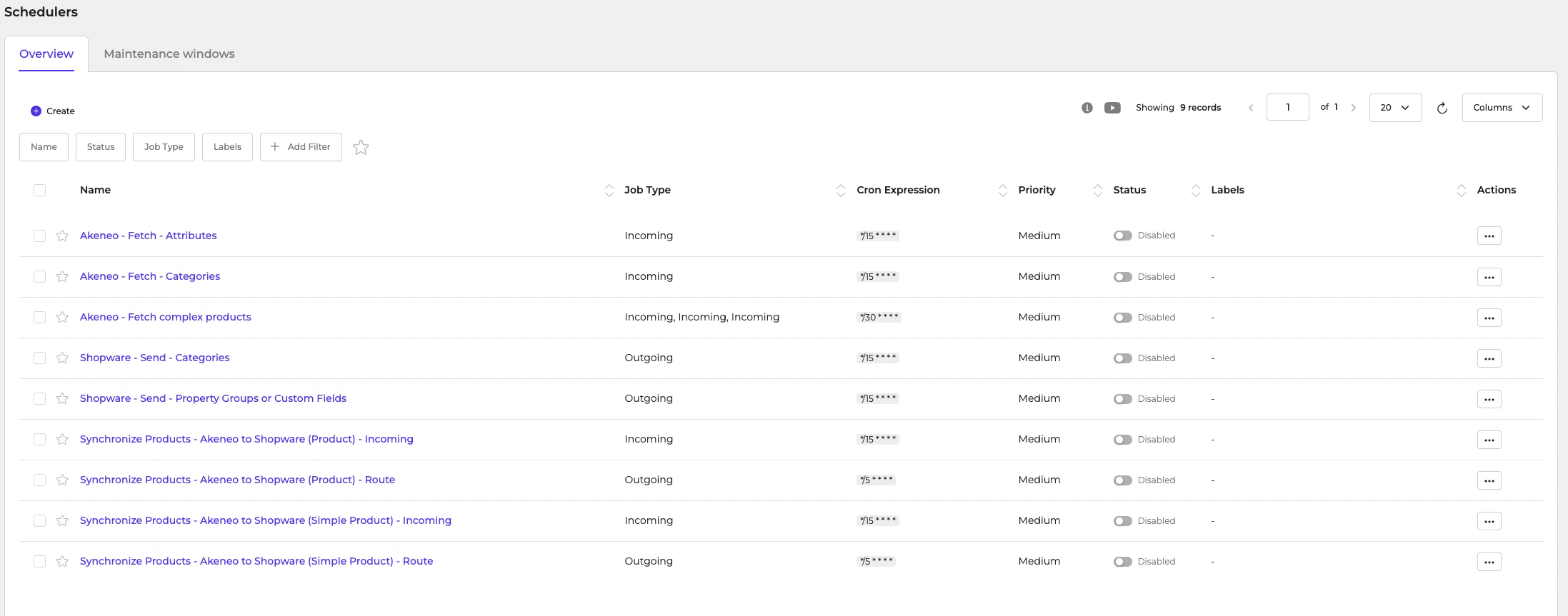
- You can export single or multiple Schedulers.
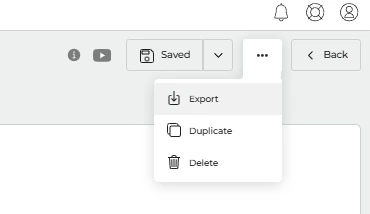
- For a single Scheduler, navigate to one of the configurations in Scheduler > … (Three dots on the top right) > Export.
- To export multiple Schedulers, mark the checkbox Scheduler > Export (top right).
- You can find the Environment Variable used in **Connections > HTTP (API) Client.
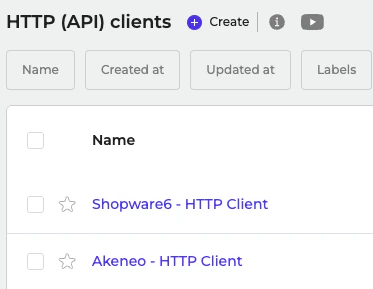
- Here is the list of HTTP (API) Clients used.
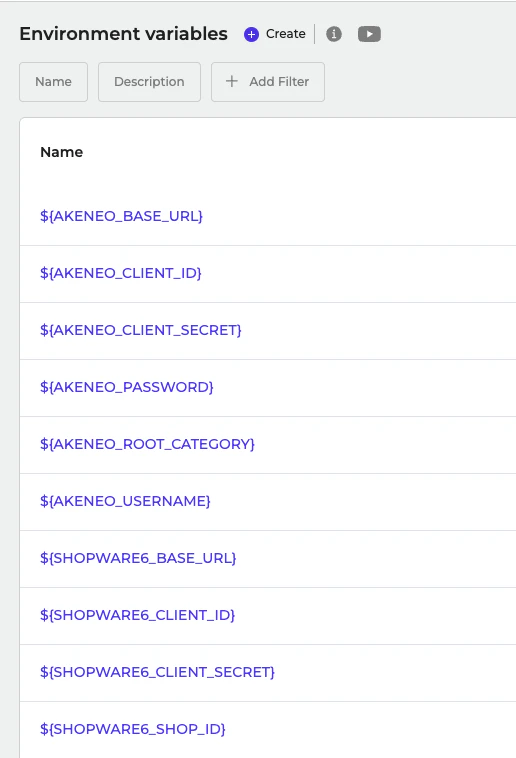
- Here is the list of Environment Variables used. You can create it in System > Environment Variables.