- Log in to your Alumio Dashboard.
- Navigate to System → Import / Export.
- Upload the downloaded template. You’ll see a list of the configurations ready to import. Select All and click the “Import configuration” button. Verify that all Incoming, Routes, Outgoing, Transformers, and Schedulers are correctly imported.
Credentials Setup
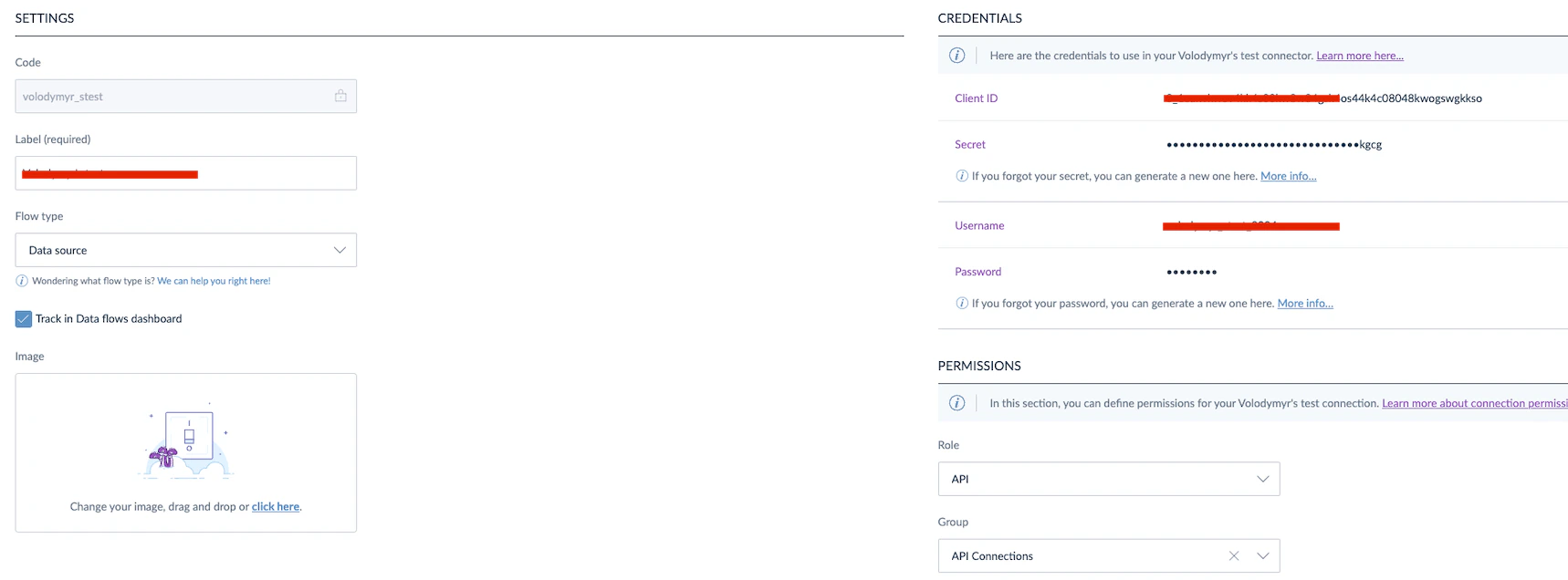
Before running the integration, you must configure credentials for Akeneo and Shopify in Alumio. Step 1: Retrieve API Credentials from Akeneo.- Log in to Akeneo as an admin user.
- Navigate to Connect → Connection-settings.
- Create a new connection (if necessary) and retrieve the following:
- Client ID.
- Secret Key.
- Username.
- Password.