
Fetching Families and Attributes from Akeneo
- In Alumio, go to “Integrations → Incoming → Akeneo - Fetch - Families and Attributes”. To sync attribute definitions from Akeneo to CommerceTools, we must account for CommerceTools requirement that attributes be defined within a Product Type. To bridge this gap, we retrieve the Akeneo Family (the closest equivalent to a Product Type) and populate it with its associated attributes. Use the “Akeneo - Fetch - Families and Attributes” Incoming to pull this consolidated data from the Akeneo server.
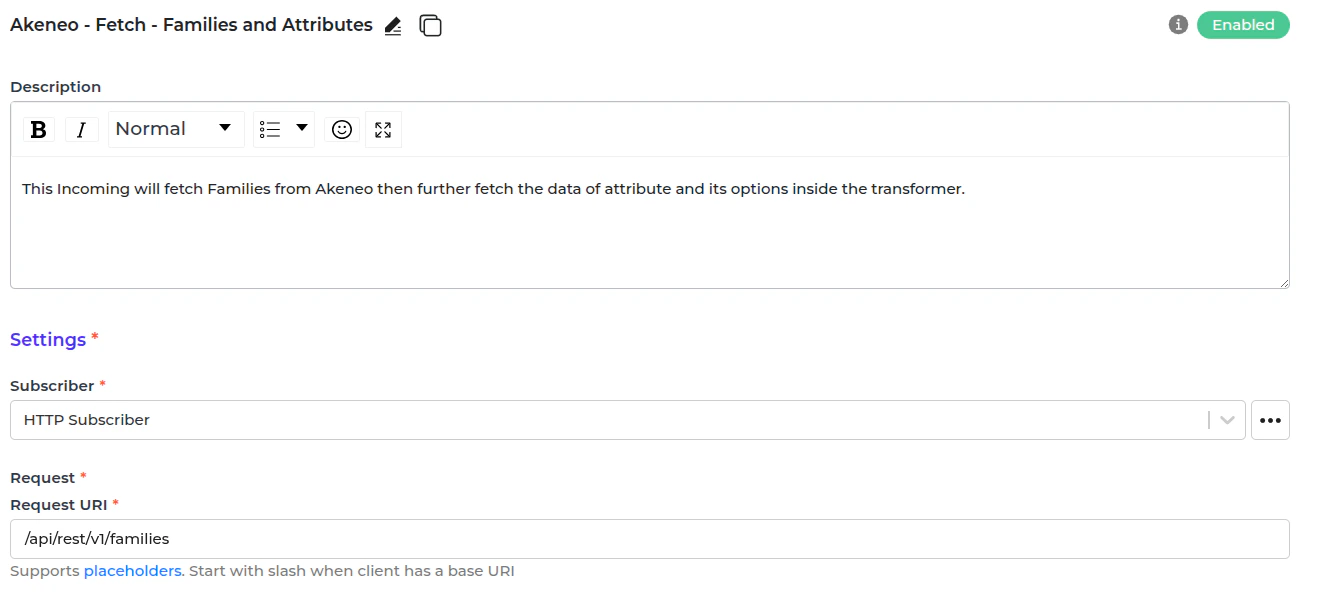
- Akeneo - Fetch and convert - Family attributes into Alumio Base attributes.
- Akeneo - Filter previous - Family.
- “Akeneo - Fetch and update storage - Family Variants - Axes” fetches the family variant that will determine the common attribute and variant attribute if exists.
- It will transform the family structure into Alumio Base by calling the transformer “Akeneo - Prepare convert - Labels - To localizations” and “Akeneo - Convert - Family to Alumio Base”.
- After you convert the family, you need to get the attribute data that is attached to this family:
- “Akeneo - Fetch - Attribute by code” fetches the attribute data from Akeneo.
- “Akeneo - Prepare convert - Labels - To localizations” prepares the labels in Alumio Base.
- “Akeneo - Check and fetch - Attribute options” fetches the options from the attribute options when the attribute type is simple select or multiselect. This transformer also fetches options from the entity records when the attribute type is reference entity or reference entity.
- “Akeneo - Convert - Attribute - To Alumio Base Attribute” converts the attribute structure into Alumio Base.
- “Akeneo - Map - Type code - To Alumio Base code” converts the attribute code value into Alumio Base.
- “Akeneo - Check - Axes - Is Required” checks the super attribute using storage Akeneo - Family Variants - Axes that was created earlier at “Akeneo - Fetch and update storage - Family Variants - Axes”.
Fetching product types from CommerceTools
- In Alumio, go to “Commercetools - Fetch - Product types & Attributes”. Before deploying product types, retrieve the current definitions from CommerceTools to determine whether a create or update operation is required.
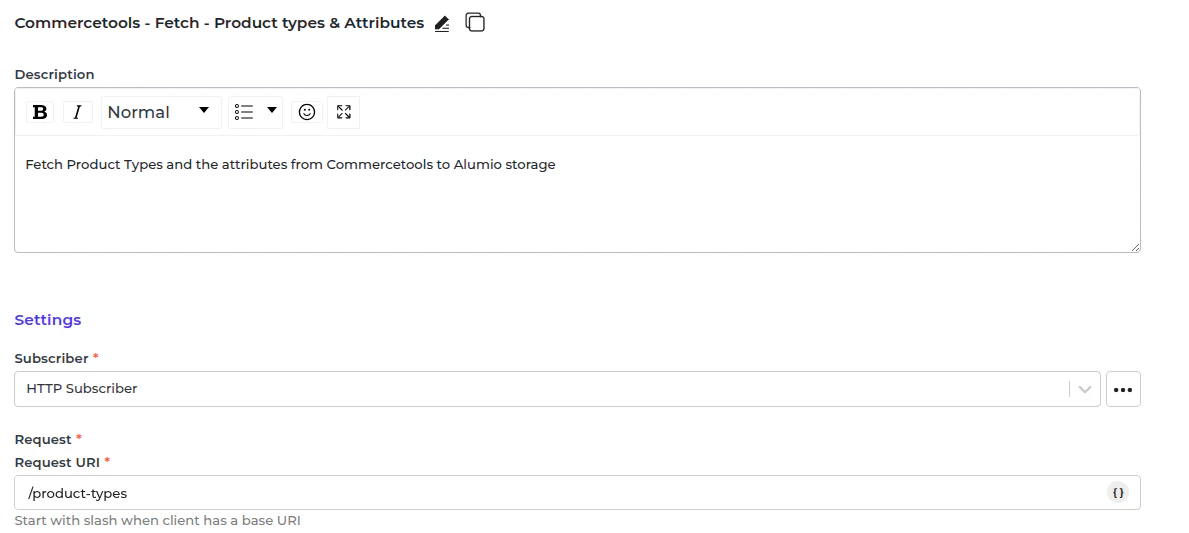
- CommerceTools - Update Storage - Product type.
- Commercetools - Fetch - Product Types & Attributes - Save to Storage.
Sending product types into CommerceTools
- In Alumio, go to “Integrations → Route → Synchronize CommerceTools Product Types - From Akeneo Families and Attributes”. Then go to the outgoing “CommerceTools - Send - Product types”. This Outgoing will transform the Alumio Base Families and attributes into CommerceTools product types and check to create or update product types with the data from this Outgoing’s previous iteration.
- Alumio Base - Convert Values - Family - Attributes - Options - Localization localeCode into CommerceTools localeCode.
- CommerceTools - Convert - Product types from the Alumio base Family.
- CommerceTools - Check and send - Product type.
- “CommerceTools - Convert - Attributes from Alumio Base” converts Alumio base Attributes into CommerceTools Attributes. If applicable, it invokes a secondary transformer to convert the attribute options.
- “CommerceTools - Convert - Lenum from Alumio Base” converts the Alumio base option into a lenum value.
- Note: for now, all file and image attributes are outside this template scope, so they won’t be synced. It calls “CommerceTools - Convert - Product types attributes from Common Attributes and Variant Attributes” if there are any common attributes and variant attributes to convert them into payload.
- A simple product that a family doesn’t have a variant in Akeneo should only have product-level attributes, but this concept doesn’t work well in CommerceTools. To accommodate this issue, we provide a solution to customize this into a variant attribute by changing the list that has the value add_attribute_to_become_variant_here. You can build the list here to make it possible to send simple products without family variants into CommerceTools.
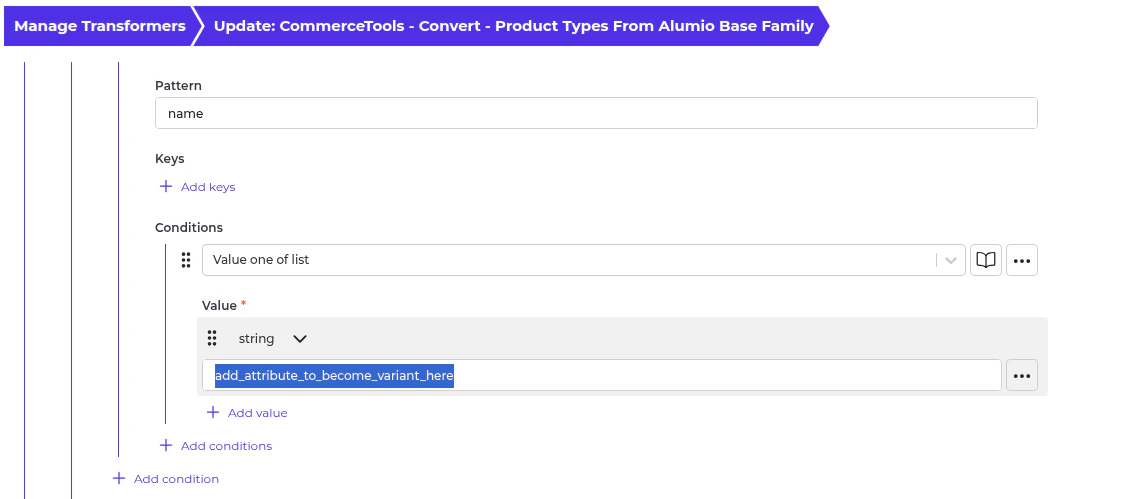
- Check and send their payload for Product Type.
- It will call the other transformer for the update process:
- “CommerceTools - Prepare Update - Product type - Check name” checks the product type for name change and adds to actions.
- “CommerceTools - Prepare Update - Product type - Check description” verifies the product type for description change and adds to actions.
- “CommerceTools - Prepare Update - Product type - Check attributes” checks all the attributes for any change and adds them to the actions. It will call several transformers to achieve this. Note: Due to the complexity of this integration logic, please consult with Alumio regarding any required modifications. We are currently aware of a timeout issue affecting the update process. A performance enhancement is scheduled for a future release.
Automatic Product Types Synchronization Setup
- In Alumio, go to “Integrations → Schedulers → Akeneo - Fetch - Families and Attributes”.
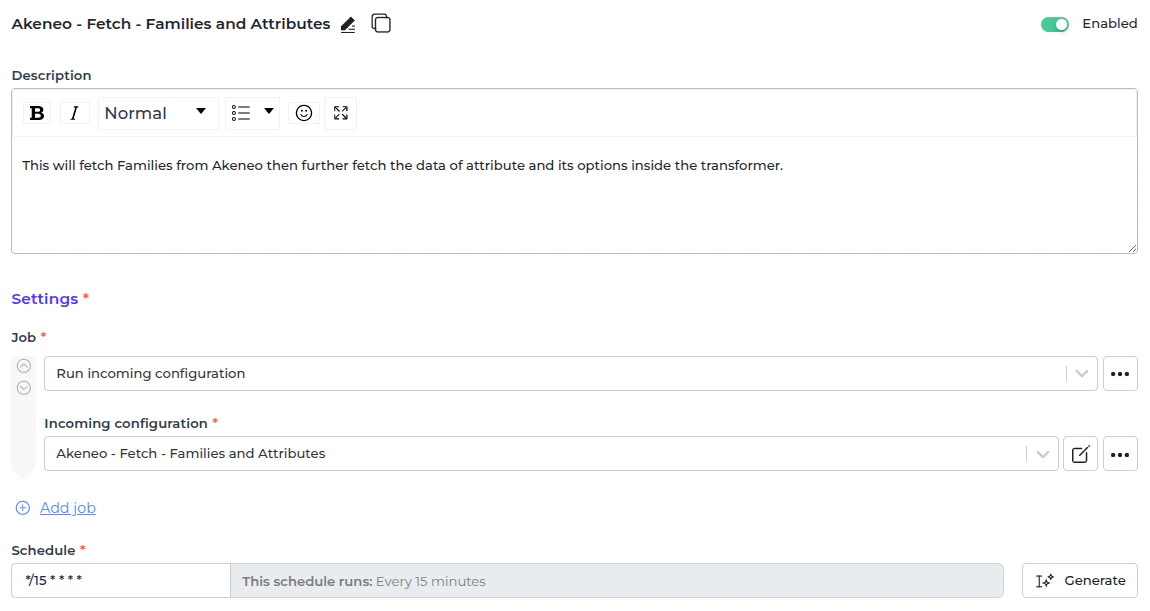
- Set a schedule expression and enable the configuration.
- In Alumio, go to “Integrations → Schedulers → CommerceTools - Send - Product types”.
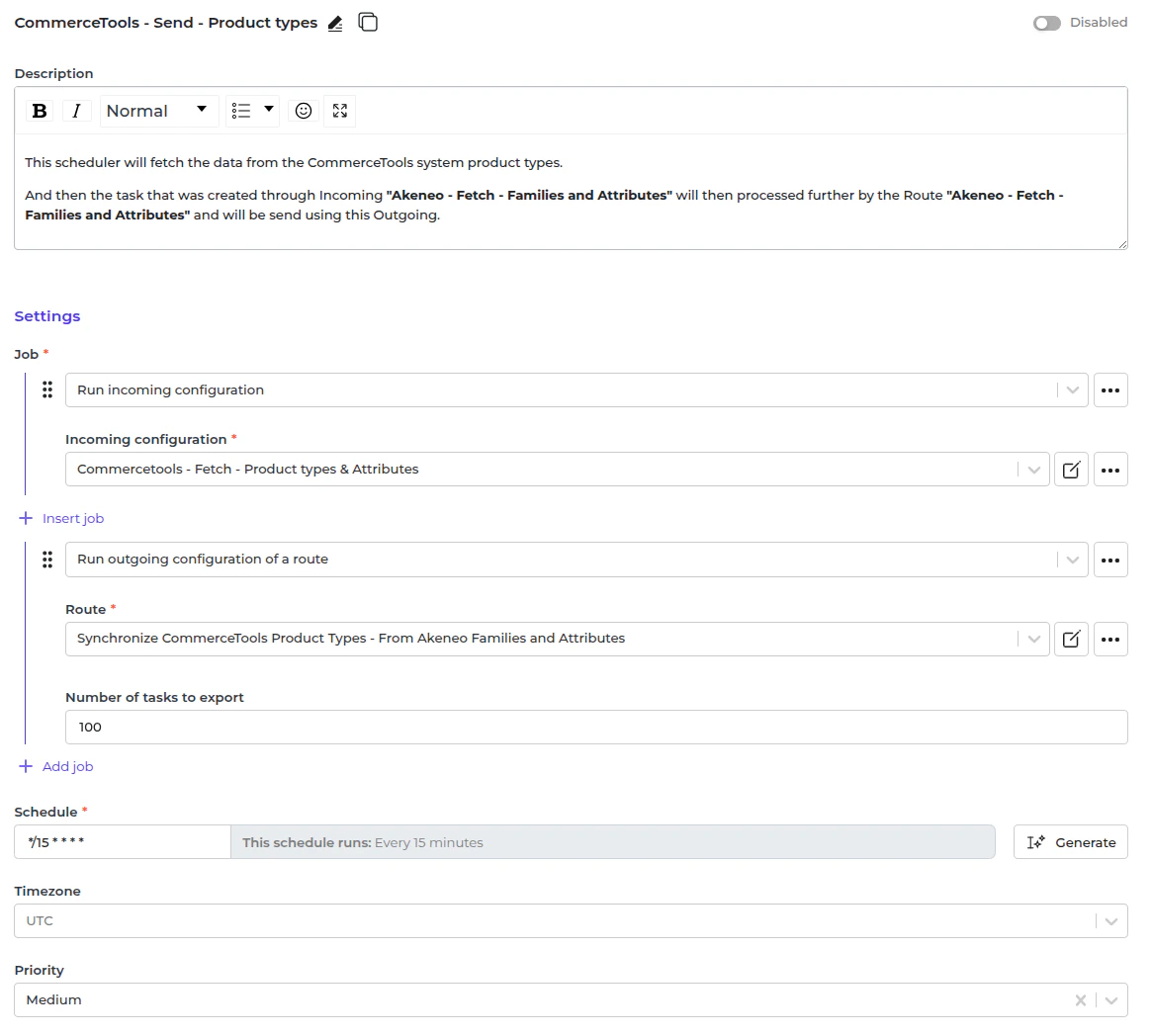
- Set a schedule expression and enable the configuration.