Fetching Categories from Akeneo

  • In Alumio, go to “Integrations → Incoming → Akeneo - Fetch - Categories”.
  • To get all categories from the Akeneo system, use an Incoming “Akeneo - Fetch - Categories”.
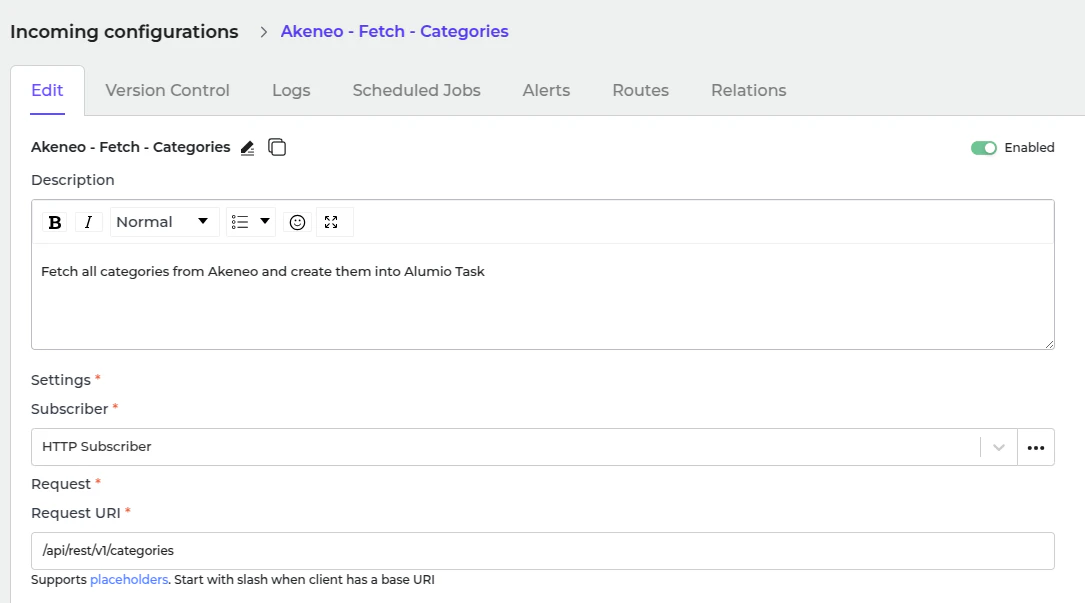
Image
This incoming will create a task inside Alumio with data structured as Alumio base categories. There some transformer inside this Incoming before processing the category.
  1. Akeneo - Prepare convert category - Labels - To localizations.
  2. Akeneo - Convert - Category - To Alumio Base.
  3. Akeneo - Filter - Category.
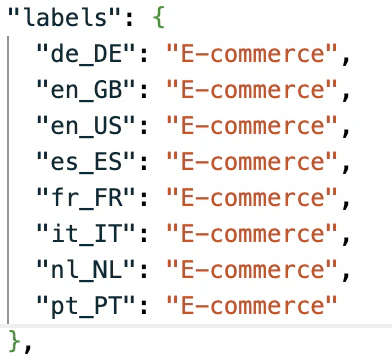
Akeneo - Prepare convert category - Labels - To localizations This transformer converts label data from Akeneo. An example of the Akeneo labels:
Image
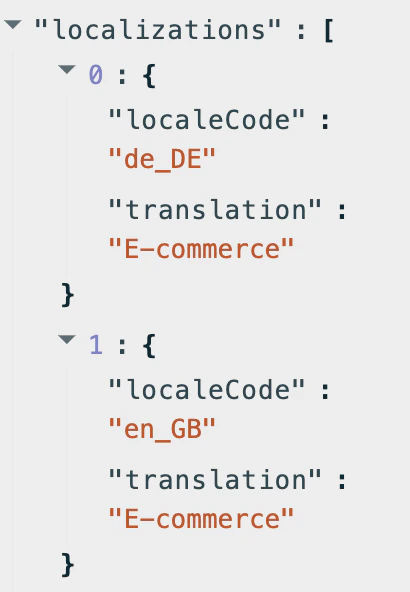
Since the current data structure is incompatible with Spryker, the transformer “Akeneo - Convert - Category - To Alumio Base” is used to convert it into a compatible format.
Image
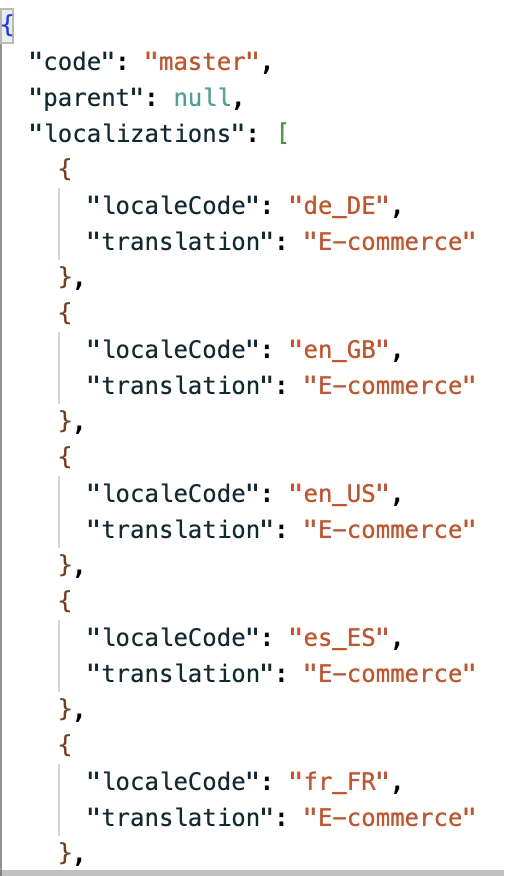
An example of the Alumio base category:
Image
Akeneo - Filter - Category
  • Use this transformer to filter previously created tasks into task categories to avoid duplication.
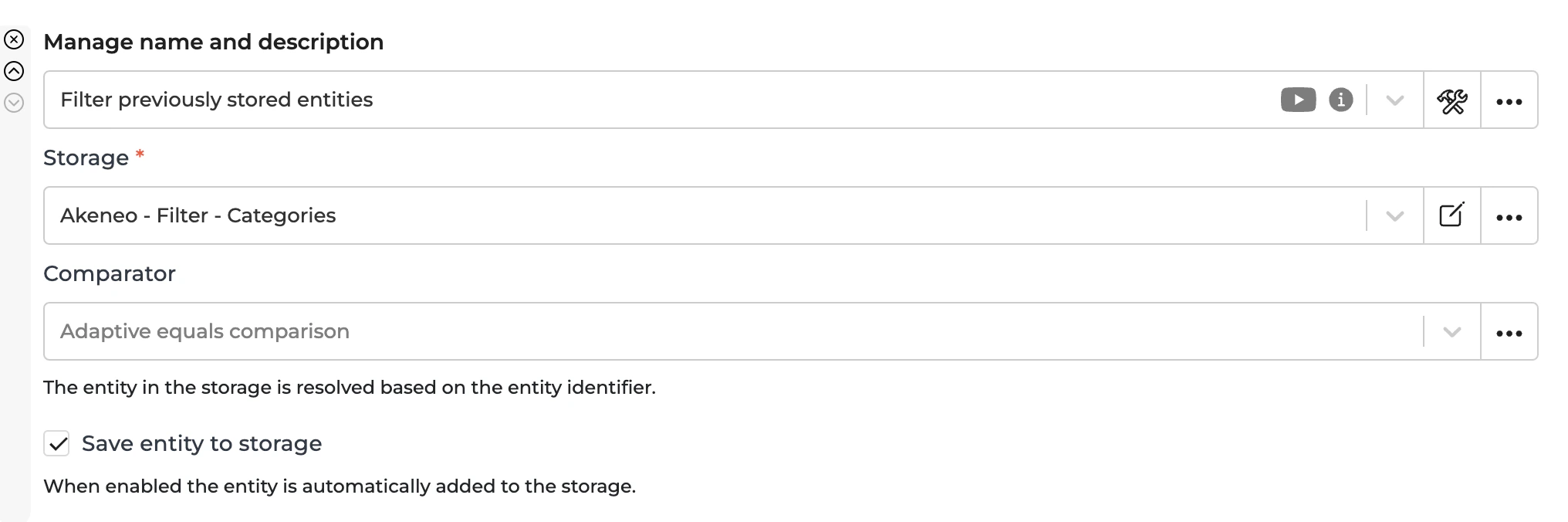
Image
  • To recreate a task, you should remove the entity from the storage “Akeneo - Filter - Categories”.

Fetching Categories from Spryker

  • In Alumio, go to “Integrations → Incoming → Spryker - Fetch - Categories”.
  • Before sending categories into the Spryker system, you need to know which categories already exist in the Spryker System. This Incoming is intended to fetch the categories data in the Spryker System and save them with the transformer “Spryker - Update storage - Category full data”. The result of this Incoming won’t be created as a task but will be saved into the storage name “Spryker - Categories - Full Data”.
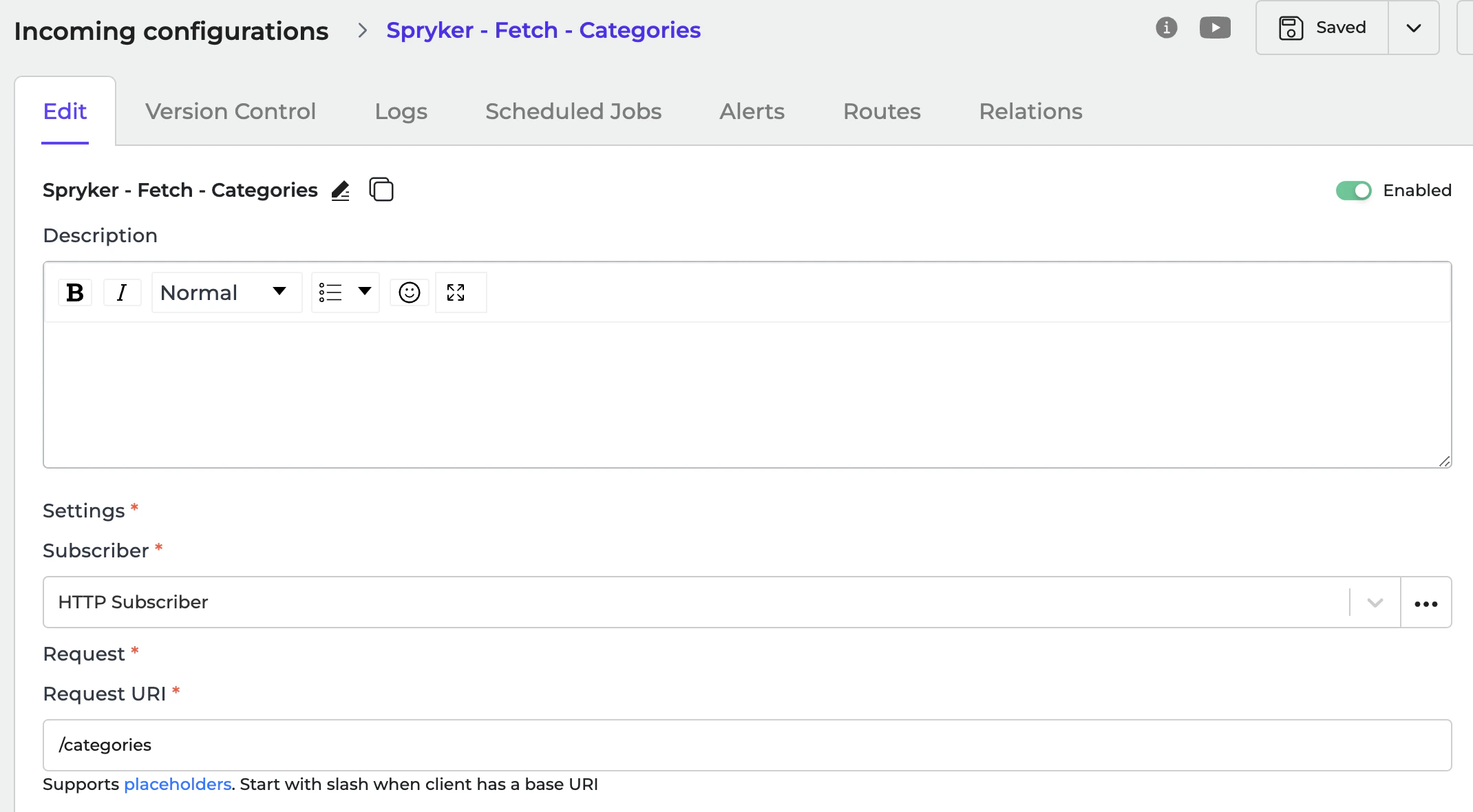
Image

Sending Categories to Spryker

  • In Alumio, go to “Integrations → Route → Akeneo Synchronize Categories to Spryker”.
  • The task in the Incoming “Akeneo - Fetch - Categories” will be processed in the Route “Akeneo Synchronize Categories to Spryker” and sent using the Outgoing “Spryker - Send - Category”.
Sending in the Outgoing will be processed with the following transformers:
  1. Spryker - Convert - Alumio Base Category - To Spryker Category.
  2. Spryker - Filter Category - Filter localized attributes by locale.
  3. Spryker - Prepare Send Category - Check and fill parent sort order.
  4. Spryker - Check and send - Category.
  5. Spryker - Update storage - Category full data.
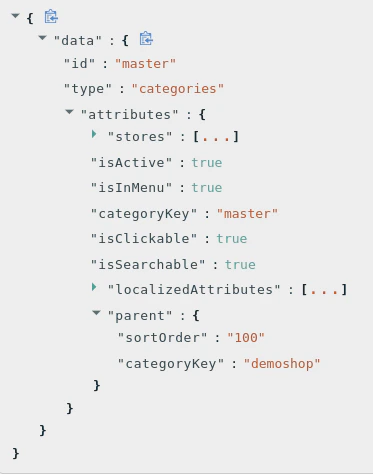
Spryker - Convert - Alumio Base Category - To Spryker Category This transformer converts Alumio category data inside the task into Spryker category data. An example of the Spryker category data:
Image
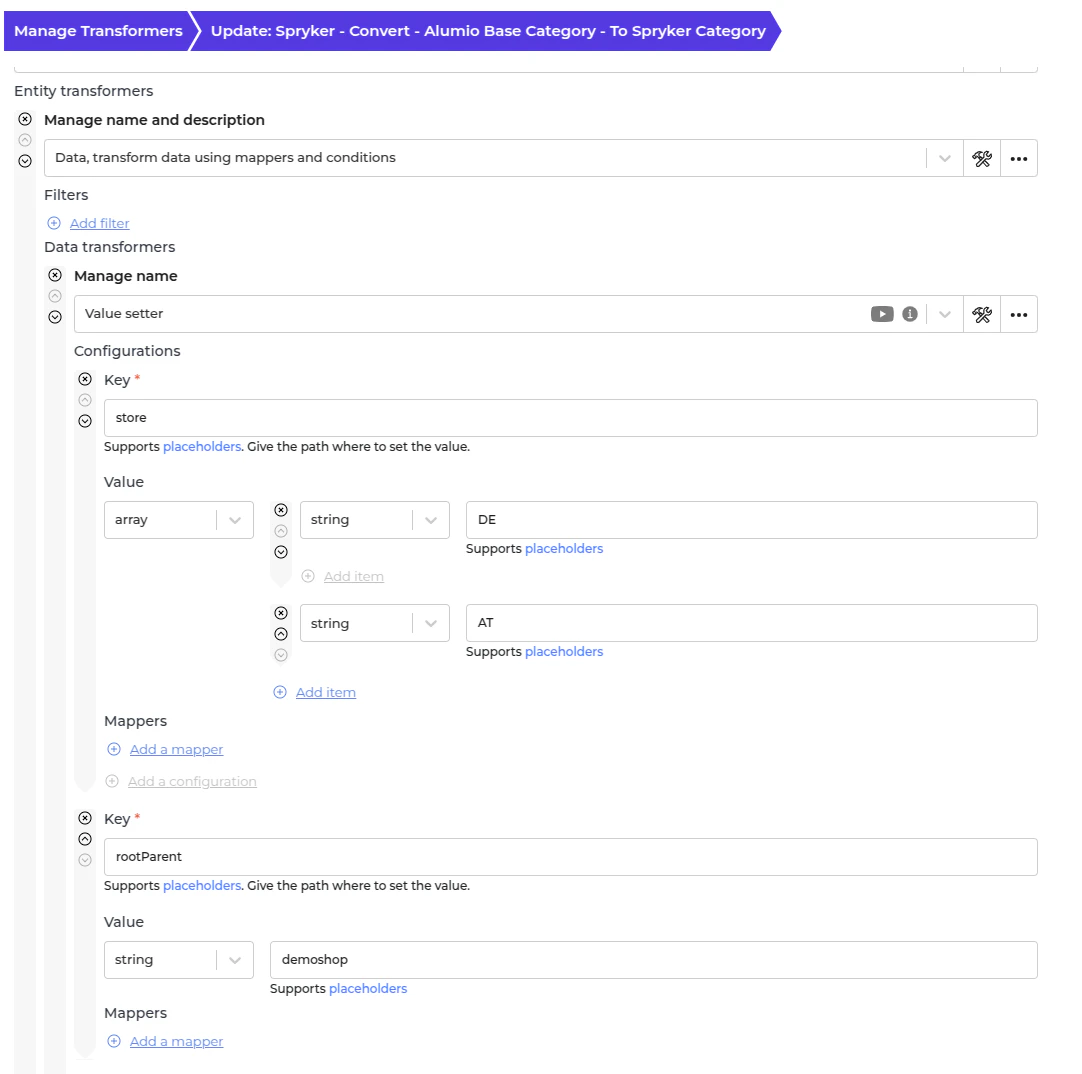
This transformer requires input on the first Value setter configuration for storing information in the Spryker system and the default root parent for categories without a parent from the Akeneo System. You can modify it according to your needs.
Image
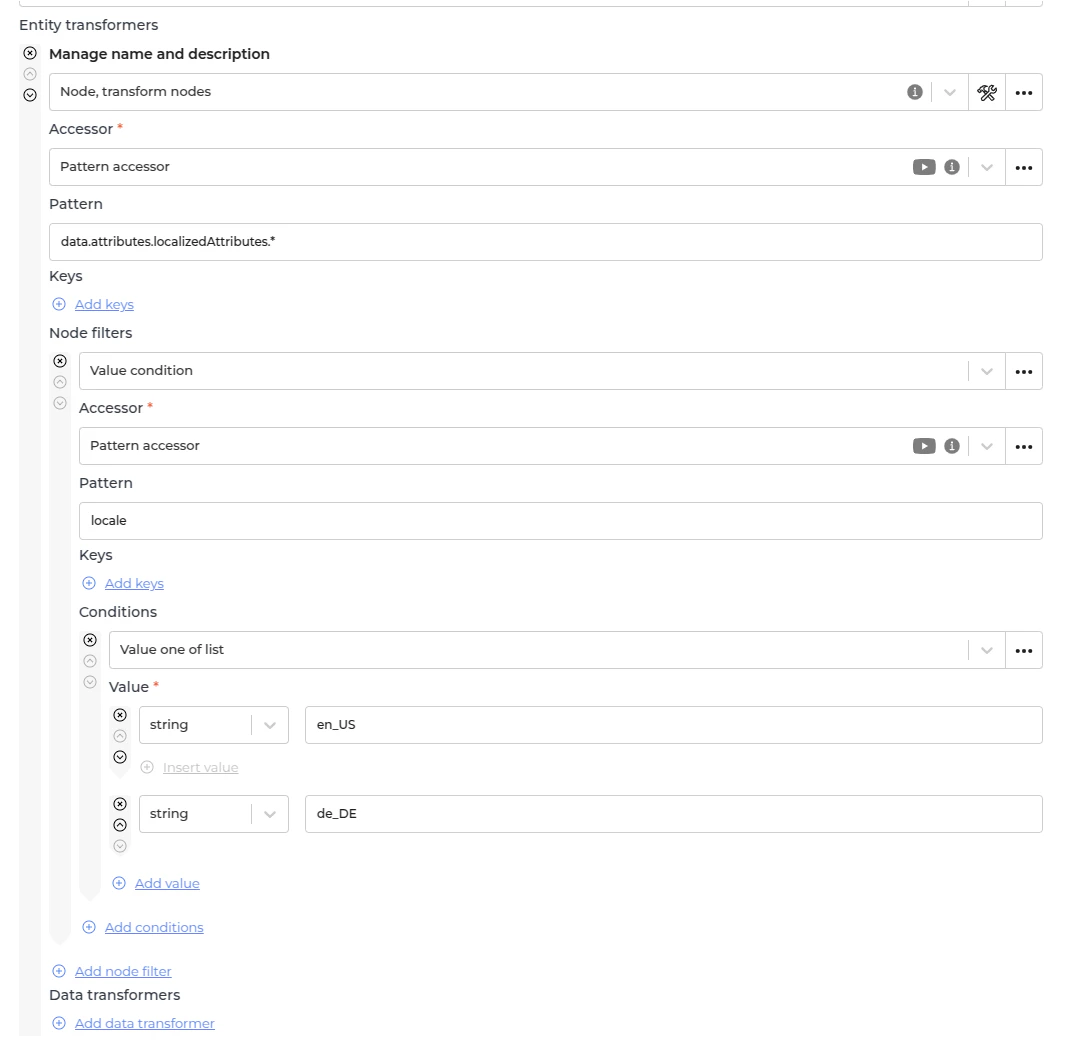
Spryker - Filter Category - Filter localized attributes by locale The Spryker system requires only the locale configured for the store to ensure successful synchronization. This transformer is designed to include only the approved locale, preventing errors during the sync process. Add or remove a locale in the first Node filter.
Image
By default, this transformer is configured for the English and Dutch locales. Spryker - Prepare Send Category - Check and fill parent sort order The parent sort order is set to 100 by default in the **“Spryker - Convert - Alumio Base Category - To Spryker Category” **transformer. This transformer automatically increases the sort order as additional categories are added. Spryker - Check and send - Category This transformer checks existing Spryker categories from the “Spryker - Fetch - Categories” incoming configuration to determine whether a category should be created or updated in the Spryker system. Spryker - Update storage - Category full data This transformer stores the created or updated category so it can be reused in subsequent iterations of the “Spryker - Check and send - Category” transformer.

Automatic Categories Synchronization Setup

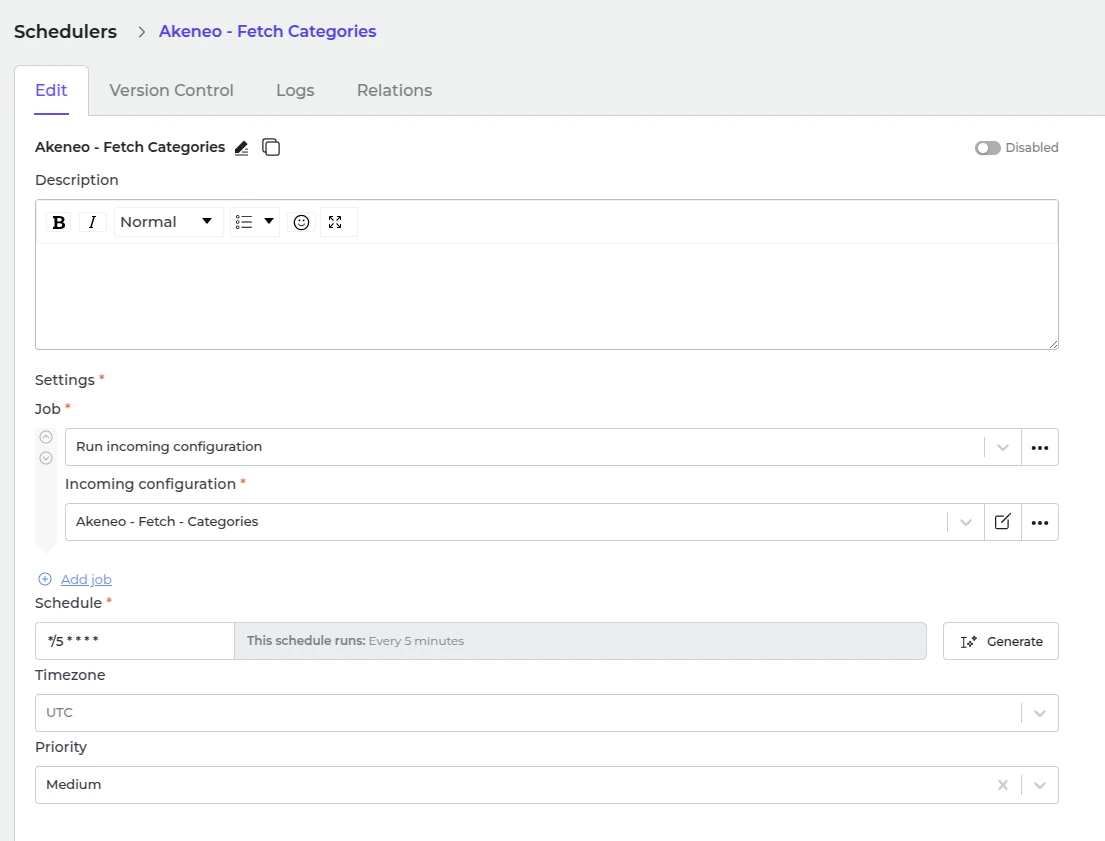
  • Go to “Integrations → Schedulers → Akeneo - Fetch Categories”.
Image
  • Set a schedule expression and enable the configuration.
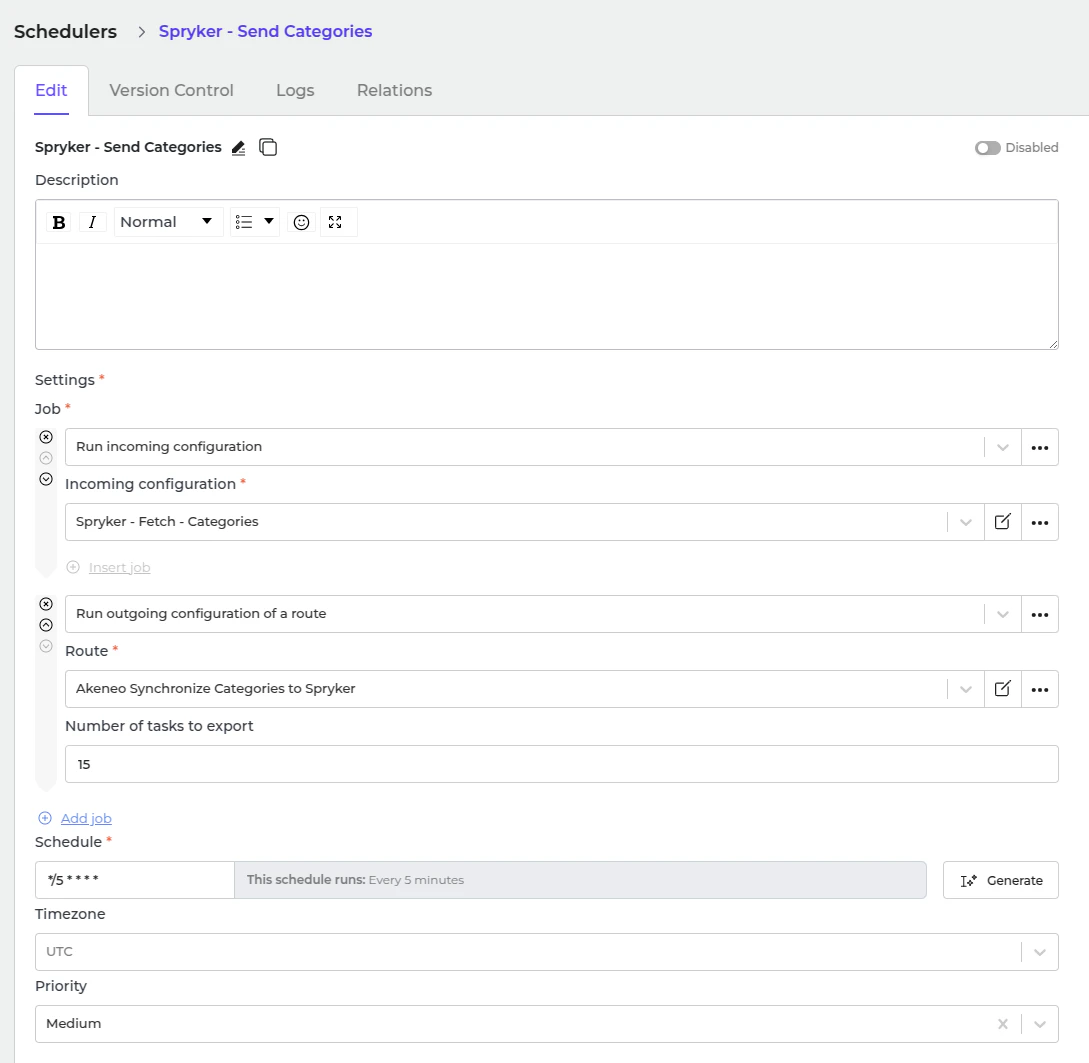
  • Go to “Integrations → Schedulers → Spryker - Send Categories”.
Image
  • Set a schedule expression and enable the configuration.