
Fetching Families from Akeneo
- In Alumio, go to “Integrations → Incoming → Akeneo - Fetch - Families”. This incoming is created to get family axes in Akeneo to determine a super attribute in Spryker. The family axes exist in the family variants, but Akeneo require code in the endpoint.
Fetching Attributes from Akeneo
- In Alumio, go to “Integrations → Incoming → Akeneo - Fetch - Attributes”.
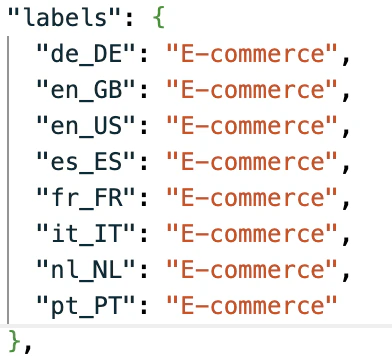
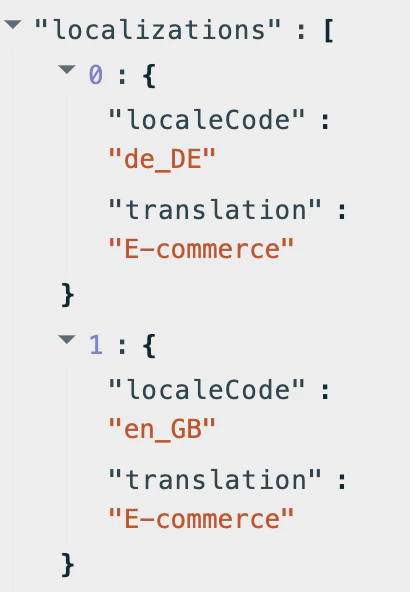
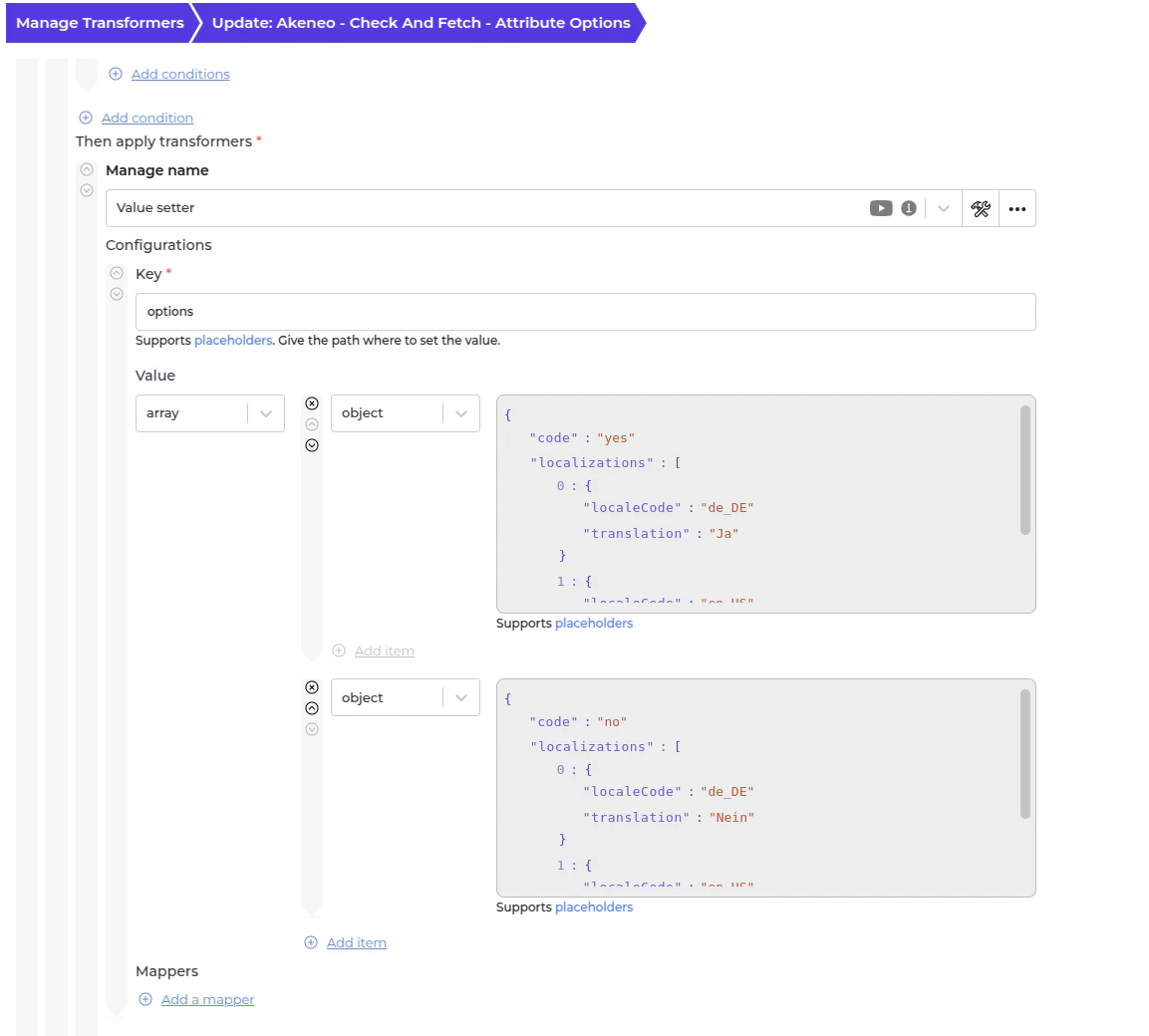
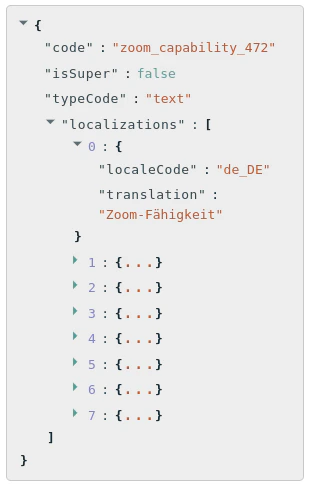
- pim_catalog_boolean -> select.
- pim_catalog_select -> select.
- Use this transformer to filter previously created task attributes to avoid duplication.
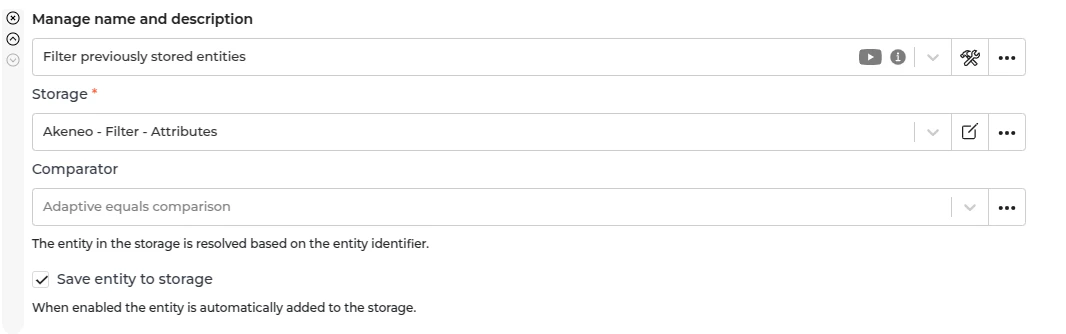
- To recreate a task, remove the entity from the storage “Akeneo - Filter - Attributes”.
Fetching Attributes from Spryker
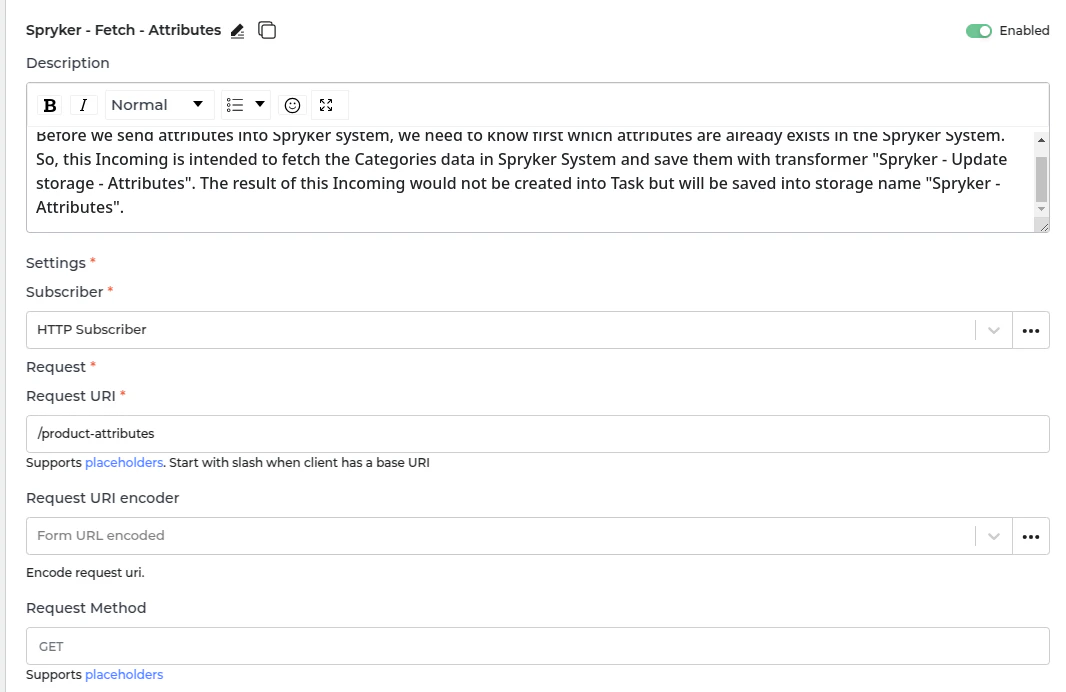
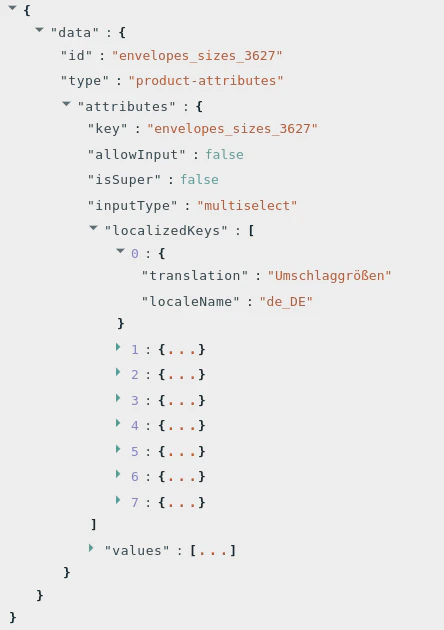
- In Alumio, go to “Integrations → Incoming → Spryker - Fetch - Attributes”. Before sending attributes to the Spryker system, we first need to determine which attributes already exist. This Incoming configuration fetches attribute data from Spryker and stores it using the “Spryker - Update storage - Attributes” transformer. The result is not created as a task but saved in storage under “Spryker - Attributes.”
Sending Attributes into Spryker
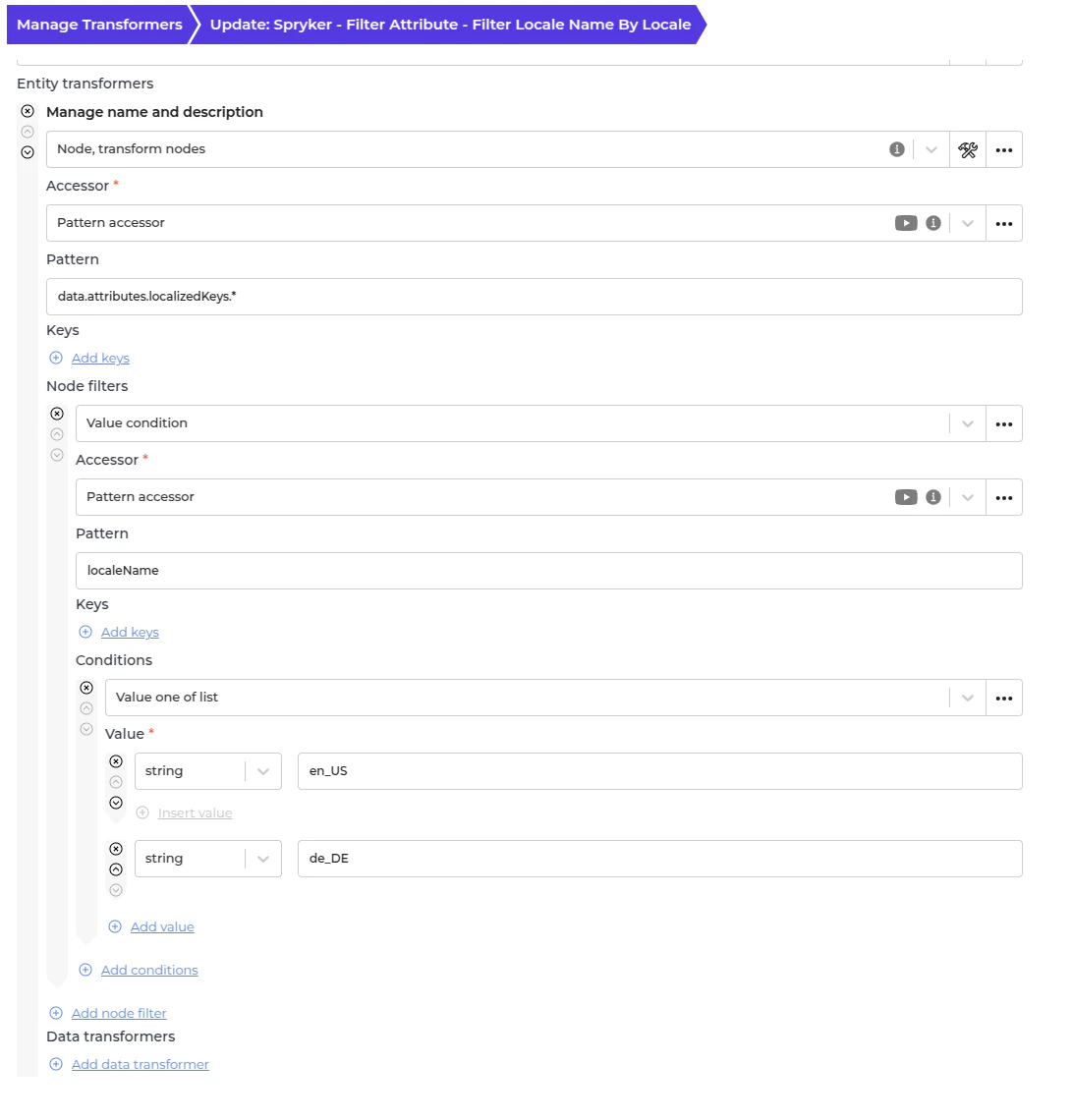
- In Alumio, go to “Integrations → Route → Akeneo Synchronize Atrributes to Spryker”.
Automatic Attributes Synchronization Setup
- In Alumio, go to “Integrations → Schedulers → Akeneo - Fetch and check Attributes”.
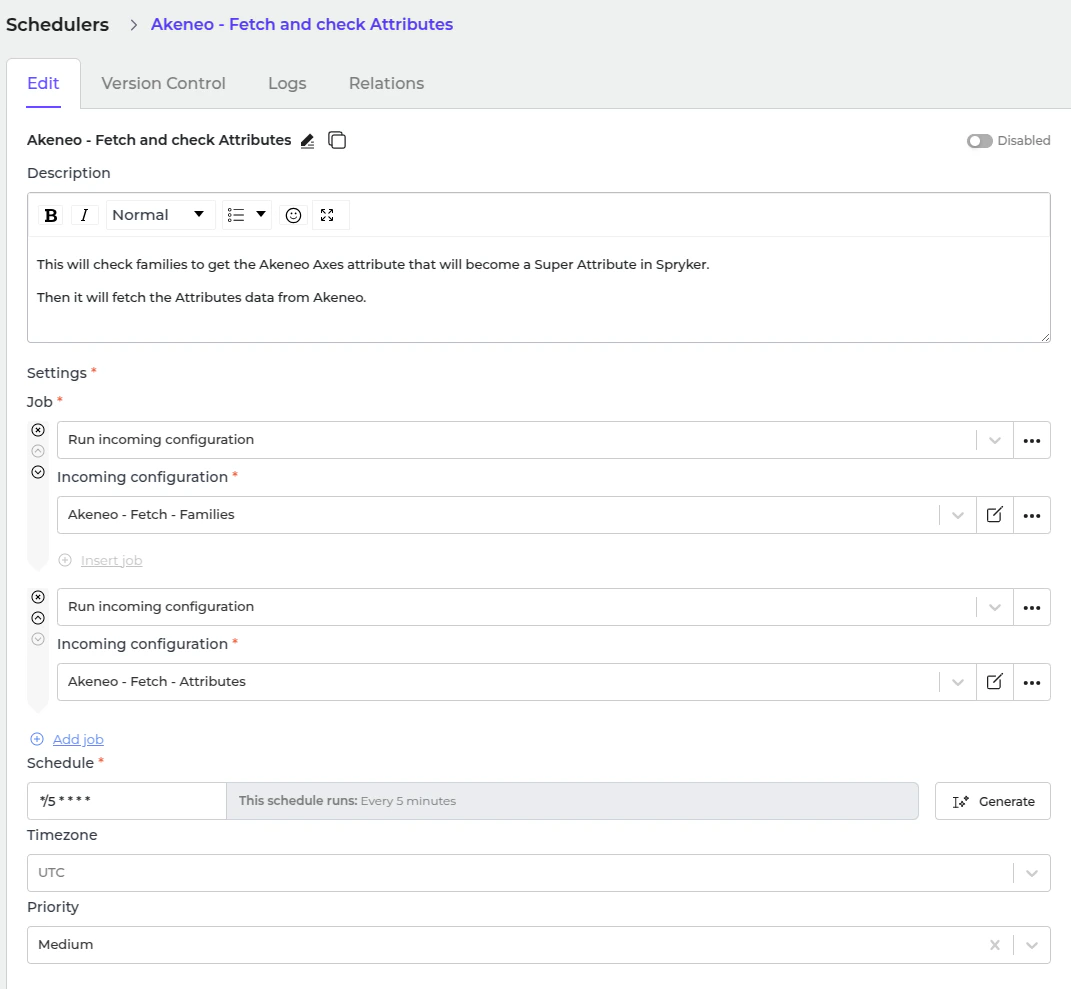
- Set a schedule expression and enable the configuration.
- In Alumio, go to “Integrations → Schedulers → Spryker - Send Attributes”.
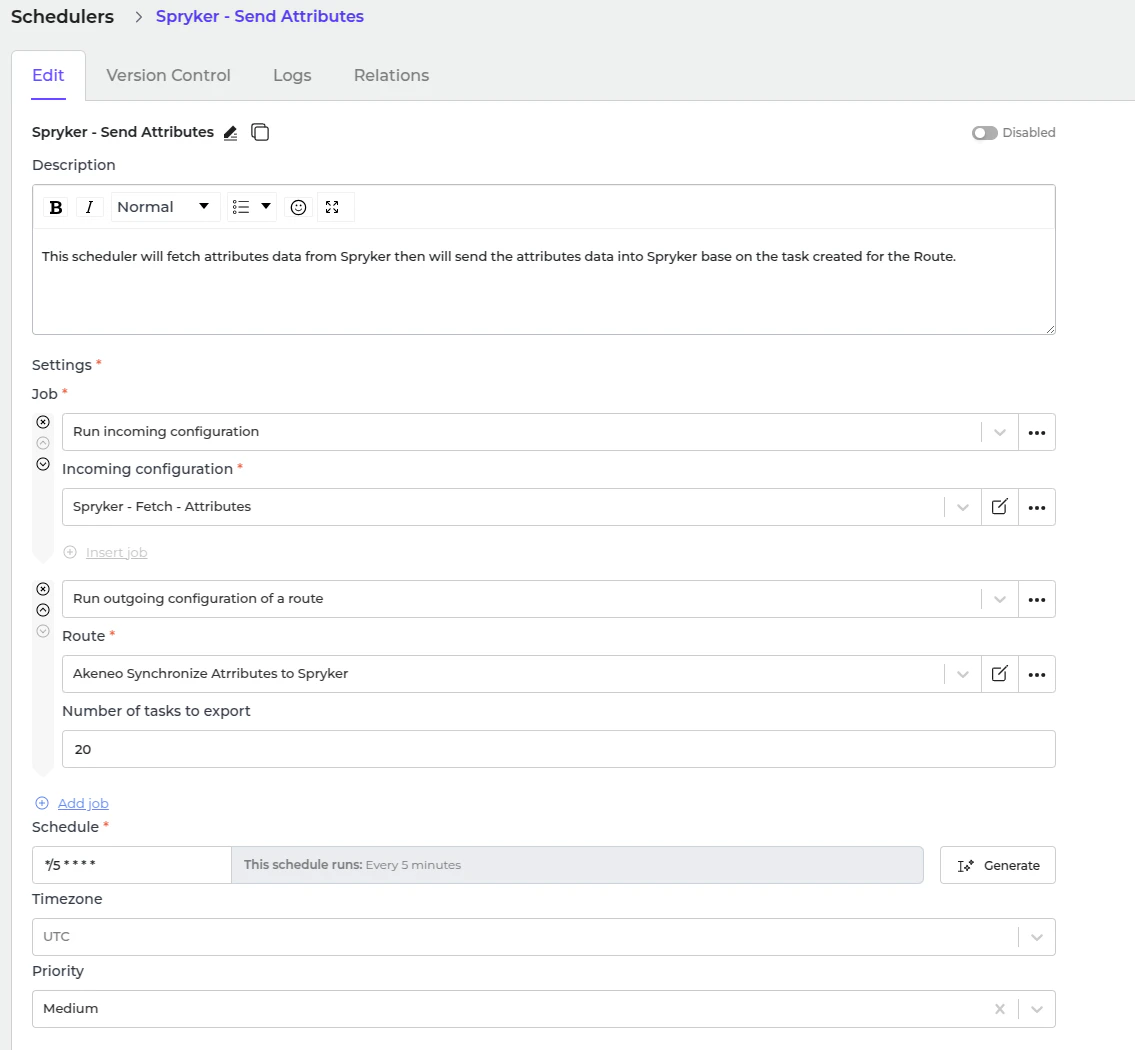
- Set a schedule expression and enable the configuration.