
- Log in to your Alumio Dashboard.
- Navigate to System → Import / Export.
- Upload the downloaded template. You’ll see a list of the configurations ready to import. Select All and click the “Import configuration” button. Verify that all Incoming, Routes, Outgoing, Transformers, and Schedulers are correctly imported.
Credentials Setup
Before running the integration, you must configure credentials for Akeneo and Spryker in Alumio. Step 1: Retrieve API Credentials from Akeneo.- Log in to Akeneo as an admin user.
- Navigate to Connect → Connection-settings.
- Create a new connection (if necessary) and retrieve the following:
- Client ID.
- Secret Key.
- Username.
- Password.
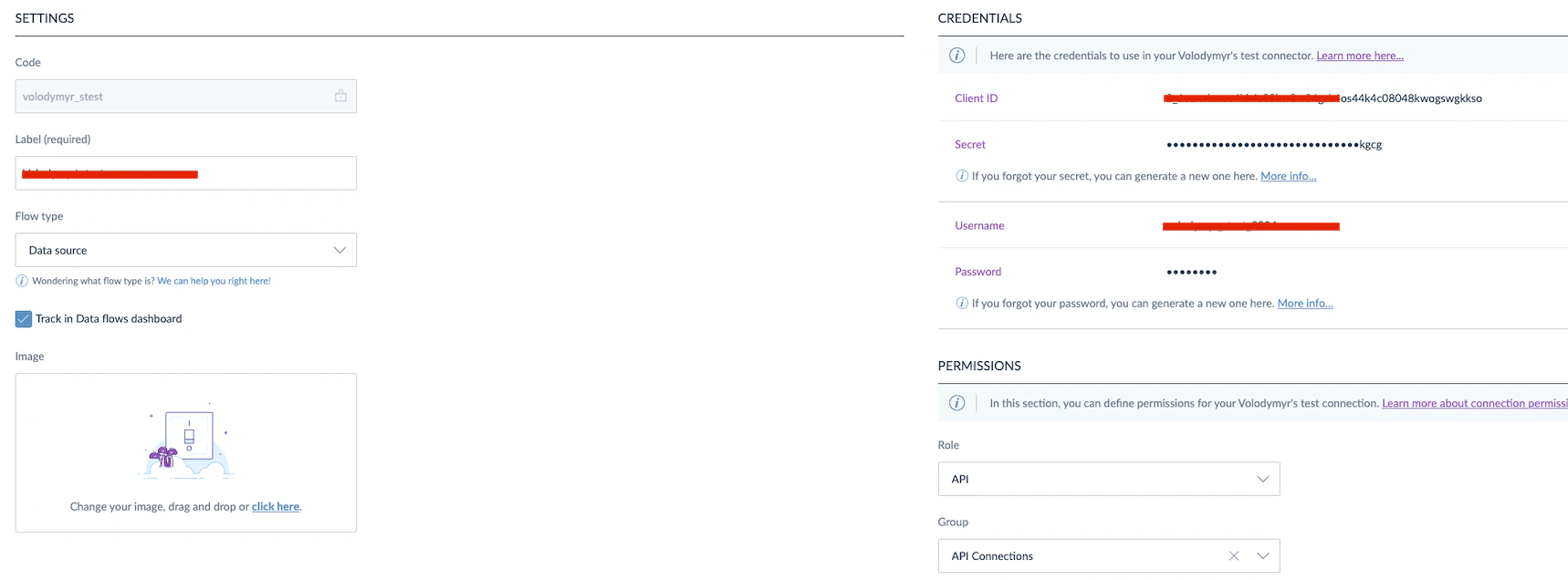
- Username.
- Password.
- In Alumio, go to System → Environment variables.
- Fill in all credentials based on what you get from Akeneo and Spryker.
- Click Save & Apply.
Customization
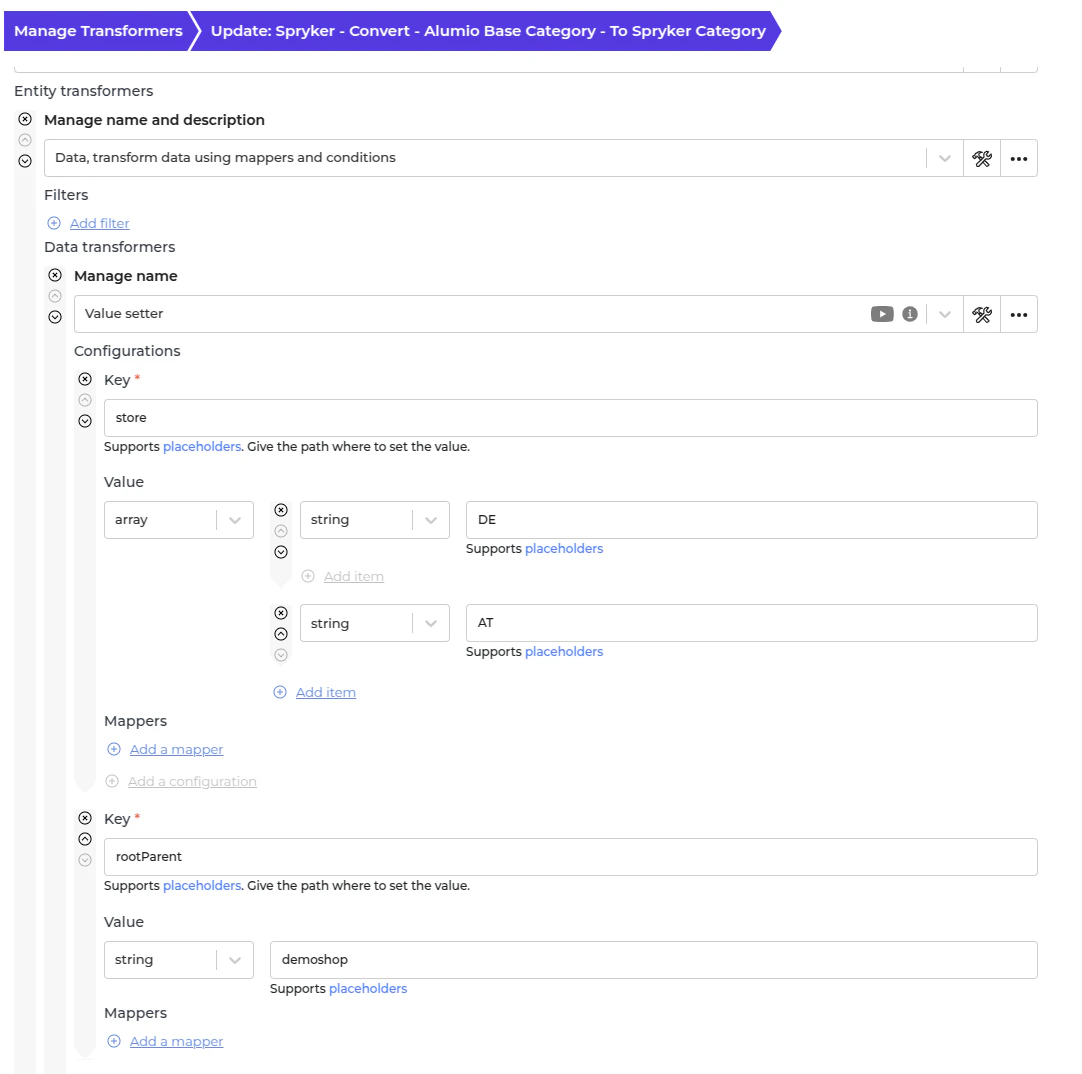
Customizing Categories Synchronization from Akeneo to Spryker - Set store- Navigate to “Transformer → Spryker - Convert - Alumio Base Category - To Spryker Category”.
- Find the first value setter and change the array as needed.
- Save the transformer.
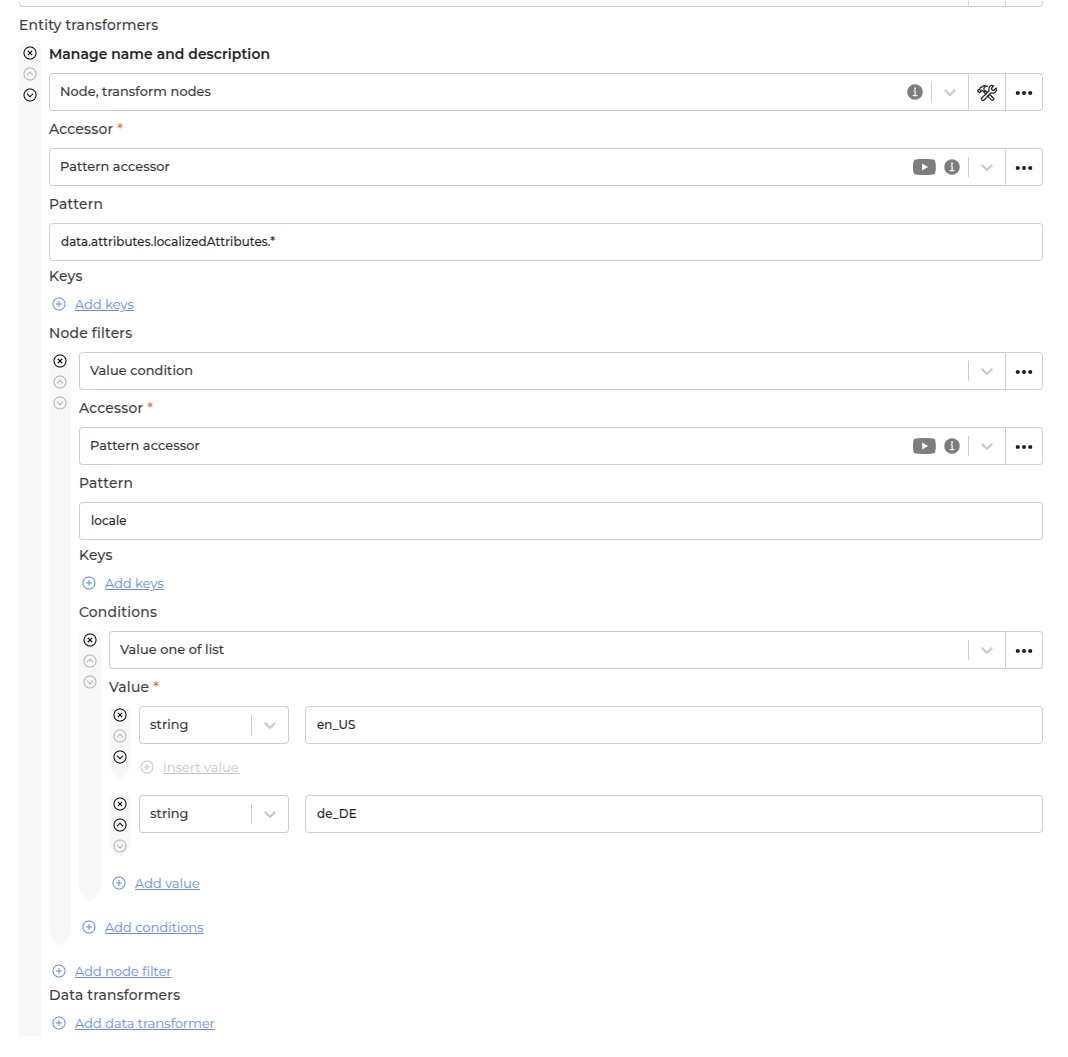
- Navigate to “Transformer → Spryker - Filter Category - Filter localized attributes by locale”.
- Add or remove a locale in the first Node filter.
- Save the transformer.
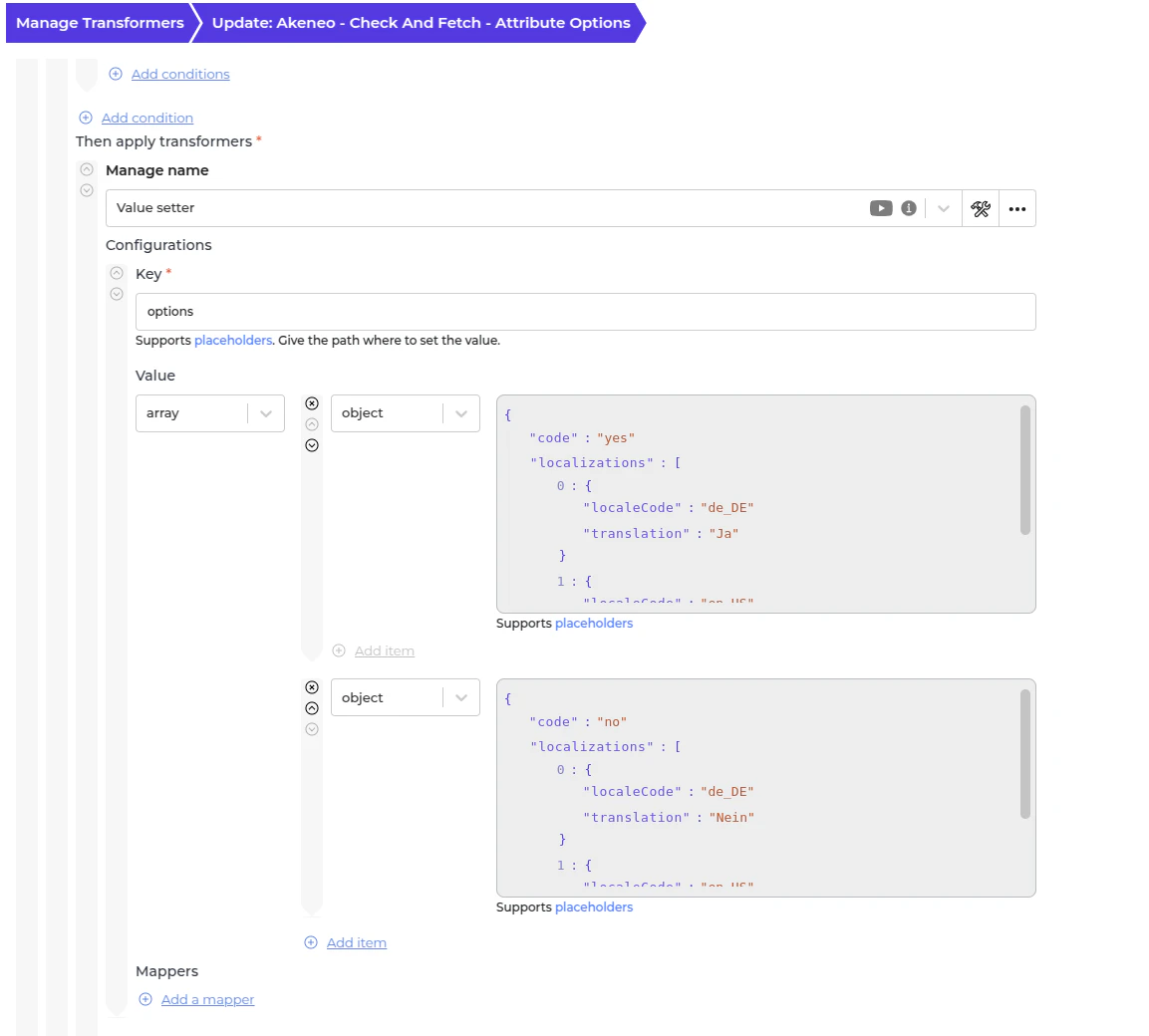
- Navigate to “Transformer → Akeneo - Check and fetch - Attribute options”.
- Find the first value setter and change the object’s boolean value according to your needs.
- Save the transformer.
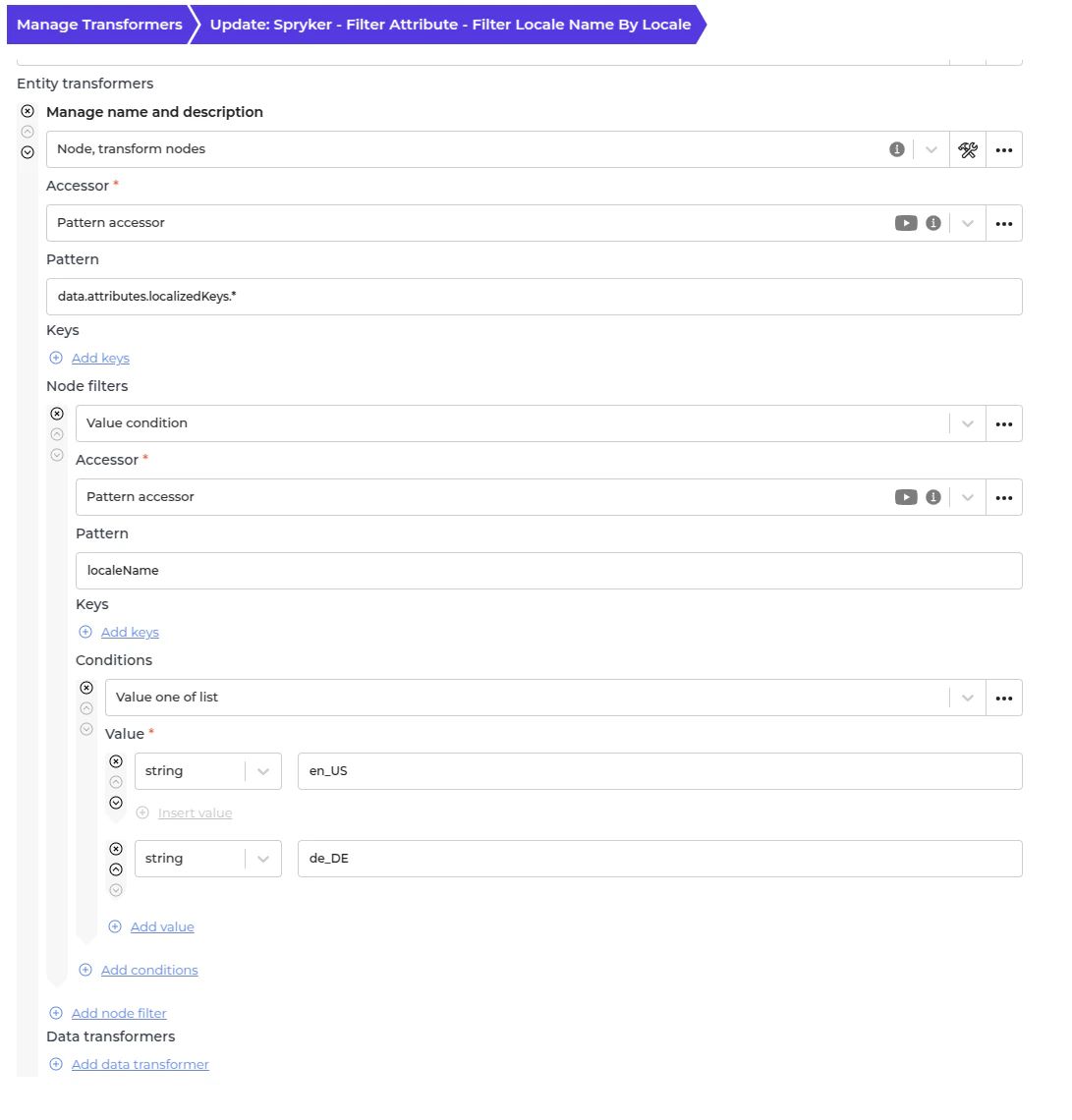
- Navigate to “Transformer → Spryker - Filter Attribute - Filter locale name by locale”.
- Please add or remove a locale in the first Node filter.
- Save the transformer.
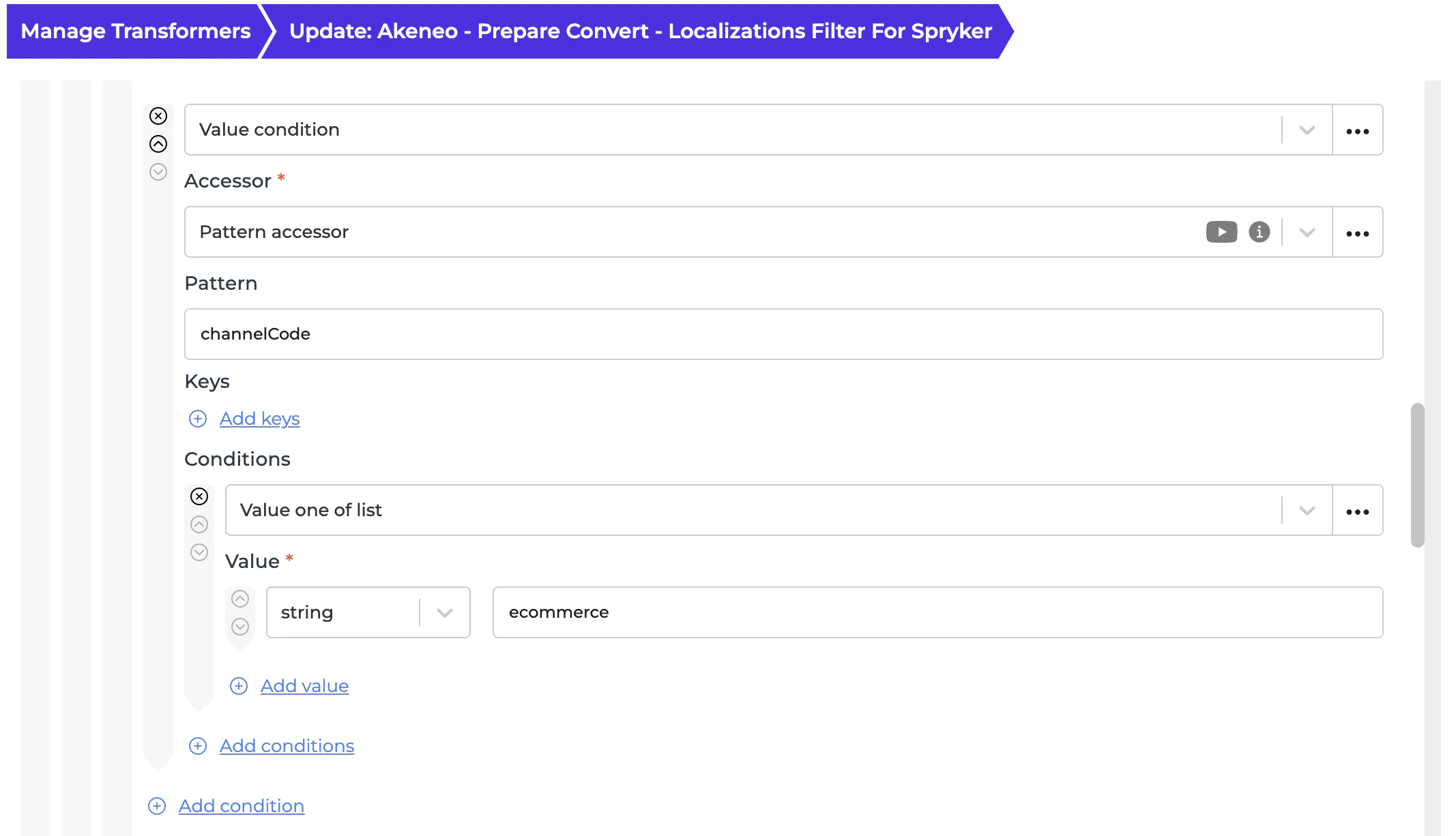
- Navigate to “Transformer → Akeneo - Prepare Convert - Localizations filter for Spryker”.
- Please add or remove the channel code in the first Node filter.
- Save the transformer.
- Navigate to Transformer → Spryker - Set - Base Information.
- Go to the “Overview” tab to see what kind of information you can set.
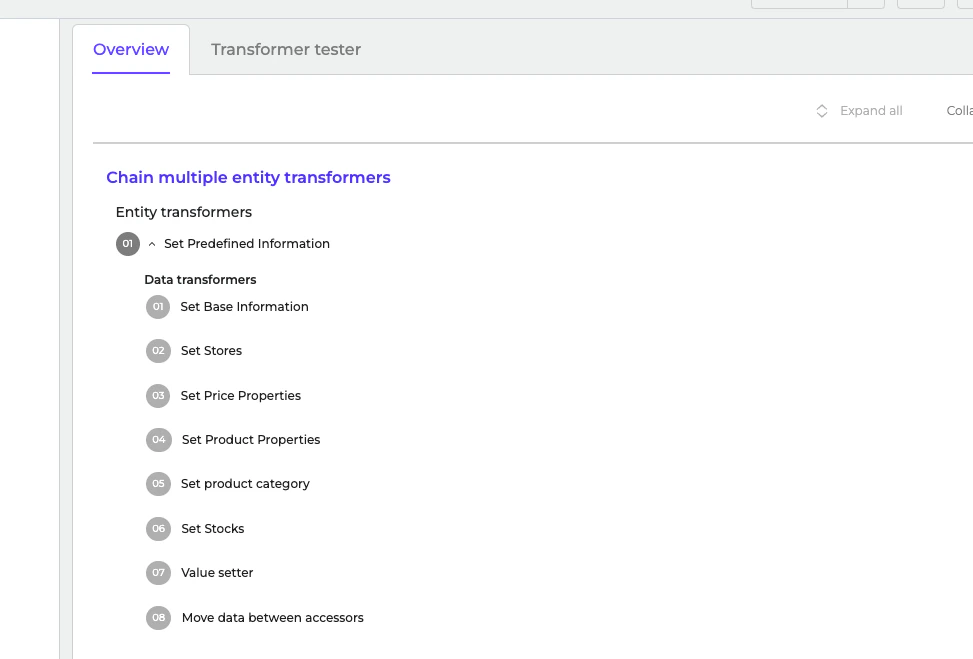
- Go to each data transformer and make necessary adjustments.
- Save the transformer.
- Navigate to Incoming → Akeneo - Fetch Storage - Product Model Alumio Base.
- Go to the subscriber section.
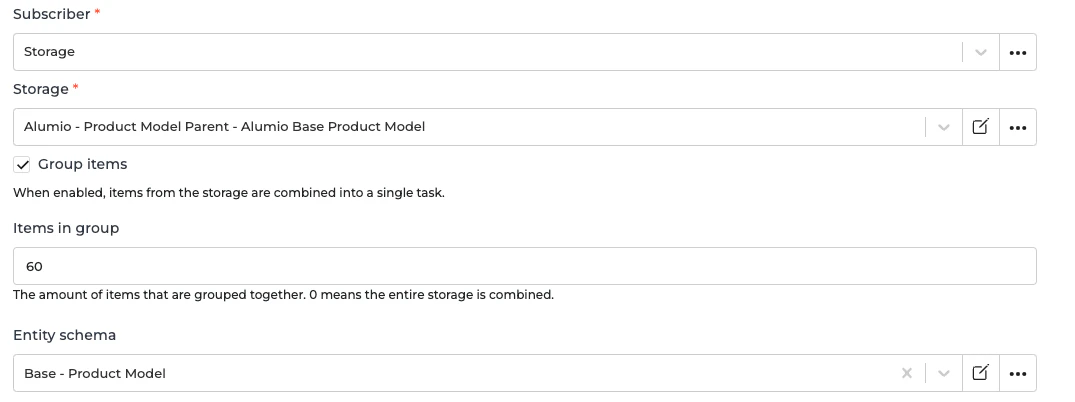
- Adjust the value for the “Item in group” field. For example, if you set 15, then it’ll be 15 products per task.
- Save the incoming configuration.
How to Run the Template
To ensure proper data synchronization, follow this guide: Step 1: Synchronize the Categories. This ensures all categories exist in Spryker before importing products.- Go to Incoming → Akeneo - Fetch - Categories.
- Run it and wait until the incoming is finished.
- Verify whether the tasks are being created and executed in the Alumio dashboard.
- Make sure all the tasks are finished and verify the result in Spryker.
- Go to Incoming → Akeneo Synchronize Attributes to Spryker.
- Run it and wait until the incoming is finished.
- Verify the tasks are being created and executed in the Alumio dashboard.
- Make sure all the tasks are finished and verify the result in Spryker.
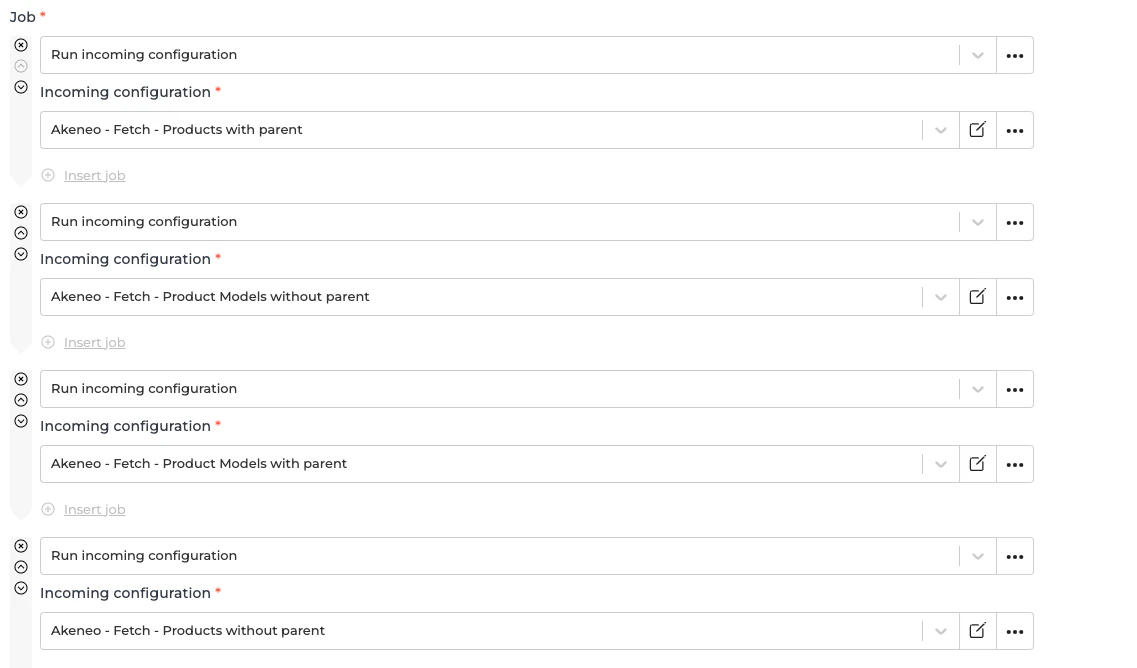
- Run Incoming → Spryker - Update storages.
- Wait until the incoming is finished.
- Run Incoming → Akeneo - Fetch Storage - Product Model Alumio Base.
- Wait until the incoming is finished.
- Verify whether the tasks are being created and executed in the Alumio dashboard.
- Make sure all the tasks are finished and verify the result in Spryker.
Setting Up the Schedulers and Parallel Processing
Step 1: Enable Parallel Processing.- Go to Routes → Akeneo - Fetch Storage - Product Model Alumio Base.
- Enable the “Enable Parallel Execution” checkbox.
- Adjust “Maximum Parallel Executions” to a value that does not exceed your available Data Engines.
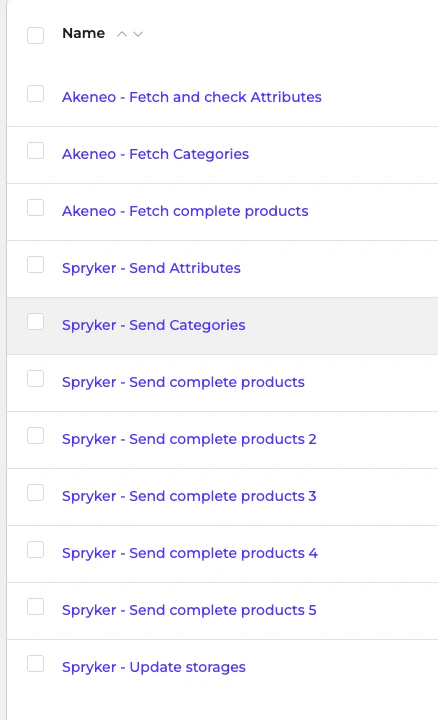
- Navigate to Integration → Schedulers.
- Create and modify schedulers for:
Monitoring & Troubleshooting
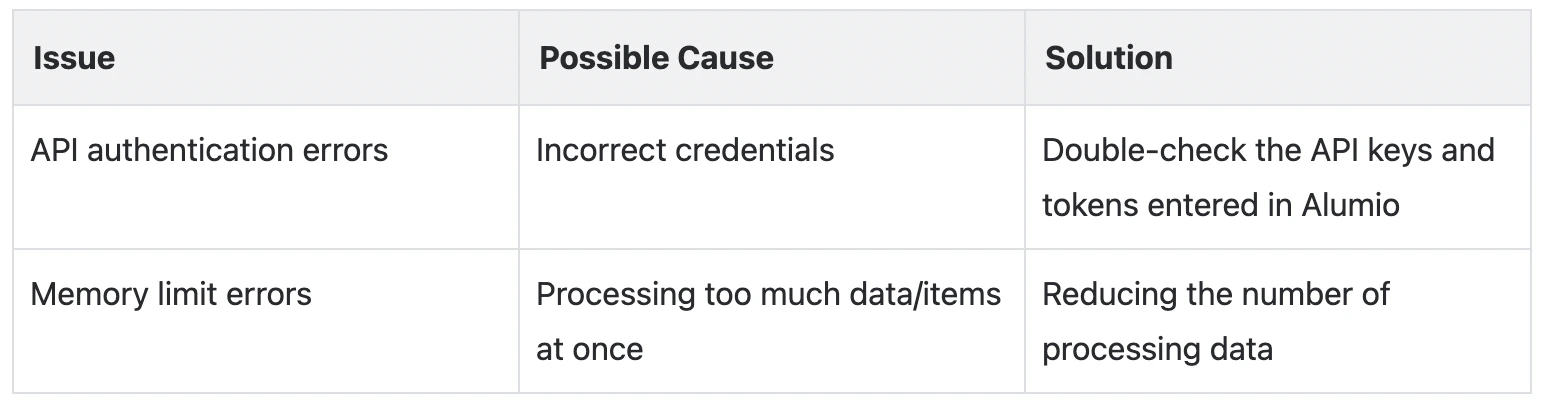
Checking Logs- Navigate to Incoming, Route or Task page → Logs in Alumio.
- Review task execution details and error messages.
- Debug issues by checking logs for failed transformations or API responses.
- Verify synchronization results by checking the Spryker backend.
- Adjust data transformation rules if necessary.
- Continue monitoring logs and optimize performance based on scheduler execution times, number of products per task etc.