
Base Information Setup
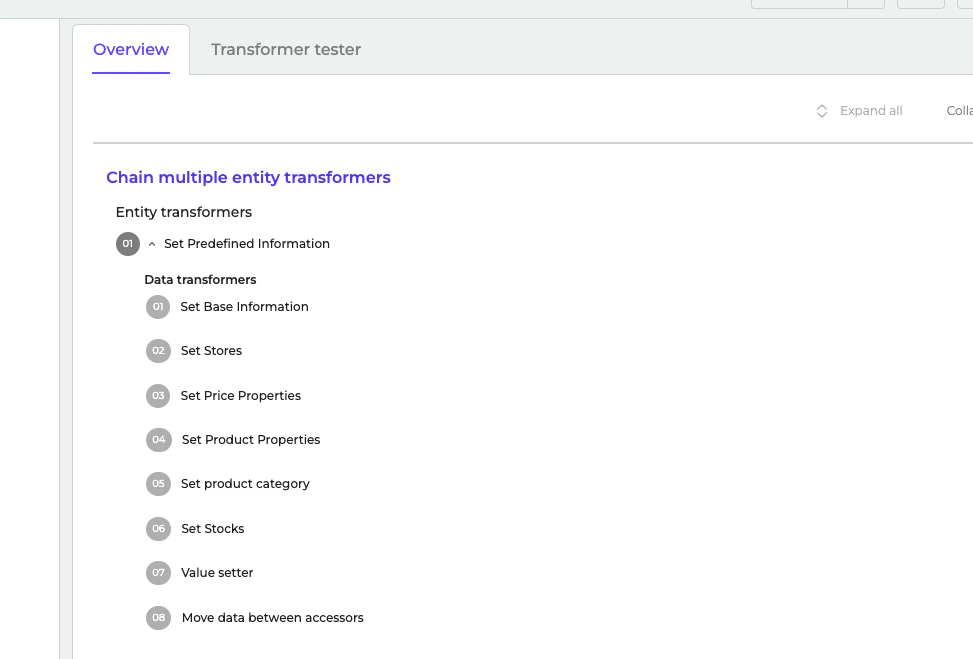
- Navigate to Transformer → Spryker - Set - Base Information.
- Go to the “Overview” tab to see what kind of information you can set.
- Go to each data transformer and make necessary adjustments.
- Save the transformer.
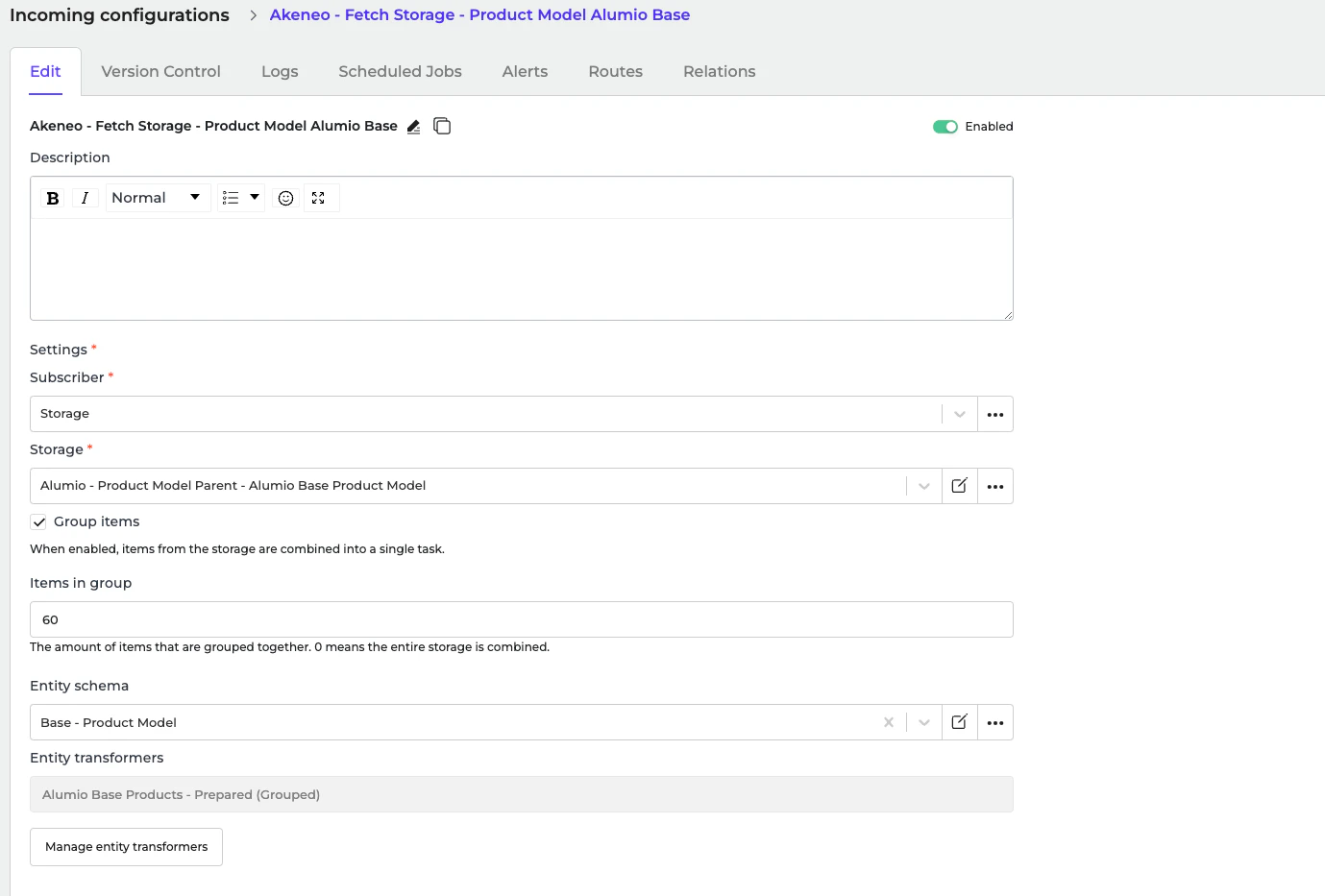
Configuring the Incoming: Akeneo ‐ Fetch Storage ‐ Product Model Alumio Base
In the Incoming section of data synchronization from the Alumio schema to the Spryker system, minimal setup is required. The key configuration to adjust is the number of products processed per task.- Navigate to Incoming and locate the “Akeneo - Fetch Storage - Product Model Alumio Base” configuration.
- Open the configuration settings.
- Find the field labelled “Items in group”.
- Enter the desired number of products to be synchronized per task. Example: If you want to process 15 products per task, set the value to 15.
- By adjusting this setting, you can control the batch size for product synchronisation, optimising performance for your system’s needs.
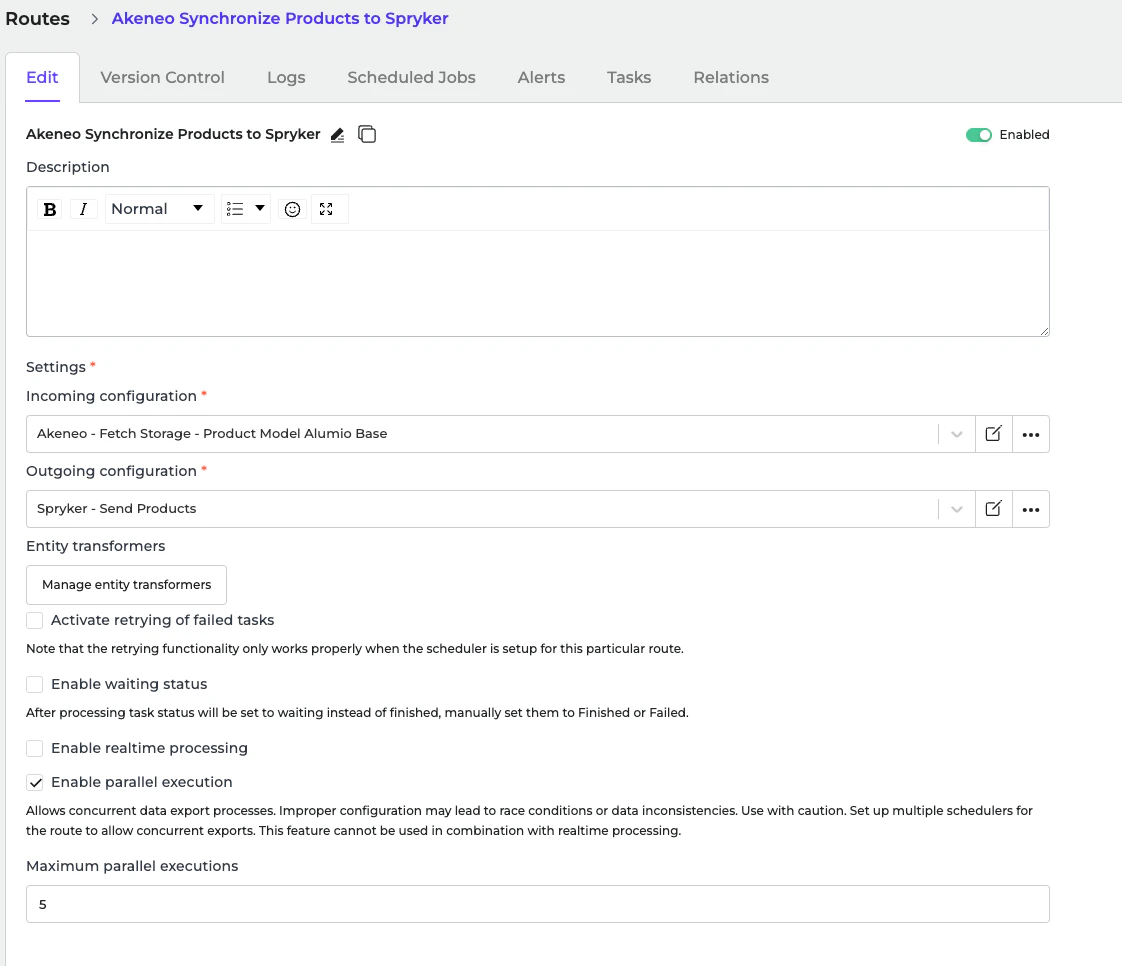
Configuring the Route: Akeneo Synchronize Products to Spryker
In the Route section of data synchronization from the Alumio schema to the Spryker system, minimal setup is required. The main configuration involves setting the number of parallel jobs that will run simultaneously.- Navigate to Routes and locate the configuration “Akeneo Synchronize Products to Spryker” configuration.
- Open the configuration settings.
- Enable the “Enable parallel execution” checkbox.
- Locate the “Maximum parallel executions” field and set the value based on the number of parallel jobs you want to run.
Configuring the Scheduler & Parallel Processing
Step 1: Enable Parallel Processing.- Go to Routes → Akeneo - Fetch Storage - Product Model Alumio Base.
- Enable the “Enable Parallel Execution” checkbox.
- Adjust the “Maximum Parallel Executions” field to a value that does not exceed your available Data Engines.
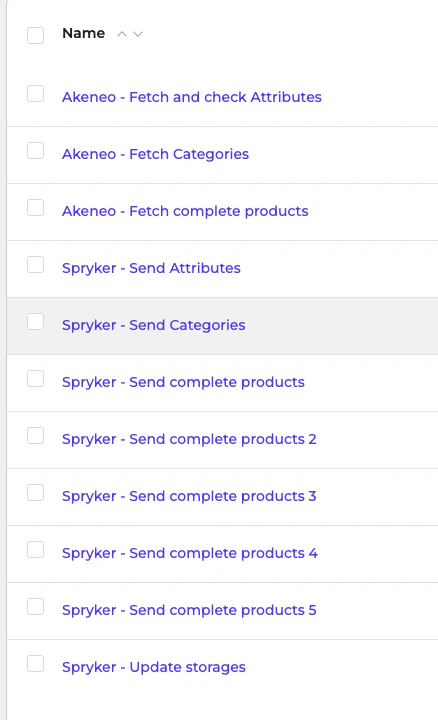
- Navigate to Integration → Schedulers.
- Create and modify schedulers for:
- Set appropriate execution intervals (e.g., hourly, daily).
- To enable parallel processing in a configuration, you need to create multiple schedulers for it. For example, you can see at least five schedulers set up for “Spryker - Send Complete Products.” This means the configuration within that scheduler will run with five parallel processes.
- Enable the schedulers.