
Anatomy of a Route
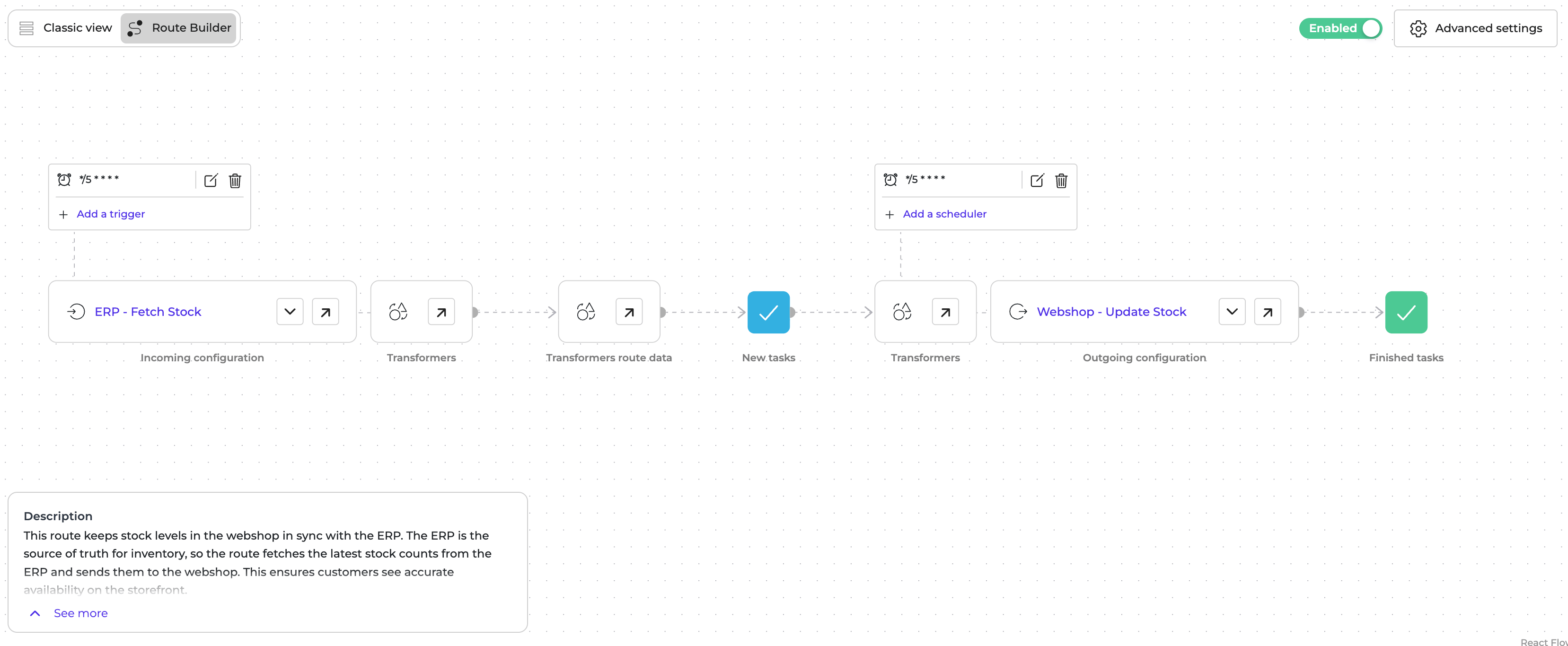
Every Route is built from three building blocks:- An Incoming configuration that fetches data from a source system.
- Route transformers that shape or enrich the data inside Alumio.
- An Outgoing configuration that sends the data to a destination system.
How a Route Runs
A Route runs in two steps:- The Incoming is executed first. It collects data from the source system. For each item returned, Alumio creates a Task that holds the data for that item.
- The Outgoing is executed next. It picks up the tasks created by the Incoming, runs the outgoing transformers, and sends the data to the destination system.
New, Processing, Finished, Failed, Skipped, Waiting). See Tasks for the full lifecycle.
Reusing Configurations
Both Incoming and Outgoing configurations can be used in more than one route. This makes it easy to fan out the same source data to multiple destinations, or to share a destination across several flows. When the same Incoming configuration is used in multiple Routes, the data is fetched only once. Alumio then duplicates the resulting tasks for each Route that uses the Incoming.Route Options
A Route exposes several options that control how it runs. You can configure these on the Route detail page. Enable task retrying When a task fails (for example, the destination API returns an error), Alumio retries the outgoing part of the route on that task. See Tasks for how failed tasks are handled. Enable waiting status After processing, the task status is set toWaiting instead of Finished. The task stays in Waiting until it is manually moved to Finished or Failed.
Enable real-time processing
The Route automatically runs on each task as soon as the Incoming creates it. With real-time processing enabled, you do not need a Scheduler on the route.
Enable parallel processing
Allows multiple exports to run at the same time. To use this, set up several Schedulers on the Route. Each Scheduler runs as one parallel process.
Improper configuration may cause race conditions or data inconsistencies, so use this option with care. Parallel processing cannot be combined with real-time processing.
Triggering a Route
A route can be started in several ways:- A Scheduler runs the route on a recurring interval. This is the most common setup.
- A Webhook injects data directly into the incoming configuration. The incoming then creates tasks from the webhook payload.
- Real-time processing (see above) runs the outgoing automatically as tasks are created.