
Fetching Categories from Akeneo
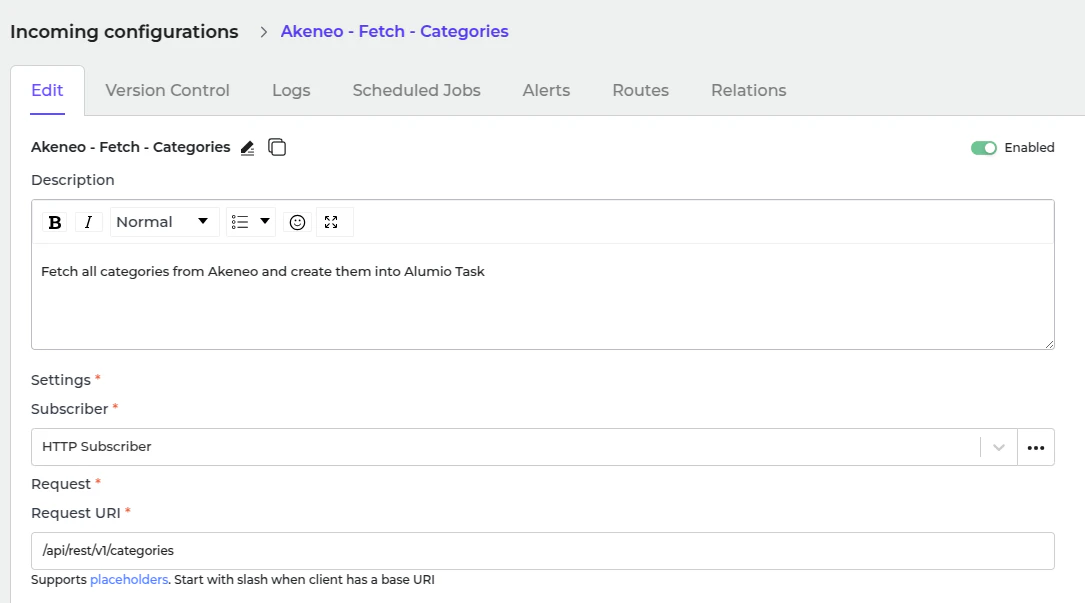
- In Alumio, go to “Integrations → Incoming → Akeneo - Fetch - Categories”.
- To get all categories from the Akeneo system, use an Incoming “Akeneo - Fetch - Categories”.
- Akeneo - Prepare convert category - Labels - To localizations.
- Akeneo - Convert - Category - To Alumio Base.
- Akeneo - Filter - Category.
- Use this transformer to filter previously created tasks into task categories to avoid duplication.
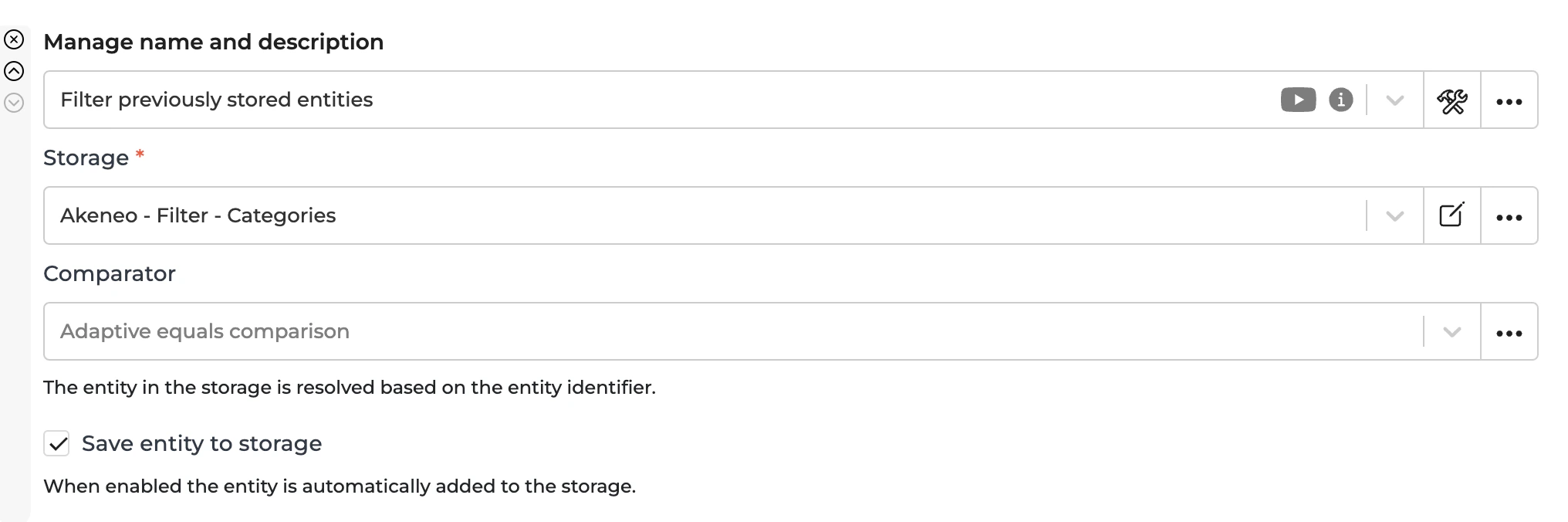
- To recreate a task, you should remove the entity from the storage “Akeneo - Filter - Categories”.
Sending Categories to Magento 2
The task that is created through Incoming “Akeneo - Fetch - Categories” should be processed further by the Route “Synchronize Categories - From Akeneo into Magento 2” and will be sent using this Outgoing. This Outgoing transforms Alumio Base Categories into Magento 2 categories and checks whether to create or update each category using data from the previous iteration of this Outgoing. Sending the Outgoing will be processed by the transformer:- Magento 2 - Prepare convert - Category - Parent from Alumio Base Category.
- Magento 2 - Convert - Category - from Alumio Base Category.
- Magento 2 - Check and send - Category.
Automatic Categories Synchronization Setup
- Go to “Integrations → Schedulers → Akeneo - Fetch Categories”.
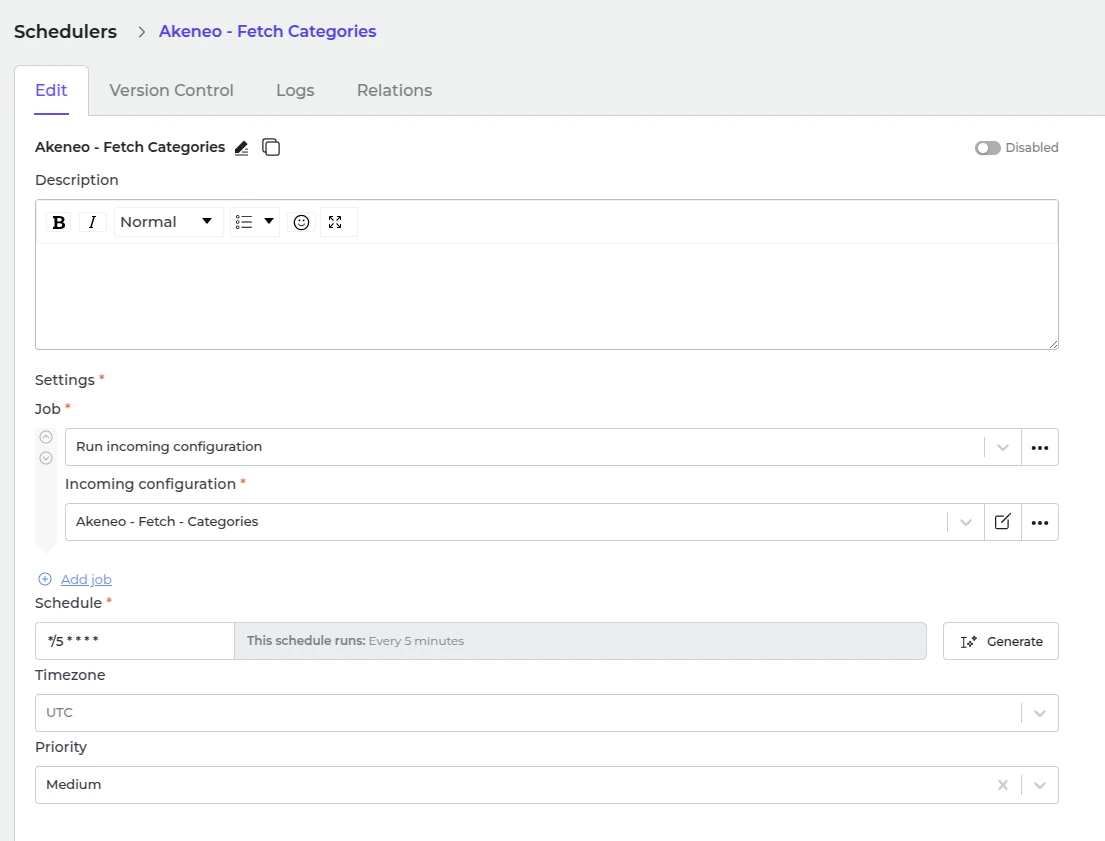
- Set a schedule expression and enable the configuration.
- Go to “Integrations → Schedulers → Magento 2 - Send - Categories”.
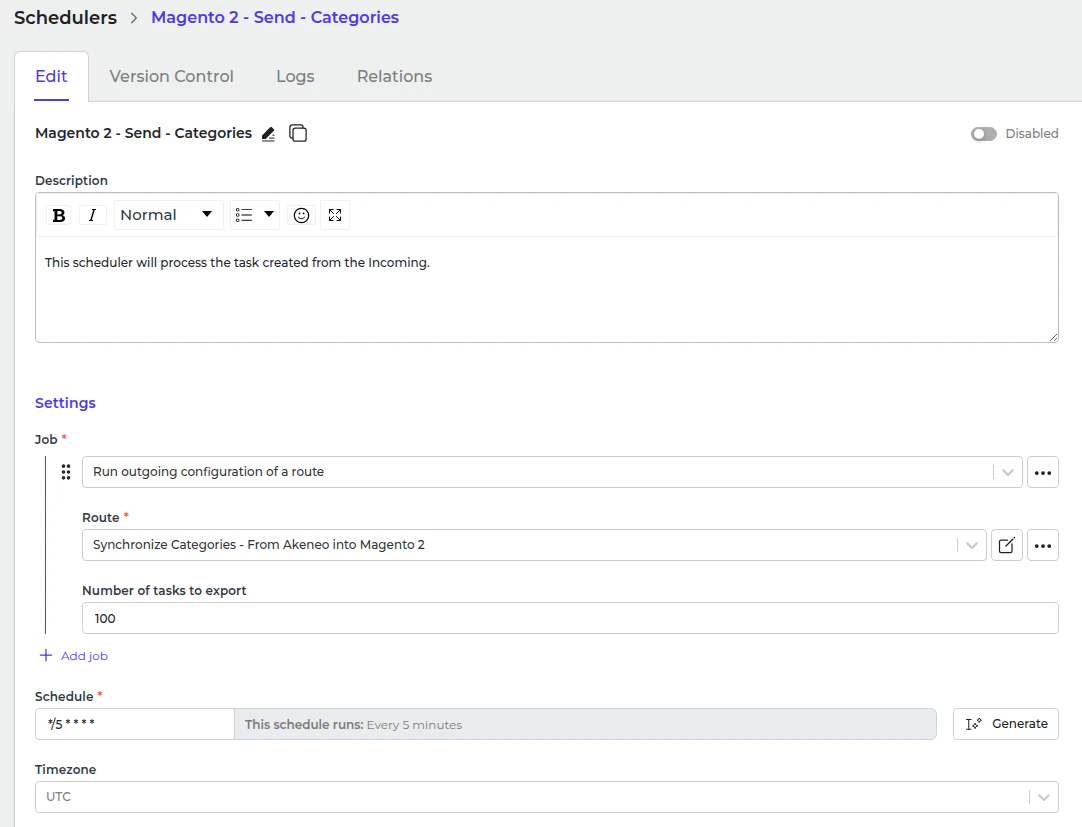
- Set a schedule expression and enable the configuration.