
Fetching families and attributes from Akeneo
In Alumio, go to “Integrations → Incoming → Akeneo - Fetch - Families and Attributes”. We need to send attribute definitions from Akeneo into Magento 2. We will sync this by mapping the Akeneo family into the Magento 2 attribute set, and then we map the Akeneo attribute into the Magento 2 attribute. To do so, use the Incoming “Akeneo - Fetch - Families and Attributes” to get data from the Akeneo Server.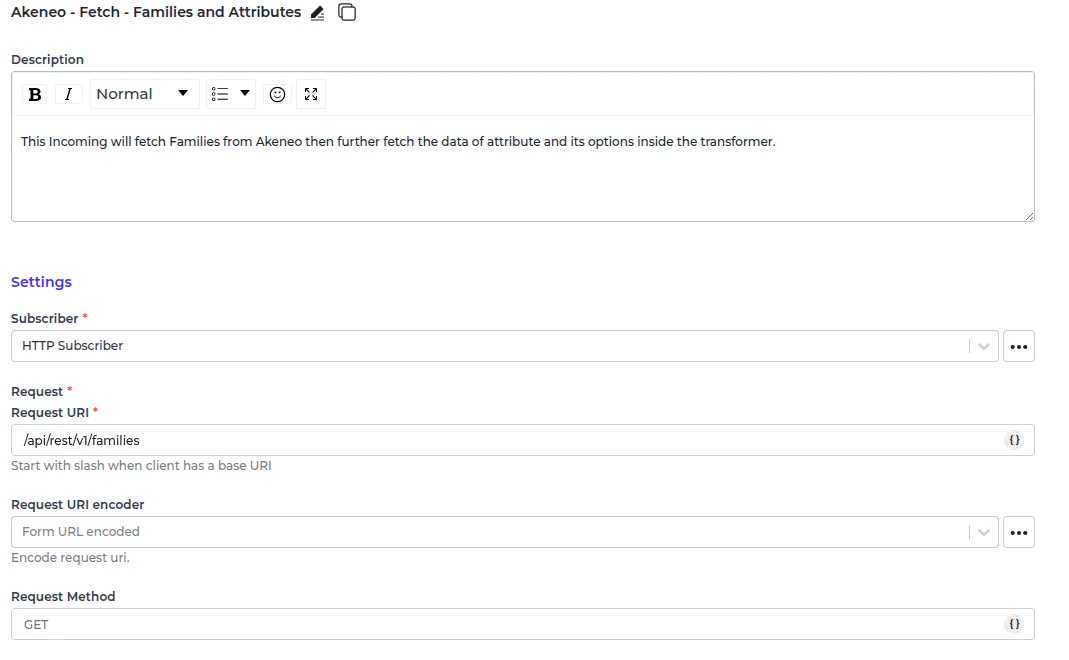
- Akeneo - Fetch and convert - Family attributes into Alumio Base attributes.
- Akeneo - Filter previous - Family.
- It is called the transformer “Akeneo - Fetch and update storage - Family Variants - Axes” to determine the super attribute that would translate to an attribute that is required and is filterable in Magento 2.
- It will transform the family structure into Alumio Base by calling the transformer “Akeneo - Prepare convert - Labels - To localizations” and “Akeneo - Convert - Family to Alumio Base”.
- After we convert the family, we need to get the attribute data that is attached to this family. We do it by:
- “Akeneo - Fetch - Attribute by code” –– this transformer will fetch the attribute data from Akeneo.
- “Akeneo - Prepare convert - Labels - To localizations” –– this transformer will prepare the labels in Alumio Base.
- “Akeneo - Check and fetch - Attribute options” –– this transformer will fetch the options from the attribute options when the attribute type is a simple select or a multiselect. This transformer will fetch the options from the entity records when the attribute type is reference entity or reference entity collections.
- “Akeneo - Convert - Attribute - To Alumio Base Attribute” –– this transformer will convert the attribute structure into Alumio Base.
- “Akeneo - Map - Type code - To Alumio Base code” –– this transformer will convert the attribute code value into Alumio Base.
- “Akeneo - Check - Axes - Is Super Attribute” –– this transformer checks the super attribute using storage Akeneo - Family Variants - Axes created earlier at “Akeneo - Fetch and update storage - Family Variants - Axes”.
Fetching Product Types from Magento 2
In Alumio, go to “Integrations → Incoming → Magento 2 - Fetch - Attributes.” Magento 2 stores have default attributes that can cause issues during attribute synchronization. To prevent duplication of attributes with the same code, we first fetch the existing attributes from the Magento 2 system. This Incoming directly stores the attribute data in Alumio, allowing us to update it during synchronization from Akeneo.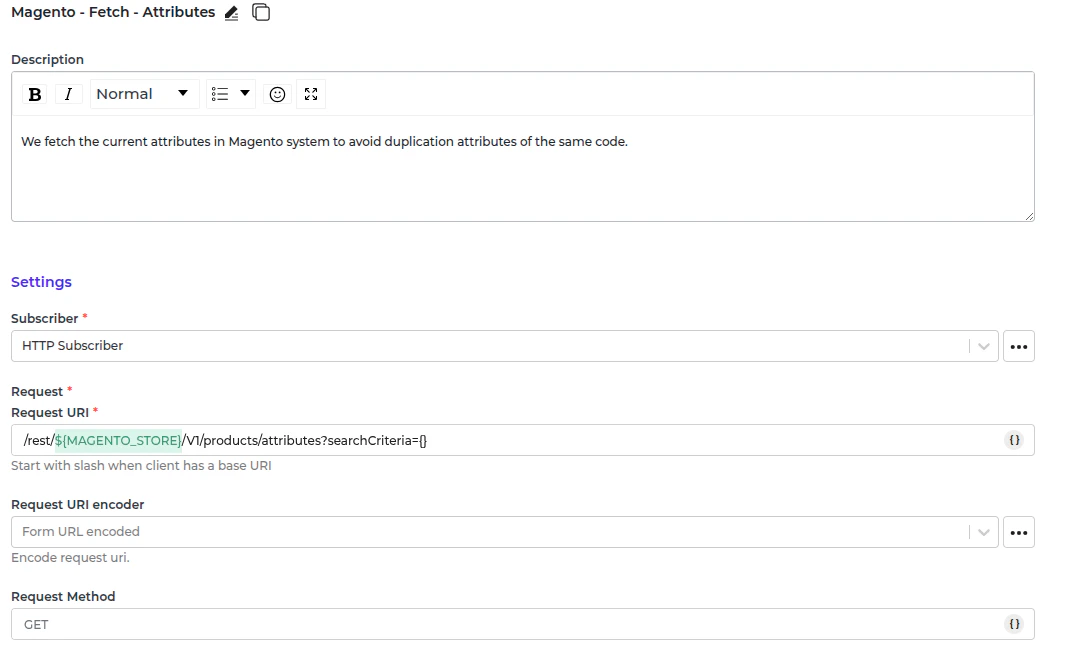
Save the Magento 2 ID based on the attribute code to make it possible to update data from Akeneo.
Sending Attribute Sets and Attributes into Magento 2
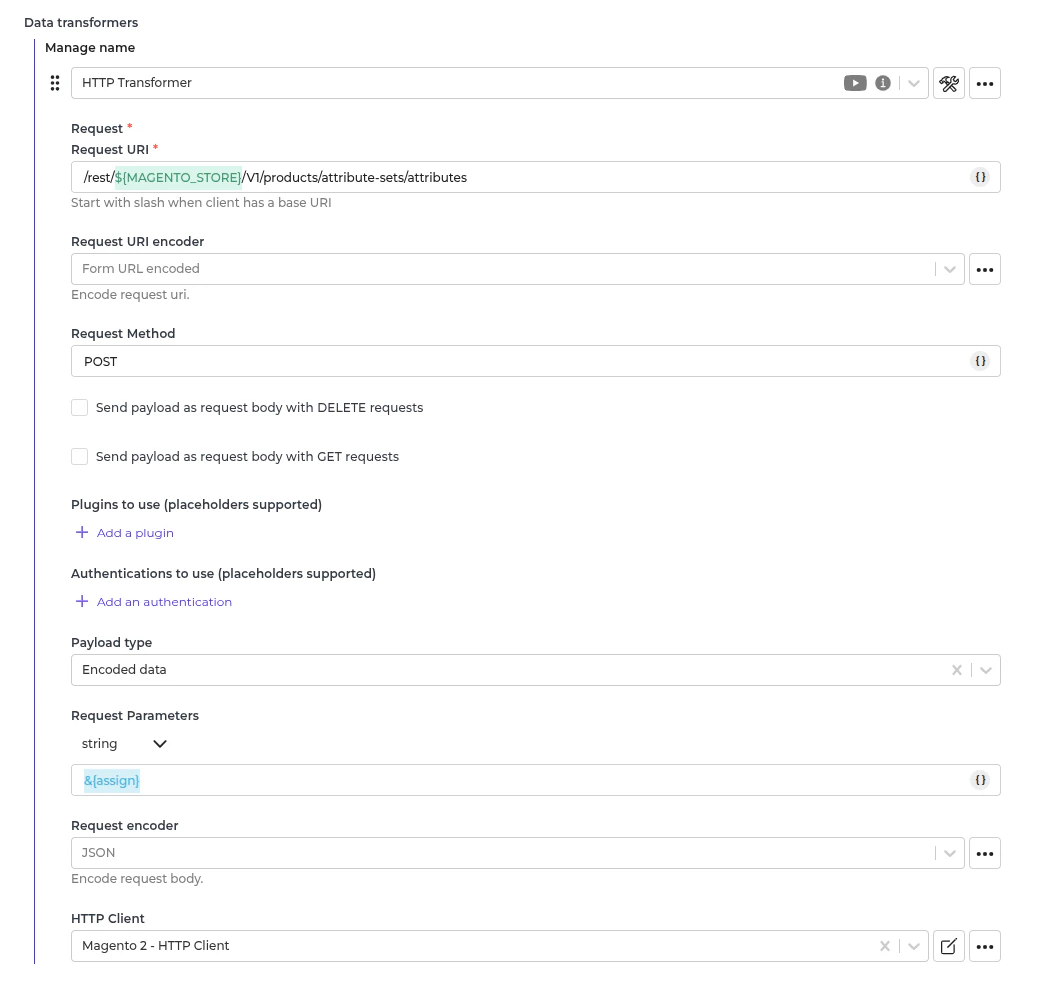
In Alumio, go to “Integrations → Route → Synchronize Akeneo Families and Attributes to Magento 2 Attributes Sets and Attributes”. Then go to the outgoing “Magento 2 - Send - Attribute Sets and Attributes”. This Outgoing will transform the Alumio base families and attributes into Magento 2 attribute sets, attribute groups and attributes. It will also check the previous iteration to determine whether to create or update. Here is a list of transformers inside the described Outgoing to send:- Magento 2 - Convert - Attributes from Alumio Base Family
- Magento 2 - Check and Send - Attributes from family with separate Options Send
- Magento 2 - Convert - Attribute set from Alumio family
- Magento 2 - Check and send - Attribute set
- Magento 2 - Prepare send - Attribute Set Group
- Magento 2 - Send - Attribute Set Group
- Magento 2 - Prepare send - Attributes Assign to Attribute Set
- Magento 2 - Send - Attributes Assign to Attribute Set.
Convert attributes and attribute options inside the Alumio Base into the Magento 2 Attribute payload.
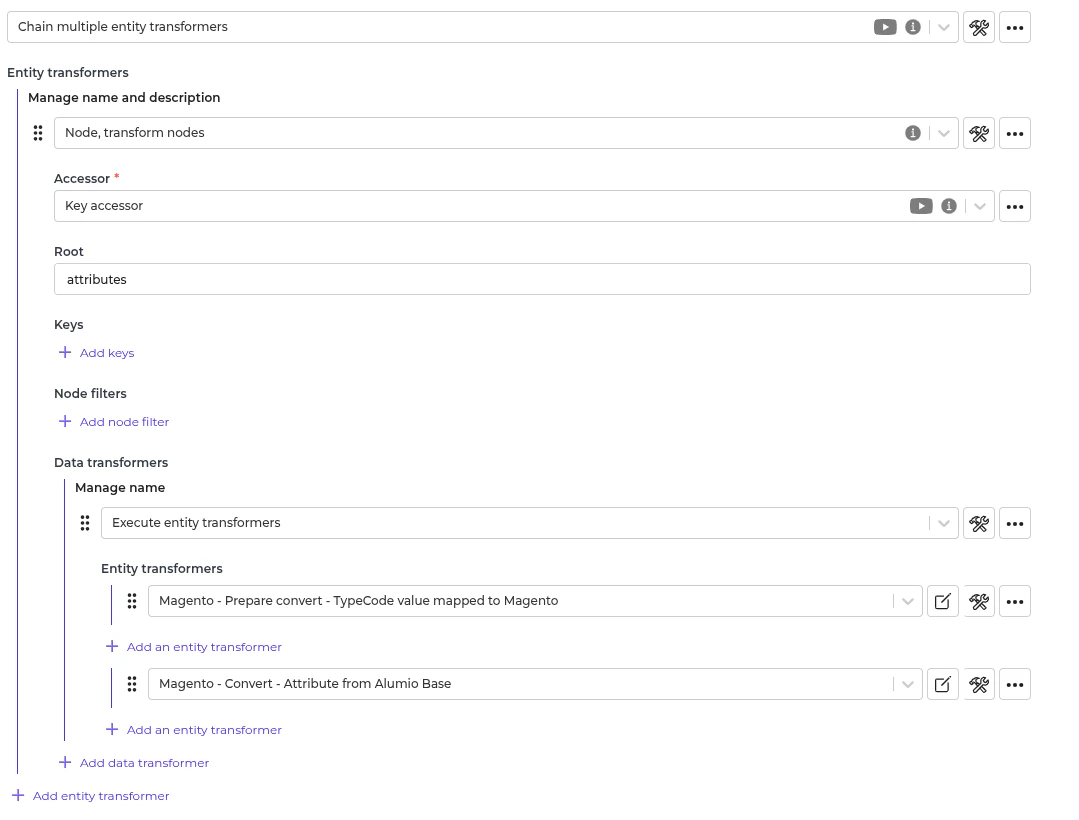
This will sync the attribute and each attribute option. An example of the Magento 2 attribute payload looks as follows:
This transformer will convert the Alumio family into the Magento 2 attribute set payload. We set the entity type ID and skeleton ID to the default 4.
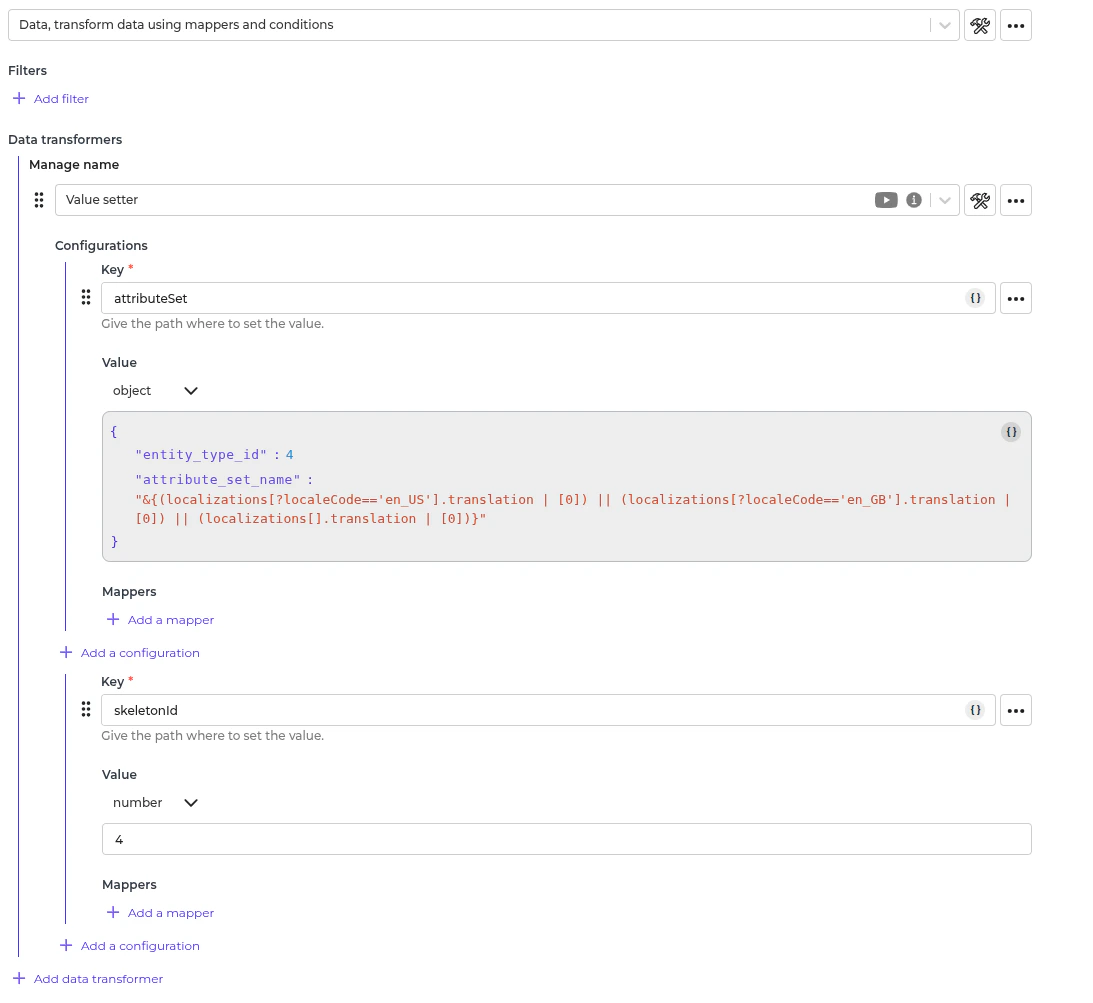
This transformer creates or updates the attribute set.
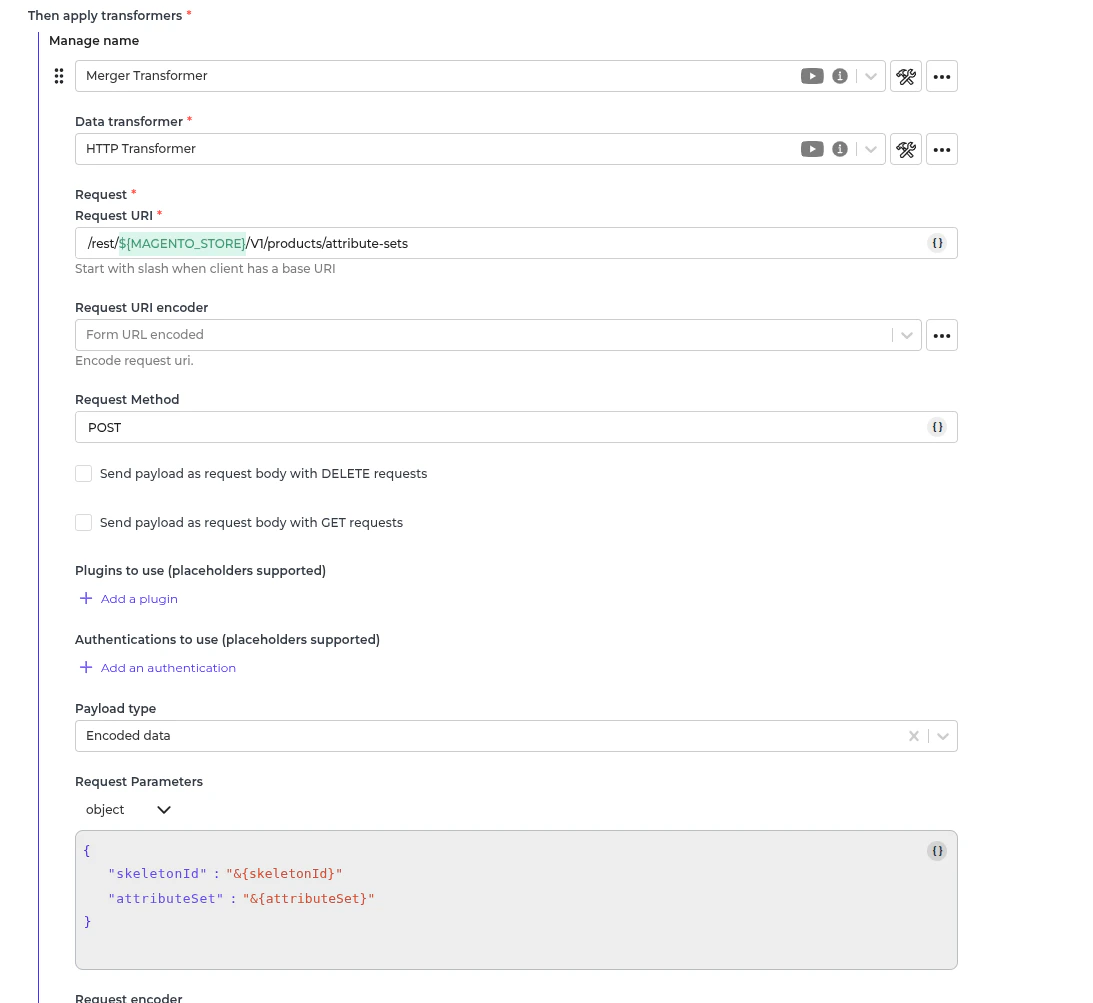
This transformer prepares the attribute set group payload based on the attribute set.
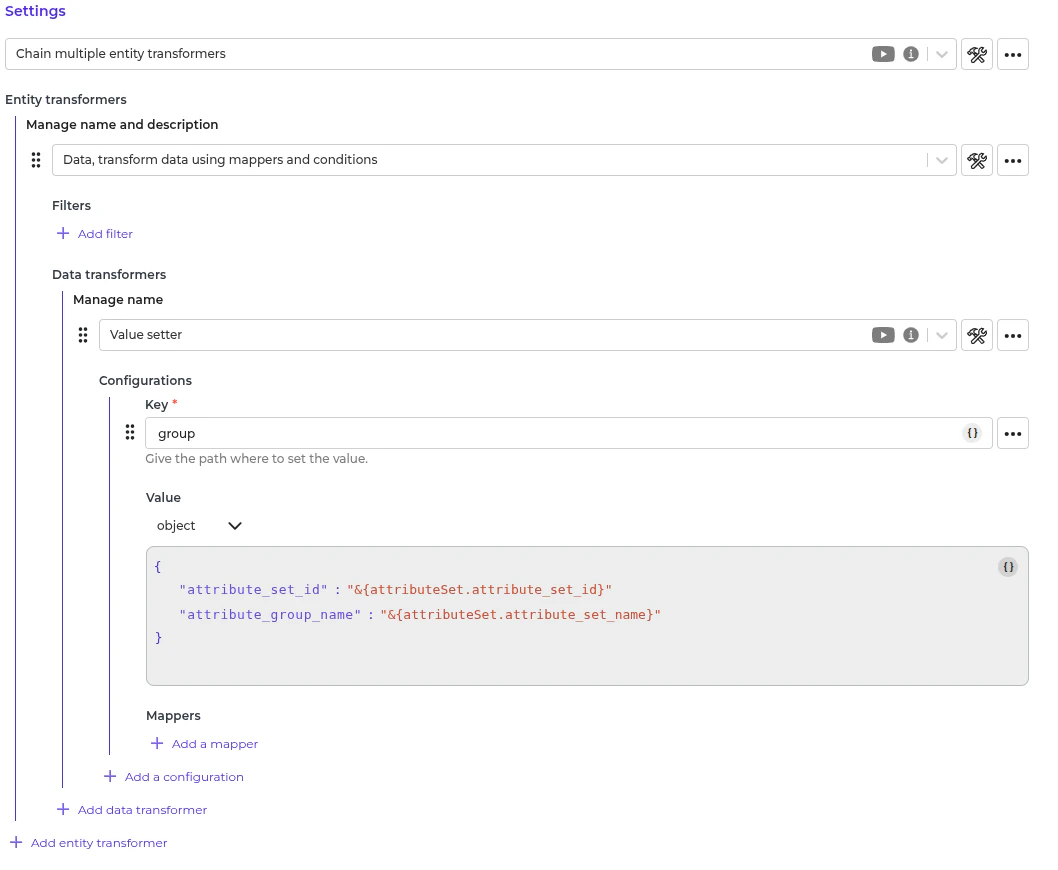
This transformer creates the attribute set group if none is created.
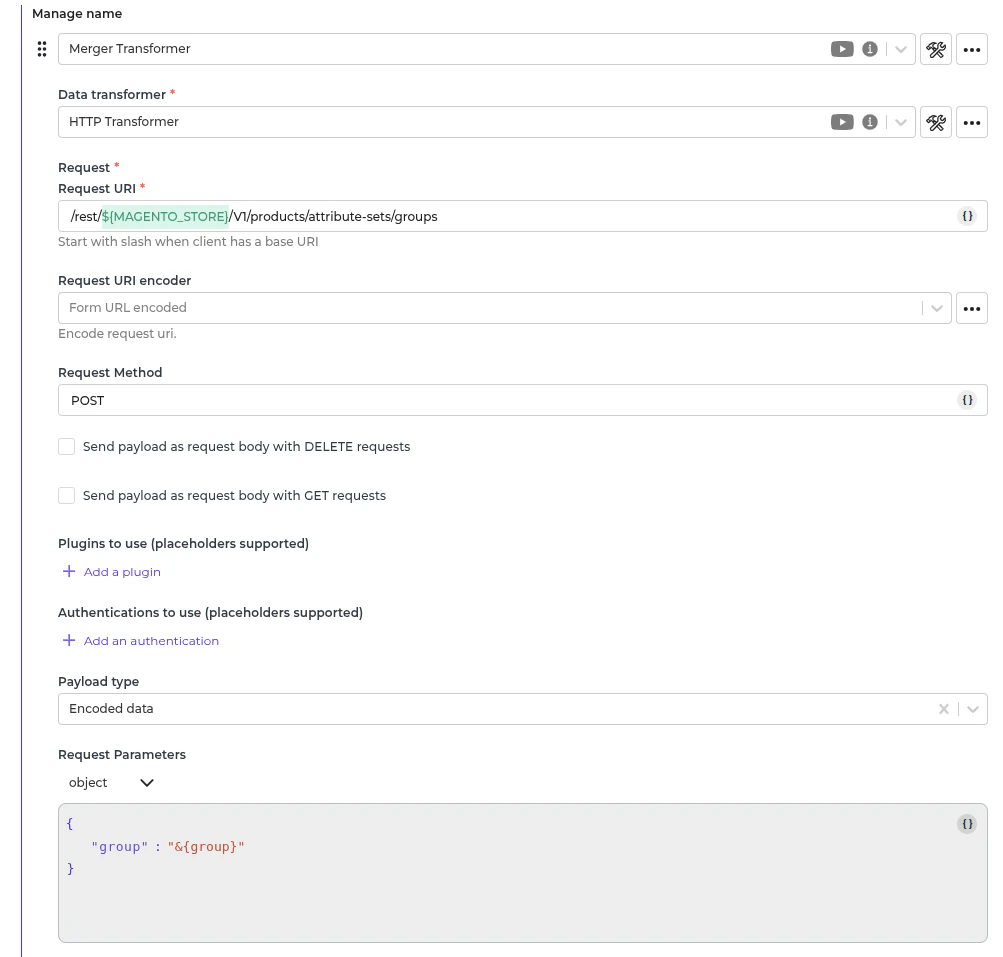
This transformer creates the payload to assign attributes to the attribute set and attribute set group.
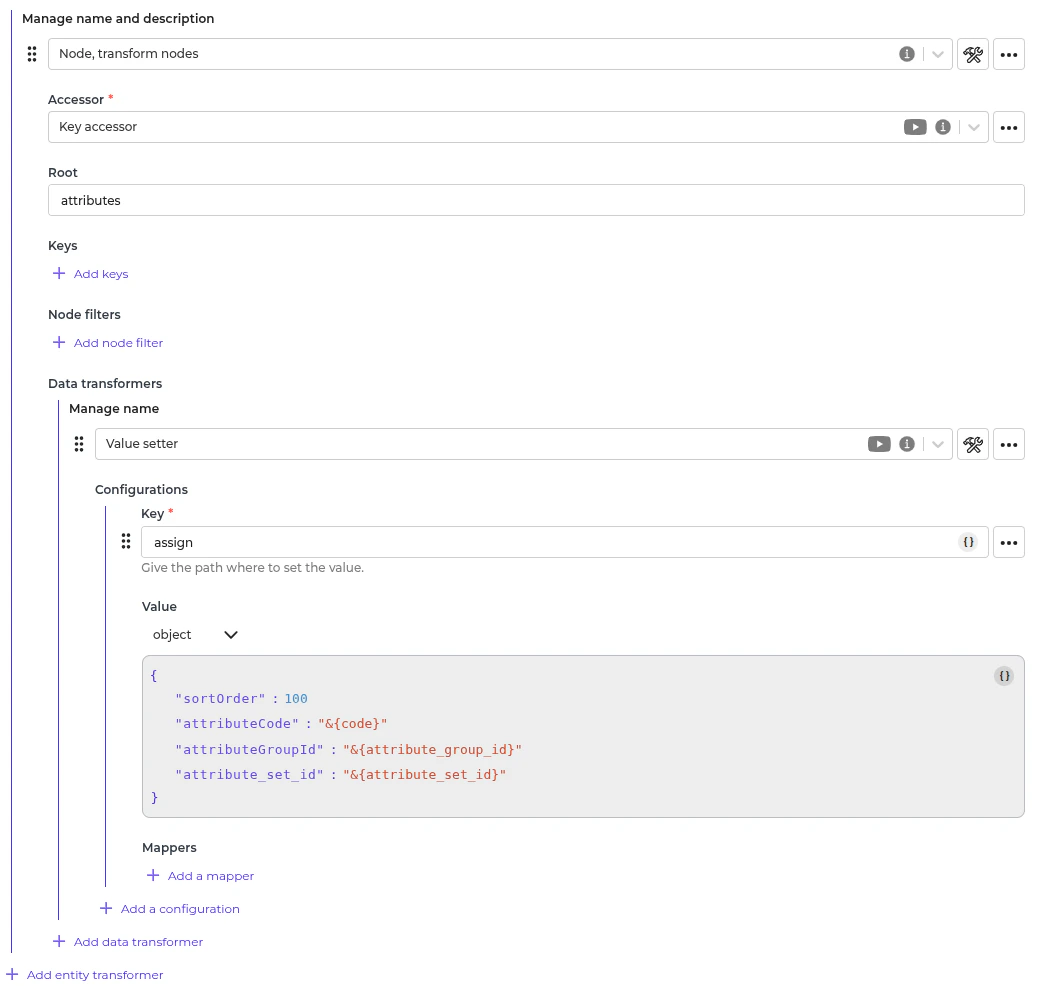
This transformer assigns the attribute to the attribute set and the attribute set group.
Automatic Attribute Sets and Attributes Synchronization Setup
- Go to “Integrations → Schedulers → Akeneo - Fetch - Families and Attributes”.
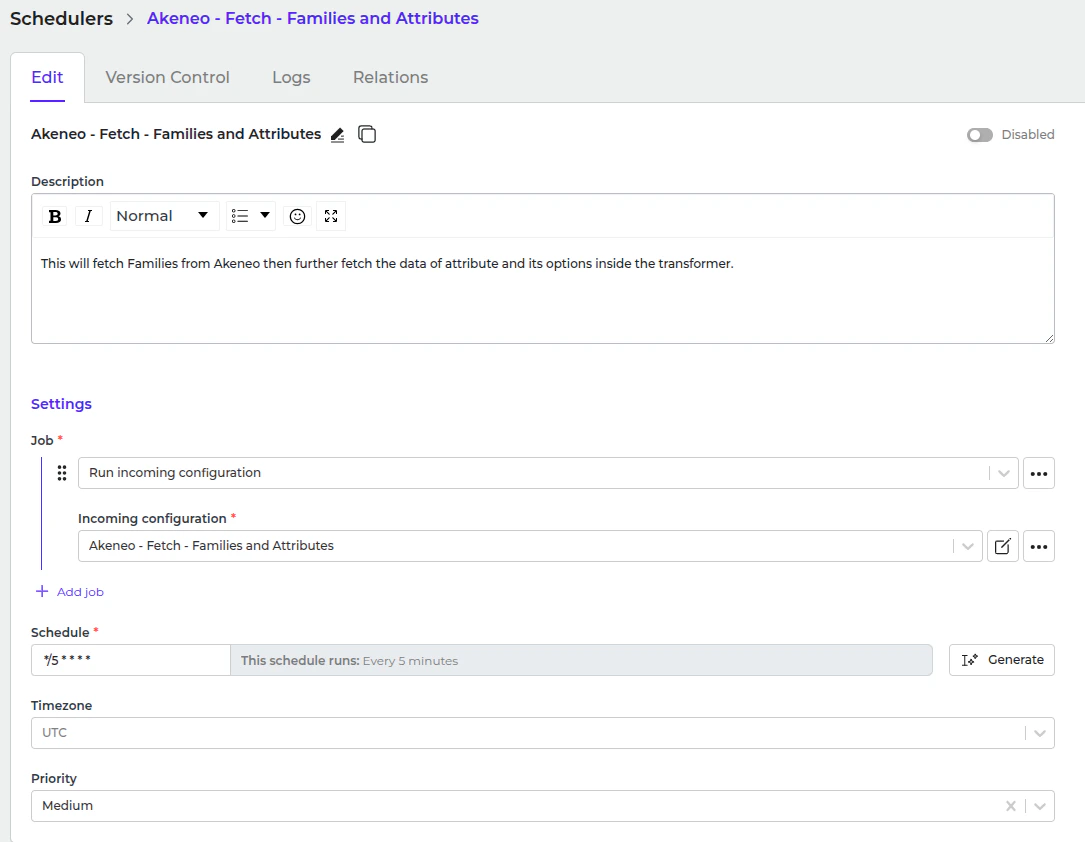
- Set a schedule expression and enable the configuration.
- Go to “Integrations → Schedulers → Magento 2 - Send - Attribute Sets and Attributes”.
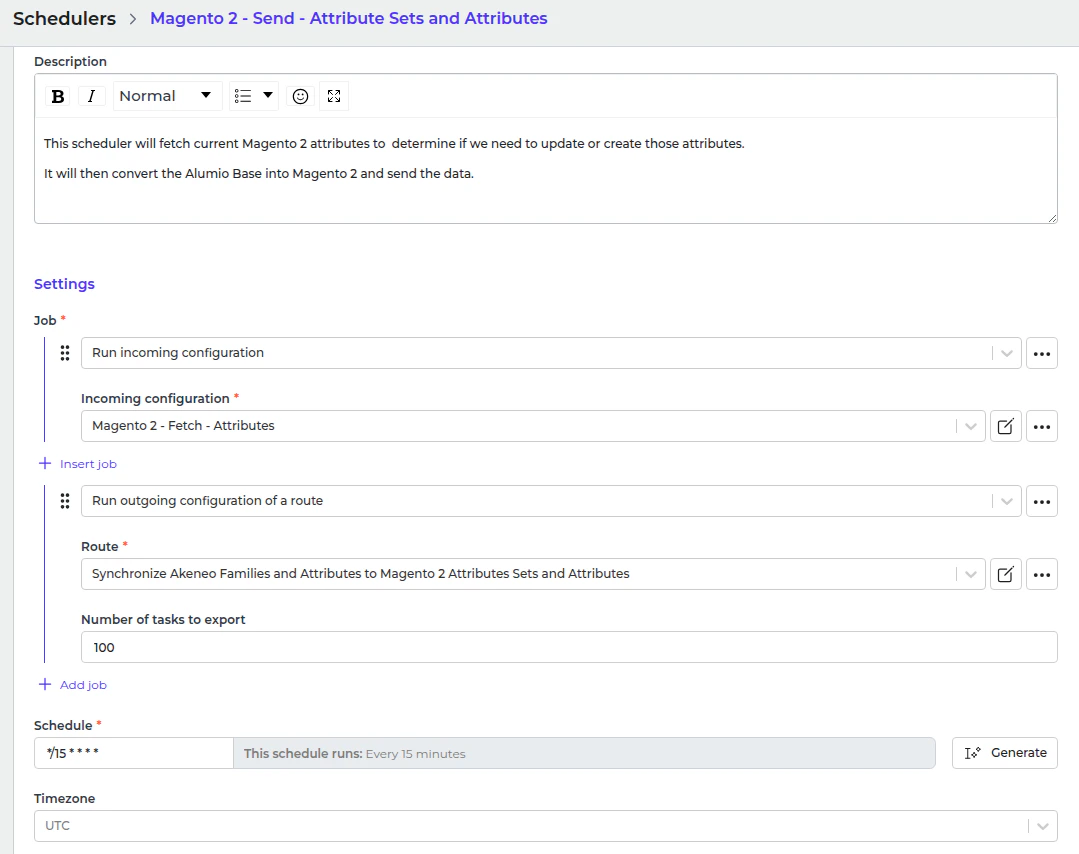
- Set a schedule expression and enable the configuration.