
Configuring the Incoming: Synchronize Products ‐ Fetch Storage Product Model Alumio Base
In the Incoming section of data synchronization from the Alumio schema to the BigCommerce system, for the first run, minimal setup is required. The key configuration to adjust is to make sure that the delta storage is empty inside the transformer “Akeneo to BigCommerce - Products - Filter By Previous storage entities”.- Navigate to Incoming and locate the “Synchronize Products - Akeneo to BigCommerce - Fetch Storage Product Model Alumio Base” configuration.
- Open the transformer inside the incoming configurations “Akeneo to BigCommerce - Products - Filter By Previous storage entities”.
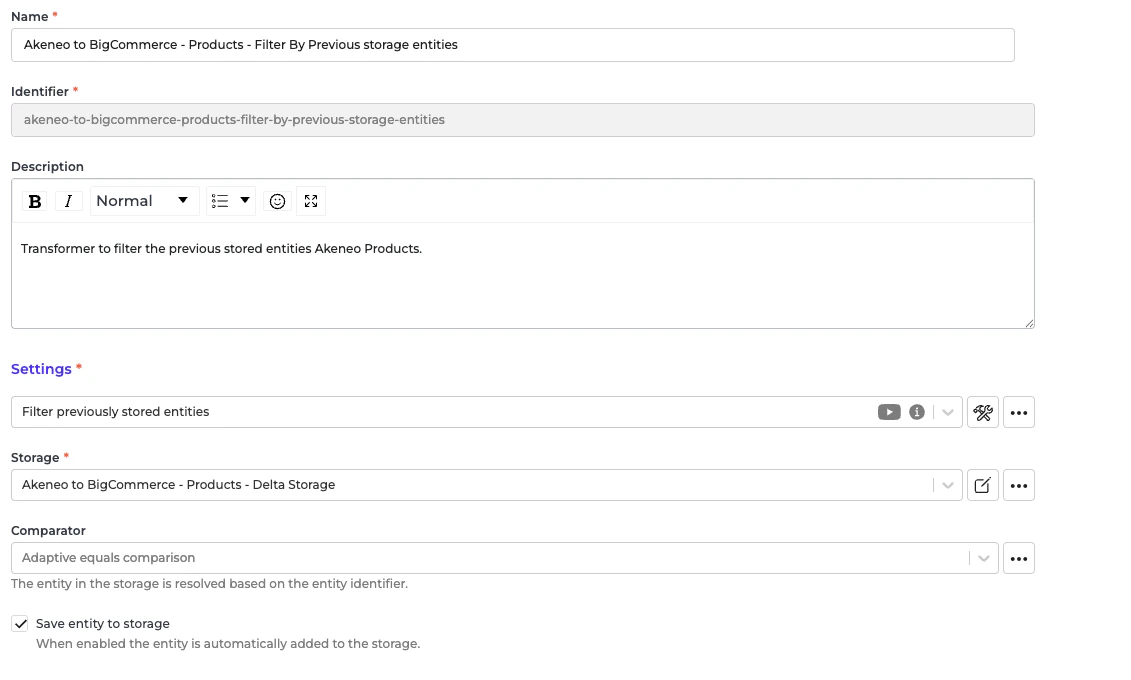
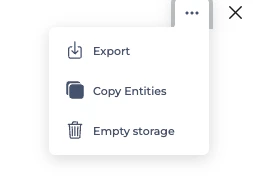
- Go to the storage “Akeneo to BigCommerce - Products - Delta Storage”.
- At the top right ”…” button, select “Empty storage”.
Configuring the Incoming: Akeneo Fetch Simple Products or Product Without Parent
In the Incoming section of data synchronization from the Alumio schema to the BigCommerce system, for the first run, minimal setup is required. The key configuration to adjust is to make sure that the delta storage is empty inside this transformer “Akeneo - Filter - Simple Product”.- Navigate to Incoming and locate the “Akeneo - Fetch - Simple products or products without parent” configuration.
- Open the transformer inside the incoming configurations “Akeneo - Filter - Simple Product”.
Go to the storage “Akeneo - Filter - Simple Products”.
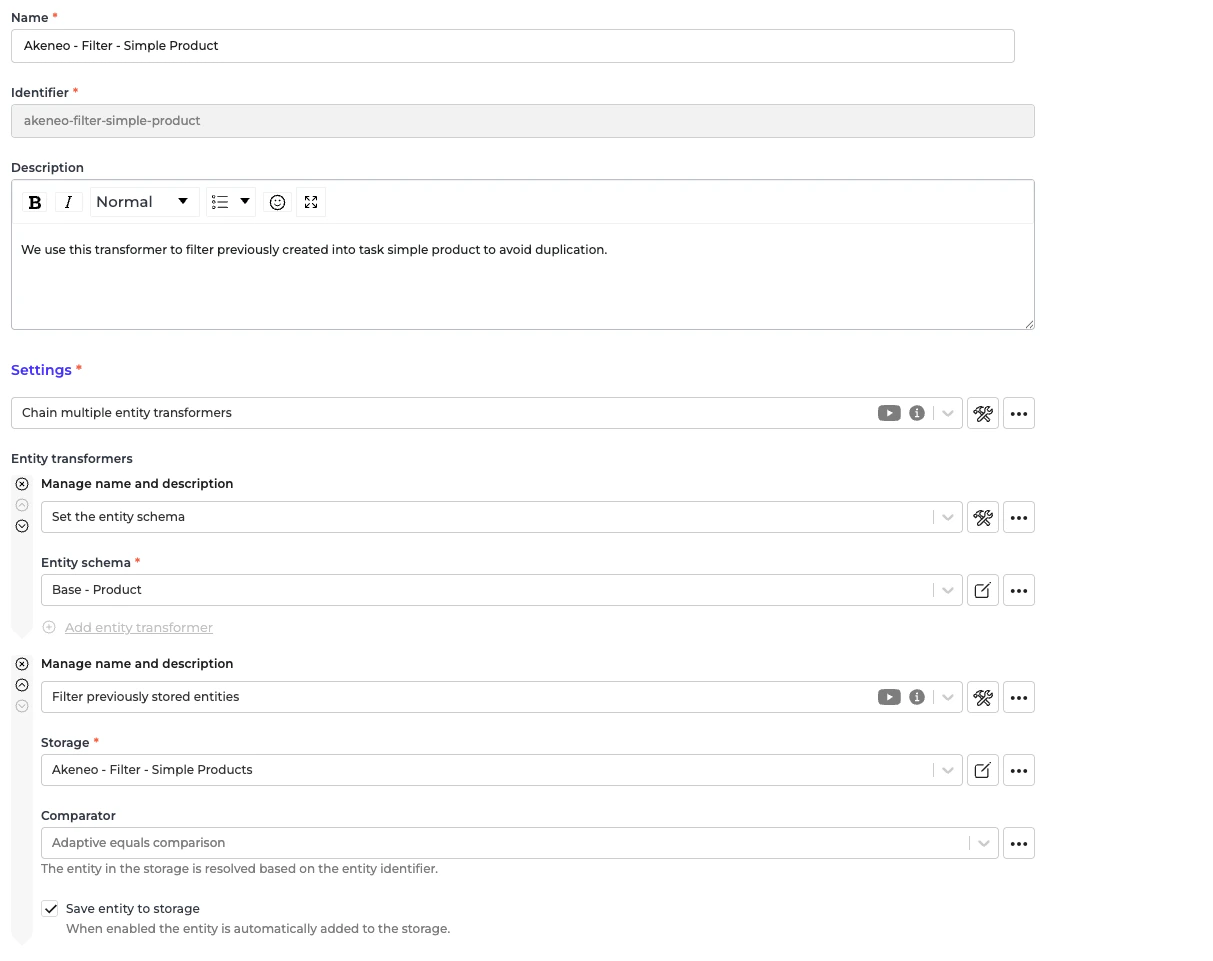
- At the top right ”…” button, select “Empty storage”.
Configuring the Route: Synchronize Products ‐ Akeneo to BigCommerce
In the Route “Synchronize Products - Akeneo to BigCommerce”, there is nothing to set up for the Route. Everything will be automatically converted from the Alumio Base Product schema to the BigCommerce Product schema.- Navigate to Routes and locate the configuration “Synchronize Products - Akeneo to BigCommerce” configuration.
- Open the configuration settings.
- Enable the “Enable parallel execution” checkbox.
- Locate the “Maximum parallel executions” field and set the value based on the number of parallel jobs you want to run.
Configuring the Route: Synchronize Products ‐ Akeneo to BigCommerce Simple Product
In the Route “Synchronize Products ‐ Akeneo to BigCommerce Simple Product”, there is nothing to set up for the Route. Everything will be automatically converted from the Alumio Base Product schema to the BigCommerce Product schema.- Navigate to Routes and locate the configuration “Synchronize Products - Akeneo to BigCommerce Simple Product” configuration.
- Open the configuration settings.
- Enable the “Enable parallel execution” checkbox.
- Locate the “Maximum parallel executions” field and set the value based on the number of parallel jobs you want to run.