
Fetching Families and Attributes from Akeneo
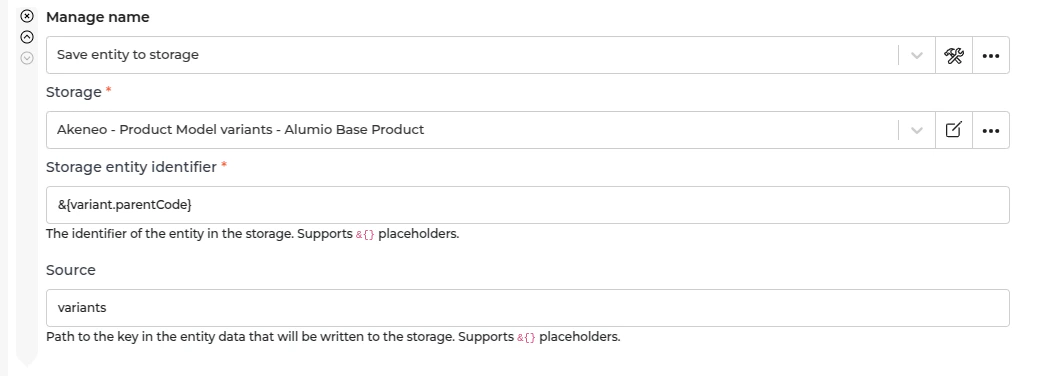
In Alumio, go to “Integrations → Incoming → Akeneo - Fetch - Products with parent”. We defined variants as the product of a product model. Before we fetch the product model in Akeneo, we need to prepare the variants first (the product of the product model). This Incoming is designed to get products in Akeneo that have a parent, so we can be sure this will be a variant from the product model. This Incoming will not create any task but will update the storage of “Akeneo - Update Storage - Product Model Variants - Alumio Base Product” with a list of product data in Alumio base product data.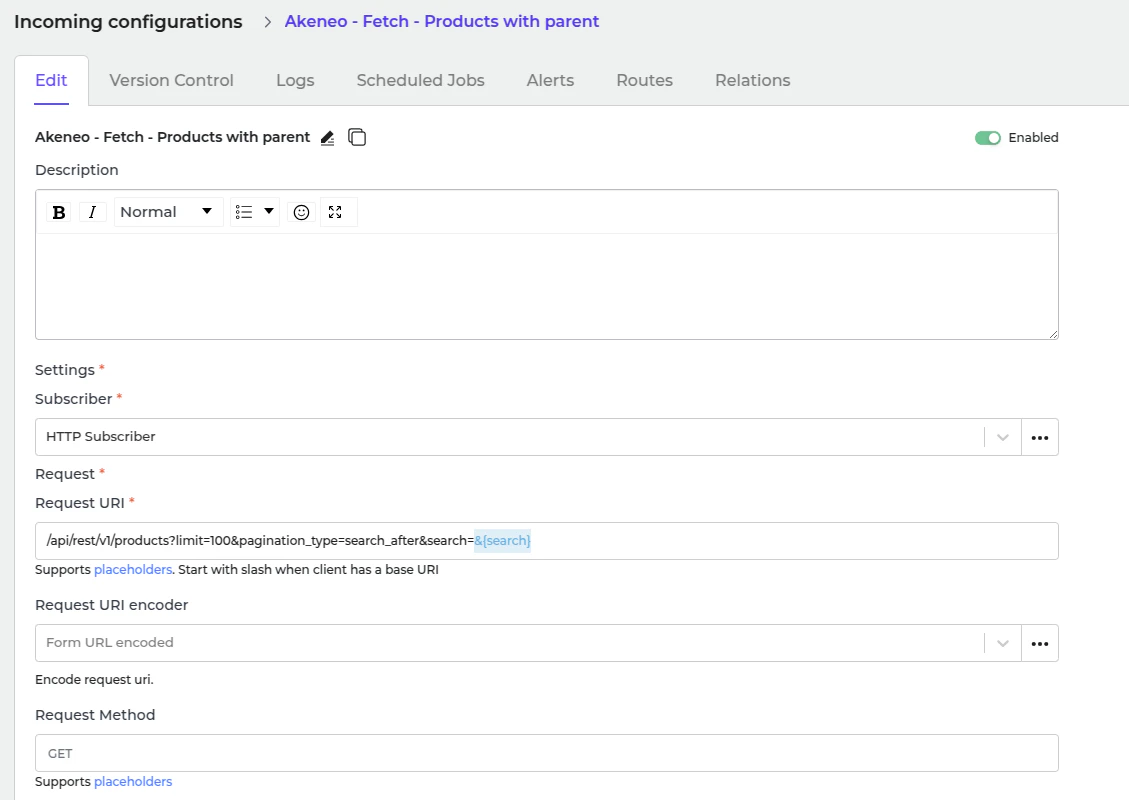
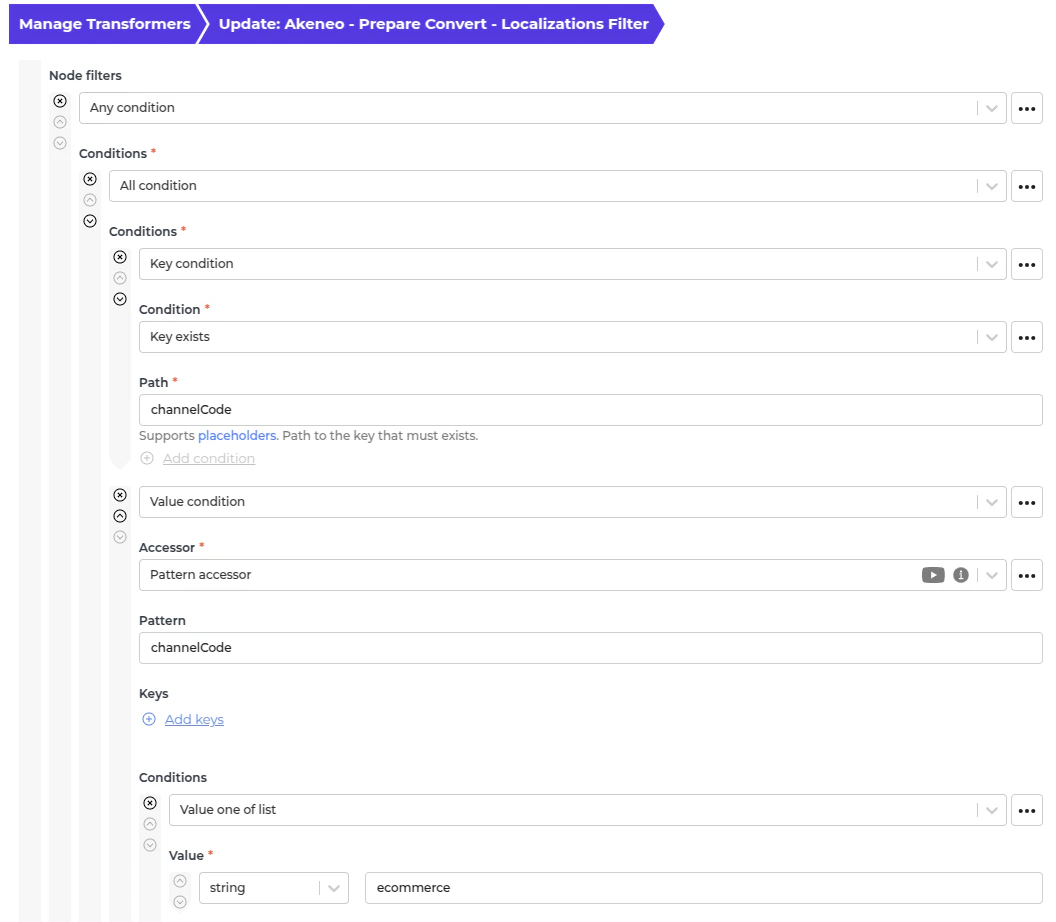
- We use this transformer to only allow any localization with a channel code in “eCommerce”, if it has a channel code. If you need another channel code, add the value in the Node Filter.
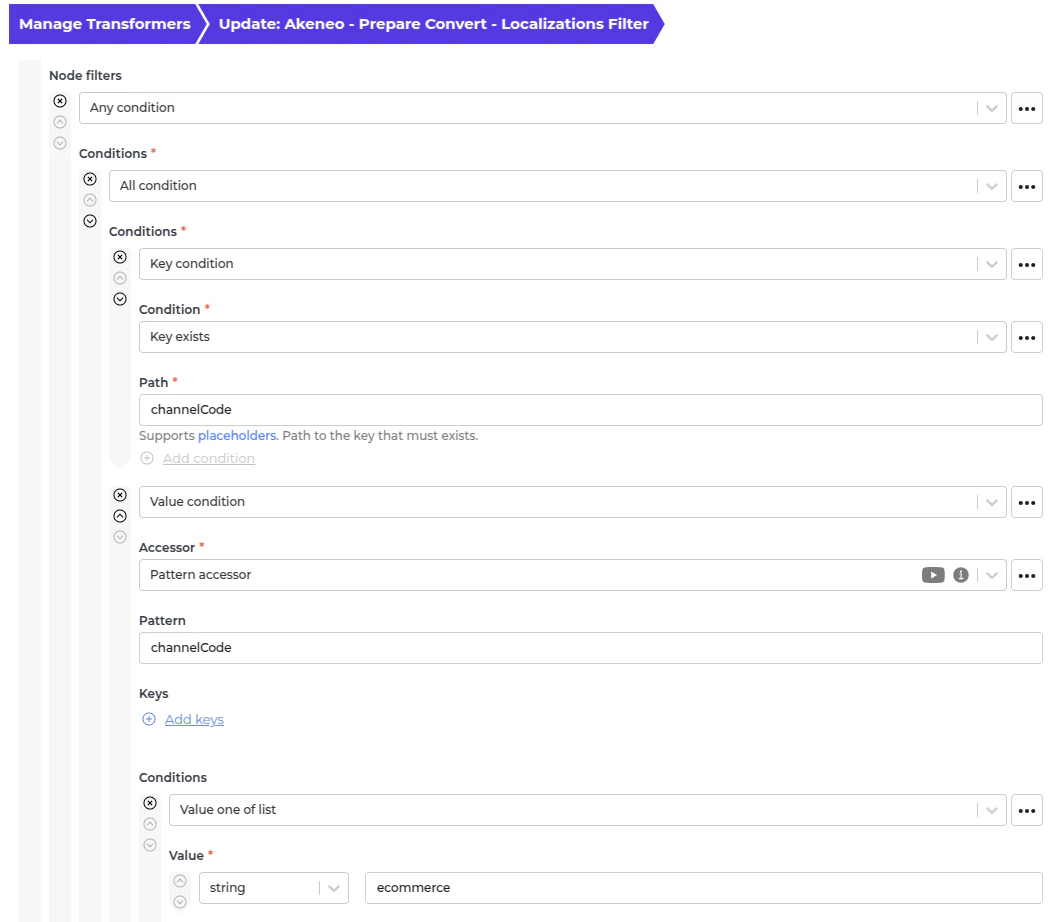
- This transformer will convert localizations data from Akeneo.
- As this structure is not friendly to BigCommerce, we need to convert it to a more workable structure, which is why we use this transformer to transform it into this instead.
- This transformer will convert category data from Akeneo.
- As this structure is not friendly to BigCommerce, we need to convert it to a more workable structure, which is why we use this transformer to transform it into this instead.
- This transformer will convert price data from Akeneo.
- As this structure is not friendly to BigCommerce, we need to convert it to a more workable structure, which is why we use this transformer to transform it into this instead.
Fetching Parent Product Model from Akeneo
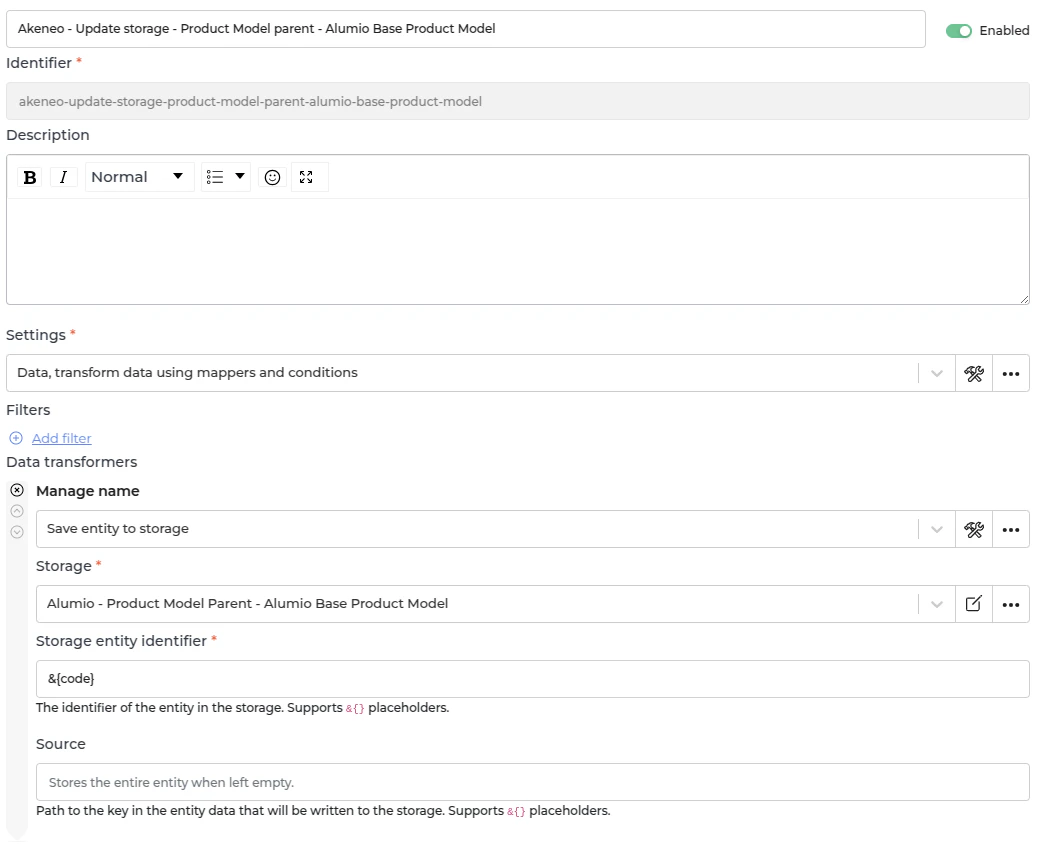
In Alumio, go to “Integrations → Incoming → Akeneo - Product Models without parent”. Parent product model in Akeneo has a probability to have children, which is another product model or variant, which is the product of the product model. This Incoming is designed to get a list of product models that are the top parent or do not have a parent. This Incoming will not create any task but will update the storage of “Alumio - Product Model Parent - Alumio Base Product Model” with parent product model data in the Alumio base product model.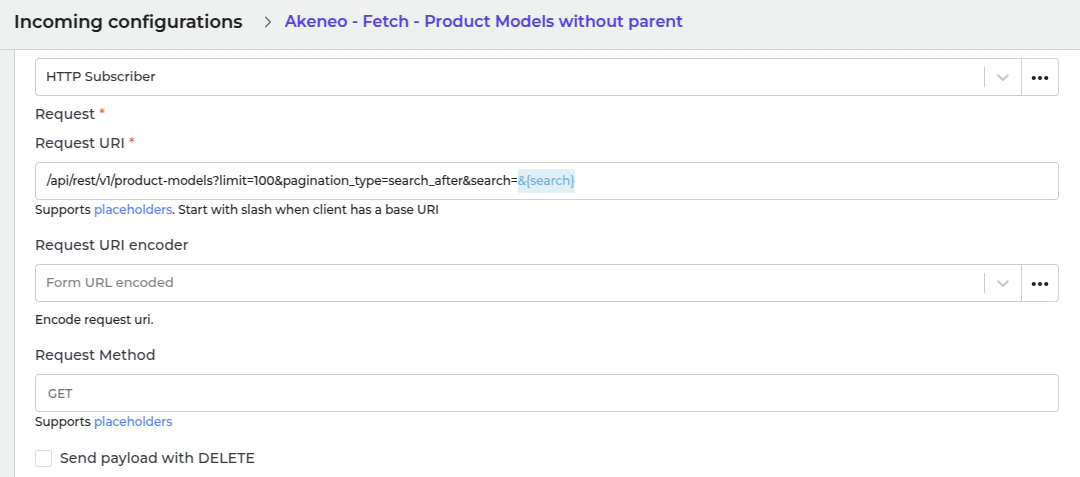
Fetching Children Product Model from Akeneo
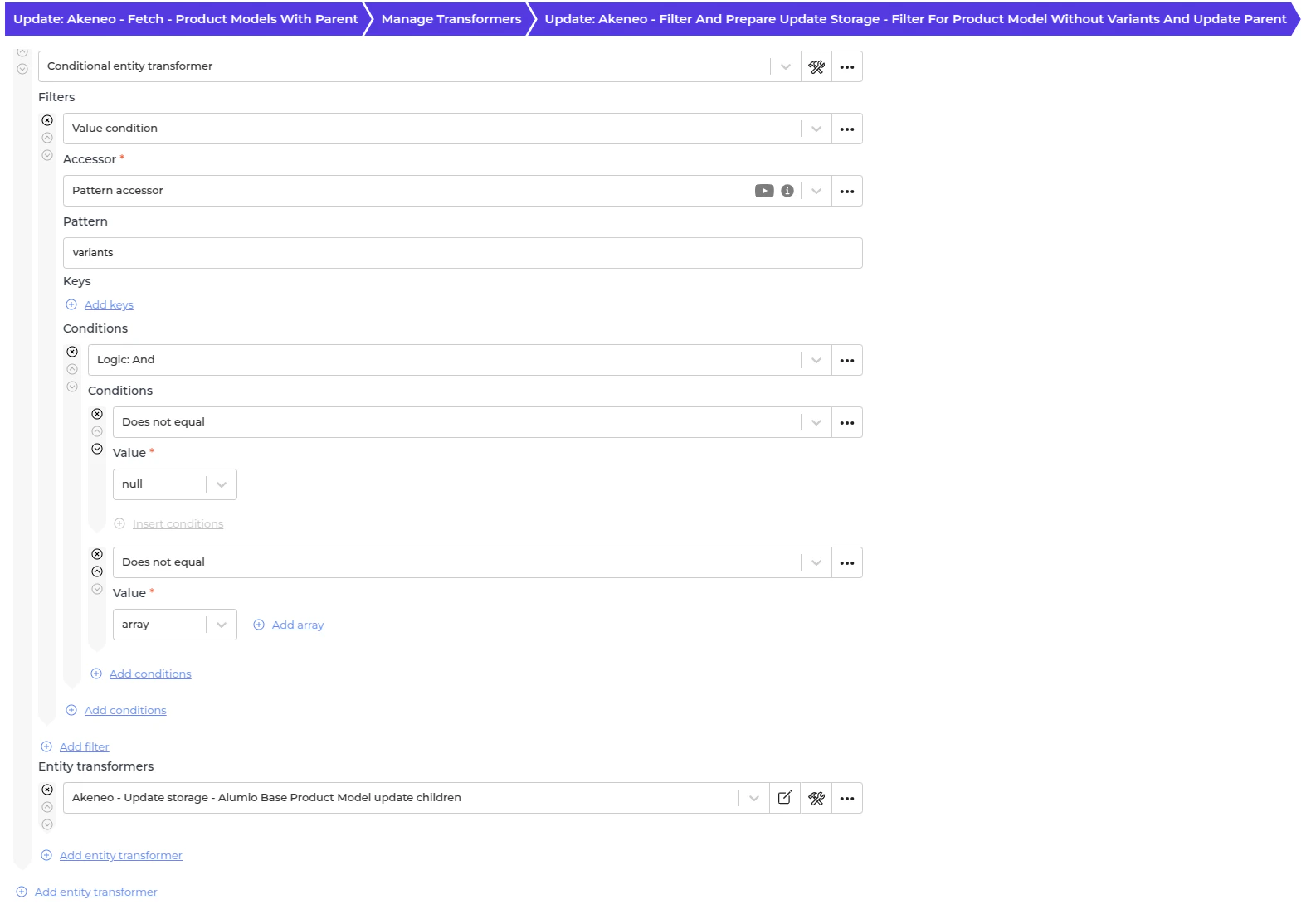
In Alumio, go to “Integrations → Incoming → Akeneo - Fetch - Product Models with parent”. After we got the parent and the variant for a product model, this is the time to fetch children, product model. This Incoming well get the product model with parent to become a children product model. This Incoming will not create any task but will update the storage of the parent at “Alumio - Product Model Parent - Alumio Base Product Model” with children product model data in the Alumio base product model. Akeneo - Prepare convert - Values - To localizations and custom attributes- This transformer will convert localizations data from Akeneo.
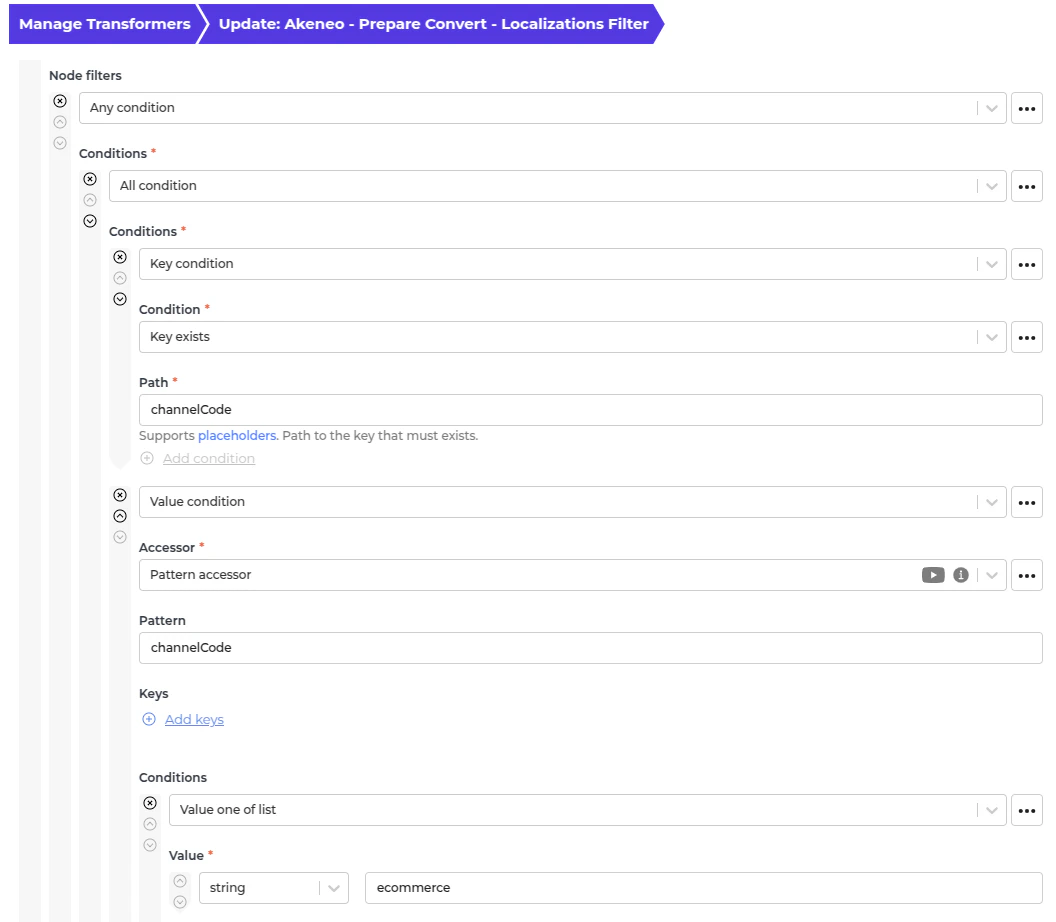
- We use this transformer to only allow any localization with a channel code in “eCommerce” if it has the channel code. If you need another channel code, add the value in the Node filter.
Fetching Simple Product from Akeneo
In Alumio, go to “Integrations → Incoming → Akeneo - Fetch - Products without parent”. There is some product data without a product model in Akeneo. This Incoming will duplicate the product data into the Alumio base product model and save it into the storage “Alumio - Product Model Parent - Alumio Base Product Model”. Akeneo - Prepare convert - Values - To localizations and custom attributes This transformer converts localizations data from Akeneo.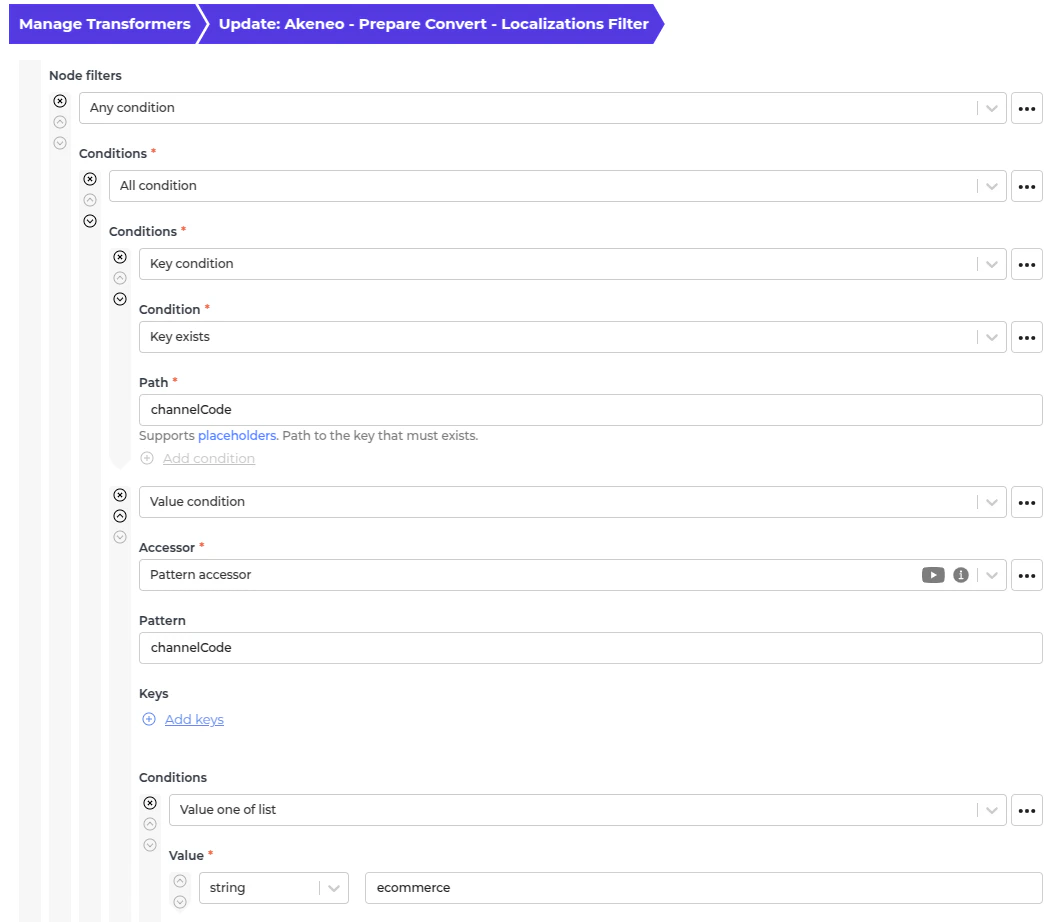
- This transformer will convert category data from Akeneo.
- As this structure is not friendly to BigCommerce, we need to convert it to a more workable structure, which is why we use this transformer to transform it into this instead.
- This transformer will convert price data from Akeneo.
- As this structure is not friendly to BigCommerce, we need to convert it to a more workable structure, which is why we use this transformer to transform it into this instead.
- This transformer will copy the Alumio base product data into the Alumio base product model with variant.
- We add the variant code with “-1” to avoid data duplication.
Fetching Family Attribute Axes from Akeneo
In Alumio, go to “Integrations → Incoming → Akeneo - Fetch - Families”. This incoming is created to get family axes in Akeneo to determine which attribute decides the product variant in BigCommerce. The family axes exist in the family variants, but Akeneo require code in the end point that is why we fetch the family first to get the code. Akeneo - Fetch and update storage - Family Variants - Axes- This transformer is a custom pagination HTTP call to get family variants.
- It will then save the family axes in the storage “Akeneo - Family Variants - Axes”.
Automatic Fetching Product Data and Family Attribute Axes from Akeneo to Alumio
- In Alumio, go to “Integrations → Schedulers → Akeneo - Fetch complex products and family attribute axes”.
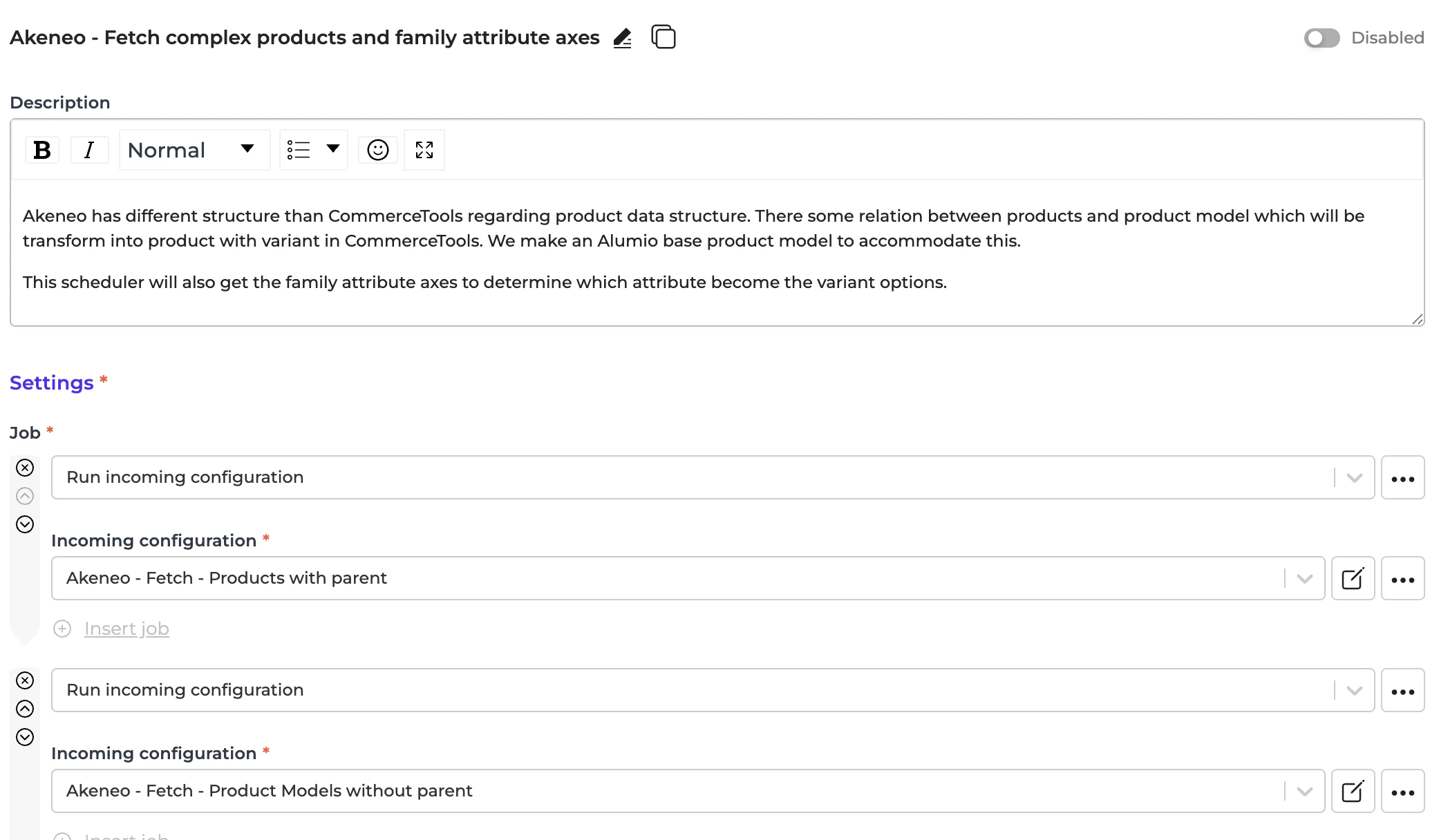
- Set a schedule expression and enable the configuration