
Fetching Categories from Akeneo

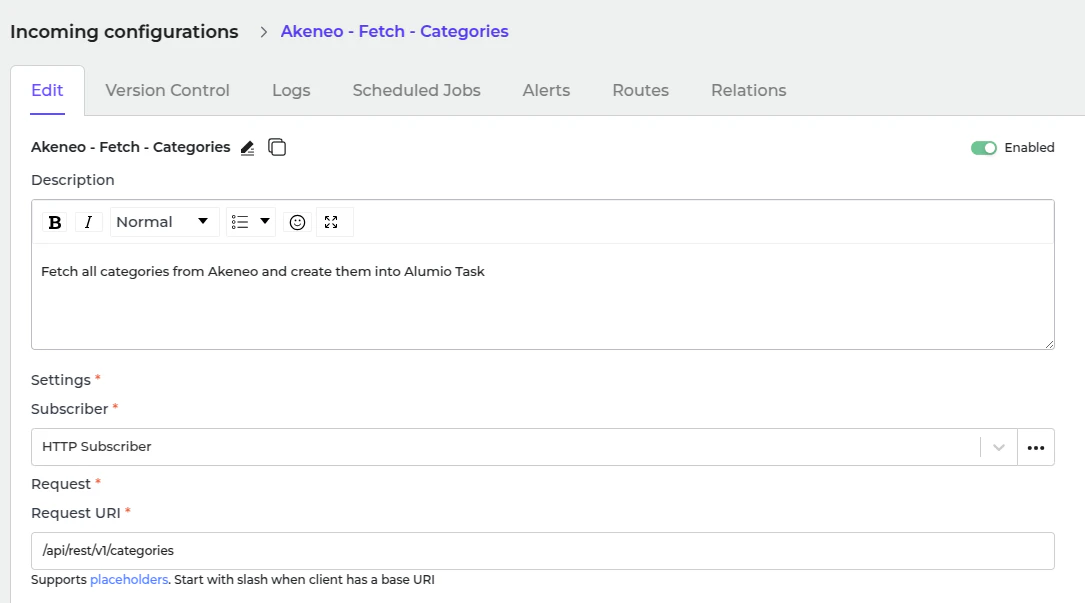
  • In Alumio, go to “Integrations → Incoming → Akeneo - Fetch - Categories”.
  • To get all categories from the Akeneo system, use an Incoming “Akeneo - Fetch - Categories”.
Image
This incoming will create a task inside Alumio with data structured as Alumio base categories. There some transformer inside this Incoming before processing the category.
  1. Akeneo - Prepare convert category - Labels - To localizations.
  2. Akeneo - Convert - Category - To Alumio Base.
  3. Akeneo - Filter - Category.
Akeneo - Prepare convert category - Labels - To localizations This transformer converts label data from Akeneo.
{
  "labels": {
    "de_DE": "E-commerce",
    "en_GB": "E-commerce",
    "en_US": "E-commerce",
    "es_ES": "E-commerce",
    "fr_FR": "E-commerce",
    "it_IT": "E-commerce",
    "nl_NL": "E-commerce",
    "pt_PT": "E-commerce"
  }
}
Since the current data structure is incompatible with Shopify, the transformer “Akeneo - Convert - Category - To Alumio Base” is used to convert it into a compatible format.
{
  "localizations": [
    {
      "localeCode": "de_DE",
      "translation": "E-commerce"
    },
    {
      "localeCode": "en_GB",
      "translation": "E-commerce"
    },
    {
      "localeCode": "en_US",
      "translation": "E-commerce"
    },
    ....
  ]
}
Akeneo - Convert - Category - To Alumio Base. This is the transformer that converts the entire category data into Alumio Base data.
{
  "code": "master",
  "parent": null,
  "localizations": [
    {
      "localeCode": "de_DE",
      "translation": "E-commerce"
    },
    {
      "localeCode": "en_GB",
      "translation": "E-commerce"
    },
    {
      "localeCode": "en_US",
      "translation": "E-commerce"
    },
    {
      "localeCode": "es_ES",
      "translation": "E-commerce"
    },
    ...
  ]
}
Akeneo - Filter - Category
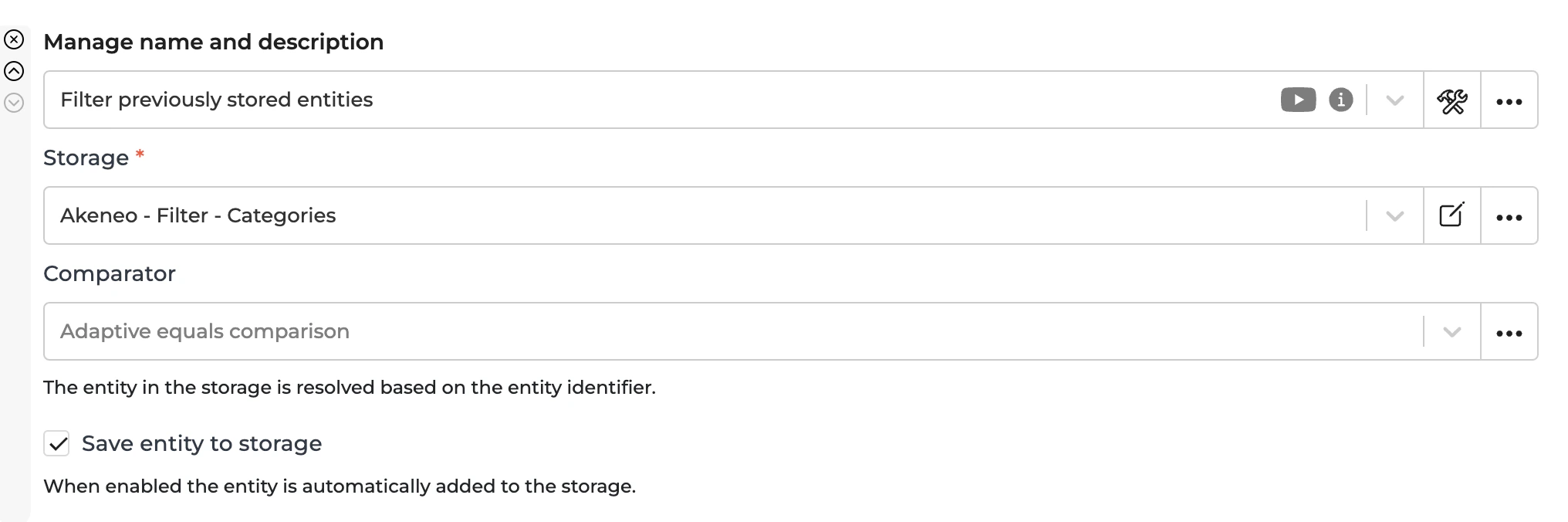
  • Use this transformer to filter previously created tasks into task categories to avoid duplication.
Image
  • To recreate a task, you should remove the entity from the storage “Akeneo - Filter - Categories”.

Sending Categories to Shopify

In Alumio, go to “Integrations → Route → Synchronize Categories - From Akeneo into Shopify Collections”. The task in the Incoming “Akeneo - Fetch - Categories” will be processed in the Route “Synchronize Categories - From Akeneo into Shopify Collections” and sent using the Outgoing “Shopify - Send - Collection”. Sending in the Outgoing will be processed with the following transformers:
  1. Shopify - Convert - Collection from Alumio Base Category.
  2. Shopify - Check and send - Collection.
Shopify - Convert - Collection from Alumio Base Category This transformer converts Alumio category data inside the task into Shopify category data. Shopify - Check and send - Collection
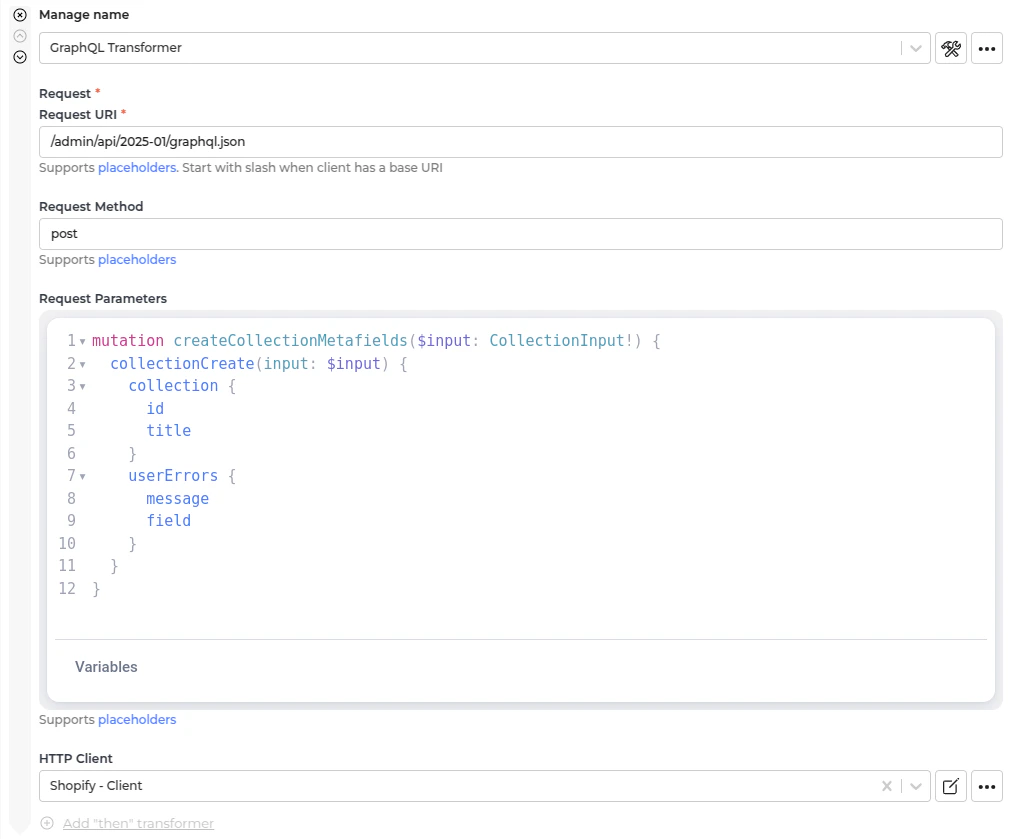
  • This transformer will check current Shopify collections from the previous iteration of this transformer to determine whether we need to create or update the category in the Spryker System.
  • We use GraphQL to connect with Shopify.
Image
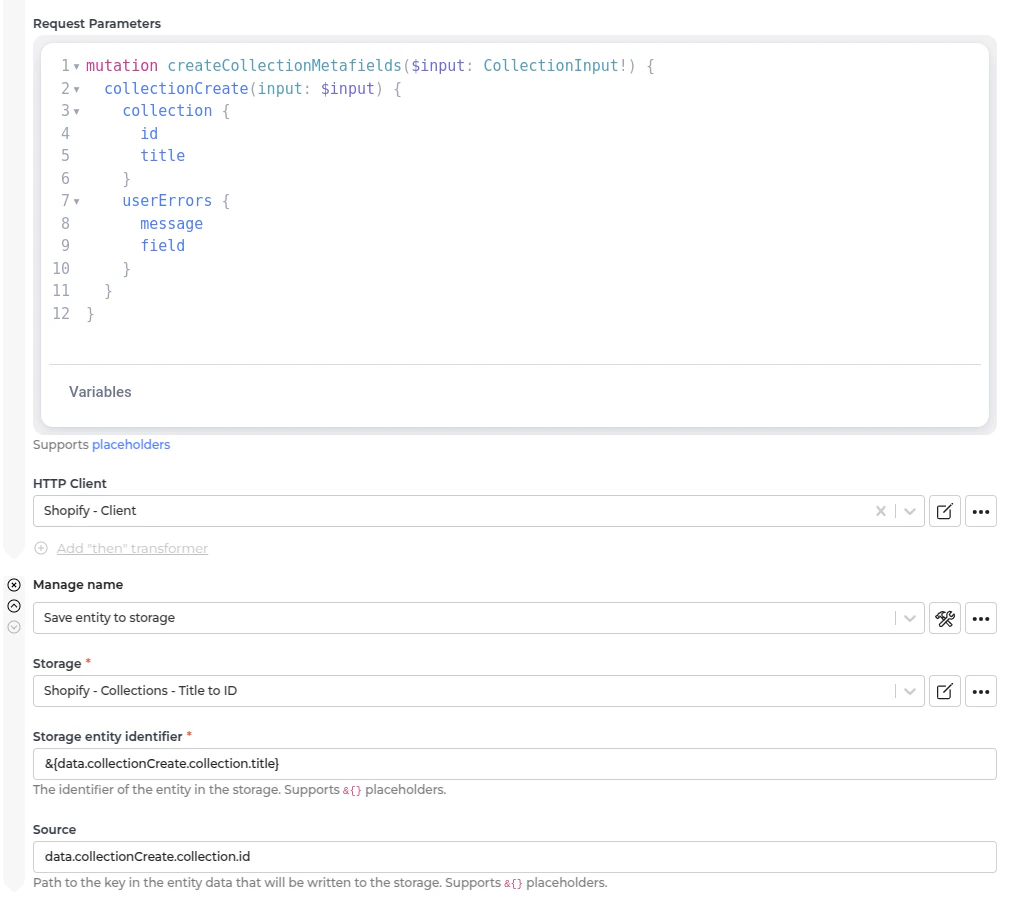
  • The data Shopify returned when created will be saved in storage for future update collection.
Image

Automatic Categories Synchronization Setup

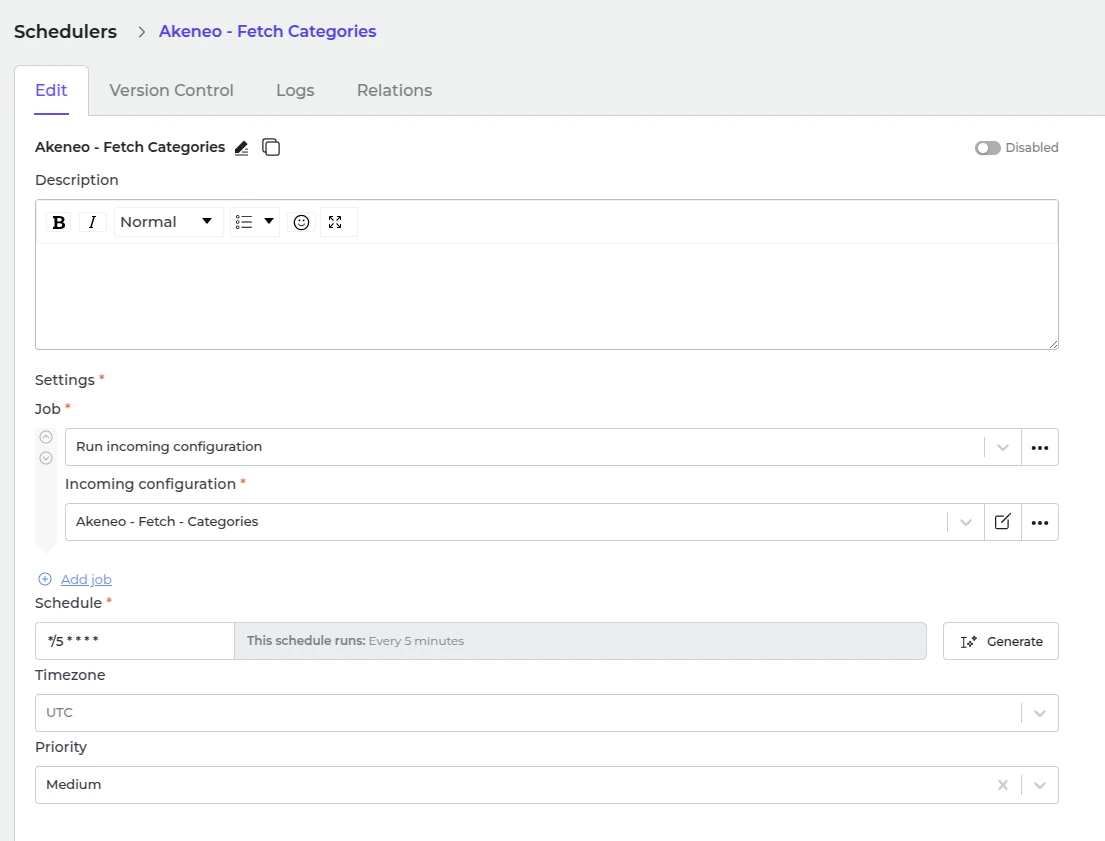
  • Go to “Integrations → Schedulers → Akeneo - Fetch Categories”.
Image
  • Set a schedule expression and enable the configuration.
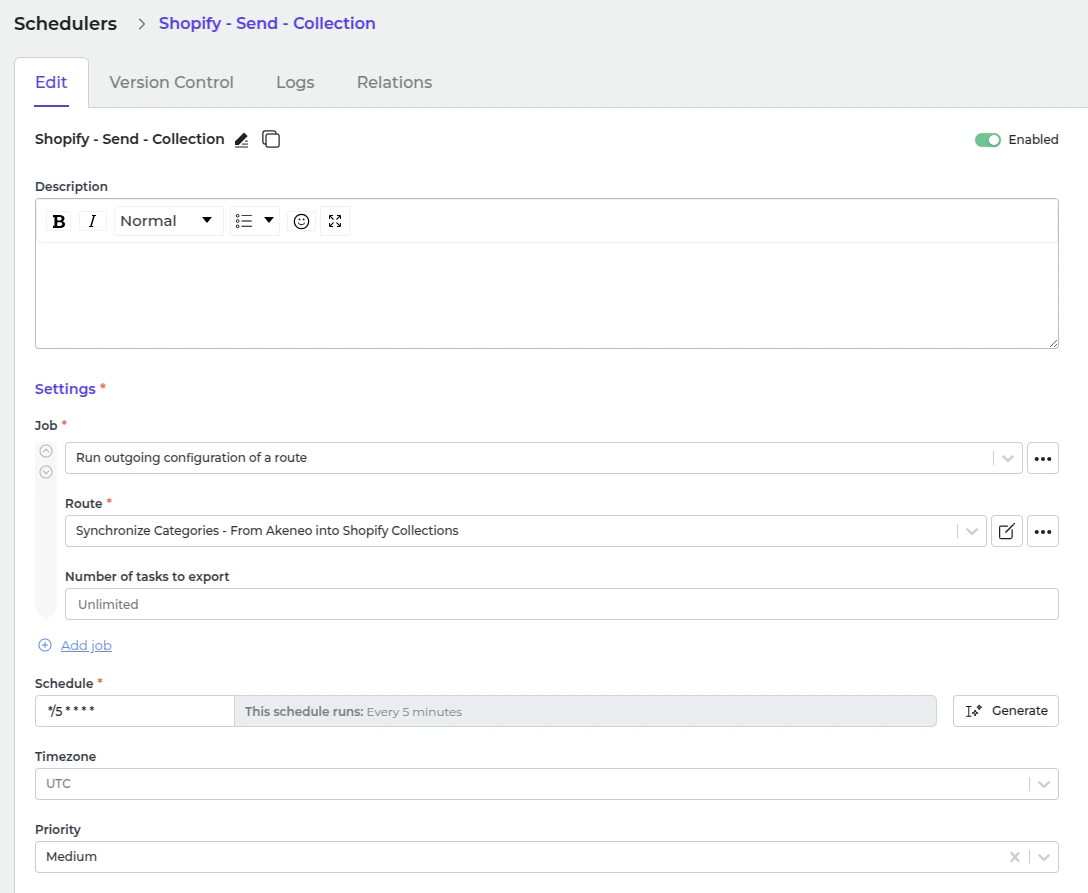
  • Go to “Integrations → Schedulers → Shopify - Send - Collection”.
    Image
  • Set a schedule expression and enable the configuration.