> ## Documentation Index
> Fetch the complete documentation index at: https://docs.alumio.com/llms.txt
> Use this file to discover all available pages before exploring further.
# JMESpath
> Filter, select, reshape, aggregate, sort, and validate data with JMESPath in Alumio.
### Overview
This guide provides practical JMESPath examples for use in Alumio. In a field that supports placeholders, wrap each JMESPath expression in `&{...}`.
### Filtering items
Use filtering expressions to return only the array entries that meet one or more conditions.
| Use case | Expression |
| - | - |
| Filter active items | `&{items[?active == \`true\`]}\` |
| Filter items by price | `&{items[?price > \`100\`]}\` |
| Filter items by category | `&{items[?contains(categories, 'featured')]}` |
| Filter available items | `&{items[?active == \`true\` && stock > \`0\`]}\` |
| Find an item by SKU | `&{items[?sku == 'SKU-001'] \| [0]}` |
| Filter items with no stock | `&{items[?stock == \`0\`]}\` |
| Filter items whose name contains text | `&{items[?contains(name, 'Laptop')]}` |
For example, `&{items[?active == \`true\` && stock > \`0\`]}`returns only`SKU-001\` from the sample input.
Use backticks for numeric and boolean literals, for example `\`100\``and`\`true\``. Use single quotes for strings, for example `'featured'\`.
###
Select and reshape data
| Use case | Expression |
| - | - |
| Select a field from all items | `&{items[].name}` |
| Select the first item | `&{items[0]}` |
| Select the last item | `&{items[-1]}` |
| Select the first two items | `&{items[:2]}` |
| Select a range of items | `&{items[1:3]}` |
| Create a new customer object | `&{customer.{id: id, email: email, full_name: name}}` |
| Select fields as an array | `&{items[0].[sku, name, price]}` |
| Select a field with a dot in its name | `&{"product.name"}` |
### Work with nested data
| Use case | Expression |
| - | - |
| Extract all SKUs from order lines | `&{orders[].lines[].sku}` |
| Count lines per order | `&{orders[].{order_id: id, line_count: length(lines)}}` |
| Calculate total quantity per order | `&{orders[].{order_id: id, total_quantity: sum(lines[].quantity)}}` |
| Build an order summary | `&{orders[].{id: id, status: status, first_sku: lines[0].sku}}` |
### Aggregate and sort values
| Use case | Expression |
| - | - |
| Count items | `&{length(items)}` |
| Calculate total price | `&{sum(items[].price)}` |
| Calculate average price | `&{avg(items[].price)}` |
| Get the highest price | `&{max(items[].price)}` |
| Get the lowest price | `&{min(items[].price)}` |
| Find the most expensive item | `&{max_by(items, &price)}` |
| Find the lowest-priced item | `&{min_by(items, &price)}` |
| Sort item names | `&{sort(items[].name)}` |
| Sort items by price | `&{sort_by(items, &price)}` |
| Reverse an array | `&{reverse(items)}` |
### Handle and validate values
| Use case | Expression |
| - | - |
| Use the first available value | `&{not_null(customer.phone, customer.mobile, customer.email)}` |
| Convert a value to a string | `&{to_string(items[0].id)}` |
| Convert a value to an array | `&{to_array(customer.email)}` |
| Convert all IDs to strings | `&{map(&to_string(@), items[].id)}` |
| Get object keys | `&{keys(customer)}` |
| Get object values | `&{values(customer)}` |
| Get a value type | `&{type(items[0].price)}` |
| Merge two objects | `&{merge(customer, address)}` |
### Build JSON objects from tabular rows
When a parsed CSV is available in `data` as an array of rows, map each row into an object:
```text theme={null}
&{data[*].{"id": [0], "sku": [1], "name": [2], "qty": [3]}}
```
For example, a row such as `["1", "ABC123", "Product X", "23"]` becomes:
```json theme={null}
{
"id": "1",
"sku": "ABC123",
"name": "Product X",
"qty": "23"
}
```
Use the **Run Test** option in Alumio after each change. This lets you validate the expression against a representative entity before enabling the configuration.
## Template Import
Follow these steps to import a template to Alumio:
1. Log in to your Alumio dashboard.
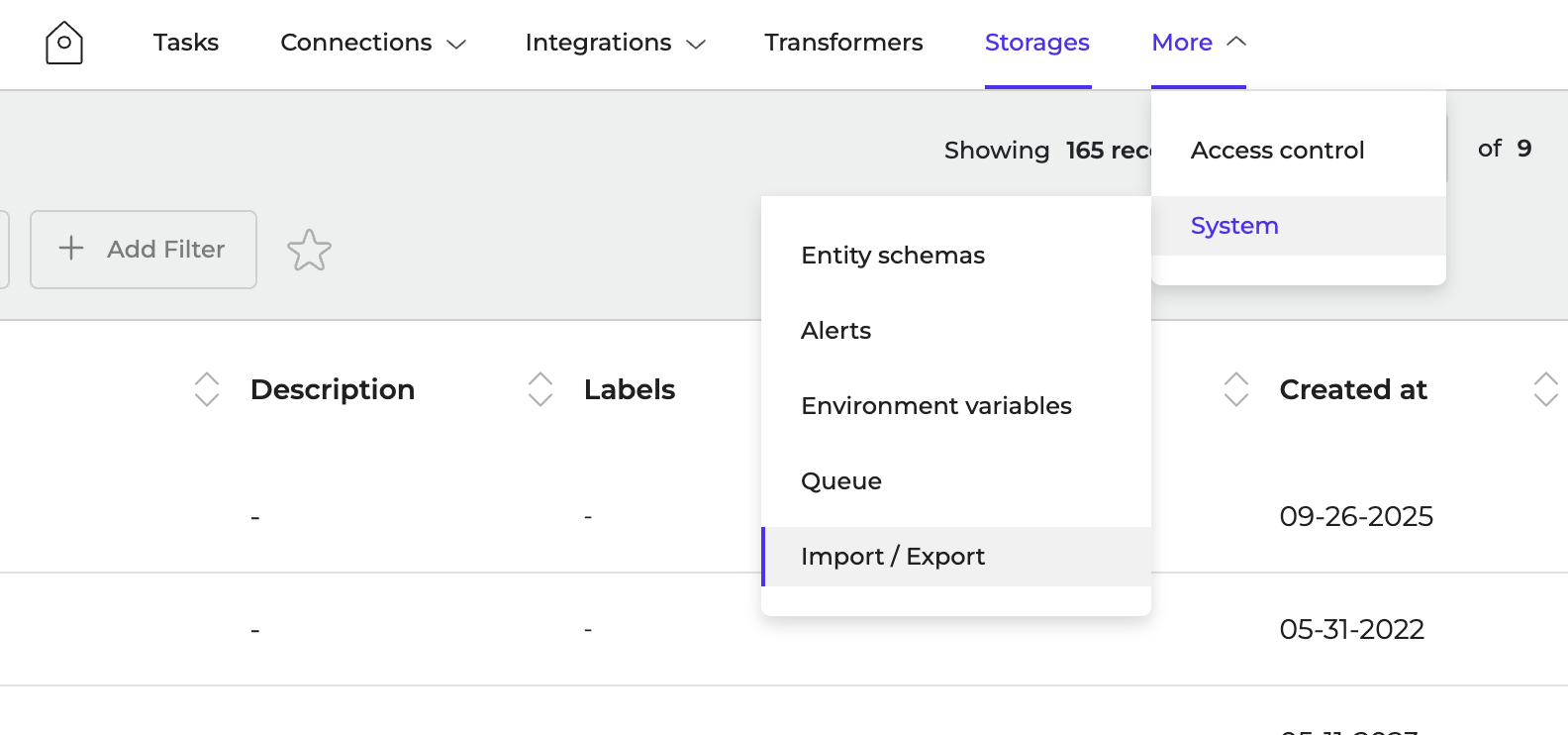
2. Navigate to **More > System > Import/Export**
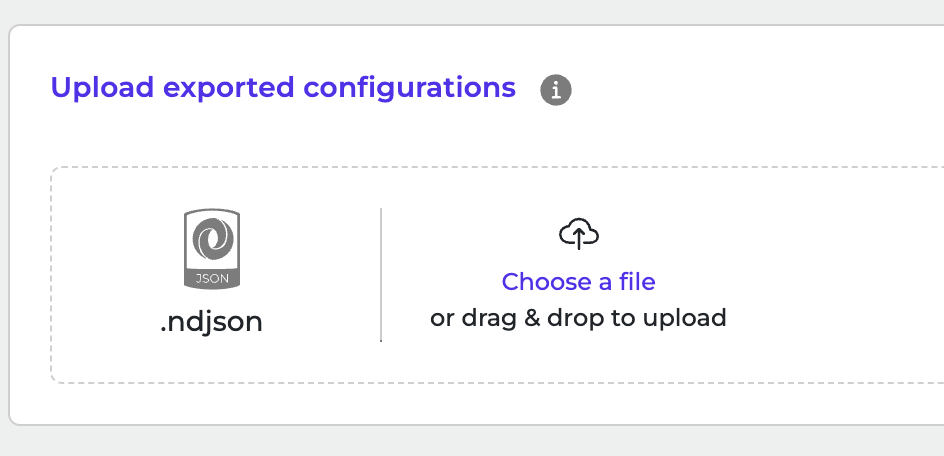
 3. Click to browse or drag and drop an **ndjson** file to upload it.
 4. Click **Import Configurations** to start the import.
This documentation is built and hosted on [Mintlify](https://mintlify.com), a developer documentation platform.
4. Click **Import Configurations** to start the import.
This documentation is built and hosted on [Mintlify](https://mintlify.com), a developer documentation platform.