> ## Documentation Index
> Fetch the complete documentation index at: https://docs.alumio.com/llms.txt
> Use this file to discover all available pages before exploring further.
# The Template Export
Follow this guide to export the template.
* Log in to your Alumio dashboard.
* Navigate to **Integrations > Schedulers**.
* Pick up the Scheduler for export. Currently, 11 Schedulers can be exported.
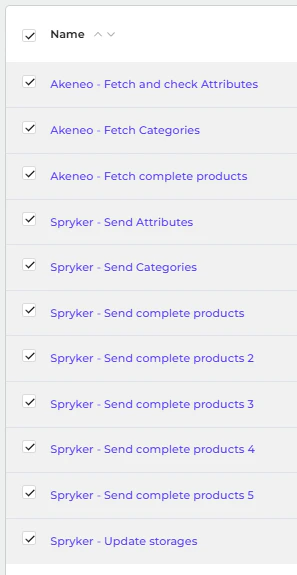 * You can export single or multiple Schedulers.
1. For a single Scheduler, navigate to one of the configurations in **Scheduler > … (Three dots on the top right) > Export.**
2. To export multiple Schedulers, mark the checkbox **Scheduler > Export (top right).**
Note: The values under System > Environment Variable are not included when exporting and must be entered manually. These variables are required because they are used in the HTTP (API) Client. You can find the Environment Variable used in **Connections > HTTP (API) Client.**
* You can export single or multiple Schedulers.
1. For a single Scheduler, navigate to one of the configurations in **Scheduler > … (Three dots on the top right) > Export.**
2. To export multiple Schedulers, mark the checkbox **Scheduler > Export (top right).**
Note: The values under System > Environment Variable are not included when exporting and must be entered manually. These variables are required because they are used in the HTTP (API) Client. You can find the Environment Variable used in **Connections > HTTP (API) Client.**