> ## Documentation Index
> Fetch the complete documentation index at: https://docs.alumio.com/llms.txt
> Use this file to discover all available pages before exploring further.
# Sending Product Data from Alumio to Shopify
## **Base Information Setup**
* Navigate to **Transformer → Shopify - Set - Base Information.**
* Go to the “Overview” tab to see what kind of information you can set.
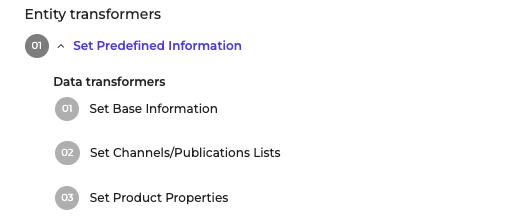 * Publish setting. The default value for "published" is false. This means the synchronized products will not be published in any stores. You'll need to set it to true and make sure you put the Store names in the "Channels/Publications" values. If you set it to true, then this route will be able to fetch the Products and publish them to the defined channels/publications inside that transformer.
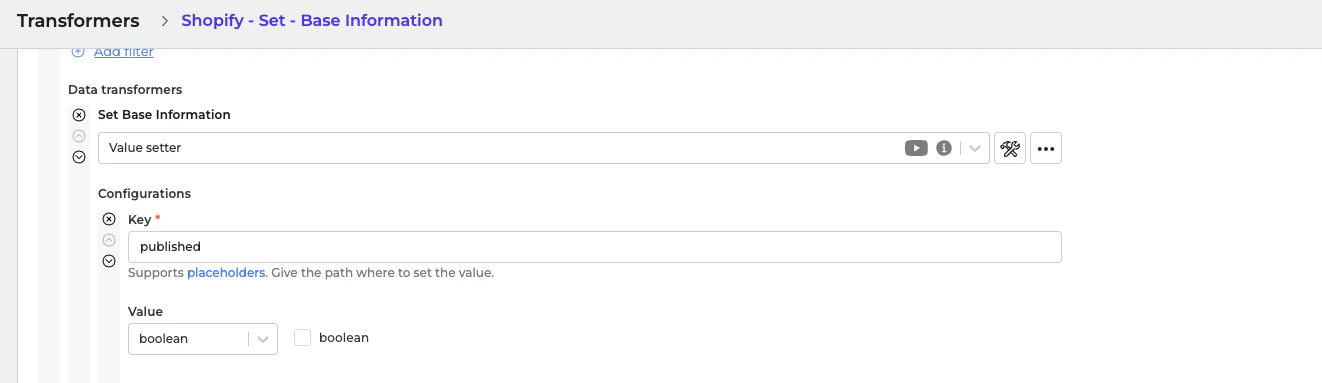
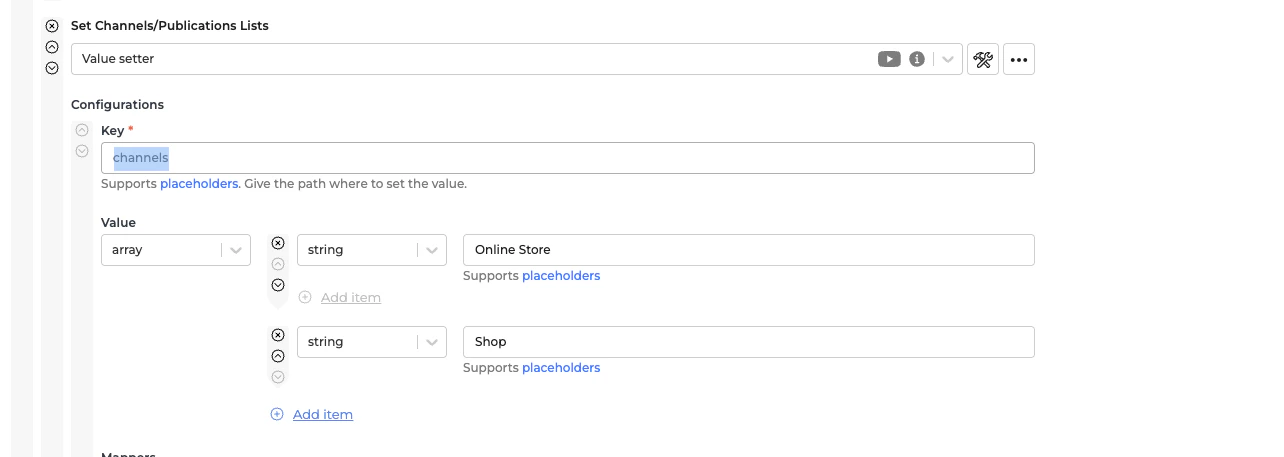 * Go to each data transformer and make necessary adjustments.
* Save the transformer.
## **Configuring the Incoming: Synchronize Products ‐ Fetch Storage Product Model Alumio Base**
In the Incoming section of data synchronization from the Alumio schema to the Shopify system, minimal setup is required. The key configuration to adjust is to make sure that the delta storage is empty inside this transformer "Akeneo to Shopify - Products - Filter By Previous storage entities."
* Navigate to Incoming and locate the **“Synchronize Products - Fetch Storage Product Model Alumio Base”** configuration.
* Open the transformer inside the incoming configurations "Akeneo to Shopify - Products - Filter By Previous storage entities".
* Go to each data transformer and make necessary adjustments.
* Save the transformer.
## **Configuring the Incoming: Synchronize Products ‐ Fetch Storage Product Model Alumio Base**
In the Incoming section of data synchronization from the Alumio schema to the Shopify system, minimal setup is required. The key configuration to adjust is to make sure that the delta storage is empty inside this transformer "Akeneo to Shopify - Products - Filter By Previous storage entities."
* Navigate to Incoming and locate the **“Synchronize Products - Fetch Storage Product Model Alumio Base”** configuration.
* Open the transformer inside the incoming configurations "Akeneo to Shopify - Products - Filter By Previous storage entities".
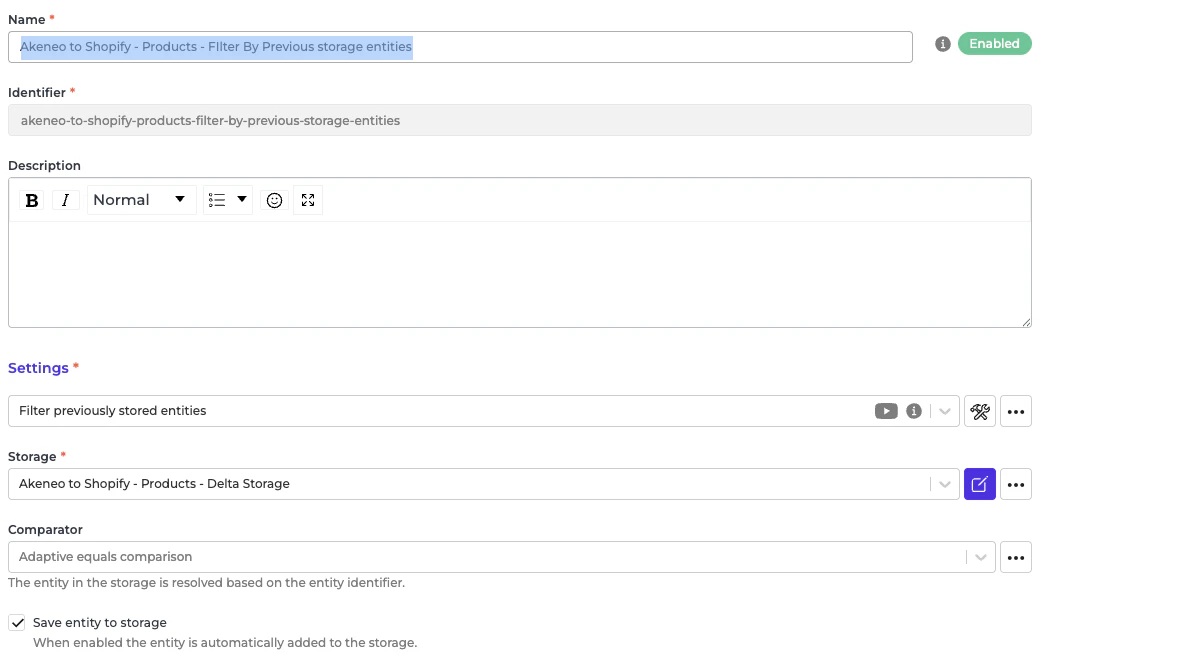 * Go to the storage “Akeneo to Shopify - Products - Delta Storage”.
* At the top right "..." button, select "Empty storage".
* Go to the storage “Akeneo to Shopify - Products - Delta Storage”.
* At the top right "..." button, select "Empty storage".
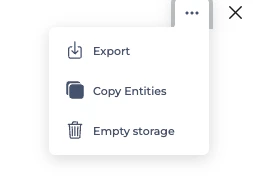 You only need to empty storage if this is the first sync of all products from Akeneo to Shopify.
## **Configuring the Route: Synchronize Products ‐ Akeneo to Shopify**
In the Route section of data synchronization from the Alumio schema to Shopify, minimal setup is required. You can decide to set the number of parallel jobs that will run simultaneously to speed up the product sync process.
* Navigate to Routes and locate the configuration **“Synchronize Products - Akeneo to Shopify”** configuration.
* Open the configuration settings.
* Enable the “Enable parallel execution” checkbox.
* Locate the “Maximum parallel executions” field and set the value based on the number of parallel jobs you want to run.
You only need to empty storage if this is the first sync of all products from Akeneo to Shopify.
## **Configuring the Route: Synchronize Products ‐ Akeneo to Shopify**
In the Route section of data synchronization from the Alumio schema to Shopify, minimal setup is required. You can decide to set the number of parallel jobs that will run simultaneously to speed up the product sync process.
* Navigate to Routes and locate the configuration **“Synchronize Products - Akeneo to Shopify”** configuration.
* Open the configuration settings.
* Enable the “Enable parallel execution” checkbox.
* Locate the “Maximum parallel executions” field and set the value based on the number of parallel jobs you want to run.
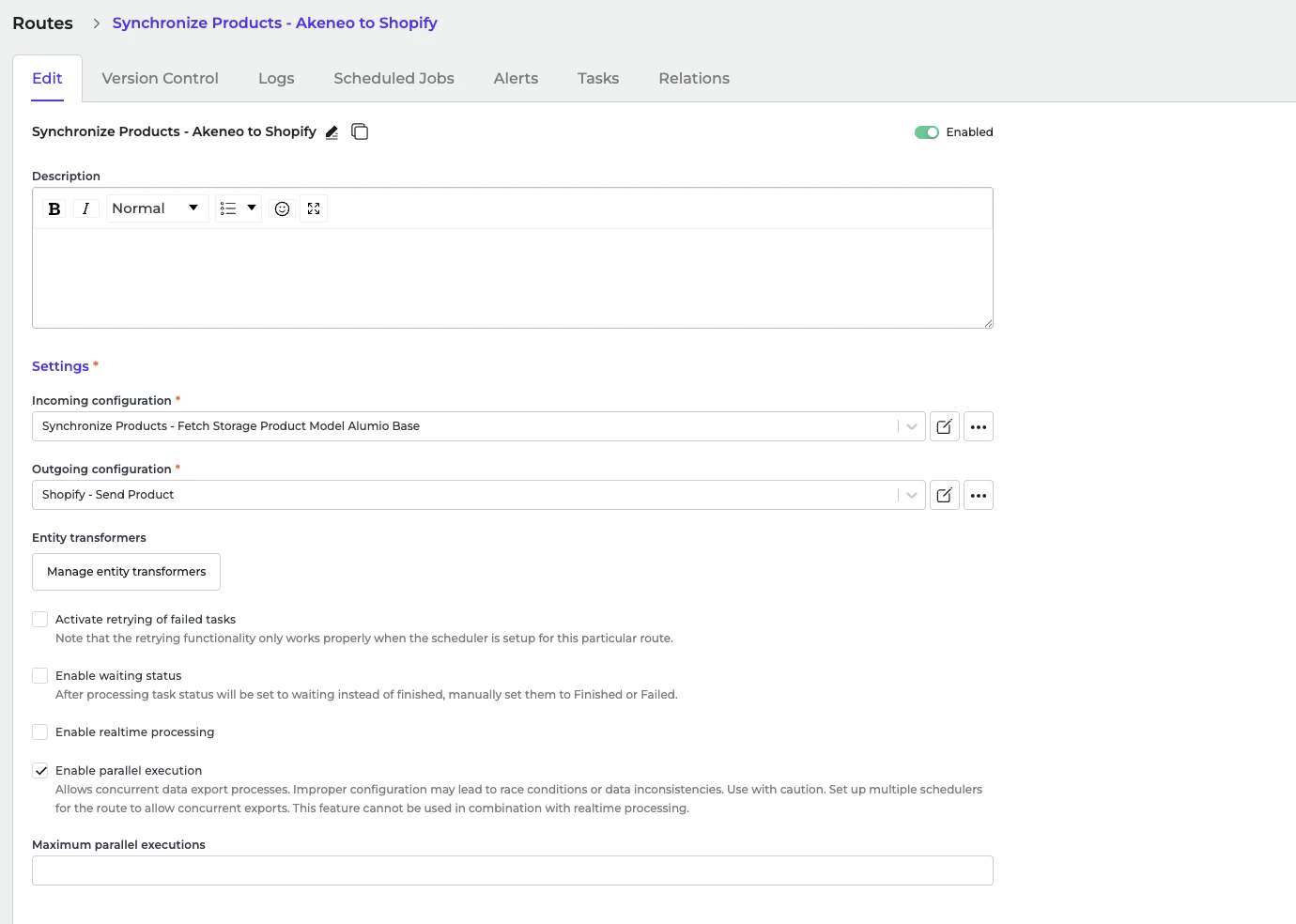 **Important: Ensure that this value does not exceed the maximum number of data engines available in your environment.**
## **Configure the Route: Synchronize Products ‐ Akeneo to Shopify ‐ Publish Products to Shopify Channels**
In the Route "Synchronize Products - Akeneo to Shopify - Publish Products to Shopify Channels".
This Route depends on the "published" and "channels" value inside this transformer, "Shopify ‐ Base information setup". The default value for "published" is false.
**Important: Ensure that this value does not exceed the maximum number of data engines available in your environment.**
## **Configure the Route: Synchronize Products ‐ Akeneo to Shopify ‐ Publish Products to Shopify Channels**
In the Route "Synchronize Products - Akeneo to Shopify - Publish Products to Shopify Channels".
This Route depends on the "published" and "channels" value inside this transformer, "Shopify ‐ Base information setup". The default value for "published" is false.
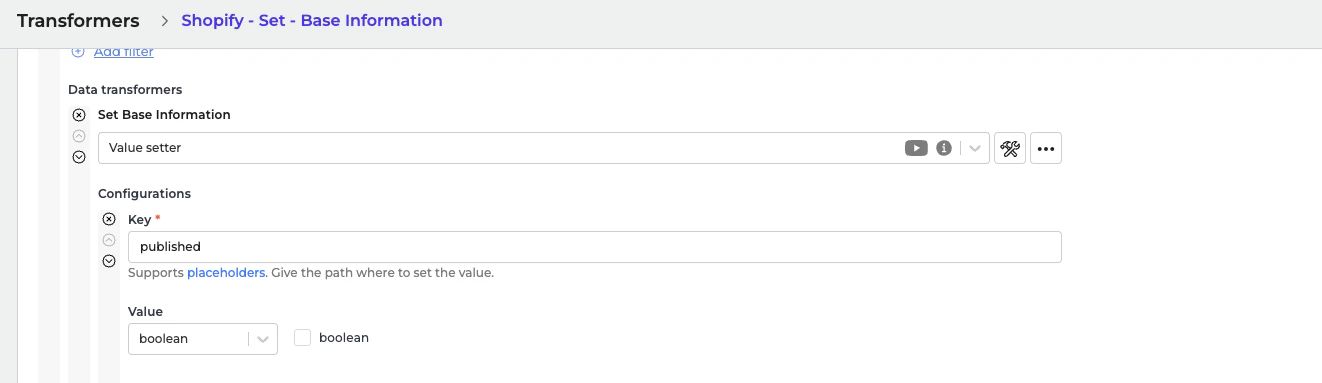
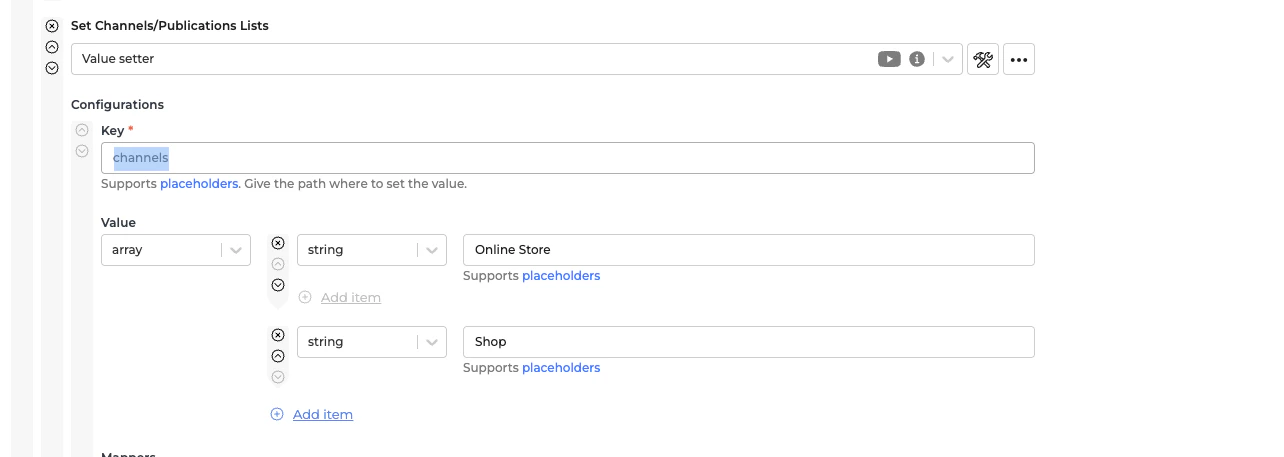 When you set it to true, then this route will be active and be able to fetch the synchronized Products and then publish them to the defined channels/publications inside that transformer.\\