> ## Documentation Index
> Fetch the complete documentation index at: https://docs.alumio.com/llms.txt
> Use this file to discover all available pages before exploring further.
# Synchronization of Categories
### **Fetching Categories from Akeneo**
In Alumio, go to **"Integrations → Incoming → Akeneo - Fetch - Categories"**.
You need to get all categories from the Akeneo system to ensure the parent children relation can be sent in the right order. To do so, we use an Incoming **"Akeneo - Fetch - Categories"** to get data from the Akeneo Server.
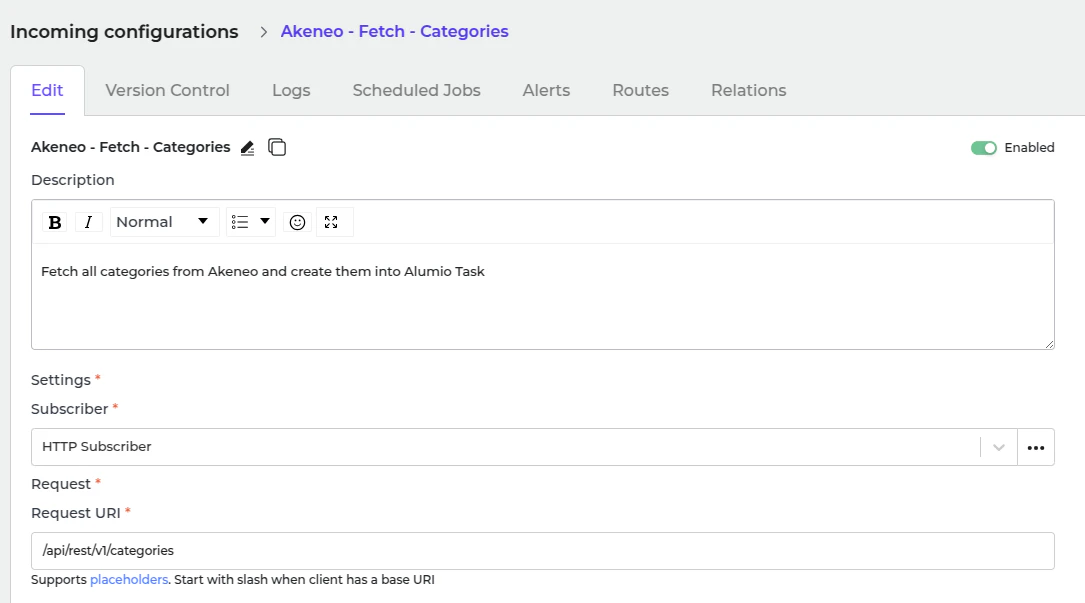 This incoming creates a task inside Alumio with data structured as Alumio base categories. There are the following transformers inside this Incoming before processing the category:
1. Akeneo - Prepare convert category - Labels - To localizations.
2. Akeneo - Convert - Category - To Alumio Base.
3. Akeneo - Filter - Category.
**Akeneo - Prepare convert category - Labels - To localizations**
This transformer converts label data from Akeneo.
```text theme={null}
"labels": {
"de_DE": "E-commerce",
"en_GB": "E-commerce",
"en_US": "E-commerce",
"es_ES": "E-commerce",
"fr_FR": "E-commerce",
"it_IT": "E-commerce",
"nl_NL": "E-commerce",
"pt_PT": "E-commerce"
},
```
Since this structure is not compatible with CommerceTools, this transformer converts it into a more suitable and workable format.
```text theme={null}
"localizations": [
{
"localeCode": "de_DE",
"translation": "E-commerce"
},
{
"localeCode": "en_GB",
"translation": "E-commerce"
}
]
```
* You can determine the root category you want to send to CommerceTools by filling the Environment Variable AKENEO\_ROOT\_CATEGORY, you can also empty this to send all categories inside Akeneo
**Akeneo - Convert - Category - To Alumio Base**
This transformer converts the whole category data into Alumio Base data.
```text theme={null}
{
"code": "master",
"parent": null,
"localizations": [
{
"localeCode": "de_DE",
"translation": "E-commerce"
},
{
"localeCode": "en_GB",
"translation": "E-commerce"
},
{
"localeCode": "en_US",
"translation": "E-commerce"
},
{
"localeCode": "es_ES",
"translation": "E-commerce"
},
{
"localeCode": "fr_FR",
"translation": "E-commerce"
}
]
}
```
**Akeneo - Filter - Category**
Use this transformer to filter previously created tasks into categories to avoid duplication.
This incoming creates a task inside Alumio with data structured as Alumio base categories. There are the following transformers inside this Incoming before processing the category:
1. Akeneo - Prepare convert category - Labels - To localizations.
2. Akeneo - Convert - Category - To Alumio Base.
3. Akeneo - Filter - Category.
**Akeneo - Prepare convert category - Labels - To localizations**
This transformer converts label data from Akeneo.
```text theme={null}
"labels": {
"de_DE": "E-commerce",
"en_GB": "E-commerce",
"en_US": "E-commerce",
"es_ES": "E-commerce",
"fr_FR": "E-commerce",
"it_IT": "E-commerce",
"nl_NL": "E-commerce",
"pt_PT": "E-commerce"
},
```
Since this structure is not compatible with CommerceTools, this transformer converts it into a more suitable and workable format.
```text theme={null}
"localizations": [
{
"localeCode": "de_DE",
"translation": "E-commerce"
},
{
"localeCode": "en_GB",
"translation": "E-commerce"
}
]
```
* You can determine the root category you want to send to CommerceTools by filling the Environment Variable AKENEO\_ROOT\_CATEGORY, you can also empty this to send all categories inside Akeneo
**Akeneo - Convert - Category - To Alumio Base**
This transformer converts the whole category data into Alumio Base data.
```text theme={null}
{
"code": "master",
"parent": null,
"localizations": [
{
"localeCode": "de_DE",
"translation": "E-commerce"
},
{
"localeCode": "en_GB",
"translation": "E-commerce"
},
{
"localeCode": "en_US",
"translation": "E-commerce"
},
{
"localeCode": "es_ES",
"translation": "E-commerce"
},
{
"localeCode": "fr_FR",
"translation": "E-commerce"
}
]
}
```
**Akeneo - Filter - Category**
Use this transformer to filter previously created tasks into categories to avoid duplication.
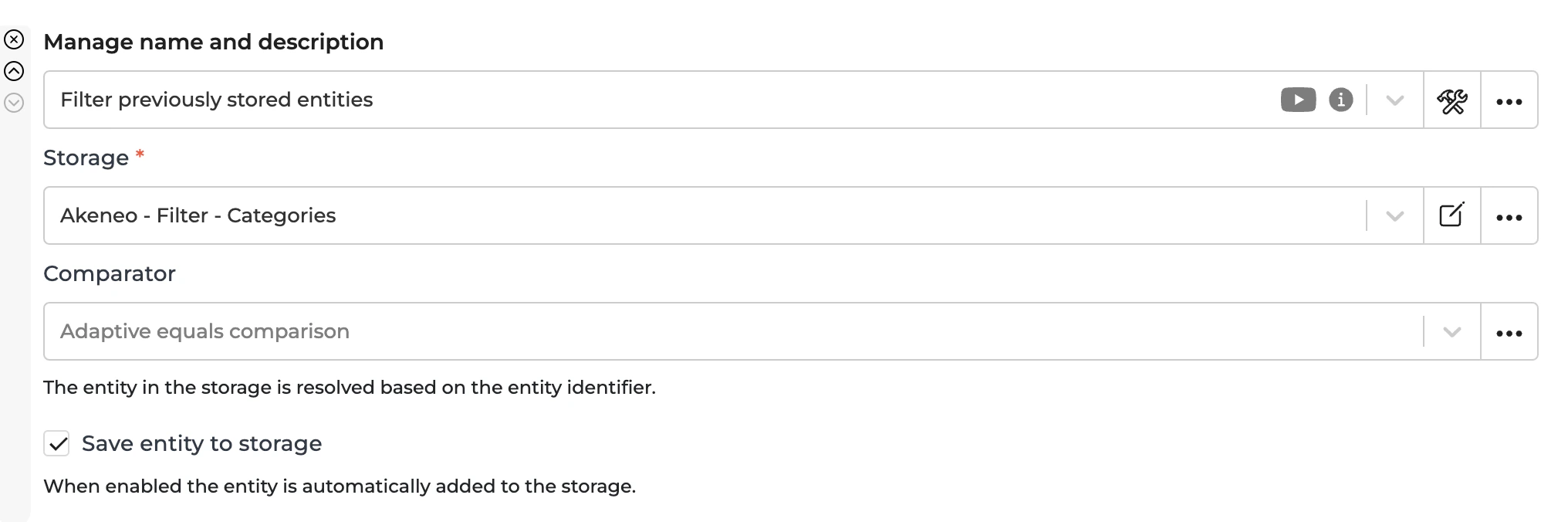 If you need to recreate a task, remove the entity first from the storage **"Akeneo - Filter - Categories"**.
### **Fetching Categories from CommerceTools**
* In Alumio, go to **"CommerceTools - Fetch - Categories".** Before deploying product types, fetch the current categories from Commercetools to determine whether a create or update operation is required.
If you need to recreate a task, remove the entity first from the storage **"Akeneo - Filter - Categories"**.
### **Fetching Categories from CommerceTools**
* In Alumio, go to **"CommerceTools - Fetch - Categories".** Before deploying product types, fetch the current categories from Commercetools to determine whether a create or update operation is required.
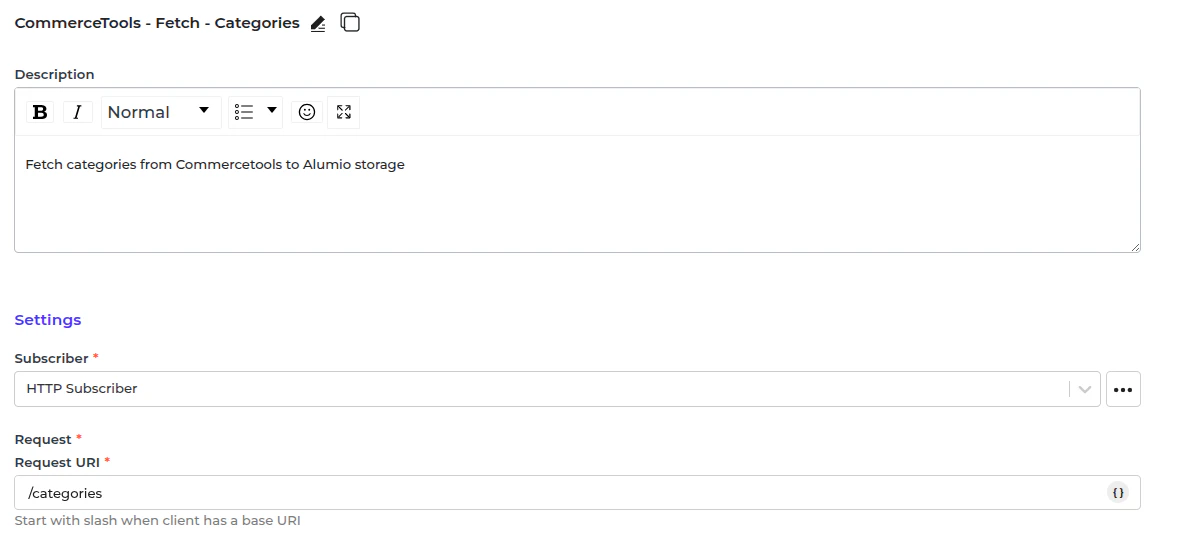 To do so, use the Incoming **"CommerceTools - Fetch - Categories"** to get data from the CommerceTools Server.
The following transformer saves the data inside the Incoming configuration:
1. CommerceTools - Update Storage - Category.
**CommerceTools - Update Storage - Category**
This transformer saves the category data inside Alumio storage for sending the categories.
### **Sending categories to CommerceTools**
The task that was created through Incoming "Akeneo - Fetch - Categories" will then be processed further by the Route "Synchronize Categories - From Akeneo into CommerceTools" and will be sent using this Outgoing.
This Outgoing configuration transforms Alumio Base Categories into the CommerceTools format and determines whether to create or update a category based on data from the previous iteration.
Outgoing data is processed by the following transformers:
1. Alumio Base - Convert value - Localization localeCode into CommerceTools localeCode.
2. CommerceTools - Prepare convert - Category - Parent from Alumio Base Category.
3. CommerceTools - Convert - Category - from Alumio Base Category.
4. CommerceTools - Check and send - Category.
**Alumio Base - Convert value - Localization localeCode into CommerceTools localeCode**
This transformer converts the localCode value inside localizations into the localCode that CommerceTools uses. This will transform local code looking like "en\_US" into "EN-US".
**CommerceTools - Prepare convert - Category - Parent from Alumio Base Category.**
This transformer checks the parent and maps it into the CommerceTools id.
**CommerceTools - Convert - Category - from Alumio Base Category.**
This transformer converts the Category from Alumio Base into CommerceTools.
**CommerceTools - Check and send - Category.**
This transformer references the commercetools ID from the previous iteration to determine whether to create or update the category in the CommerceTools system. An example of a payload creation:
```text theme={null}
{
"parent": {
"typeId": "category",
"id": "1b391ecc-e8ed-4b7c-b5d8-c46fe8c5f7bc"
},
"key": "Avast",
"orderHint": "0.1",
"slug": {
"EN-US": "avast-avast"
},
"name": {
"EN-US": "Avast"
}
}
```
An example of the updated payload:
```text theme={null}
{
"actions": [
{
"slug": {
"DE-DE": "zep-zep",
"EN-GB": "zep-zep",
"EN-US": "zep-zep",
"FR-FR": "zep-zep",
"JA-JP": "zep-zep"
},
"action": "changeSlug"
}
],
"version": 2
}
```
### **Automatic Categories Synchronization Setup**
* In Alumio, go to **"Integrations → Schedulers → Akeneo - Fetch Categories"**.
To do so, use the Incoming **"CommerceTools - Fetch - Categories"** to get data from the CommerceTools Server.
The following transformer saves the data inside the Incoming configuration:
1. CommerceTools - Update Storage - Category.
**CommerceTools - Update Storage - Category**
This transformer saves the category data inside Alumio storage for sending the categories.
### **Sending categories to CommerceTools**
The task that was created through Incoming "Akeneo - Fetch - Categories" will then be processed further by the Route "Synchronize Categories - From Akeneo into CommerceTools" and will be sent using this Outgoing.
This Outgoing configuration transforms Alumio Base Categories into the CommerceTools format and determines whether to create or update a category based on data from the previous iteration.
Outgoing data is processed by the following transformers:
1. Alumio Base - Convert value - Localization localeCode into CommerceTools localeCode.
2. CommerceTools - Prepare convert - Category - Parent from Alumio Base Category.
3. CommerceTools - Convert - Category - from Alumio Base Category.
4. CommerceTools - Check and send - Category.
**Alumio Base - Convert value - Localization localeCode into CommerceTools localeCode**
This transformer converts the localCode value inside localizations into the localCode that CommerceTools uses. This will transform local code looking like "en\_US" into "EN-US".
**CommerceTools - Prepare convert - Category - Parent from Alumio Base Category.**
This transformer checks the parent and maps it into the CommerceTools id.
**CommerceTools - Convert - Category - from Alumio Base Category.**
This transformer converts the Category from Alumio Base into CommerceTools.
**CommerceTools - Check and send - Category.**
This transformer references the commercetools ID from the previous iteration to determine whether to create or update the category in the CommerceTools system. An example of a payload creation:
```text theme={null}
{
"parent": {
"typeId": "category",
"id": "1b391ecc-e8ed-4b7c-b5d8-c46fe8c5f7bc"
},
"key": "Avast",
"orderHint": "0.1",
"slug": {
"EN-US": "avast-avast"
},
"name": {
"EN-US": "Avast"
}
}
```
An example of the updated payload:
```text theme={null}
{
"actions": [
{
"slug": {
"DE-DE": "zep-zep",
"EN-GB": "zep-zep",
"EN-US": "zep-zep",
"FR-FR": "zep-zep",
"JA-JP": "zep-zep"
},
"action": "changeSlug"
}
],
"version": 2
}
```
### **Automatic Categories Synchronization Setup**
* In Alumio, go to **"Integrations → Schedulers → Akeneo - Fetch Categories"**.
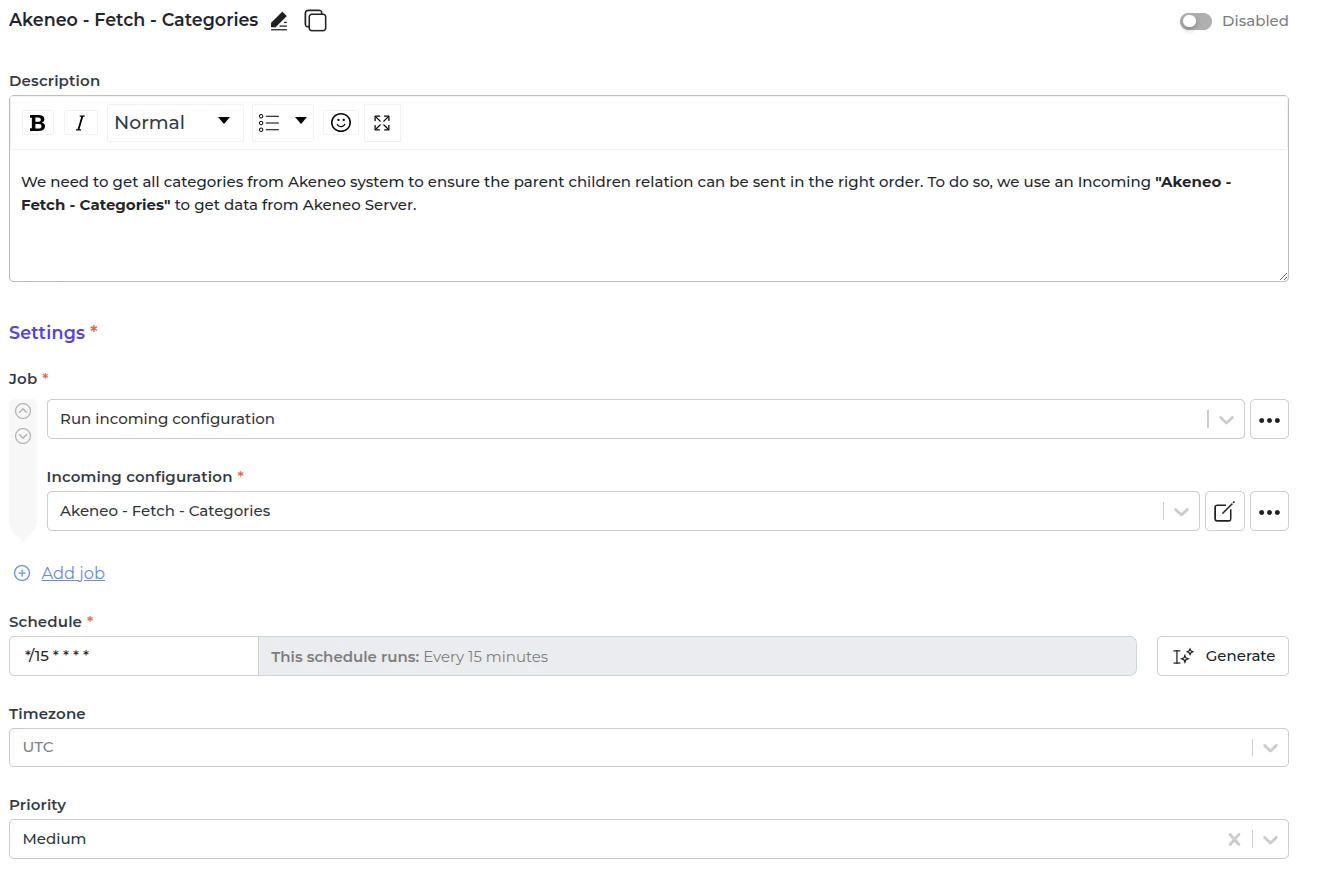 * Set a schedule expression and enable the configuration.
* Go to **"Integrations → Schedulers → CommerceTools - Send - Collection"**.
* Set a schedule expression and enable the configuration.
* Go to **"Integrations → Schedulers → CommerceTools - Send - Collection"**.
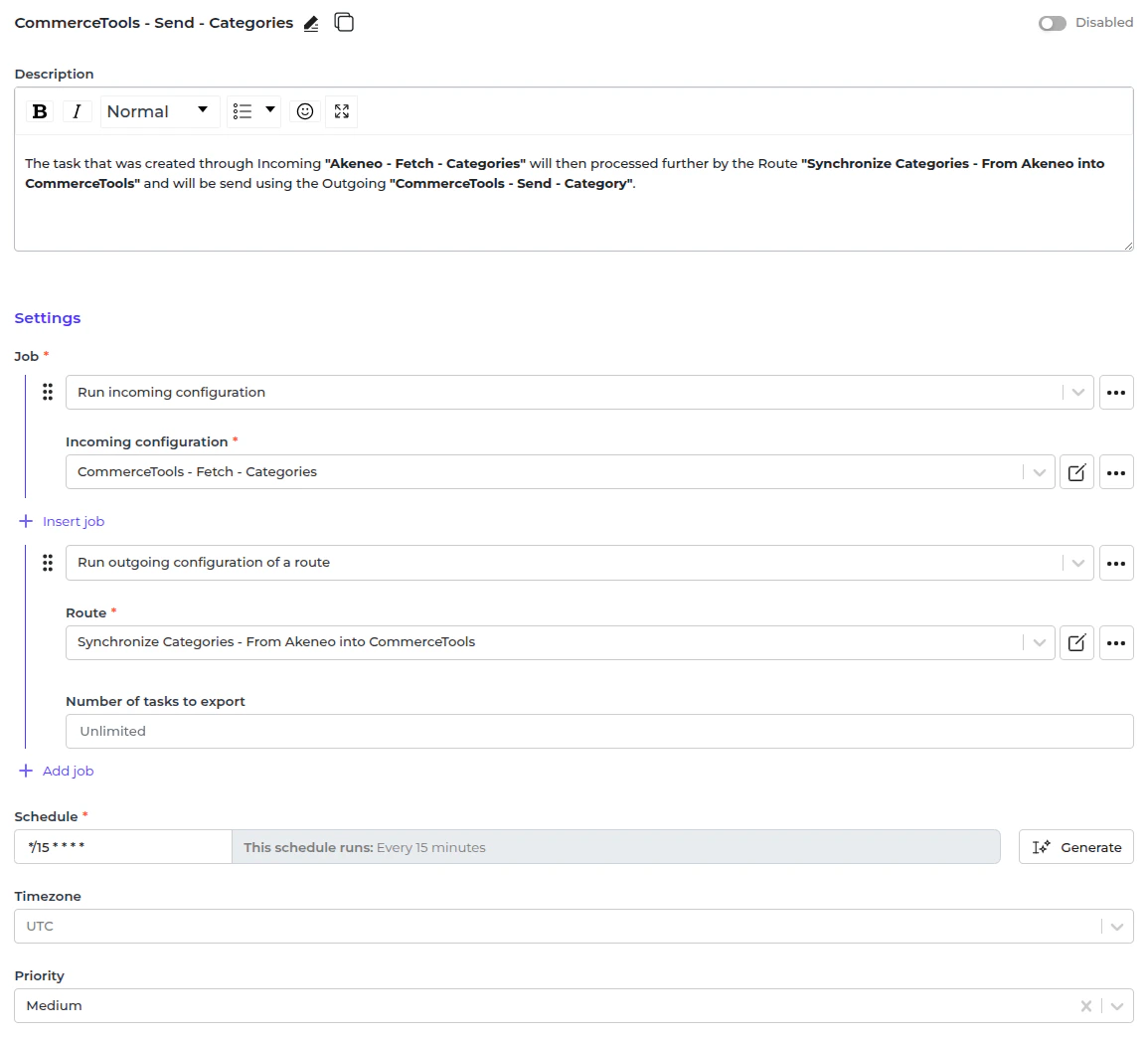 * Set a schedule expression and enable the configuration.