> ## Documentation Index
> Fetch the complete documentation index at: https://docs.alumio.com/llms.txt
> Use this file to discover all available pages before exploring further.
# Installation
To begin using the integration, you need to install the required template in Alumio.
**Step 1: Download the Integration Template.**
Download the latest version of the integration template by clicking on the file below: [https://library.alumio.com/](https://library.alumio.com/)
**Step 2: Import the Template into Alumio.**
1. Log in to your Alumio Dashboard.
2. Navigate to System → Import / Export.
3. Upload the downloaded template. You’ll see a list of the configurations ready to import. Select All and click the “Import configuration” button. Verify that all Incoming, Routes, Outgoing, Transformers, and Schedulers are correctly imported.
## **Credentials Setup**
Before running the integration, you must configure credentials for Akeneo and Shopify in Alumio.
**Step 1: Retrieve API Credentials from Akeneo.**
* Log in to Akeneo as an admin user.
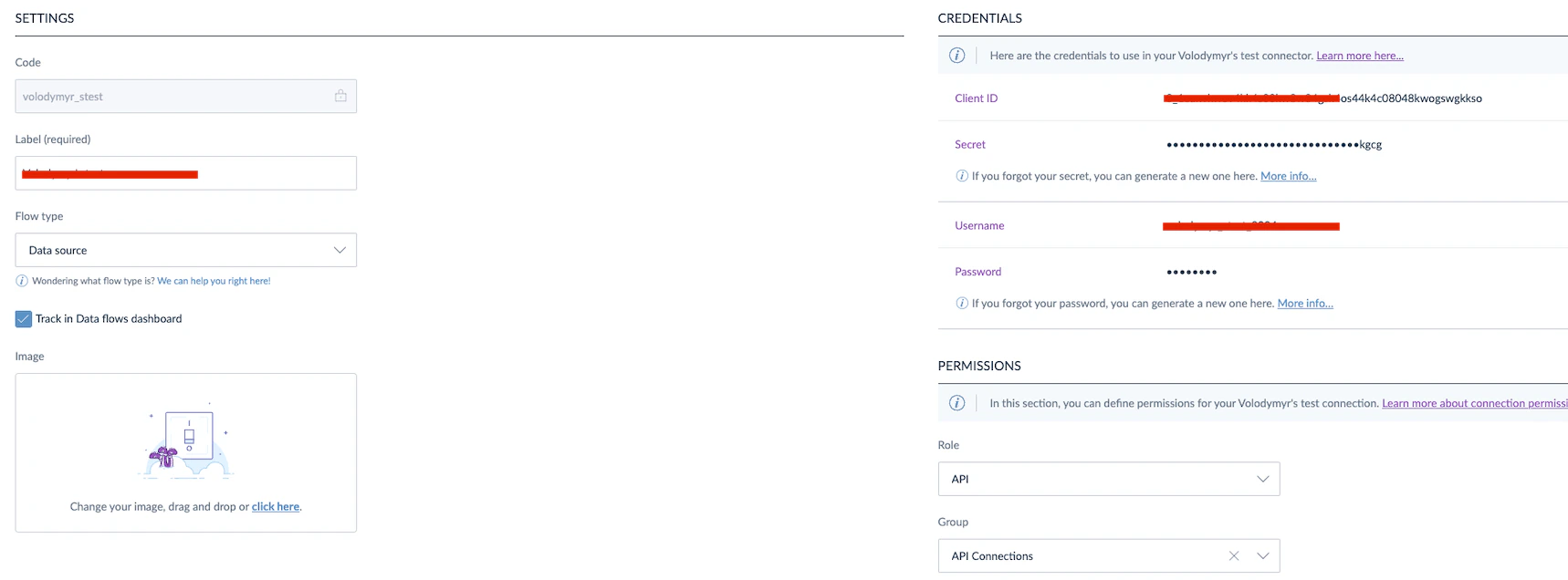
* Navigate to **Connect → Connection-settings.**
* Create a new connection (if necessary) and retrieve the following:
1. Client ID.
2. Secret Key.
3. Username.
4. Password.