> ## Documentation Index
> Fetch the complete documentation index at: https://docs.alumio.com/llms.txt
> Use this file to discover all available pages before exploring further.
# GraphQL
### Overview
The GraphQL package provides pre-configured examples for building integrations with GraphQL APIs using Alumio. These examples show how to retrieve structured data from GraphQL endpoints, configure GraphQL queries, and process responses within an integration flow.
GraphQL allows applications to request specific data fields through queries from a single API endpoint. With Alumio, GraphQL Incoming Configurations can be used to connect with GraphQL services and retrieve data efficiently, including handling large datasets through pagination.
This package provides ready-to-use examples that serve as a starting point for creating GraphQL integrations and can be customized based on the GraphQL endpoint, query structure, authentication requirements, and pagination method supported by the API.
### General Information
The GraphQL package focuses on retrieving data from GraphQL APIs through Incoming Configurations. It shows how Alumio can send GraphQL queries, process API responses, and automatically retrieve additional pages of data when the response contains more records.
The package includes two sample GraphQL Incoming Configurations with different pagination methods:
**GraphQL Incoming Configuration with Next Link Pagination**
Shows how to retrieve paginated data by following the next page reference provided in the GraphQL response. Useful for GraphQL APIs that return pagination information, such as a cursor or URL reference, to identify the next set of records.
**GraphQL Incoming Configuration with Increasing GraphQL Variable Pagination**
Shows how to retrieve paginated data by increasing a GraphQL query variable for each request. Useful for APIs that use variables such as page number, offset, or cursor values to control pagination.
These examples show how Alumio can handle different GraphQL pagination approaches and provide a foundation for integrating with various GraphQL-based systems.
### Package Contents
The following GraphQL examples are included in the package:
**1. GraphQL Incoming Configuration: Next Link Pagination**
Shows how to configure an Incoming Configuration that retrieves data from a GraphQL API by following the next page reference returned in the API response. The configuration automatically continues requesting additional pages until all available data has been retrieved.
Use cases:
* Importing large datasets from GraphQL APIs
* Synchronizing data from systems that provide cursor-based pagination
* Processing API responses with dynamic next-page references
**2. GraphQL Incoming Configuration: Increasing GraphQL Variable Pagination**
Shows how to configure an Incoming Configuration that retrieves data from a GraphQL API by increasing a GraphQL variable value for every request. The pagination value is automatically updated during the execution process to retrieve the next set of records until all data has been collected.
Use cases:
* Importing data from GraphQL APIs using page numbers
* Retrieving data using offset-based pagination
* Processing APIs that require pagination variables in GraphQL queries
### Typical Use Cases
The GraphQL package can be used for various integration scenarios, including:
* Connecting Alumio with GraphQL-based applications
* Importing product, customer, or business data from external platforms
* Synchronizing data between GraphQL APIs and other systems
* Handling large datasets through automated pagination
* Building reusable GraphQL API integrations
### Customization
These configurations are designed as reusable templates. After importing the package, you can customize:
* GraphQL endpoint URL
* Authentication settings
* GraphQL queries
* Requested data fields
* Pagination configuration
* Response transformation logic
This allows you to adapt the examples to different GraphQL providers and integration requirements while following Alumio's recommended integration approach.
## Template Import
Follow these steps to import a template to Alumio:
1. Log in to your Alumio dashboard.
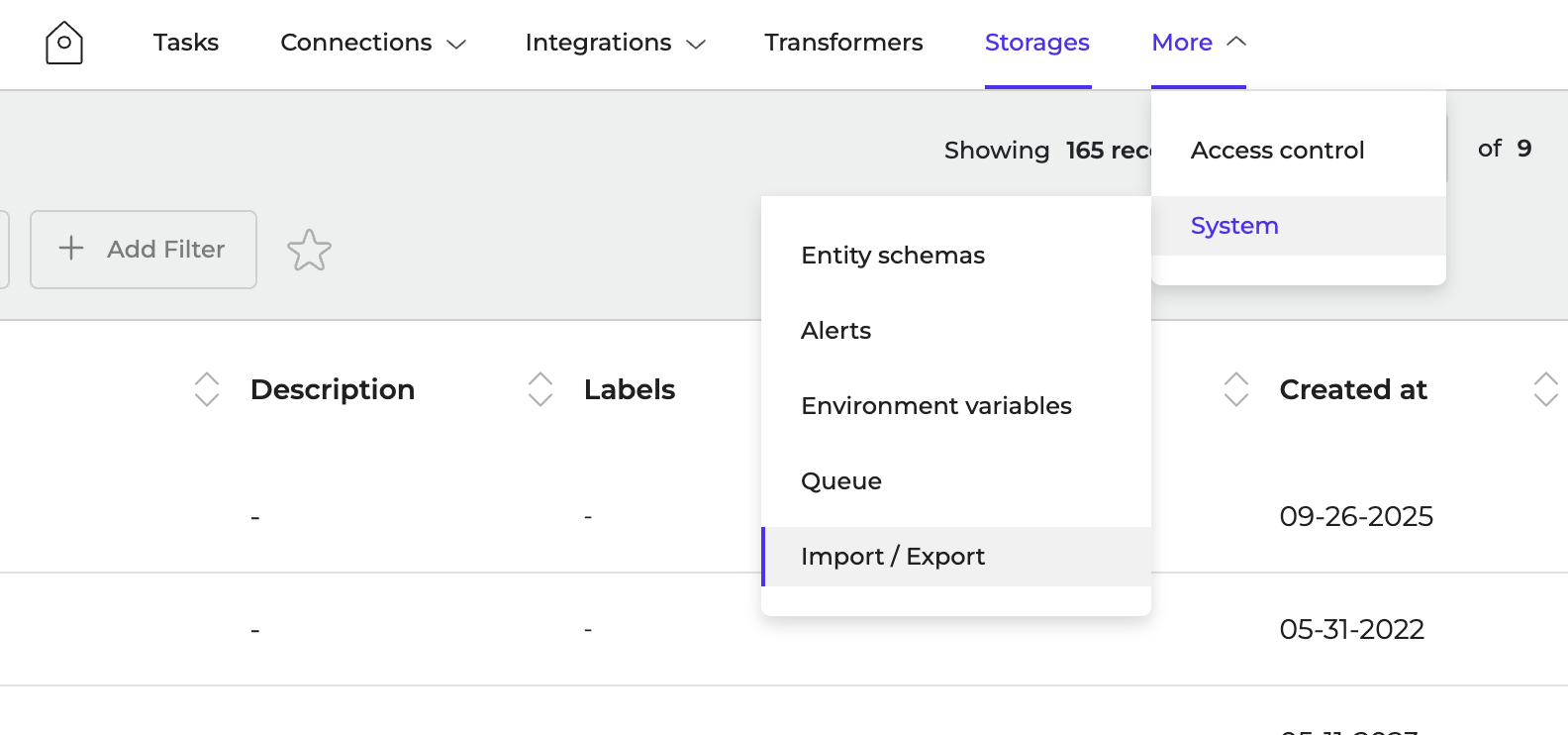
2. Navigate to **More > System > Import/Export**
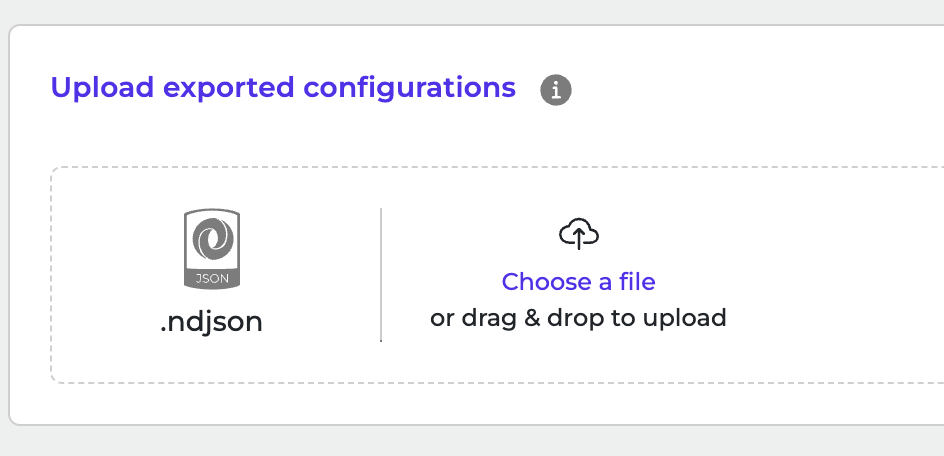
 3. Click to browse or drag and drop **ndjson** file to upload it.
 4. Click **Import Configurations** to start the import.