> ## Documentation Index
> Fetch the complete documentation index at: https://docs.alumio.com/llms.txt
> Use this file to discover all available pages before exploring further.
# Connector reference
> Connect Alumio to Magento 2 (Adobe Commerce): HTTP client, subscriber, and publisher.
## Extra information
System documentation: [Magento 2 API Reference](https://developer.adobe.com/commerce/webapi/rest/quick-reference/)
## Connector package documentation
### Table of Contents
* **1.** Setting up HTTP Client Adobe Commerce (Magento 2)
* **1.1** Steps
* **2.** Subscribing to entities from Adobe Commerce (Magento 2)
* **2.1** Steps
* **2.2** General concept
* **3.** Publishing entity to Adobe Commerce (Magento 2)
* **3.1** Steps
* **3.2** General concept
### 1. Setting up the HTTP Client Adobe Commerce (Magento 2)
**1.1 Steps**
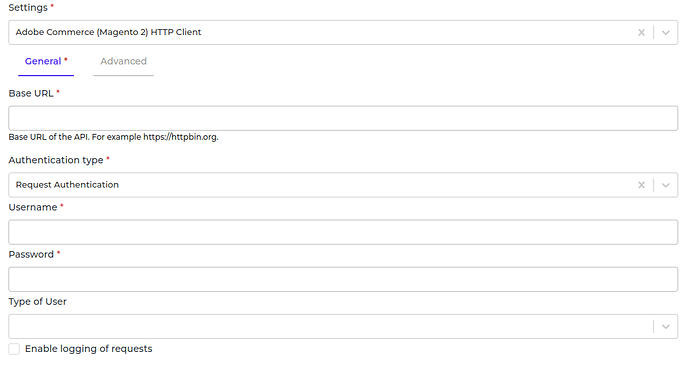
1. In the Alumio Dashboard go to Clients -> HTTP Clients. Create a new HTTP Client and select Adobe Commerce (Magento 2) Client as the HTTP Client.
2. Fill in the Base URL
3. Choose the authentication type. Currently, Alumio supports Request Authentication and Bearer Authentication for authentication type.
(For more information, see [Magento 2 Get Started](https://developer.adobe.com/commerce/webapi/get-started/))
4. Fill in the required fields based on the authentication type chosen.
5. You can optionally enable logging of request to get the log of the authentication.
6. Save the HTTP Client for use.
 ### 2. Subscribing to Entities from Adobe Commerce (Magento 2)
**2.1 Steps**
1. Go to Connections -> Incoming and create a new incoming configuration and select Adobe Commerce (Magento 2) Subscriber as the subscriber.
2. Select the entity you want to subscribe to from Magento 2.
3. Add any request parameters needed to subscribe to the entity.
4. You can optionally add a transformer to transform the request parameters into something you will request from Magento 2.
5. Select the Magento 2 HTTP Client to use.
6. You can also optionally enable pagination to allow Alumio fetches paginated entities.
**2.2 General Concept**
We follow Magento 2 documentation on building this connector, so you can easily use the connector based on [Magento 2 API Reference](https://developer.adobe.com/commerce/webapi/rest/quick-reference/).
**Entity**
This is the entity you want to subscribe to Magento 2. Please refer to the entities from [Magento 2 API Reference](https://developer.adobe.com/commerce/webapi/rest/quick-reference/) page.
**Request Parameters**
These are the parameters you can provide to get the needed entity based on the [Magento 2 API Reference](https://developer.adobe.com/commerce/webapi/rest/quick-reference/).
Refer to the example below on how to fill the path field when subscribing "Product" entity:
### 2. Subscribing to Entities from Adobe Commerce (Magento 2)
**2.1 Steps**
1. Go to Connections -> Incoming and create a new incoming configuration and select Adobe Commerce (Magento 2) Subscriber as the subscriber.
2. Select the entity you want to subscribe to from Magento 2.
3. Add any request parameters needed to subscribe to the entity.
4. You can optionally add a transformer to transform the request parameters into something you will request from Magento 2.
5. Select the Magento 2 HTTP Client to use.
6. You can also optionally enable pagination to allow Alumio fetches paginated entities.
**2.2 General Concept**
We follow Magento 2 documentation on building this connector, so you can easily use the connector based on [Magento 2 API Reference](https://developer.adobe.com/commerce/webapi/rest/quick-reference/).
**Entity**
This is the entity you want to subscribe to Magento 2. Please refer to the entities from [Magento 2 API Reference](https://developer.adobe.com/commerce/webapi/rest/quick-reference/) page.
**Request Parameters**
These are the parameters you can provide to get the needed entity based on the [Magento 2 API Reference](https://developer.adobe.com/commerce/webapi/rest/quick-reference/).
Refer to the example below on how to fill the path field when subscribing "Product" entity:
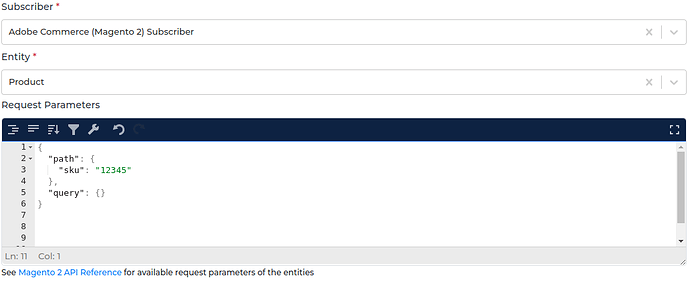
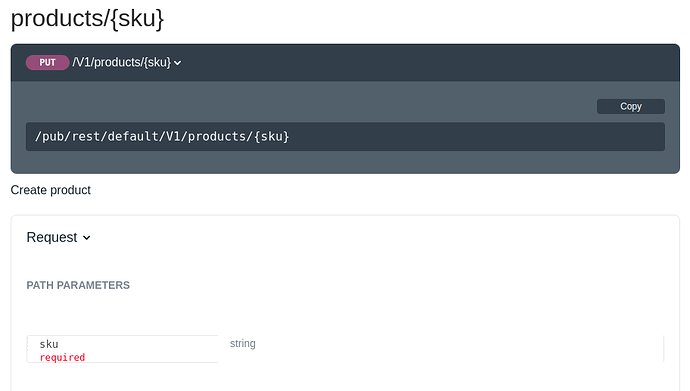 Based on the documentation, we can see that the endpoint requires "sku" as a path. That is why we set the "sku" inside the path key in the Request Parameters.
* "Path" is the path parameter of the URL. For example the \{id}.
* "Query" is a defined set of parameters attached to the end of a URL.\
Example: [www.url.com?type=true\&start=0](http://www.url.com?type=true\&start=0)
Alumio will then make a request to Magento 2 with the URL /pub/rest/default/v1/products/12345
**Input Transformer**
Any transformers set here will be executed before the Request Parameters are loaded. So, you can add any transformer to provide and manipulate the request parameters into anything you need, either as path parameters and/or as query parameters of an entity.
**HTTP Client**
The HTTP Client configuration you will use to access Adobe Commerce (Magento 2).
### 3. Publishing Entity to Adobe Commerce (Magento 2)
**3.1 Steps**
1. Go to Connections -> Outgoing, create a new outgoing configuration, and select Adobe Commerce (Magento 2) Publisher as the publisher.
2. Select the action that you want the publisher to perform with the data.
3. Select the Magento 2 entity you want the data to be published to.
4. You can optionally add any path data to the request on the key path.
5. You can optionally add any query data to the request on the key query.
6. You can optionally add any payload data to the request on the key payload.
7. Select the HTTP Client to use.
**3.2 General Concept**
Like the subscriber, the publisher has similar methods on how to use it. The difference is the payload that will be submitted by the publisher originating from the data (from routes, from transformers in outgoing configuration), though you can also add or modify payload using the Request Transformer.
**Action**
Currently, we support Create (HTTP POST method), Update (HTTP PUT method), and Delete (HTTP DELETE method) on submitting data to Magento 2.
**Entity**
We support publishing to most Magento 2 endpoints.
Please refer to [Magento 2 API Reference](https://developer.adobe.com/commerce/webapi/rest/quick-reference/) page.
For example, we want to delete a product. Please select “Delete” as the Action and “Product” as the entity of the publisher.
Based on the documentation, we can see that the endpoint requires "sku" as a path. That is why we set the "sku" inside the path key in the Request Parameters.
* "Path" is the path parameter of the URL. For example the \{id}.
* "Query" is a defined set of parameters attached to the end of a URL.\
Example: [www.url.com?type=true\&start=0](http://www.url.com?type=true\&start=0)
Alumio will then make a request to Magento 2 with the URL /pub/rest/default/v1/products/12345
**Input Transformer**
Any transformers set here will be executed before the Request Parameters are loaded. So, you can add any transformer to provide and manipulate the request parameters into anything you need, either as path parameters and/or as query parameters of an entity.
**HTTP Client**
The HTTP Client configuration you will use to access Adobe Commerce (Magento 2).
### 3. Publishing Entity to Adobe Commerce (Magento 2)
**3.1 Steps**
1. Go to Connections -> Outgoing, create a new outgoing configuration, and select Adobe Commerce (Magento 2) Publisher as the publisher.
2. Select the action that you want the publisher to perform with the data.
3. Select the Magento 2 entity you want the data to be published to.
4. You can optionally add any path data to the request on the key path.
5. You can optionally add any query data to the request on the key query.
6. You can optionally add any payload data to the request on the key payload.
7. Select the HTTP Client to use.
**3.2 General Concept**
Like the subscriber, the publisher has similar methods on how to use it. The difference is the payload that will be submitted by the publisher originating from the data (from routes, from transformers in outgoing configuration), though you can also add or modify payload using the Request Transformer.
**Action**
Currently, we support Create (HTTP POST method), Update (HTTP PUT method), and Delete (HTTP DELETE method) on submitting data to Magento 2.
**Entity**
We support publishing to most Magento 2 endpoints.
Please refer to [Magento 2 API Reference](https://developer.adobe.com/commerce/webapi/rest/quick-reference/) page.
For example, we want to delete a product. Please select “Delete” as the Action and “Product” as the entity of the publisher.
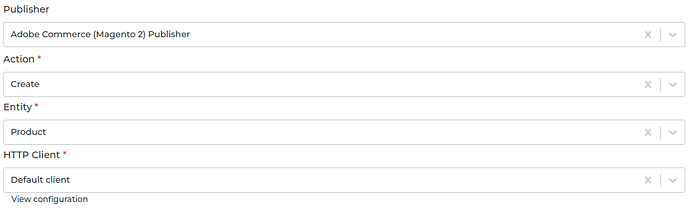
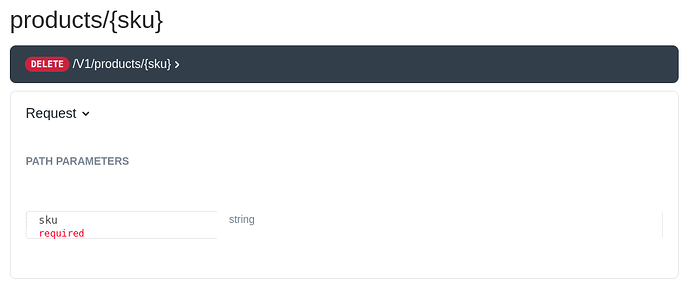 Based on the documentation, we can see that the endpoint requires "sku" as a path. That is why we set the "sku" inside the path key in the data.
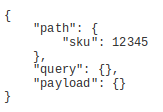 Alumio will send an API request to Magento 2 with URL /pub/rest/default/v1/products/12345.
* "Path" is the path parameter of the URL. For example the \{id}.
* Query is a defined set of parameters attached to the end of a URL.\
Example: [www.url.com?type=true\&start=0](http://www.url.com?type=true\&start=0)
* Payload is the data contained within a request.
**HTTP Client**
The HTTP Client configuration you will use to access Adobe Commerce (Magento 2).
Alumio will send an API request to Magento 2 with URL /pub/rest/default/v1/products/12345.
* "Path" is the path parameter of the URL. For example the \{id}.
* Query is a defined set of parameters attached to the end of a URL.\
Example: [www.url.com?type=true\&start=0](http://www.url.com?type=true\&start=0)
* Payload is the data contained within a request.
**HTTP Client**
The HTTP Client configuration you will use to access Adobe Commerce (Magento 2).