> ## Documentation Index
> Fetch the complete documentation index at: https://docs.alumio.com/llms.txt
> Use this file to discover all available pages before exploring further.
# Connection guide
> Guide: connect Alumio to Magento 2 using bearer-token or request authentication.
### **Table Of Contents**
* Introduction
* Step 1: Create an HTTP Client
* Step 1a: Setting the basics
* Step 1b.1: Setting up authentication: Bearer token authentication
* Step 1b.2: Setting up authentication: Request authentication
* Step 2: Interacting with the HTTP client
* Step 2a: Creating an incoming configuration
* Step 2b: Creating an outgoing configuration
### **Introduction**
Magento 2 is an e-commerce software solution that is used to sell products for both B2C and B2B customers all around the world.
When connecting with the Magento 2 API you are required to provide some form of authentication. This can either be:
* (static) API key authentication
* (dynamic) token-based authentication
Alumio offers you the ability to provide these authentications to a web service when making requests, this is done through *HTTP Authentications*.
For this guide, we will explain to you how to connect Alumio to Magento 2.
### **Step 1: Create an HTTP Client**
This section will explain how to set up an *HTTP Client* that can be used to consume one or more endpoints of Magento 2.
#### **Step 1a: Setting the basics**
To understand how to create an HTTP client you may follow the steps outlined within the following article: [Connecting to a REST API](https://forum.alumio.com/t/connecting-to-a-rest-api/216).
You will at least need the following three plugins:
* **Add base URI to requests**
* **Log requests**
* Formatter: *Long*
* **Add content-type headers to requests**
Other plugins may be added as you see fit.
#### **Step 1b.1: Setting up authentication: Bearer token authentication**
The most simple way to authenticate to Magento 2 is through a bearer token, as this contains a static API token that only has to be set up once.
To achieve this way of authentication you need to follow these steps:
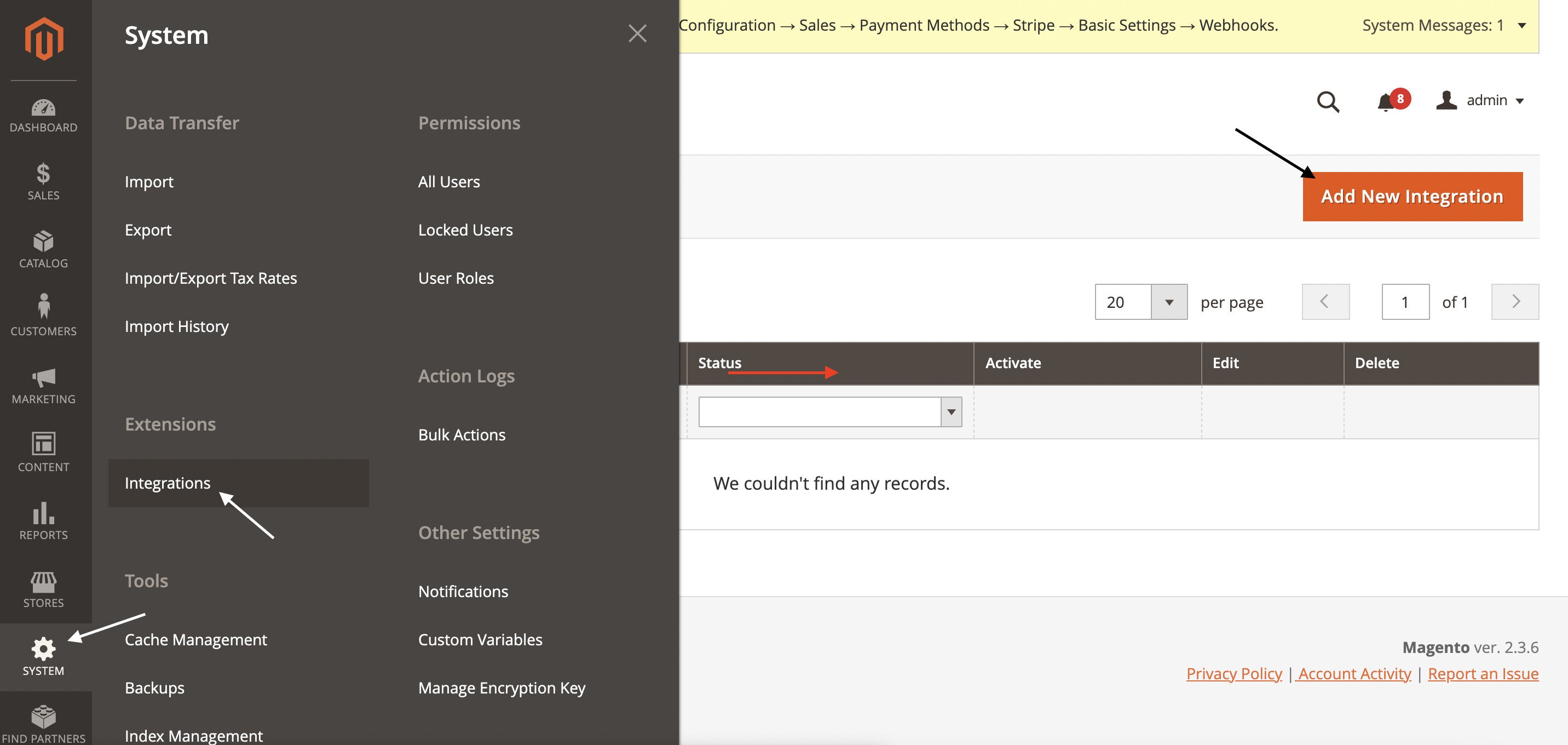
* Within Magento 2, navigate to *System -> Extensions -> Integrations*
* Click on the upper-right orange button: *Add New Integration*
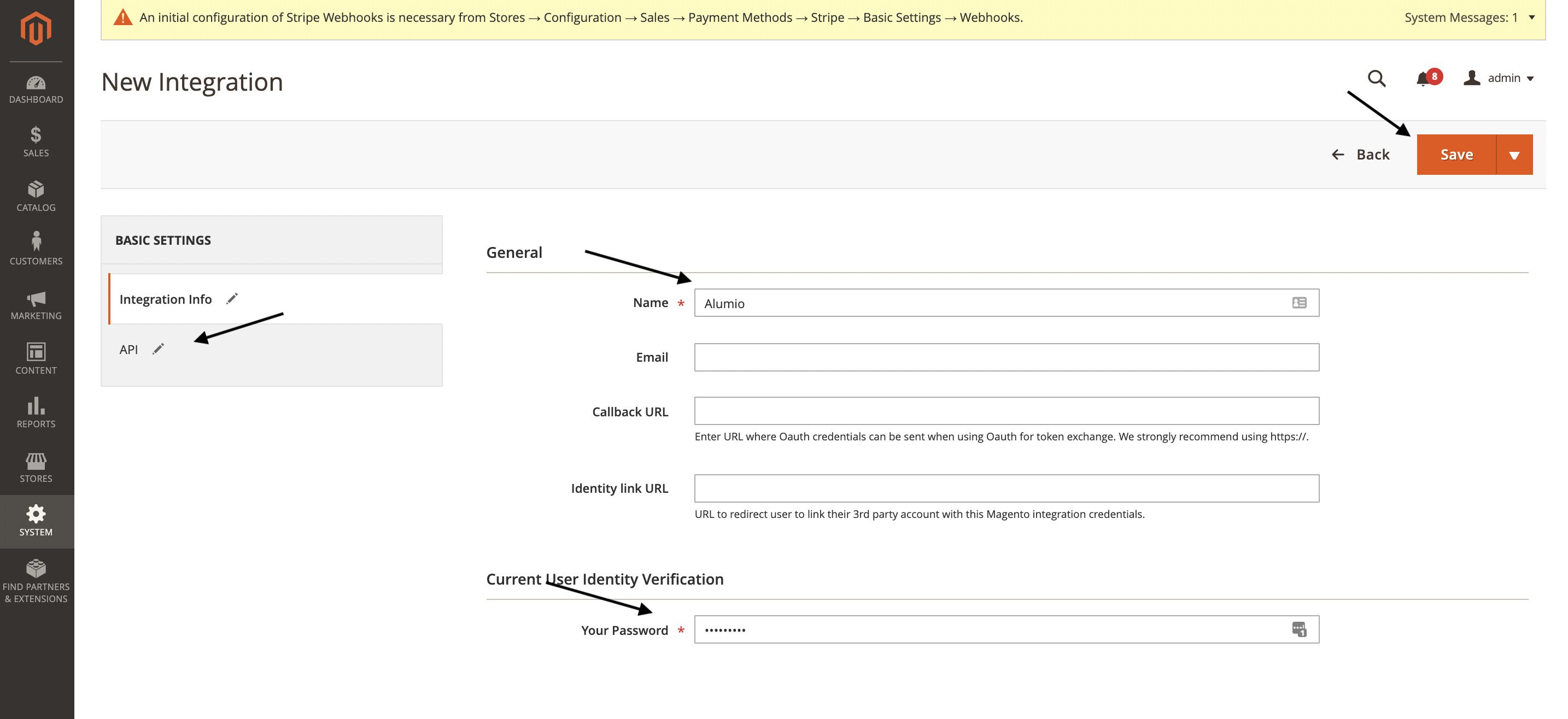
 * Start by filling out the *name* for the integration, i.e. *Alumio*, and *password*
* Go to the API tab and assign all relevant APIs
* Hit *save*
* Start by filling out the *name* for the integration, i.e. *Alumio*, and *password*
* Go to the API tab and assign all relevant APIs
* Hit *save*
 * Go back to the *Integrations* overview page hit *Activate*
* On the pop-up press *Allow*
* You will now be given 4 tokens. Take note of the *Access token* and hit *Done*
*
* Go back to the *Integrations* overview page hit *Activate*
* On the pop-up press *Allow*
* You will now be given 4 tokens. Take note of the *Access token* and hit *Done*
* *
* Within the HTTP client, hit *Add new HTTP Authentication*
* Select *Bearer token authentication*
* Paste the *Access token* within the *Token* field within Alumio
* Alternatively, you may set up a separate *HTTP Authentication* configuration to hold this information and use the reference here.
*
* Within the HTTP client, hit *Add new HTTP Authentication*
* Select *Bearer token authentication*
* Paste the *Access token* within the *Token* field within Alumio
* Alternatively, you may set up a separate *HTTP Authentication* configuration to hold this information and use the reference here.
 #### **Step 1b.2: Setting up authentication: Request authentication**
In case you do not want to work with a static API token, you may opt to go with the token-based authentication functionality offered by Magento 2. This requires you to first fire a request using user credentials which will return an access token that can be used in subsequent requests. Currently, the *Request authentication* method does not cache the token generated, so it is regenerated every time an API call is being done through the HTTP client.
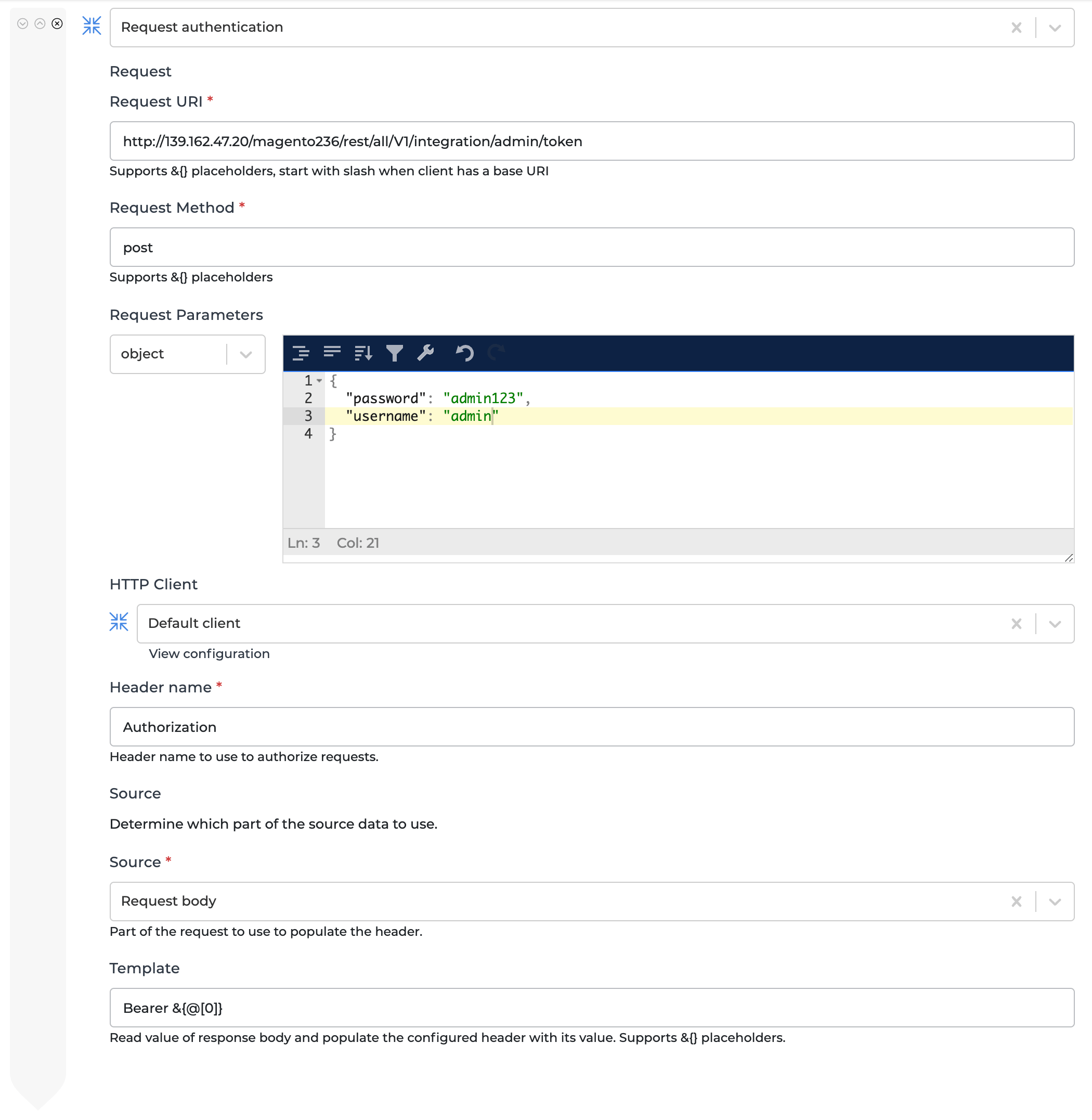
* Within the HTTP client, hit *Add new HTTP Authentication*
* Select Request *authentication*
* The *Request URI* field should contain the URL to the authentication endpoint
* The *Request Method* needs to be *post* for Magento 2
* The *Request Parameters* should be a *object* and contain the *username* and *password* of the user you want to use to authenticate.
* *HTTP Client* should be *Default client*
* A seperate *HTTP Client* may be needed when there is additional authentication required for the authentication endpoint configured within the *Request URI*
* The *Header* name we want to add to subsequent requests is *Authorization*
* The *Source* should be from the *Request body* as Magento 2 returns the generated authentication token within the body of the response
* The *Template* determines what value the header will be populated with. In our case this should be *Bearer &\{@\[0]}*.
* *Bearer -* This part is static as it determines we want to authorize ourselves using a Bearer token (similarly to the bearer token authentication, but this uses a dynamic token opposed to a static one).
* *&\{@\[0]} -* The *&\{}* part indicates a placeholder, or a variable, and indicates to Alumio we want to take data of the response of the authentication call. *@* indicates we want to take the entire response. Magento 2 returns a string that contains the token. Alumio interprets this as an array so we use *\[0]* to select this first and only item.
#### **Step 1b.2: Setting up authentication: Request authentication**
In case you do not want to work with a static API token, you may opt to go with the token-based authentication functionality offered by Magento 2. This requires you to first fire a request using user credentials which will return an access token that can be used in subsequent requests. Currently, the *Request authentication* method does not cache the token generated, so it is regenerated every time an API call is being done through the HTTP client.
* Within the HTTP client, hit *Add new HTTP Authentication*
* Select Request *authentication*
* The *Request URI* field should contain the URL to the authentication endpoint
* The *Request Method* needs to be *post* for Magento 2
* The *Request Parameters* should be a *object* and contain the *username* and *password* of the user you want to use to authenticate.
* *HTTP Client* should be *Default client*
* A seperate *HTTP Client* may be needed when there is additional authentication required for the authentication endpoint configured within the *Request URI*
* The *Header* name we want to add to subsequent requests is *Authorization*
* The *Source* should be from the *Request body* as Magento 2 returns the generated authentication token within the body of the response
* The *Template* determines what value the header will be populated with. In our case this should be *Bearer &\{@\[0]}*.
* *Bearer -* This part is static as it determines we want to authorize ourselves using a Bearer token (similarly to the bearer token authentication, but this uses a dynamic token opposed to a static one).
* *&\{@\[0]} -* The *&\{}* part indicates a placeholder, or a variable, and indicates to Alumio we want to take data of the response of the authentication call. *@* indicates we want to take the entire response. Magento 2 returns a string that contains the token. Alumio interprets this as an array so we use *\[0]* to select this first and only item.
 ### **Step 2: Interacting with the HTTP client**
Now that you have set up the HTTP client, you can interact with it through an incoming or outgoing configuration. Incoming configurations allow you to read data from Magento 2, while an outgoing configuration will enable you to send data to a Magento 2.
#### **Step 2a: Creating an incoming configuration**
[Click here to review the general guide on incoming configurations in order to get familiar with their purpose.](https://forum.alumio.com/t/outgoing-in-alumio/175)
Using the HTTP subscriber: [Connecting to a REST API](https://forum.alumio.com/t/connecting-to-a-rest-api/216)
#### **Step 2b: Creating an outgoing configuration**
[Click here to review the general guide on outgoing configurations in order to get familiar with their purpose.](https://forum.alumio.com/t/outgoing-in-alumio/175)
Using the (Chain) HTTP publisher: [Connecting to a REST API](https://forum.alumio.com/t/connecting-to-a-rest-api/216)
### **Step 2: Interacting with the HTTP client**
Now that you have set up the HTTP client, you can interact with it through an incoming or outgoing configuration. Incoming configurations allow you to read data from Magento 2, while an outgoing configuration will enable you to send data to a Magento 2.
#### **Step 2a: Creating an incoming configuration**
[Click here to review the general guide on incoming configurations in order to get familiar with their purpose.](https://forum.alumio.com/t/outgoing-in-alumio/175)
Using the HTTP subscriber: [Connecting to a REST API](https://forum.alumio.com/t/connecting-to-a-rest-api/216)
#### **Step 2b: Creating an outgoing configuration**
[Click here to review the general guide on outgoing configurations in order to get familiar with their purpose.](https://forum.alumio.com/t/outgoing-in-alumio/175)
Using the (Chain) HTTP publisher: [Connecting to a REST API](https://forum.alumio.com/t/connecting-to-a-rest-api/216)